Note
Access to this page requires authorization. You can try signing in or changing directories.
Access to this page requires authorization. You can try changing directories.
An AI data schema lets semantic model authors define a focused subset of the model's schema for Copilot to prioritize when it generates responses. By selecting the most relevant fields, you guide Copilot to provide answers that are more aligned with user queries. A streamlined schema reduces ambiguity, which helps Copilot deliver clearer and more accurate responses.
When you set an AI data schema for a model, Copilot uses the selected fields when it responds to data-related questions. It produces more accurate responses by using the correct fields without needing clarification from the end user.
Note
You can author Prep data for AI features in both Power BI Desktop and the Power BI service. Users can consume these features anywhere Copilot in Power BI is available.
Prerequisites
- You have a Power BI semantic model in Power BI Desktop or the Power BI service.
- Power BI Q&A must be turned on for your model. If Q&A isn't enabled, the tabs in Prep data for AI are disabled.
Set an AI data schema
To set an AI data schema, follow these steps:
Select the Prep data for AI button on the Home ribbon in Power BI Desktop. In the Power BI service, you can select the button from the ribbon on the semantic model page.
Go to the Simplify data schema tab.
Select fields that you want Copilot to use. Prioritize clean columns with limited ambiguity and remove any fields that could be confusing for Copilot.
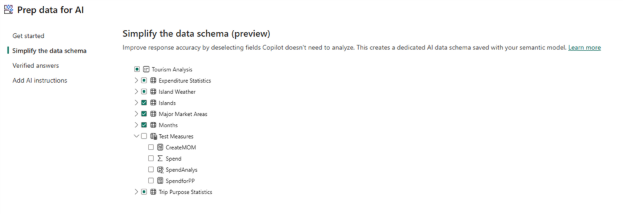
Select Apply to save your changes.
After you close the dialog, your changes are saved to your model. Copilot now uses your AI data schema when it answers questions from users.
You can update your AI data schema at any time by reopening the Prep data for AI dialog.
Test your AI data schema in Power BI Desktop
To verify that Copilot uses your AI data schema, follow these steps:
- Open the Copilot report pane in Power BI Desktop.
- Select skill picker, and then select Answer data question.
- Ask a data question by using a field that isn't in the AI data schema. Copilot shouldn't return an answer.
- Ask a data question by using a field that is in the AI data schema. Copilot should return an answer.
- Publish your report to the Power BI service so that consumers can use the AI data schema.
Consume the AI data schema in the Power BI service
After you publish your report to the Power BI service, or after you make changes by using the Prep data for AI feature in the Power BI service, users can use the AI data schema everywhere that semantic model interacts with Copilot. When users ask a data question, Copilot answers by using the AI data schema.
Note
Each time you edit the AI data schema in the Prep data for AI dialog, you need to refresh the Copilot pane by closing and reopening it.
Considerations and limitations
- Consumers of your semantic model can't see the AI data schema set on the model.
- The AI data schema only applies to Copilot capabilities that reference the model schema to answer questions.
- Copilot capabilities that don't reference the model schema aren't affected by the AI data schema. For example, when Copilot summarizes the report or answers a question directly from the report page, it doesn't use the AI data schema.
- When you use Copilot to create a report page, search for data, or use a Data Analysis Expressions (DAX) query, Copilot requires the entire semantic model. It doesn't consider the AI data schema.
- All fields that are available in the semantic model appear in the AI data schema selection pane regardless of how visibility is set on the semantic model. Fields that are hidden in the semantic model are automatically excluded in the initial AI data schema when you set it up for the first time.
- You can select hierarchies as part of the AI data schema, but not individual hierarchy components. Select individual fields as part of the table as required. If the AI data schema includes a hierarchy, but you don't select a column of the hierarchy as part of the table, the Copilot schema still includes the column.
- Copilot still respects relationships regardless of the AI data schema. For example, if two fields are related and one of them is included in the AI data schema, Copilot can still return answers that require that relationship.
- End users can't disable the AI data schema.
For a comprehensive list of considerations and limitations, see Prepare your data for AI.