Note
Access to this page requires authorization. You can try signing in or changing directories.
Access to this page requires authorization. You can try changing directories.
Power BI Report Server requires a product key for production installation. Where you find that key depends on your license type: Power BI Premium, Fabric F64+, or SQL Server (SQL Server 2025 Enterprise and Standard editions; SQL Server 2022 and earlier Enterprise Edition).
Note
You can't use a developer product key in a production environment.
Power BI Premium
Only users with Fabric admin or Power BI Premium capacity admin privileges can access the key.
In the admin portal, go to the Premium Settings tab.
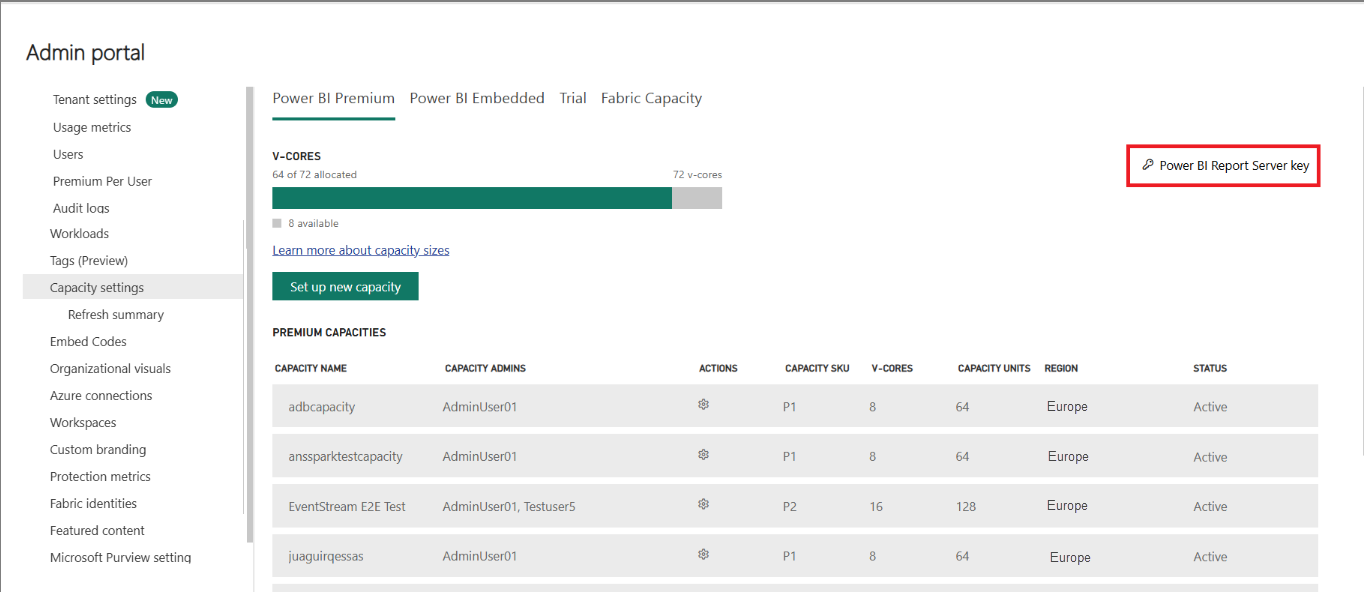
Select Power BI Report Server key to open a dialog containing your product key.
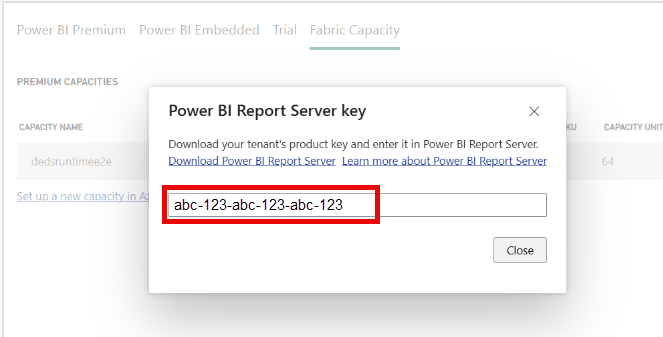
Copy the key and use it with the installation.
Fabric F64+
Only users with Fabric admin or Power BI Premium capacity admin privileges can access the key.
In the admin portal, go to the Capacity Settings tab.
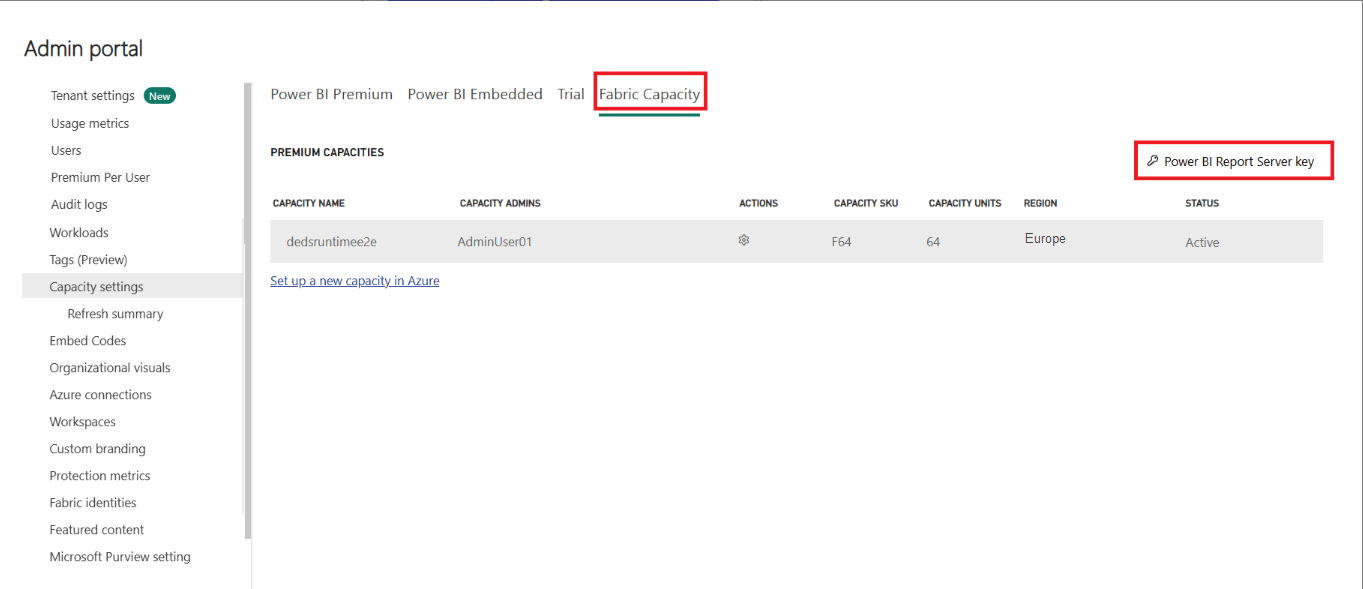
Select Power BI Report Server key to open a dialog containing your product key.
Copy the key and use it with the installation.
SQL Server
How you get your product key depends on your SQL Server version. SQL Server 2025 customers use their SQL Server product key directly - no separate key is issued. For SQL Server 2022 and earlier, the Microsoft 365 admin center or Visual Studio Subscriptions provides a separate Power BI Report Server key, depending on your license type.
Note
If you purchased your SQL Server Enterprise license from a Cloud Solution Partner (CSP), contact the partner to get access to the Power BI Report Server key.
For full licensing terms that govern use of Power BI Report Server, see the "Use of Power BI Report Server" section in SQL Server licensing.
SQL Server 2025 Enterprise and Standard editions
Starting with SQL Server 2025, Power BI Report Server is the default reporting solution and is bundled with all paid SQL Server licenses. There's no separate Power BI Report Server product key. Use the same product key you received with your SQL Server 2025 license — this applies to both Enterprise and Standard editions.
The installation wizard embeds the SQL Server product key and automatically detects it during installation. If you need to locate the key manually, find it in the Microsoft 365 admin center:
- Go to Billing > Your products, and then select the Volume licensing tab.
- In the Products and services section, select View downloads and keys.
- Find SQL Server in the product list, and then select the View downloads icon.
- In the product details panel, select one or more Components, and then select Download.
- On your computer, open the downloaded file, and then open the x64 folder.
- Open the DefaultSetup.ini file. Your SQL Server product key is displayed in this file.
SQL Server 2022 and earlier Enterprise Edition
For SQL Server 2022 and earlier versions, get your Power BI Report Server key through the Microsoft 365 admin center (for Software Assurance customers) or Visual Studio Subscriptions (for Enterprise Subscription customers).
Microsoft 365 admin center
If you have a SQL Server Enterprise Software Assurance agreement for SQL Server 2022 and earlier versions, get your product key from the Microsoft 365 admin center:
Go to Billing > Your products, and then select the Volume licensing tab.
Select View downloads and keys.
Find SQL Server in the list, and then select View downloads.
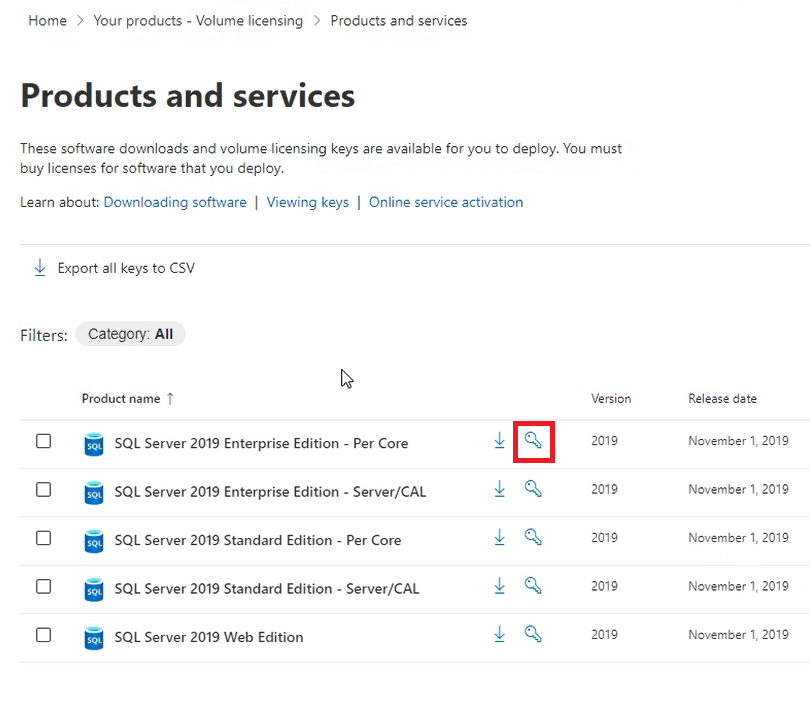
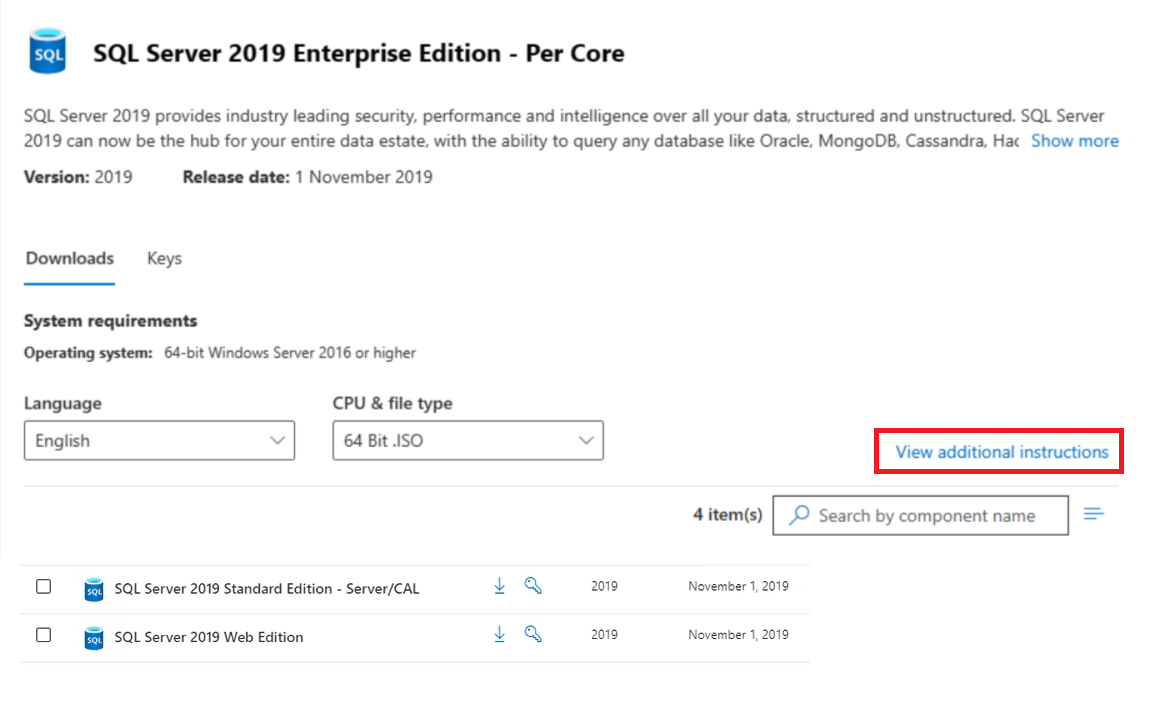
Under Downloads, select the View additional instructions link.
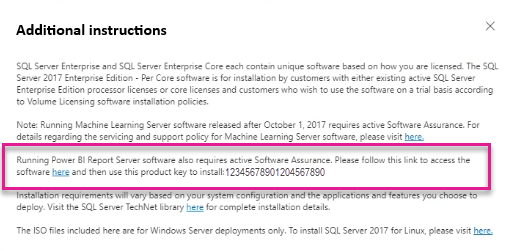
Copy the Power BI Report Server product key displayed in the Additional instructions section.
Visual Studio Subscriptions
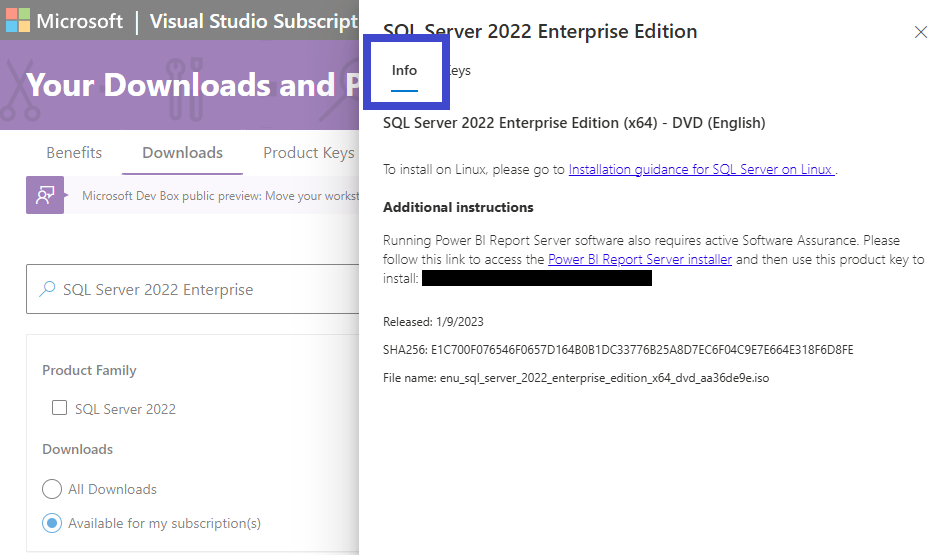
If you have a SQL Server Enterprise subscription, find the product key under Visual Studio Subscriptions. Find your product key by choosing a SQL Server version and then clicking the info link.
Select the info shortcut next to the version of the software that you have.
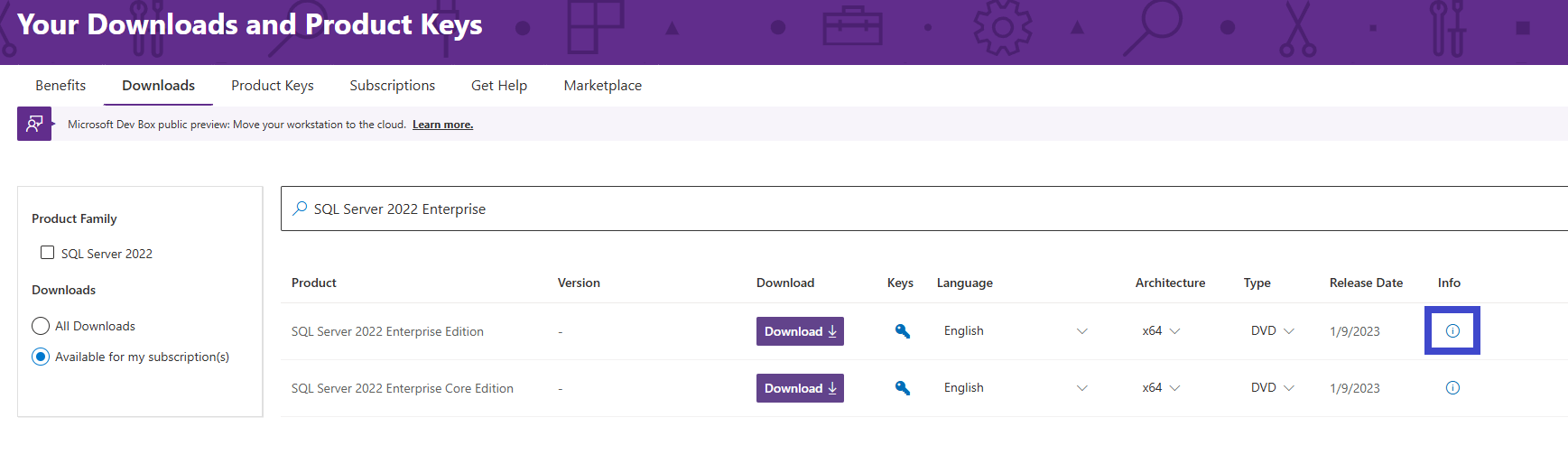
Copy the Power BI Report Server product key displayed with your license information.