Note
Access to this page requires authorization. You can try signing in or changing directories.
Access to this page requires authorization. You can try changing directories.
Microsoft Defender for Cloud integrates with Endor Labs to help identify and mitigate vulnerabilities in partner dependencies. This integration helps streamline discovery and remediation.
This article explains the benefits and steps to connect Endor Labs to Defender for Cloud. After setup, security teams get better visibility and control over threats from code to runtime.
Prerequisites
You need a Microsoft Azure subscription. If you don't have an Azure subscription, you can sign up for a free subscription.
You must enable Microsoft Defender for Cloud on your Azure subscription.
You must enable Defender Cloud Security Posture Management (CSPM) on your Azure subscription.
Connect your DevOps environments to Defender for Cloud:
Have an Endor Labs account. For more information, see Endor Labs.
Have an Endor Labs Application Programming Interface (API) key with read-only permissions. For setup instructions, see Creating API keys in Endor Labs. We recommend an expiration date of 180 days.
You must have the appropriate role to:
- Create DevOps connectors: Security Admin or Contributor assigned at the subscription level through Azure role-based-access control (RBAC).
- Create the Endor Labs connector: Security Administrator (or higher) assigned at the tenant level through Microsoft Entra. Permissions can be granted through Privileged Identity Management (PIM). For details, see Configure PIM.
- View reachability analysis findings: Security Admin or Security Reader assigned at the subscription level through Azure role-based-access control (RBAC) on the subscription that hosts the DevOps connector.
You can only have one connector to Endor Labs per tenant.
Findings from Endor Labs are only shown if the corresponding repository is also connected to Defender for Cloud.
Connect Endor Labs
To connect your Endor Labs account to Defender for Cloud:
Sign in to the Azure portal at portal.azure.com.
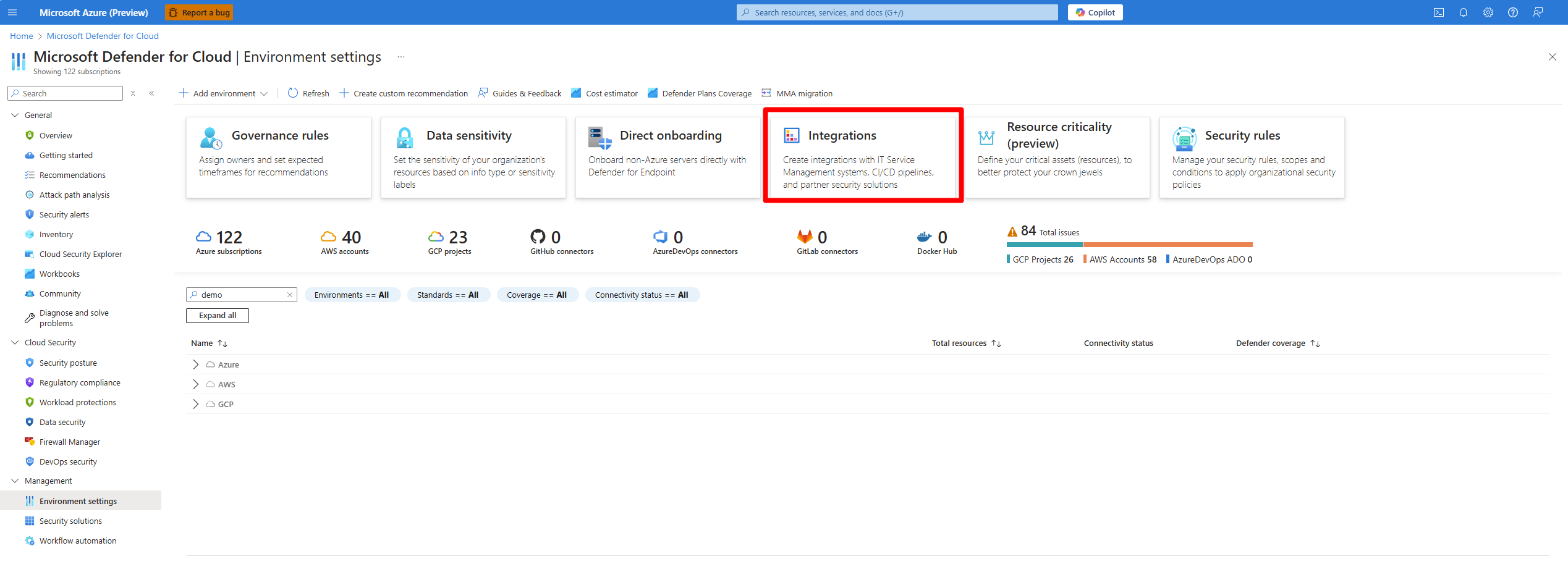
Navigate to Microsoft Defender for Cloud > Environment settings.
Select Integrations.
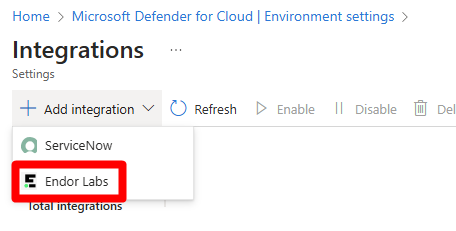
Select Add integration > Endor Labs.
Note
The option to add the Endor Labs integration isn't available if you don't have the appropriate permissions, or if you already have an existing connector to Endor Labs.
Enter the Endor Labs Namespace, API key ID, and API secret.
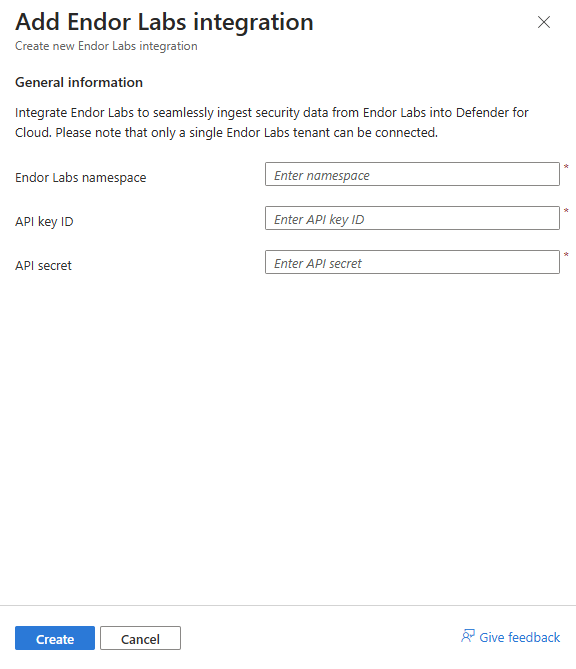
Select Create.
A notice appears after the integration is successfully created. Defender for Cloud scans repositories that are connected to Endor Labs and populates security findings with results after six hours.