Note
Access to this page requires authorization. You can try signing in or changing directories.
Access to this page requires authorization. You can try changing directories.
Azure AI Search offers two pricing models that handle capacity differently:
Dedicated: Plan capacity by sizing replicas and partitions and selecting a service tier.
- Pre-provision capacity directly by using replicas and partitions.
- Estimate required storage (partitions) and required throughput (replicas).
- Choose a service tier to provision the capacity needed based on expected peak demand.
- Once you configure capacity upfront, you pay an hourly rate measured by Search Units (SUs), regardless of usage.
Serverless (Preview): The service automatically manages capacity based on usage and service limits. You don't need to pre-provision capacity. Instead, optimize your workload efficiency to manage cost.
- Capacity automatically scales with demand (can scale to zero when idle).
- You're billed based on actual usage as measured by Compute Units (CUs) and storage.
- Rather than infrastructure, planning focuses on these cost drivers: Query patterns, Index size and growth, and Data ingestion patterns. See Optimize cost for the Serverless model.
| Dimension | Dedicated | Serverless |
|---|---|---|
| Capacity model | Provisioned (replicas × partitions) | Consumption-based |
| Scaling | Manual | Automatic |
| User control | Explicit (configure replicas and partitions) | Indirect (influenced by workload characteristics) |
| Billing | Fixed hourly rate per Search Units (SUs) | Consumption-based payments for Compute Units (CUs) and storage |
| Idle cost | Always incurred (minimum provisioned capacity) | Scales to zero when idle |
| Optimization focus | Infrastructure sizing | Workload efficiency |
| Best for | Predictable, steady workloads | Variable, bursty, or multitenant workloads, including agent-driven scenarios |
| Capacity planning approach | Size and scale infrastructure (replicas and partitions) | Optimize workload efficiency and usage patterns |
| Inefficiency impact | Latency and scaling pressure | Direct cost increase |
Important
The Serverless Developer tier is currently in preview. This preview is provided without a service-level agreement and isn't recommended for production workloads. Certain features might not be supported or might have constrained capabilities. For more information, see Supplemental Terms of Use for Microsoft Azure Previews.
Billing for the Serverless Developer tier isn't yet enabled during the preview. Estimated costs for your usage are available in the Azure portal and telemetry, but that usage won't appear on your Azure bill during this initial period. Microsoft will provide at least 30 days notice before billing begins. The deferral of billing during this preview is temporary. Serverless Developer is a paid tier and you'll be responsible for any charges accrued once billing begins.
The Serverless Developer tier doesn't support migration to or from other pricing tiers and some features available on other tiers aren't supported during Public Preview. Service limits, supported features, and pricing details may change before general availability.
The preview is currently only available in West Central US, Switzerland North, and Japan East.
To learn more, see how to:
- Plan and manage costs
- Choose a pricing model and service tier
- Optimize costs with the Serverless pricing model
Plan capacity for the Dedicated model
In the Dedicated model, you provision capacity by using Search Units (SU):
- Search unit (SU) = replicas × partitions
- Replica: Copies of the search engine. Provides query throughput and high availability.
- Partition: Units of storage. Provides storage and indexing throughput.
Each service starts with 1 replica × 1 partition (1 SU). You can add or remove replicas and partitions independently to accommodate fluctuating workloads. Adding capacity increases the cost of running a search service.
| Concept | Definition |
|---|---|
| Search unit | A single increment of total available capacity. A minimum of one search unit is required to run the service. Depending on your pricing tier, the maximum ranges from one to 36 units. The number of search units equals the number of replicas multiplied by the number of partitions: R × P = SU. Each service starts with one replica and one partition, which consumes one unit: 1 × 1 = 1. Adding a second replica consumes two units: 2 × 1 = 2. A search unit is also the billing unit for a search service. |
| Replica | Instances of the search service, used primarily to load balance query operations. Each replica hosts one copy of an index. If you allocate three replicas, you have three copies of an index available for servicing query requests. |
| Partition | Physical storage and I/O for read/write operations (for example, when rebuilding or refreshing an index). Each partition has a slice of the total index. If you allocate three partitions, your index is divided into thirds. |
Review the partitions and replicas table for possible combinations that stay under the 36 unit limit.
The physical characteristics of replicas and partitions, such as processing speed and disk IO, vary by service tier. On a standard search service, the replicas and partitions are faster and larger than those of a basic service.
When to add capacity for the Dedicated model
Consider adding replicas or partitions when:
- Query latency increases or service-level agreement criteria aren't met.
- The frequency of HTTP 503 (Service unavailable) errors increases.
- The frequency of HTTP 429 (Too many requests) errors increases, indicating request throttling.
- Large query volumes are expected.
- Indexing jobs are slow or falling behind.
- Storage or indexing throughput is insufficient.
Scaling guidance:
- Add replicas to increase query throughput and availability.
- Add partitions to increase storage and indexing performance.
- Query-heavy workloads typically require more replicas.
- Large indexes might require extra replicas to maintain performance.
Important
Scaling operations can take time to complete and increase cost. Always validate changes by using performance testing and pricing estimates.
The service tier you choose determines partition size and speed. Each tier is optimized around a set of characteristics that fit various scenarios. If you choose a higher-end tier, you might need fewer partitions than if you go with S1. One of the questions you need to answer through self-directed testing is whether a larger and more expensive partition yields better performance than two cheaper partitions on a service provisioned at a lower tier.
A single service must have sufficient resources to handle all workloads (indexing and queries). Neither workload runs in the background. You can schedule indexing for times when query requests are naturally less frequent, but the service doesn't otherwise prioritize one task over another. Additionally, a certain amount of redundancy smooths out query performance when services or nodes are updated internally.
As a general rule, search applications tend to need more replicas than partitions, particularly when the service operations are biased toward query workloads. Each replica is a copy of your index, so the service can load balance requests against multiple copies. Azure AI Search manages all load balancing and replication of an index. You can change the number of replicas allocated for your service at any time. You can allocate up to 12 replicas in a Standard search service and 3 replicas in a Basic search service. You can make replica allocation from either the Azure portal or one of the programmatic options.
Extra partitions are helpful for intensive indexing workloads. Extra partitions spread read and write operations across a larger number of compute resources.
Finally, larger indexes take longer to query. As such, you might find that every incremental increase in partitions requires a smaller but proportional increase in replicas. The complexity of your queries and query volume factors into how quickly query execution is turned around.
For service limits and valid scaling ranges, see:
Note
Adding more replicas or partitions increases the cost of running the service, and can introduce slight variations in how results are ordered. Be sure to check the pricing calculator to understand the billing implications of adding more nodes. The partition and replica combinations table can help you cross-reference the number of search units required for a specific configuration. For more information on how extra replicas affect query processing, see Ordering results.
How to manage and adjust capacity
Changing capacity isn't instantaneous. Depending on data volume and operation type, scaling can take from minutes to several hours.
When scaling a search service, you can choose from the following tools and approaches:
Note
If your search service was created before April or May 2024, it might be eligible for a one-time upgrade to newer infrastructure with larger partition sizes at no extra cost. This upgrade can increase available storage per partition and reduce the number of partitions required for your workload. For more information, see Upgrade your search service.
To increase or decrease the capacity of your service, you have two options:
Add or remove partitions and replicas
Go to your search service in the Azure portal.
From the left pane, select Settings > Scale.
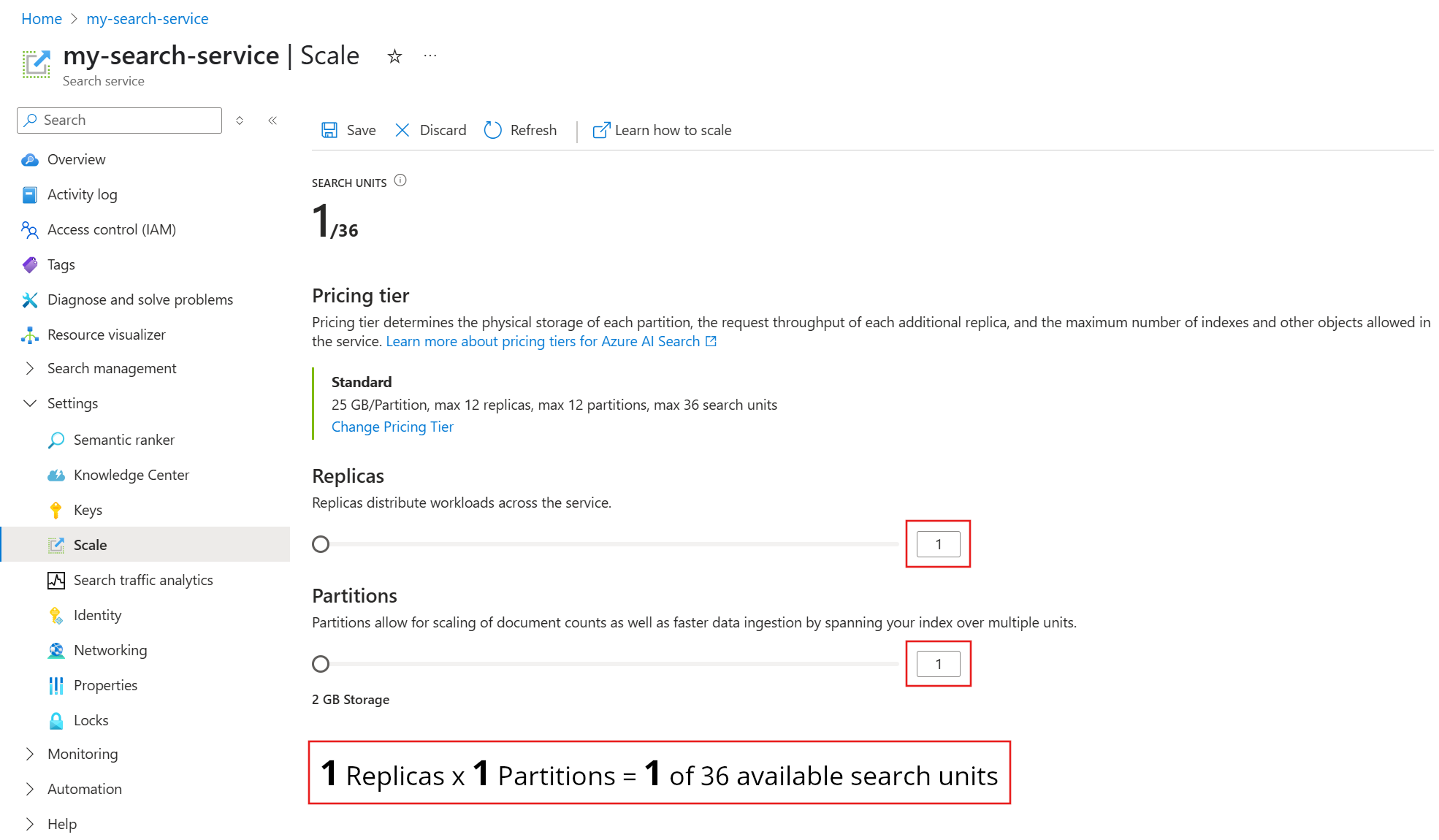
The following screenshot shows a Standard service provisioned with one replica and partition. The formula at the bottom indicates how many search units are being used (1). If the unit price was $100 (not a real price), the monthly cost of running this service would be $100 on average.
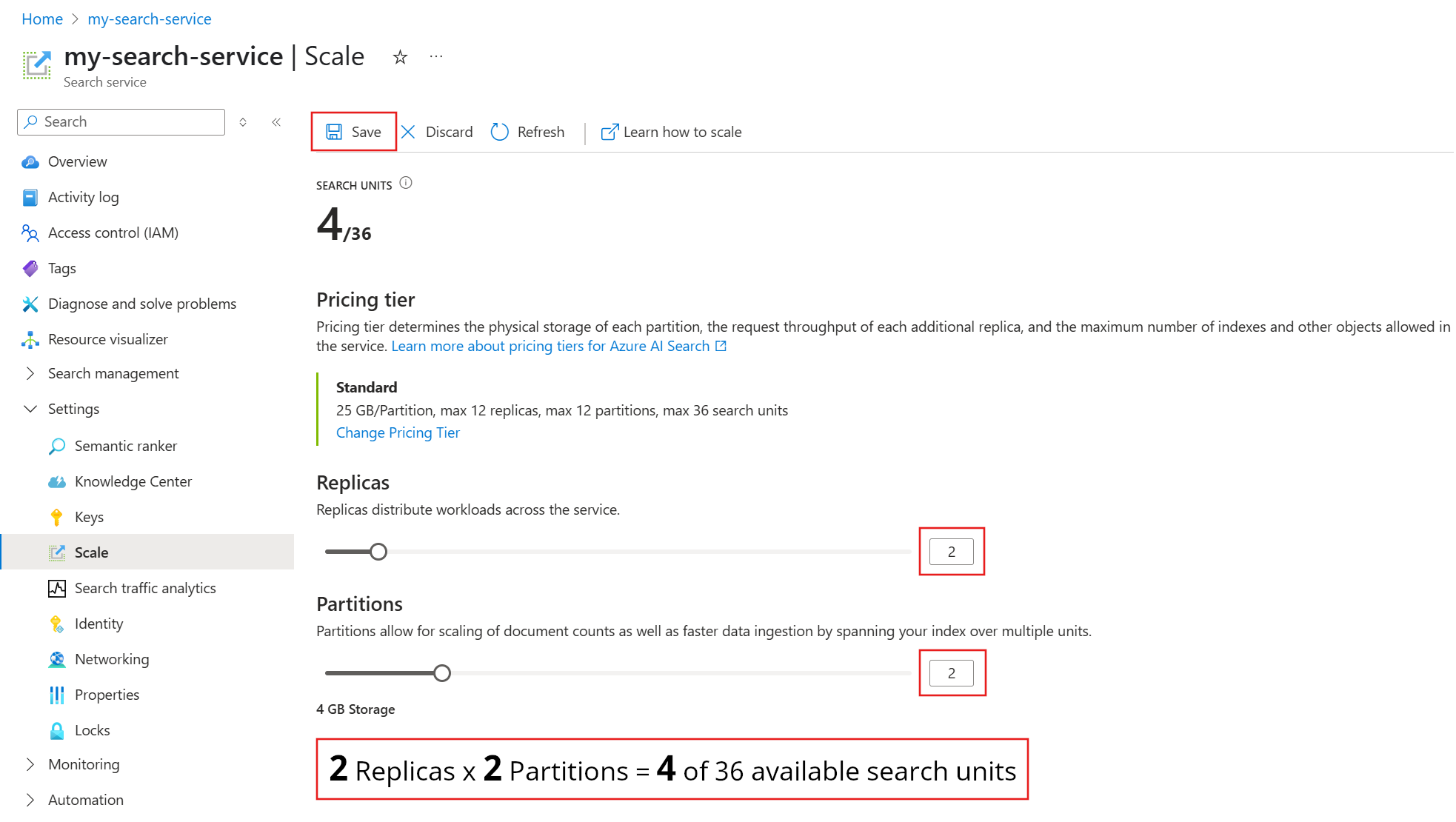
Use the slider to increase or decrease the number of partitions, and then select Save.
This example adds a second replica and partition. Notice the search unit count; it's now four because the billing formula is replicas multiplied by partitions (2 x 2). Doubling capacity more than doubles the cost of running the service. If the search unit cost was $100, the new monthly bill would now be $400.
For the current per unit costs of each tier, visit the pricing page.
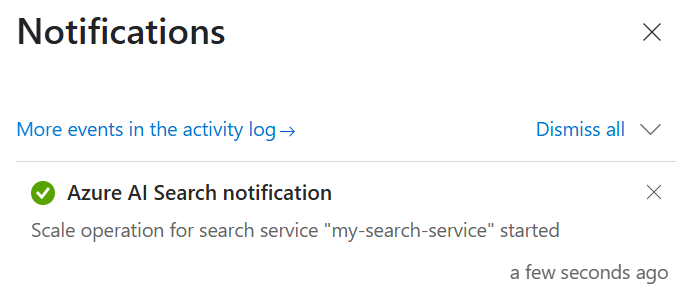
Check your notifications to confirm that the operation started.
This operation can take several hours to complete. It occurs in the background, so your search service remains fully operational and available for read and write operations.
You can't cancel the operation or monitor its progress. However, the following message displays while changes are underway.

Change your pricing tier
Note
The Azure portal and Services - Update (REST API) support changes between Basic and Standard (S1, S2, and S3) tiers. You can upgrade or downgrade tiers, provided your current service configuration doesn't exceed the limits of the target tier. Your region also can't have capacity constraints on the target tier.
Your pricing tier determines the maximum storage of your search service for the Dedicated pricing model. If you need more or less capacity, you can switch to a different pricing tier that accommodates your storage needs. (This applies only to the Dedicated pricing model tiers. The Serverless model Developer tier can't be changed once selected).
In addition to capacity, pricing tiers determine limits on indexes, indexers, and other search objects. Compare the service limits of your current tier and your desired tier before you proceed. Generally, switching to a higher tier increases your storage limit and vector limit, increases request throughput, and decreases latency, while switching to a lower tier has the opposite effect.
Switching to a higher pricing tier also increases the cost of running your search service. For more information, see the pricing page.
To change your pricing tier:
Go to your search service in the Azure portal.
From the left pane, select Settings > Scale.
Under your current tier, select Change Pricing Tier.
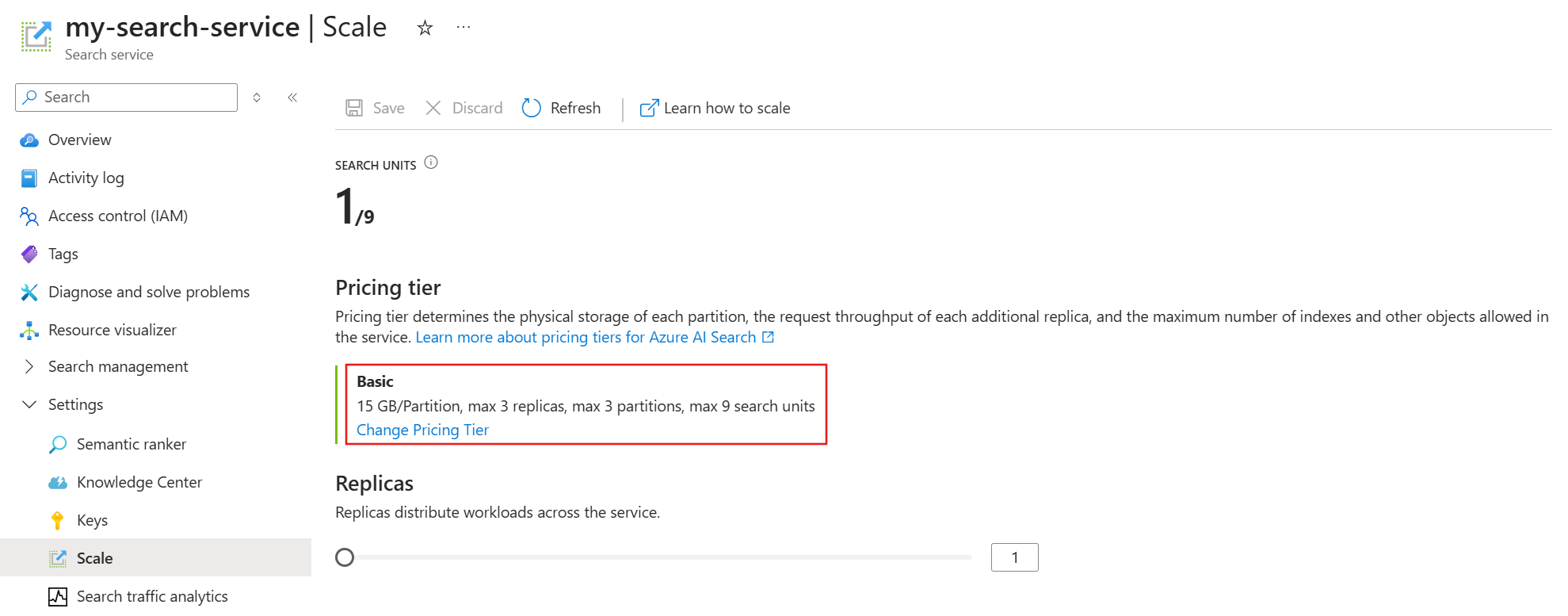
On the Select Pricing Tier page, choose a different tier from the list.
You can switch between Basic, S1, S2, and S3, but you can't switch to or from Free, S3HD, L1, or L2. These tiers aren't selectable and appear dimmed.
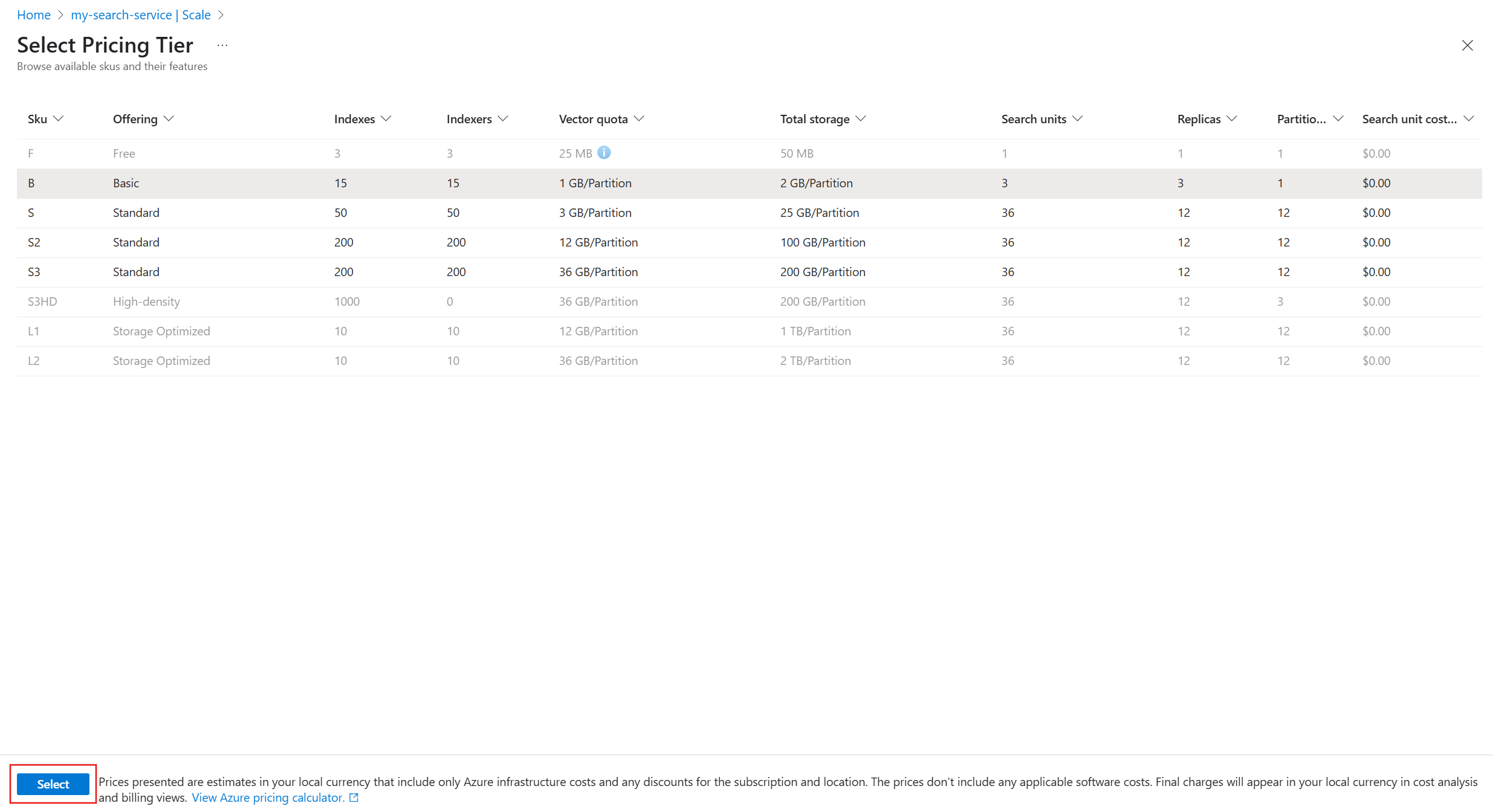
To start the scale operation, select Save.
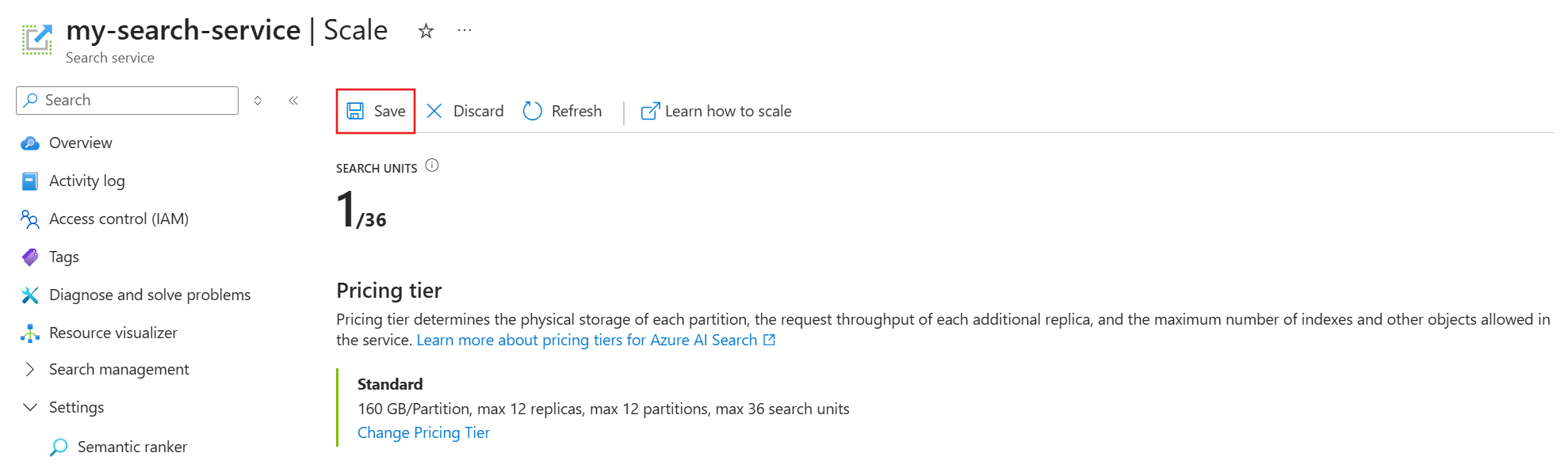
This operation can take several hours to complete. It occurs in the background, so your search service remains fully operational and available for read and write operations.
You can't cancel the operation or monitor its progress. However, the following message displays while changes are underway.
How scale requests are handled for the Dedicated model
When the search service receives a scale request, it:
- Checks whether the request is valid.
- Starts backing up data and system information.
- Checks whether the service is already in a provisioning state (currently adding or eliminating either replicas or partitions).
- Starts provisioning.
Scaling a service can take several minutes to several hours, depending on the size of the service and the scope of the request. Backup duration also varies based on the amount of data and number of partitions and replicas.
The preceding steps aren't entirely consecutive. For example, the system starts provisioning when it can safely do so, which could be while backup is winding down.
Errors during scaling
The following table lists causes and solutions for errors that can occur during scaling operations.
| Error message | Cause | Solution |
|---|---|---|
| "Service update operations aren't allowed at this time because we're processing a previous request." | Another scaling operation is in progress. | Check the Overview page in the Azure portal or use the Search Management REST API, Azure PowerShell, or Azure CLI to get the status of your search service. If the status is "Provisioning," wait until it becomes "Succeeded" or "Failed" before you try again. 1, 2 |
| "Failed to scale search service servicename. Error: Object count ActualCount exceeds allowable limit: MaximumCount." | Your current service configuration exceeds the limits of the target pricing tier. | Check that your storage usage, vector usage, indexes, indexers, and other objects fit within the lower tier's service limits. For example, the Basic tier supports up to 15 indexes, so you can't switch from S1 to Basic if you have 16 indexes. Adjust your resources before you try again. |
1 There's no status for backups, which are internal operations that are unlikely to disrupt a scaling exercise.
2 If your search service appears to be stalled in a provisioning state, check for orphaned indexes that are unusable, with zero query volumes and no index updates. An unusable index can block changes to service capacity. In particular, look for CMK-encrypted indexes whose keys are no longer valid. Either delete the index or restore the keys to bring the index back online and unblock your scaling operation.
Partition and replica combinations
The following chart applies to Standard tier and higher. It shows all possible combinations of partitions and replicas, subject to the 36 search unit maximum per service.
| 1 partition | 2 partitions | 3 partitions | 4 partitions | 6 partitions | 12 partitions | |
|---|---|---|---|---|---|---|
| 1 replica | 1 SU | 2 SU | 3 SU | 4 SU | 6 SU | 12 SU |
| 2 replicas | 2 SU | 4 SU | 6 SU | 8 SU | 12 SU | 24 SU |
| 3 replicas | 3 SU | 6 SU | 9 SU | 12 SU | 18 SU | 36 SU |
| 4 replicas | 4 SU | 8 SU | 12 SU | 16 SU | 24 SU | N/A |
| 5 replicas | 5 SU | 10 SU | 15 SU | 20 SU | 30 SU | N/A |
| 6 replicas | 6 SU | 12 SU | 18 SU | 24 SU | 36 SU | N/A |
| 12 replicas | 12 SU | 24 SU | 36 SU | N/A | N/A | N/A |
Basic search services have lower search unit counts.
On search services created before April 3, 2024, Basic services can have exactly one partition and up to three replicas for a maximum limit of three SUs. The only adjustable resource is replicas. However, you might be able to increase your partition count by upgrading your service.
On search services created after April 3, 2024 in supported regions, Basic services can have up to three partitions and three replicas. The maximum SU limit is nine to support a full complement of partitions and replicas.
For search services on any billable tier, regardless of creation date, you need a minimum of two replicas for high availability on queries.
For billing rates per tier and currency, see the Azure AI Search pricing page.
Estimate capacity using a Dedicated pricing model tier
Your storage needs depend on the size of the indexes you expect to build. There aren't any solid heuristics or general guidelines that help with estimates. The only way to determine the size of an index is to build one. Its size depends on tokenization and embeddings, and whether you enable suggesters, filtering, and sorting, or can take advantage of vector compression.
Estimate capacity on a billable tier, Basic or higher. The Free tier runs on physical resources shared by multiple customers and is subject to factors beyond your control. Only the dedicated resources of a billable search service can accommodate larger sampling and processing times for more realistic estimates of index quantity, size, and query volumes during development.
Review service limits at each tier to determine whether lower tiers can support the number of indexes you need. Consider whether you need multiple copies of an index for active development, testing, and production.
A search service is subject to object limits (maximum number of indexes, indexers, skillsets, and so on) and storage limits. Whichever limit is reached first is the effective limit.
Create a service at a billable tier. Tiers are optimized for certain workloads. For example, the Storage Optimized tier has a limit of 10 indexes because it's designed to support a low number of large indexes.
Start low, at Basic or S1, if you're not sure about the projected load.
Start high, at S2 or even S3, if testing includes large-scale indexing and query loads.
Start with Storage Optimized, at L1 or L2, if you're indexing a large amount of data and query load is relatively low, as with an internal business application.
Build an initial index to determine how source data translates to an index. This is the only way to estimate index size. Attributes on the field definitions affect physical storage requirements:
For keyword search, marking fields as filterable and sortable increases index size.
For vector search, you can set parameters to reduce vector size.
Monitor storage, service limits, query volume, and latency in the Azure portal. The Azure portal shows queries per second, throttled queries, and search latency. These values can help you decide if you selected the right tier.
Add replicas for high availability or to mitigate slow query performance.
There are no guidelines on how many replicas are needed to accommodate query loads. Query performance depends on the complexity of the query and competing workloads. Although adding replicas clearly results in better performance, the result isn't strictly linear: adding three replicas doesn't guarantee triple throughput. For guidance in estimating QPS for your solution, see Analyze performance and Monitor queries.
For an inverted index, size and complexity are determined by content, not necessarily by the amount of data that you feed into it. A large data source with high redundancy could result in a smaller index than a smaller dataset that contains highly variable content. So it's rarely possible to infer index size based on the size of the original dataset.
Storage requirements can be inflated if you include data that you never search. Ideally, documents contain only the data that you need for the search experience.
Service-level agreement considerations
Service-level agreements (SLAs) don't cover the Free tier and preview features. For all billable tiers, SLAs take effect when you provision sufficient redundancy for your service.
Two or more replicas satisfy query (read) SLAs.
Three or more replicas satisfy query and indexing (read-write) SLAs.
The number of partitions doesn't affect SLAs.
Optimize cost for the Serverless model
In the Serverless pricing model:
- The service automatically manages capacity.
- You don't need to configure replicas, partitions, or search units.
- Compute scales dynamically based on the workload (query and indexing demand) and can scale to zero when idle.
To learn more about limitations for the Serverless model, see Service limits.
Billing is based on two dimensions:
- Compute usage (CUs): Charged based on query and indexing operations.
- Indexed storage: Charged per GB per month.
Because billing is consumption-based, cost is directly tied to usage:
- Complex queries consume more compute.
- Inefficient schema design increases both indexing and query costs.
- Poor query patterns with large or frequently updated indexes increase storage and compute usage.
Optimize workload efficiency
Because inefficiency shows up as cost in the Serverless model, you pay more for the same work if you don't practice workload-aware design. The best way to control Serverless spend is to design your indexes and queries efficiently from the start.
To design workloads for efficiency when using the Serverless pricing model, consider:
Index design
- Include only fields used in queries.
- Reduce vector dimensions where possible.
- Avoid unnecessary filterable, sortable, or facetable attributes.
Query patterns
- Use
$selectto limit returned fields. - Apply filters early to reduce result sets.
- Avoid deep paging (
$skip). - Prefer targeted queries over broad full-text queries.
- Use hybrid search carefully due to higher compute cost.
Monitoring
- Monitor CU consumption to identify expensive queries.
- Track storage growth and remove unused data.
In Serverless, improving performance (faster, more targeted queries) typically reduces cost.
To learn more, see Optimize costs with the Serverless pricing model in Azure AI Search.
Regional capacity considerations
Capacity and availability can vary by the supported region. Some regions might have constraints on provisioning new services or scaling existing ones.
Note
During public preview, the Serverless pricing model is available only in a limited set of regions. See the preview notice at the beginning of this article.
If your preferred Azure AI Search region is unavailable due to capacity constraints, see How to handle regional capacity constraints in Azure AI Search.