Note
Access to this page requires authorization. You can try signing in or changing directories.
Access to this page requires authorization. You can try changing directories.
Important
These features and functionality support connections to other Microsoft services and third-party services. Use of these services is subject to their respective terms and might result in data processing or storage outside of the Azure compliance boundary, as well as data flowing into the Azure compliance boundary.
It's your responsibility to manage whether your data will flow outside of your organization's compliance and geographic boundaries and any related implications, and that appropriate permissions, boundaries, and approvals are provisioned.
You're responsible for carefully reviewing and testing applications you build in the context of your specific use cases and making all appropriate decisions and customizations. This includes implementing your own responsible AI mitigations, such as metaprompts, content filters, or other safety systems, and ensuring your applications meet appropriate quality, reliability, security, and trustworthiness standards. For more information, see the Azure AI Search Transparency Note.
Indexers in Azure AI Search connect to external data sources over a public endpoint. If you're setting up an Azure SQL indexer for a connection to a SQL managed instance, follow the steps in this article to ensure the public endpoint is set up correctly.
Alternatively, for private connections, create a shared private link instead.
Note
Always Encrypted columns are not currently supported by Azure AI Search indexers.
Enable a public endpoint
This article highlights just the steps for an indexer connection in Azure AI Search. If you want more background, see Configure public endpoint in Azure SQL Managed Instance instead.
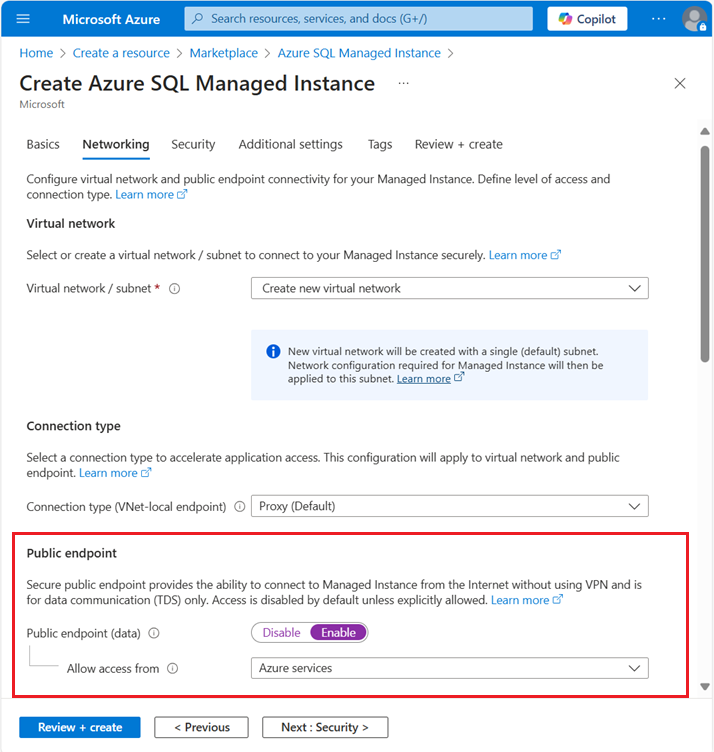
For a new SQL Managed Instance, create the resource with the Enable public endpoint option selected.
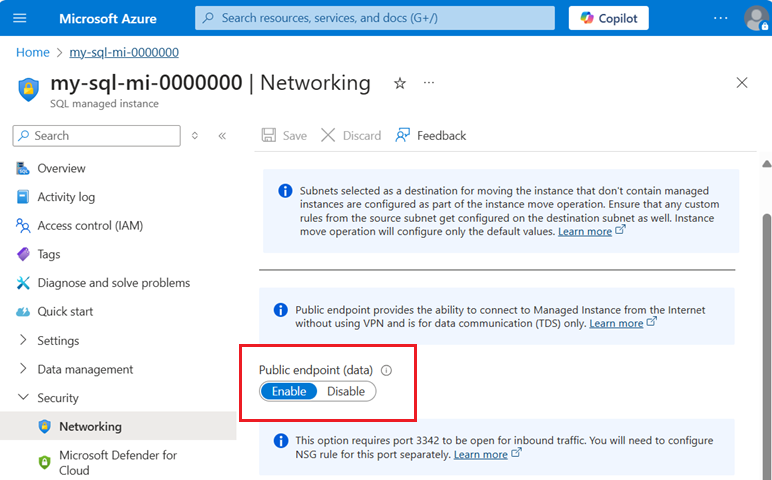
Alternatively, if the instance already exists, you can enable public endpoint on an existing SQL Managed Instance under Security > Networking > Public endpoint > Enable.
Get public endpoint connection string
To get a connection string, go to Settings > Connection strings.
Copy the connection string to use in the search indexer's data source connection. Be sure to copy the connection string for the public endpoint (port 3342, not port 1433).
Next steps
With configuration out of the way, you can now specify a SQL managed instance as an indexer data source using the basic instructions for setting up an Azure SQL indexer.