Note
Access to this page requires authorization. You can try signing in or changing directories.
Access to this page requires authorization. You can try changing directories.
With custom speech, you can enhance speech recognition accuracy for your applications by using a custom model for real-time speech to text, speech translation, and batch transcription.
Tip
Bring your custom speech models from Speech Studio to the Microsoft Foundry portal. In Microsoft Foundry portal, you can pick up where you left off by connecting to your existing Speech resource. For more information about connecting to an existing Speech resource, see Connect to an existing Speech resource.
You create a custom speech model by fine-tuning an Azure Speech in Foundry Tools base model with your own data. You can upload your data, test and train a custom model, compare accuracy between models, and deploy a model to a custom endpoint.
This article shows you how to use fine-tuning to create a custom speech model. For more information about custom speech, see the custom speech overview documentation.
Tip
You can bring your custom speech models from Speech Studio to the Microsoft Foundry portal. In Microsoft Foundry, you can pick up where you left off by connecting to your existing Speech resource. For more information about connecting to an existing Speech resource, see Connect to an existing Speech resource.
Start fine-tuning
Custom speech fine-tuning includes models, training and testing datasets, and deployment endpoints. Each project is specific to a locale. For example, you might fine-tune for English in the United States.
- Sign in to Microsoft Foundry. Make sure the New Foundry toggle is on. These steps refer to Foundry (new).

- From the upper-right menu, select Build.
- In the left pane, select Models.
- On the AI Services tab, select Azure Speech - Speech to text.
- In the upper right of the speech to text playground, select Fine-tune to open the Fine-tune a model pane.
- On the Basic details pane, enter the name, language, and other details for the fine-tuning job. Then select Next.
Keep the Fine-tune a model pane open and continue with Upload training and testing datasets to provide training and validation data.
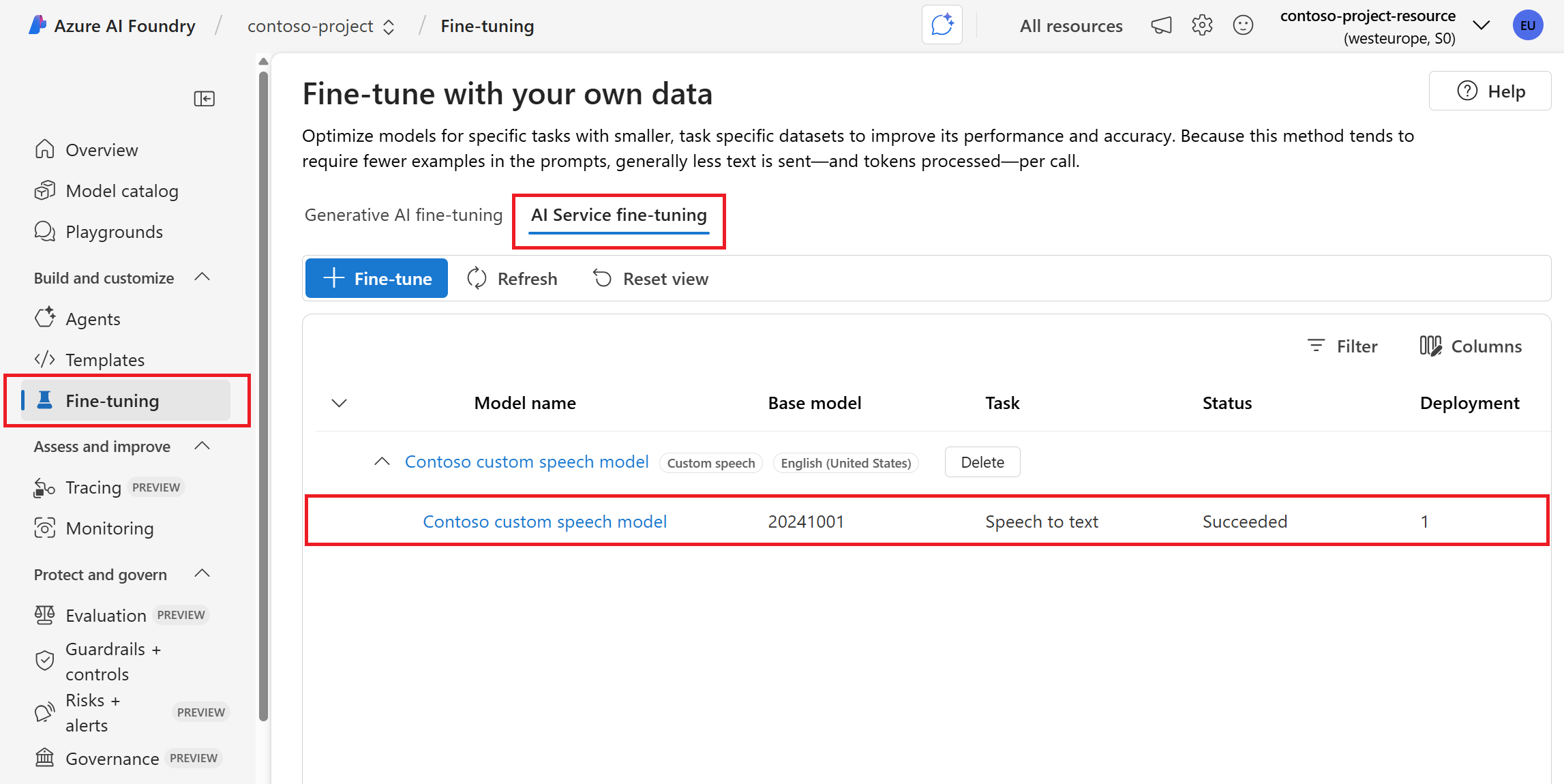
After you create a custom speech project, you can access your custom speech models and deployments from the Custom speech page.
Sign in to the Speech Studio.
Select the subscription and Speech resource to work with.
Important
If you train a custom model with audio data, select a service resource in a region with dedicated hardware for training audio data. See footnotes in the regions table for more information.
Select Custom speech > Create a new project.
Follow the instructions provided by the wizard to create your project.
Select the new project by name or select Go to project. Then you should see these menu items in the left panel: Speech datasets, Train custom models, Test models, and Deploy models.
Get the project ID for the REST API
When you use the speech to text REST API for custom speech, you need to set the project property to the ID of your custom speech project. You need to set the project property so that you can manage fine-tuning in the Microsoft Foundry portal.
Important
The project ID for custom speech isn't the same as the ID of the Microsoft Foundry project.
You can find the project ID in the URL after you select or start fine-tuning a custom speech model.
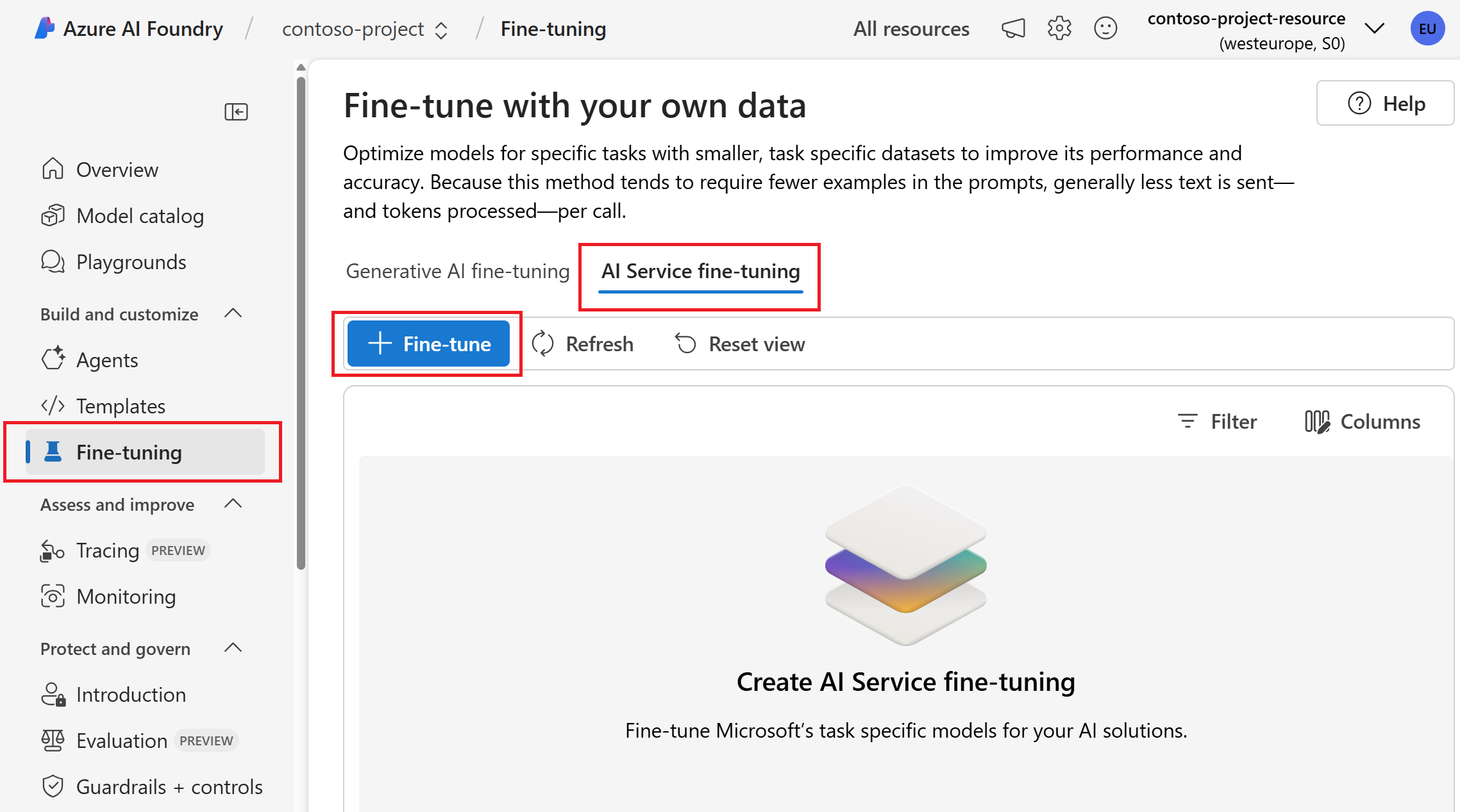
Sign in to the Microsoft Foundry portal.
Select Fine-tuning from the left pane.
Select AI Service fine-tuning.
Select the custom model that you want to check from the Model name column.
Inspect the URL in your browser. The project ID is part of the URL. For example, the project ID is
00001111-aaaa-2222-bbbb-3333cccc4444in the following URL:https://ai.azure.com/build/models/aiservices/speech/customspeech/00001111-aaaa-2222-bbbb-3333cccc4444/<REDACTED_FOR_BREVITY>
When you use the speech to text REST API for custom speech, you need to set the project property to the ID of your custom speech project. You need to set the project property so that you can manage fine-tuning in the Speech Studio.
To get the project ID for a custom speech project in Speech Studio:
Sign in to the Speech Studio and select the Custom speech tile.
Select your custom speech project.
Inspect the URL in your browser. The project ID is part of the URL. For example, the project ID is
00001111-aaaa-2222-bbbb-3333cccc4444in the following URL:https://speech.microsoft.com/portal/<Your-Resource-ID>/customspeech/a0a0a0a0-bbbb-cccc-dddd-e1e1e1e1e1e1