Note
Access to this page requires authorization. You can try signing in or changing directories.
Access to this page requires authorization. You can try changing directories.
External Resources is a centralized dashboard that allows you to choose which tenant-specific data and capabilities appear within your workspace. Each tenant displayed in External Resources represents an organization whose information might be relevant to the workspace.
External Resources - video guide
Currently, External Resources includes three main capabilities that help administrators control which support requests appear in a workspace (Support Request Visibility), which tenants can sign in to a workspace (Login Access), and where cloud solutions can be created (MIRP).
This ensures that:
- Your data surfaces only where intended.
- Your tenant relationships are managed cleanly and securely.
Permissions
CSAMs, users with the MirpManager role, Services Admins (also known as CSMs), and Workspace Administrators have access to the External Resources capability. CSAMs and customers with the MirpManager role have partial access, while Services Admins and Workspace Administrators have full access.
| Services Admin | Workspace Admin | CSAM | MirpManager user | |
|---|---|---|---|---|
| Full access | ✔️ | ✔️ | ||
| Partial access | ✔️ | ✔️ |
Capability details
Support Request Visibility
Engage Center can display support requests originating from Microsoft's cloud portals, but due to privacy and compliance requirements, these requests are not shown by default.
The Support Request Visibility toggle lets you control whether your support requests from the cloud portals are visible in your selected Engage Center workspace.
Key information
This feature gives your organization full control over which support request details you want exposed in Engage Center.
Privacy restrictions require explicit consent before support request details can be shown within Engage Center.
- Support is on by default for tenants that are sourced from your workspace's sign in activity.
- Support is off by default for tenants sourced from a partner system.
Support Request Visibility must be turned on individually for each Entra tenant.
Impact
- When Support Request Visibility is enabled for a tenant:
- Support requests associated with the tenant become visible in the workspace.
- Support requests for Azure subscriptions that have a trust relationship with the tenant become visibile in the workspace.
Note
After enabling a tenant, it may take up to 1 hour for associated support requests to become visible in the Support Insights feature.
- When Support Request Visibility is disabled for a tenant:
- Support requests associated with the tenant won't surface anywhere in your workspace.
Note
CSAMs and Incident Managers have full visibility to all support requests for agreements they manage.
Login Access
Important
The Login capability will activate once access management fully moves to Microsoft Engage Center. The section below explains what the feature will do when it’s live. If you’re still managing access in the legacy Services Hub portal, this setting won’t have any impact today.
The Login Access toggle determines whether users from a given tenant can sign in to your Engage Center workspace.
Key information
When Login Access is enabled for a tenant:
- Users who belong to the tenant can be invited, authenticate, and access your workspace.
When Login Access is disabled for a tenant:
- Users who belong to the tenant are blocked from signing in to your workspace.
Login Access is turned on by default if your tenant is sourced from a trusted partner system or from your workspace's sign in activity.
You can disable any Login tenant as long as it's not the tenant you're currently signed in to.
Major Incident Response Plan (MIRP) tenant management
MIRP lets you create cloud solutions. The MIRP toggle helps you control which tenants you want to appear as relevant tenants when you create a MIRP solution. For more information about MIRP, see Major Incident Response Plan (MIRP) in Microsoft Engage Center.
How MIRP tenant creation works
When MIRP is enabled for a tenant:
- The tenant is available for you to create cloud solutions, response plans, or other incident-related assets.
When MIRP is disabled for a tenant:
- The tenant is excluded from selection so you can prevent any accidental or unwanted creation of a solution for it.
Key information
- MIRP is turned on by default. If users shouldn't be able to create M365, D365 or Power Platform solutions against certain tenants, MIRP Managers and MIRP Reviewers can toggle the tenants off.
Navigate to External Resources
Navigate to Engage Center and sign in.
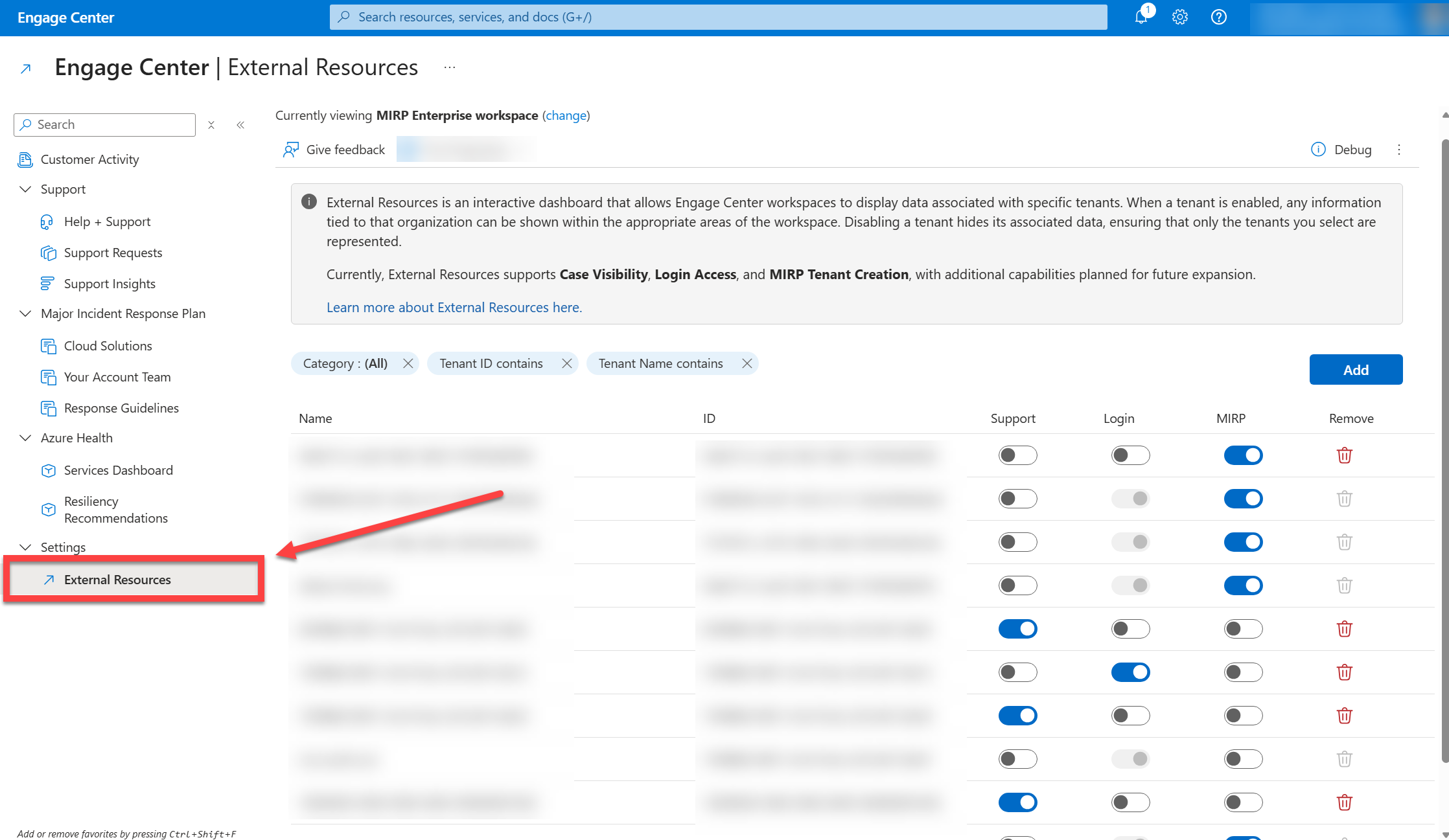
Select External Resources in the left-side navigation menu.
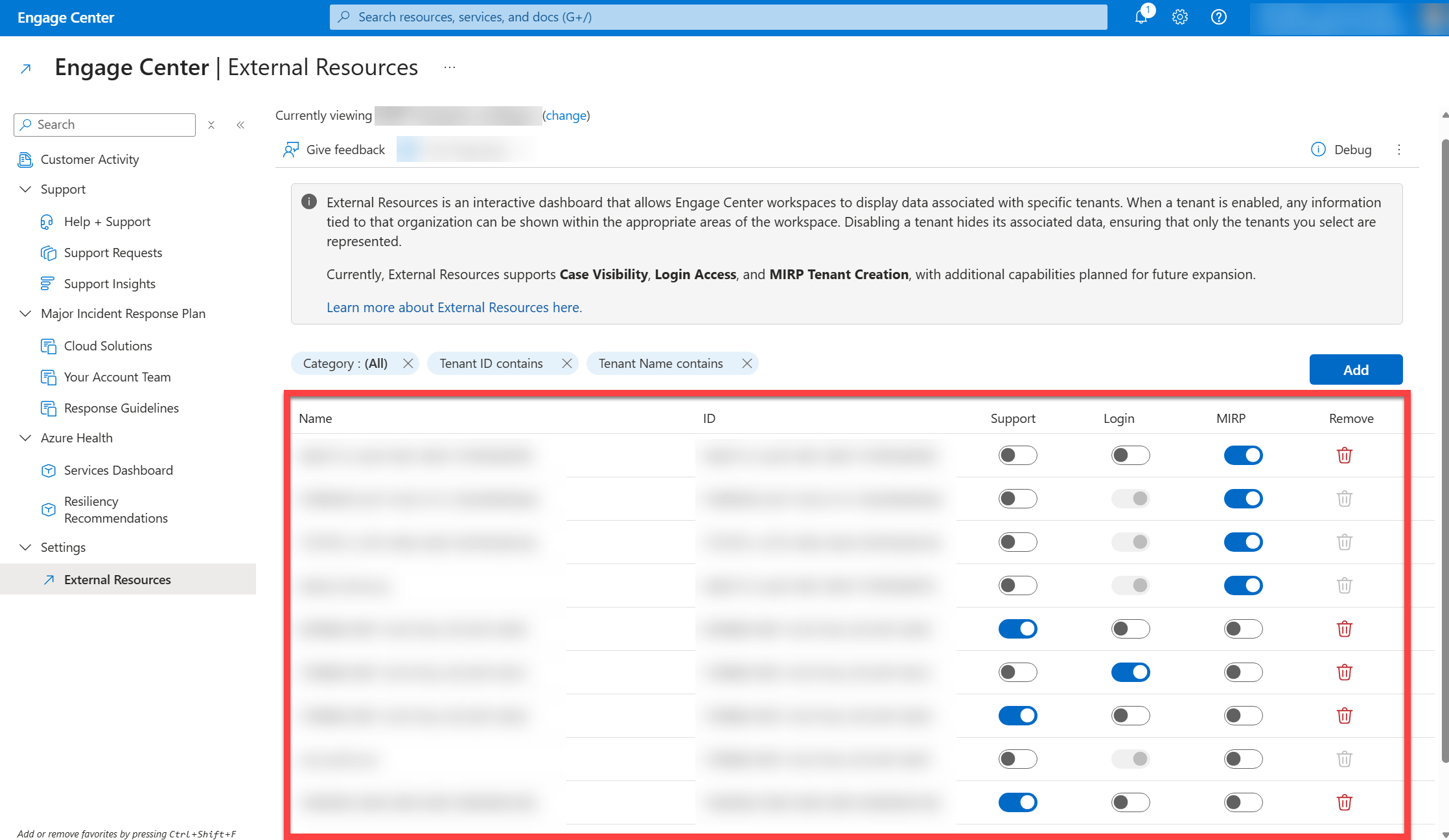
Each row in the displayed tenant list represents a tenant (organization) relevant to your workspace.
Note
If you notice a tenant is missing, add the tenant manually.
Add or remove a tenant
Note
Newly added tenants have Support Request visibility enabled by default.
Add a tenant
To add a tenant, you must know your tenant's Tenant ID.
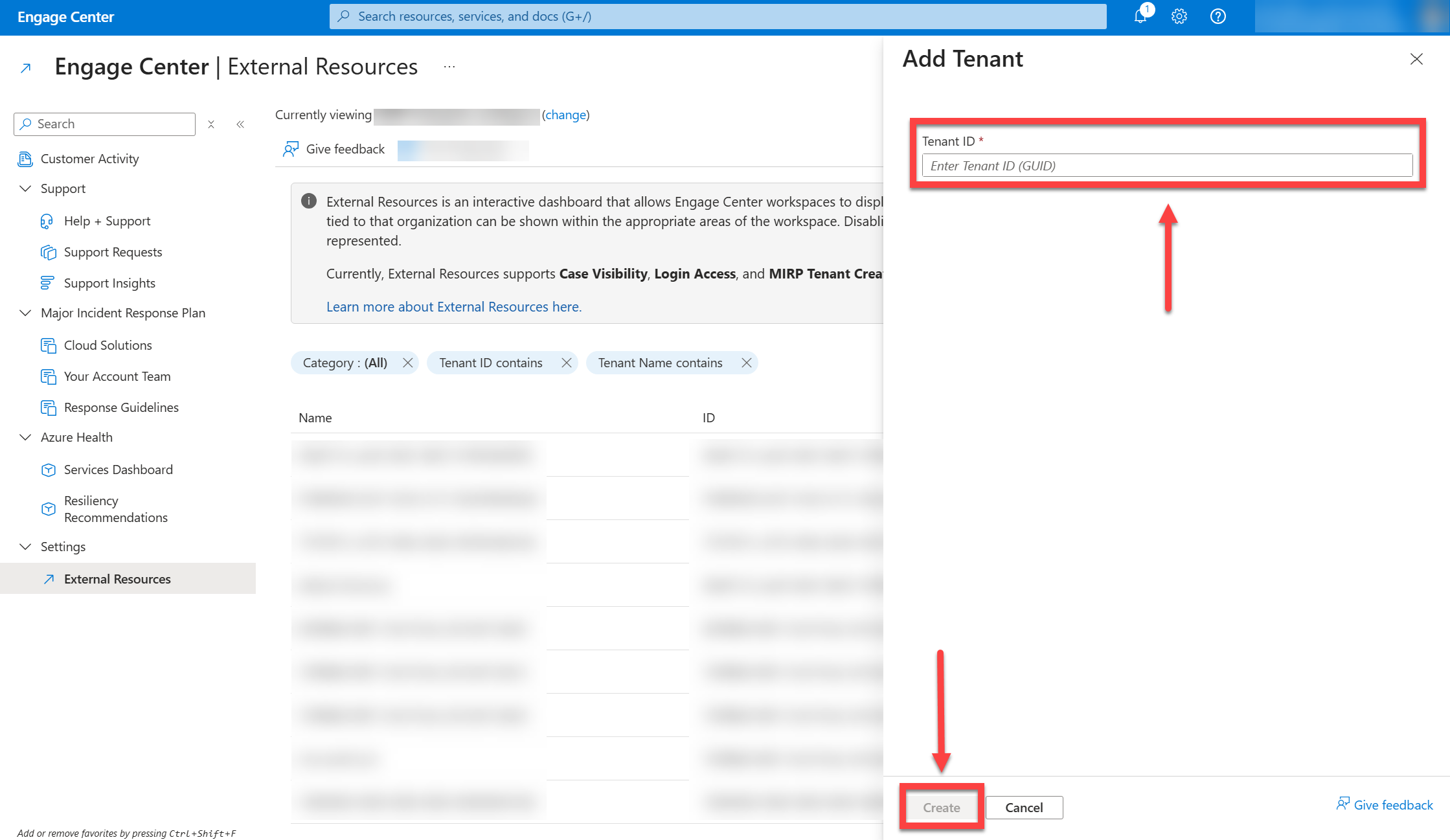
Select the Add button.
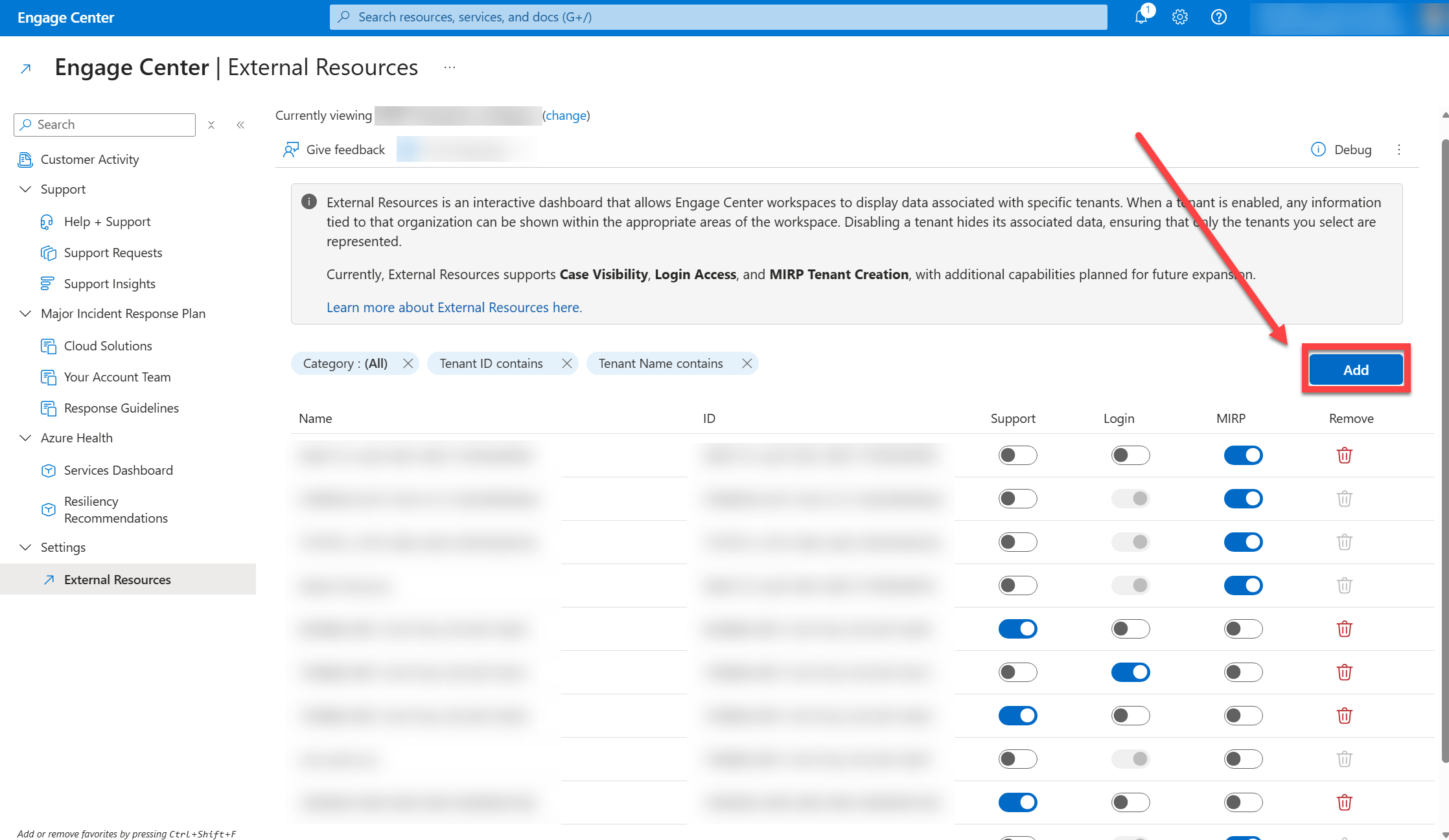
Enter your tenant's Tenant ID, then select Create.
Remove a tenant
Note
You can only remove tenants that are not sourced from a partner system or from your workspace's sign in activity.
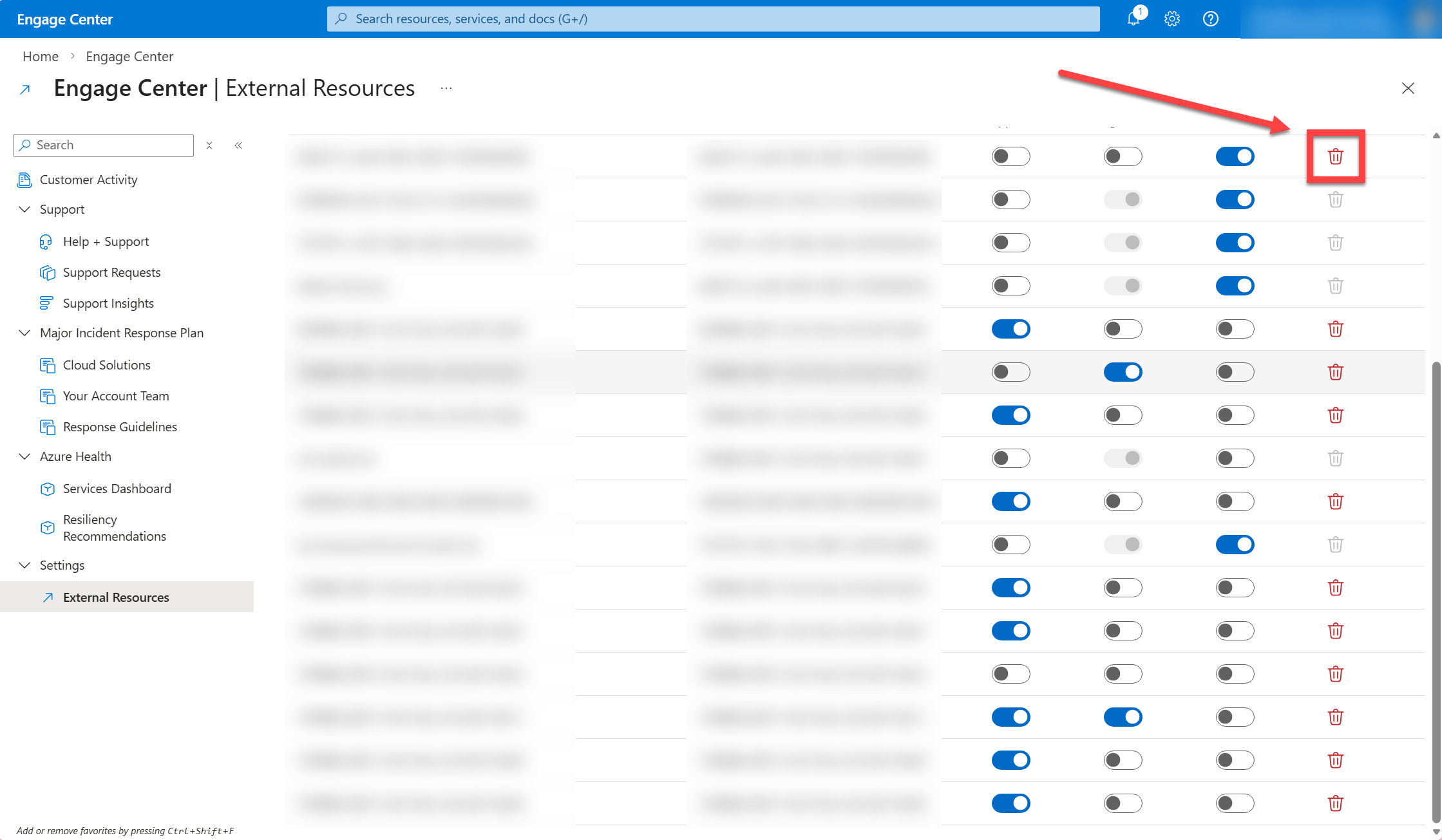
Use the trash can button in each row of the tenant list to remove a tenant. You can remove any tenant that has a red trash can icon. If the trash can icon for a particular tenant is gray, you can't remove that tenant from the list.
Locate the tenant in the list that you want to remove.
Select the trash can icon.
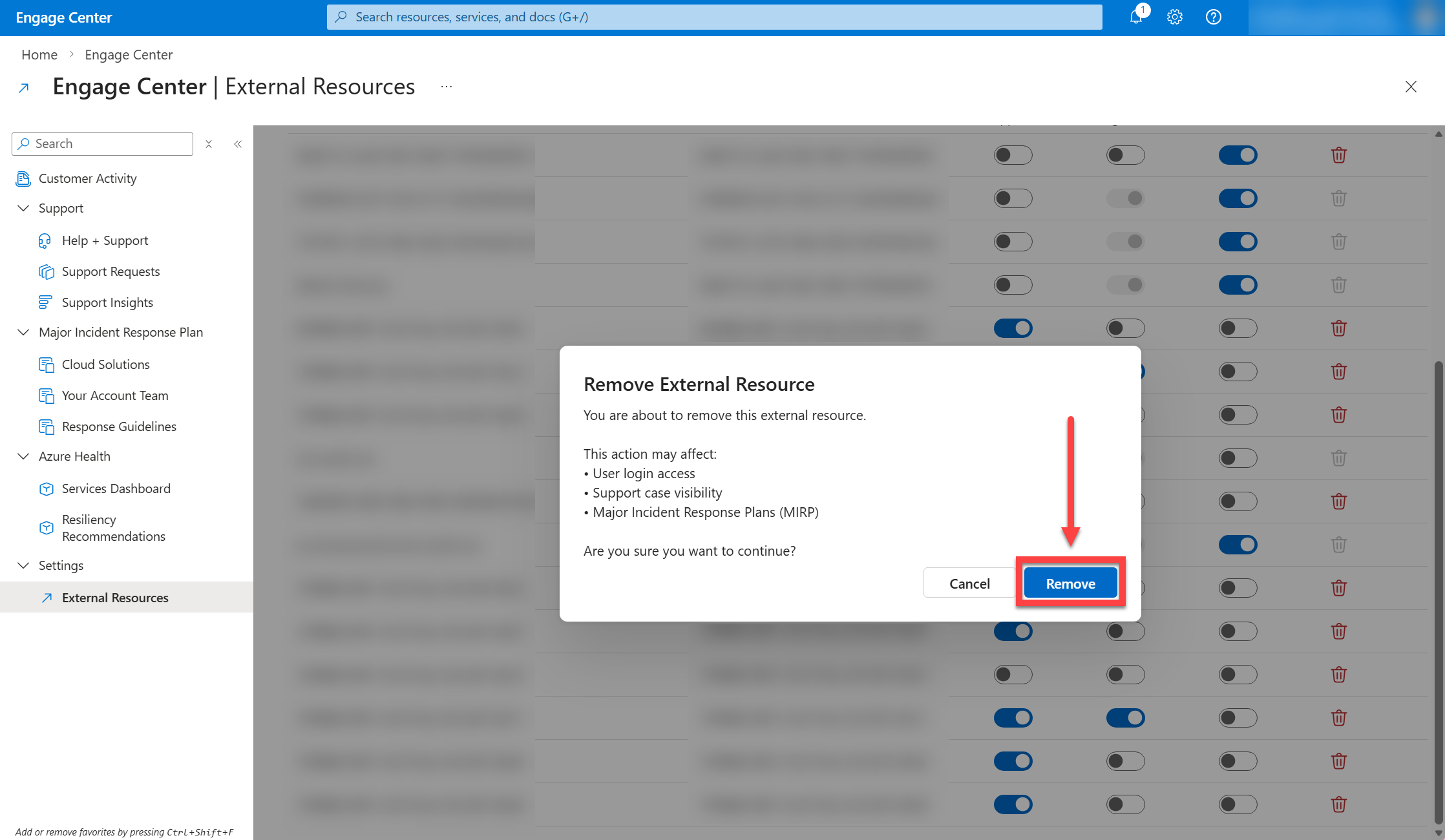
Review the information that appears. If you're sure you want to remove the tenant, select Remove.
Manage your selections
Manage Support Request Visibility
Support request visibility determines whether your support requests from Microsoft cloud portals are displayed in your selected Engage Center workspace.
Instructions
To make your selection:
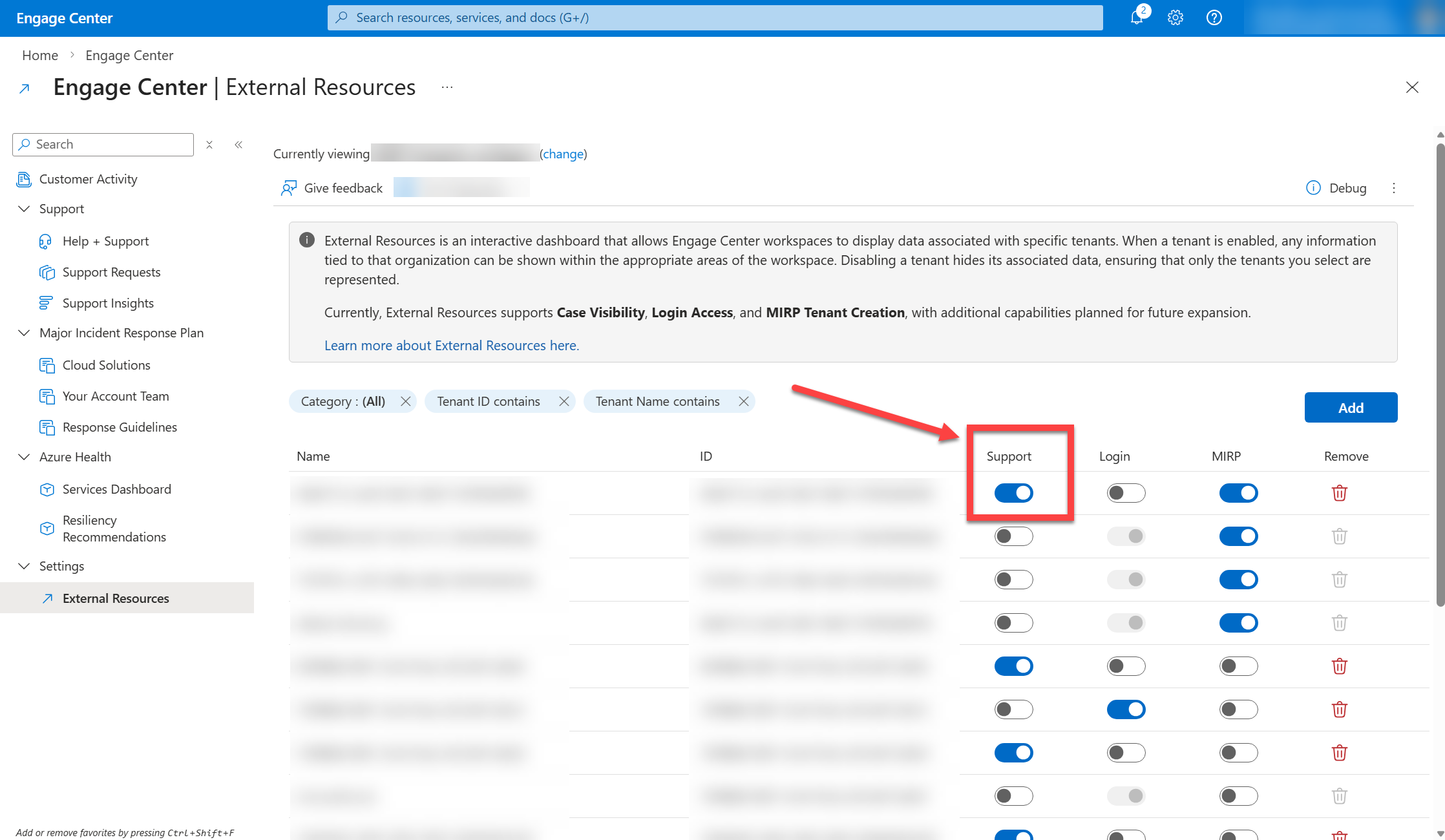
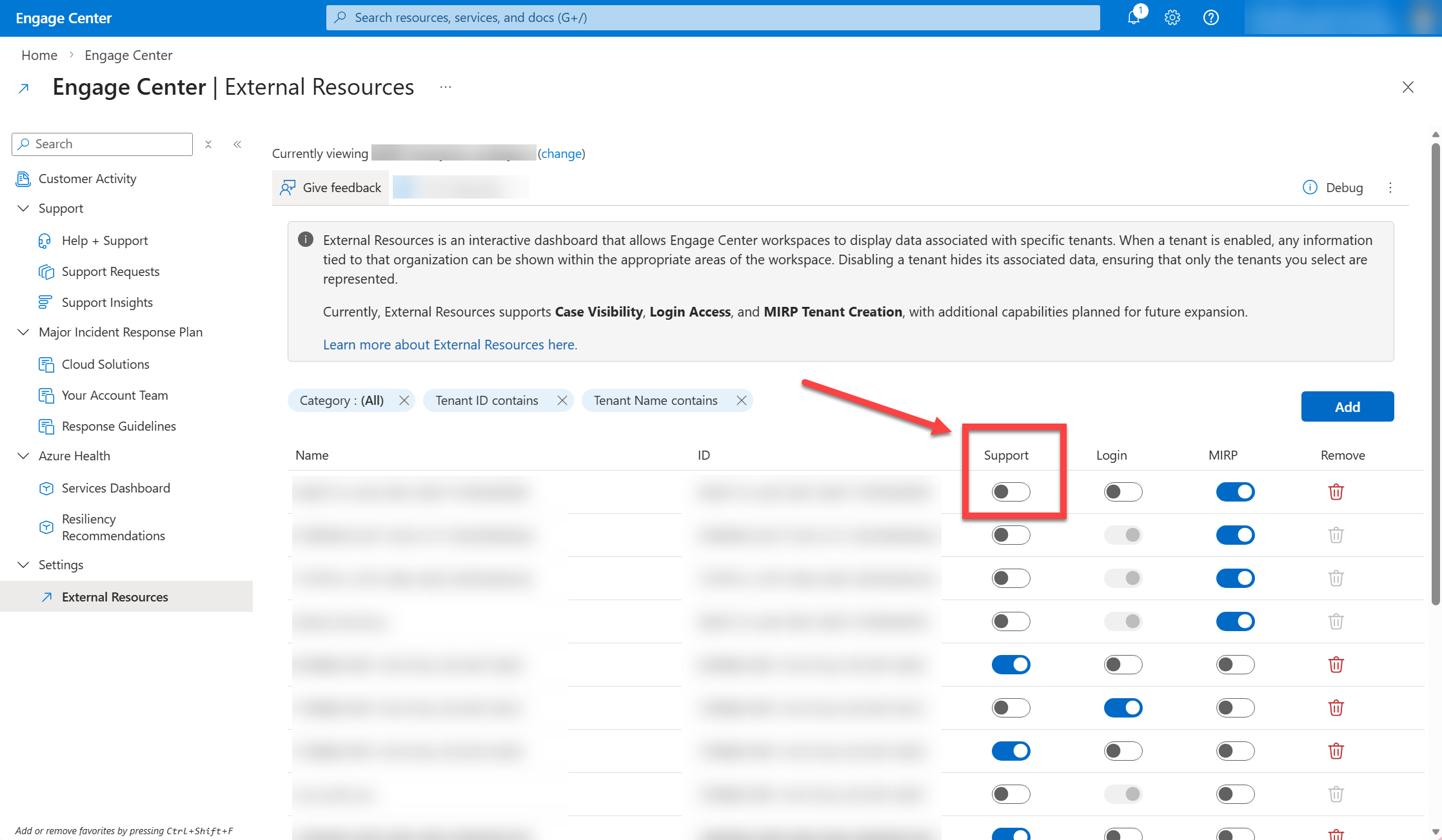
Locate the Support column for your desired tenant.
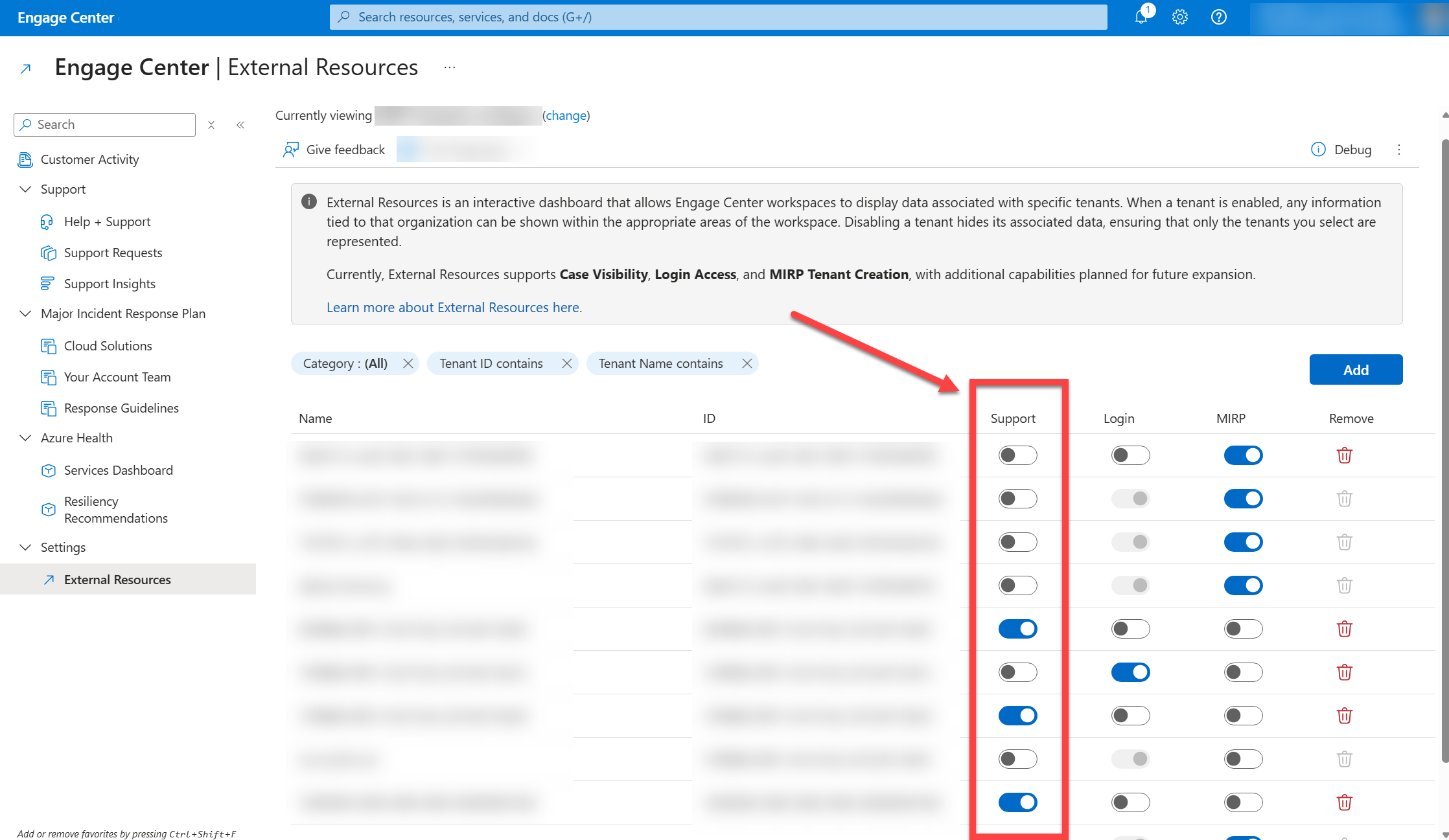
If you want support request data for the tenant to appear in your selected workspace, switch the Support toggle button ON.
If you want all support request data tied to the tenant to be hidden for your selected workspace, switch the Support toggle button OFF.
Manage Login Access
Important
The Login capability will activate once access management fully moves to Microsoft Engage Center. The section below explains what the feature will do when it’s live. If you’re still managing access in the legacy Services Hub portal, this setting won’t have any impact today.
Login Access controls whether users belonging to each tenant are allowed to sign in to your workspace.
Instructions
To make your selection:
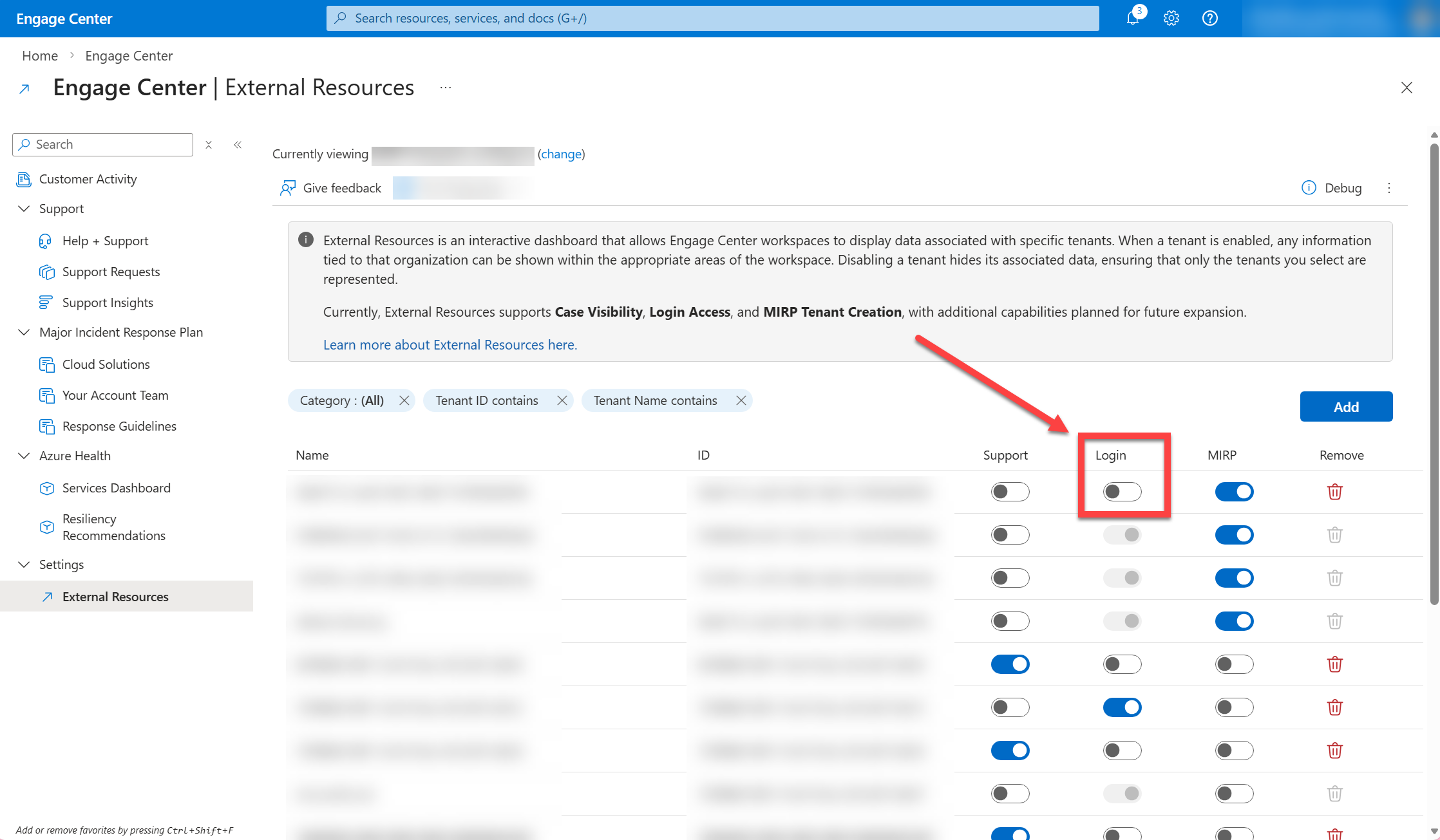
Locate the Login column for your desired tenant.
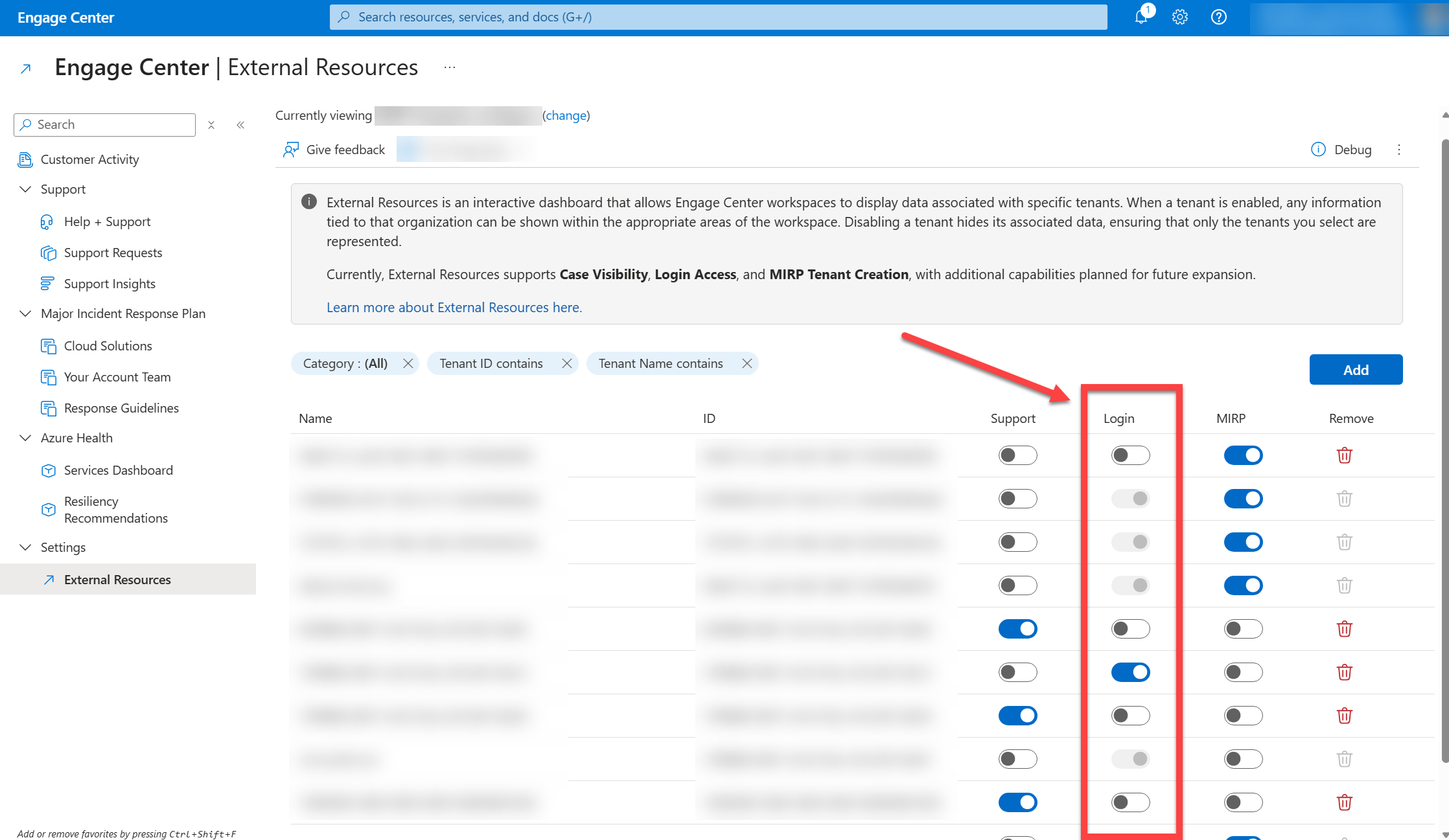
If you want to allow users from the tenant to authenticate, switch the Login toggle button ON.
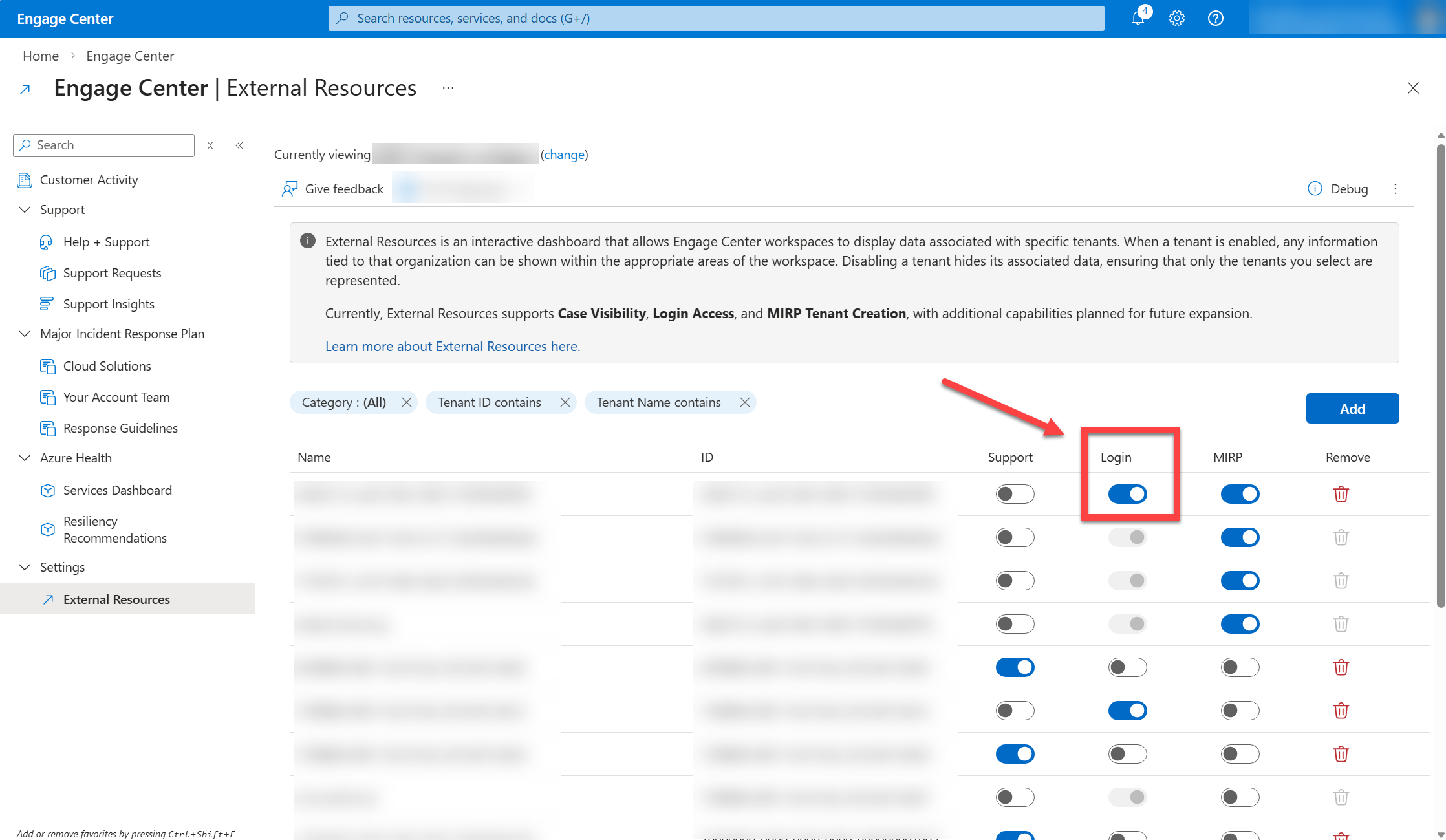
If you want to block sign in attempts from the tenant, switch the Login toggle button OFF.
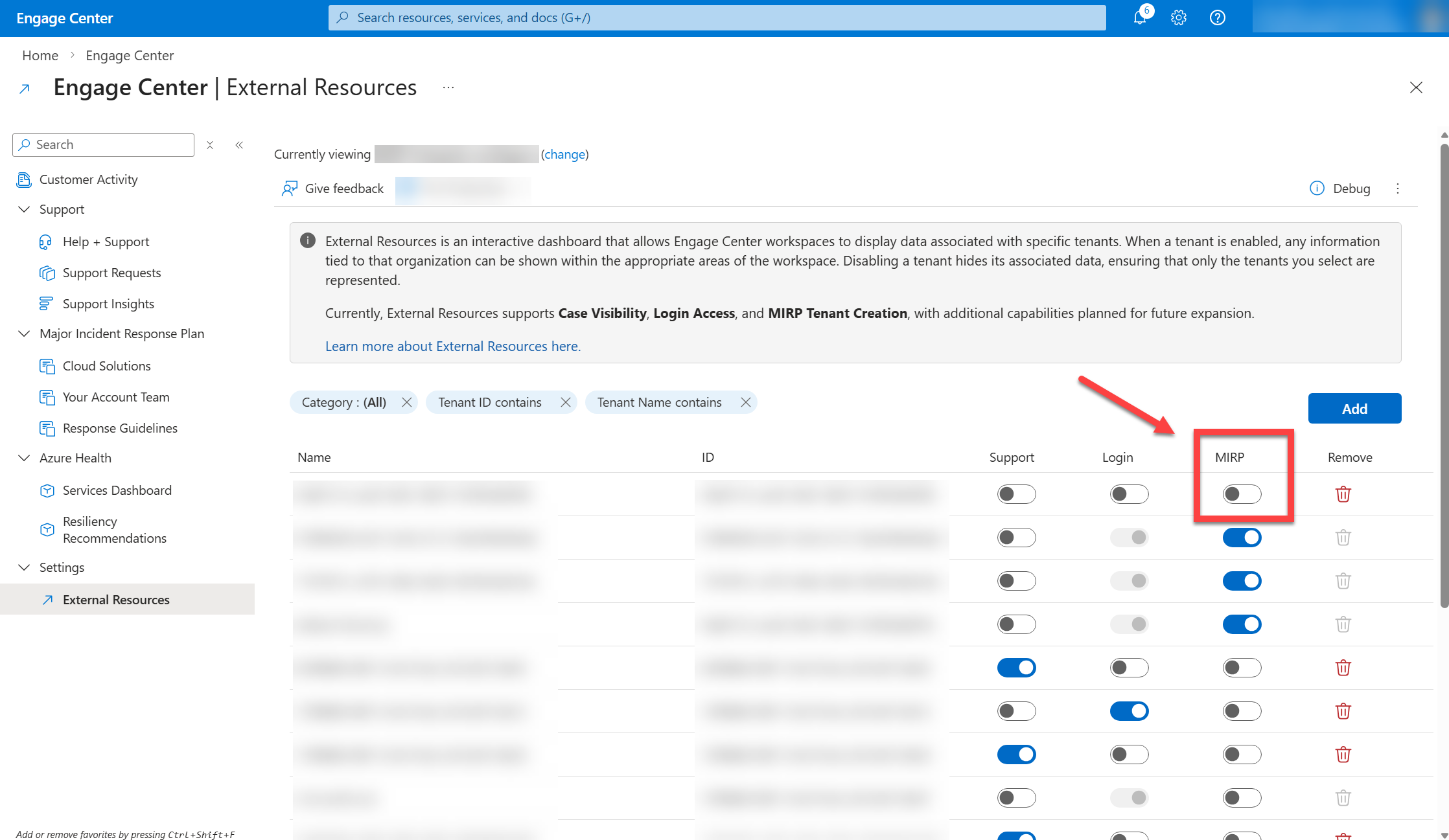
Manage MIRP tenant creation
MIRP controls which tenants you can select when creating a cloud solution.
Instructions
To make your selection:
Locate the MIRP column for your desired tenant.
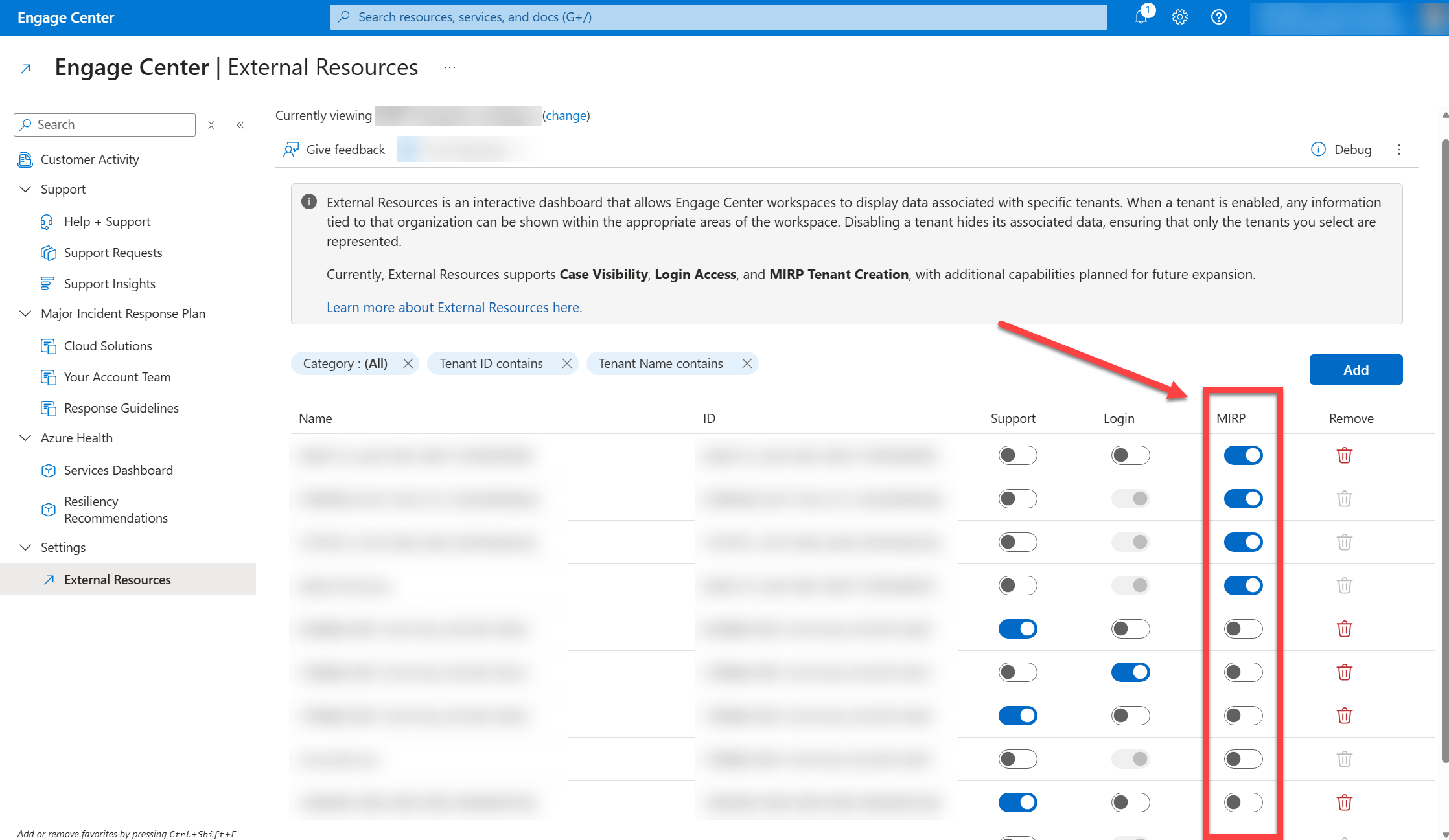
If you want to allow users to use the tenant to create a MIRP, switch the MIRP toggle button ON.
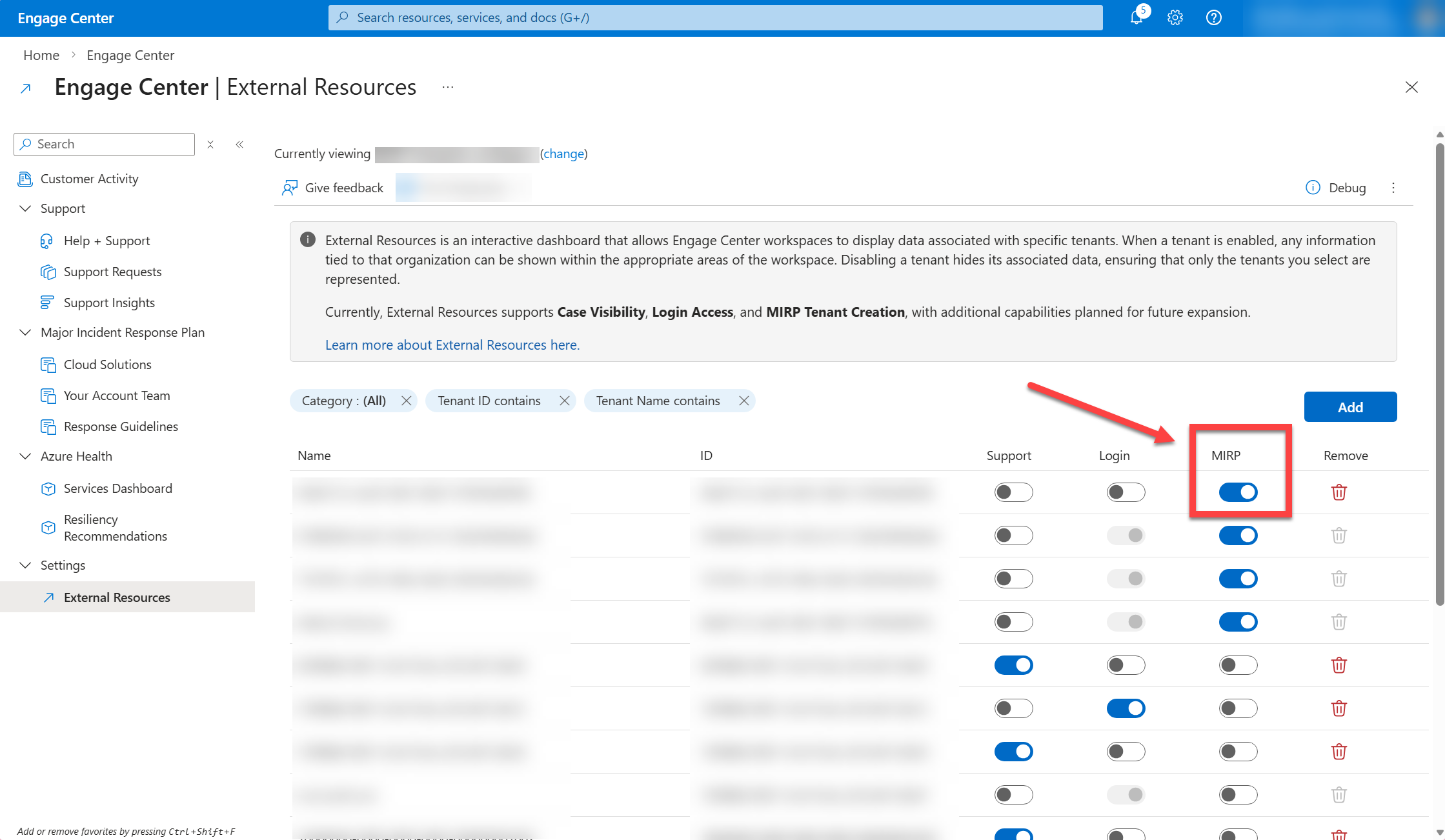
If you want to block users from using the tenant to create a MIRP, switch the MIRP toggle button OFF.