Note
Access to this page requires authorization. You can try signing in or changing directories.
Access to this page requires authorization. You can try changing directories.
As source data changes, materialized lake views (MLVs) in your Lakehouse need regular refresh to keep downstream reports and dashboards current. Scheduling lets you control how often each view, or group of views, is refreshed. Each schedule runs independently.
View schedules
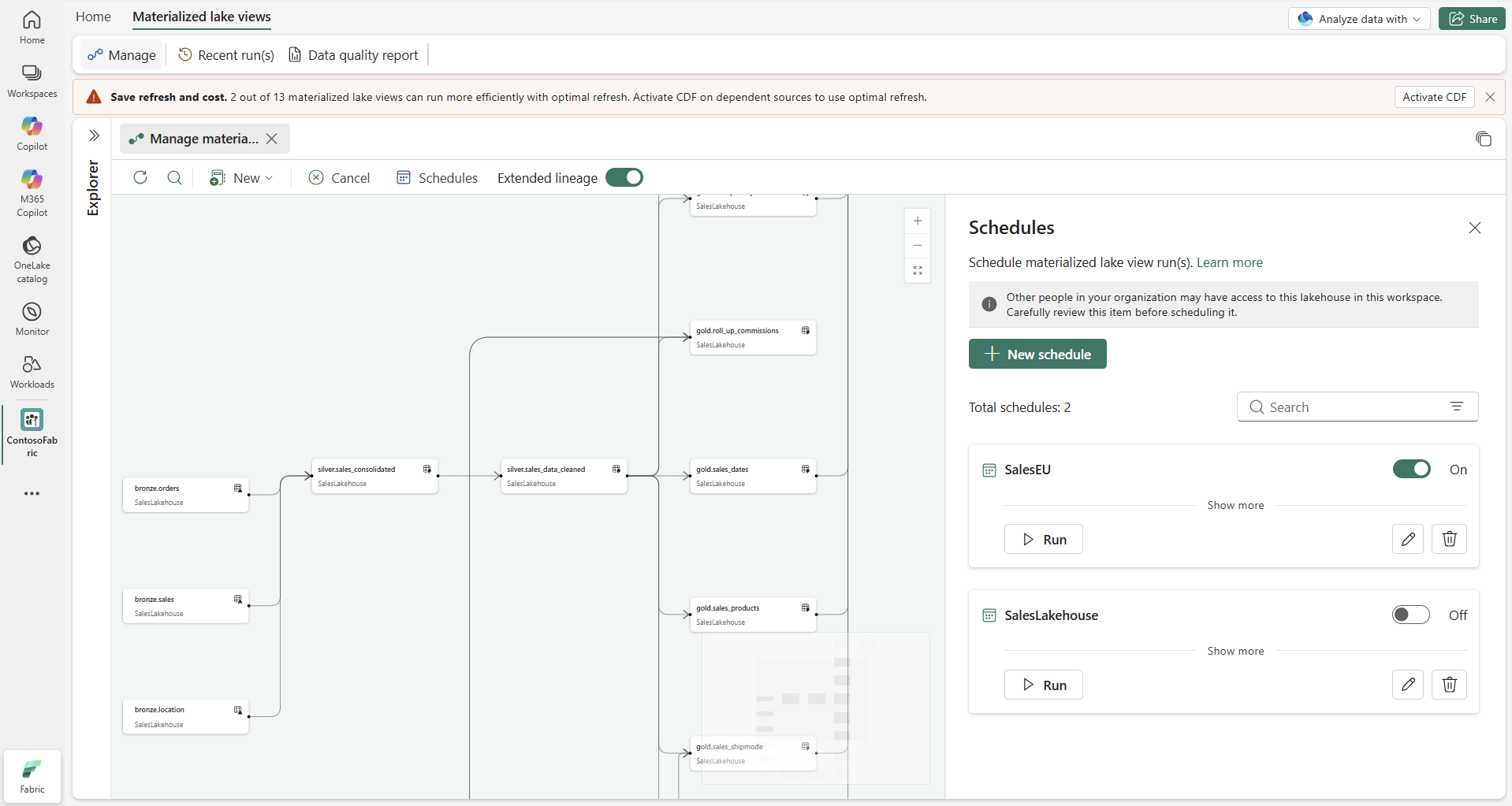
To see all configured schedules for MLVs in a Lakehouse, select the Materialized lake views tab in the ribbon, then select Manage. In the lineage toolbar, select Schedules. The Schedules pane opens beside the lineage view.
Plan schedule frequency
Before you create a schedule, consider what drives your refresh timing:
| Question | Guidance |
|---|---|
| How often does source data change? | Match your schedule to your data arrival cadence. If bronze tables update hourly, refreshing gold views every 15 minutes wastes compute without improving freshness. |
| When do end users need fresh data? | Align schedules with reporting SLAs — for example, schedule a refresh 30 minutes before a morning dashboard review. |
| Do you have independent lineages? | If your Lakehouse has materialized lake views with separate source tables, schedule them at different cadences so one doesn't block the other. |
| What is the current capacity load? | Start with a longer interval and tighten it as you observe capacity usage in your capacity metrics app. |
Create a schedule
Select New schedule in the Schedules pane.
Enter a Name for the schedule and optionally add a Description.
Choose a refresh scope:
- Refresh all materialized lake views: Refreshes every view in dependency order. Use this option when the whole lineage should run on the same cadence.
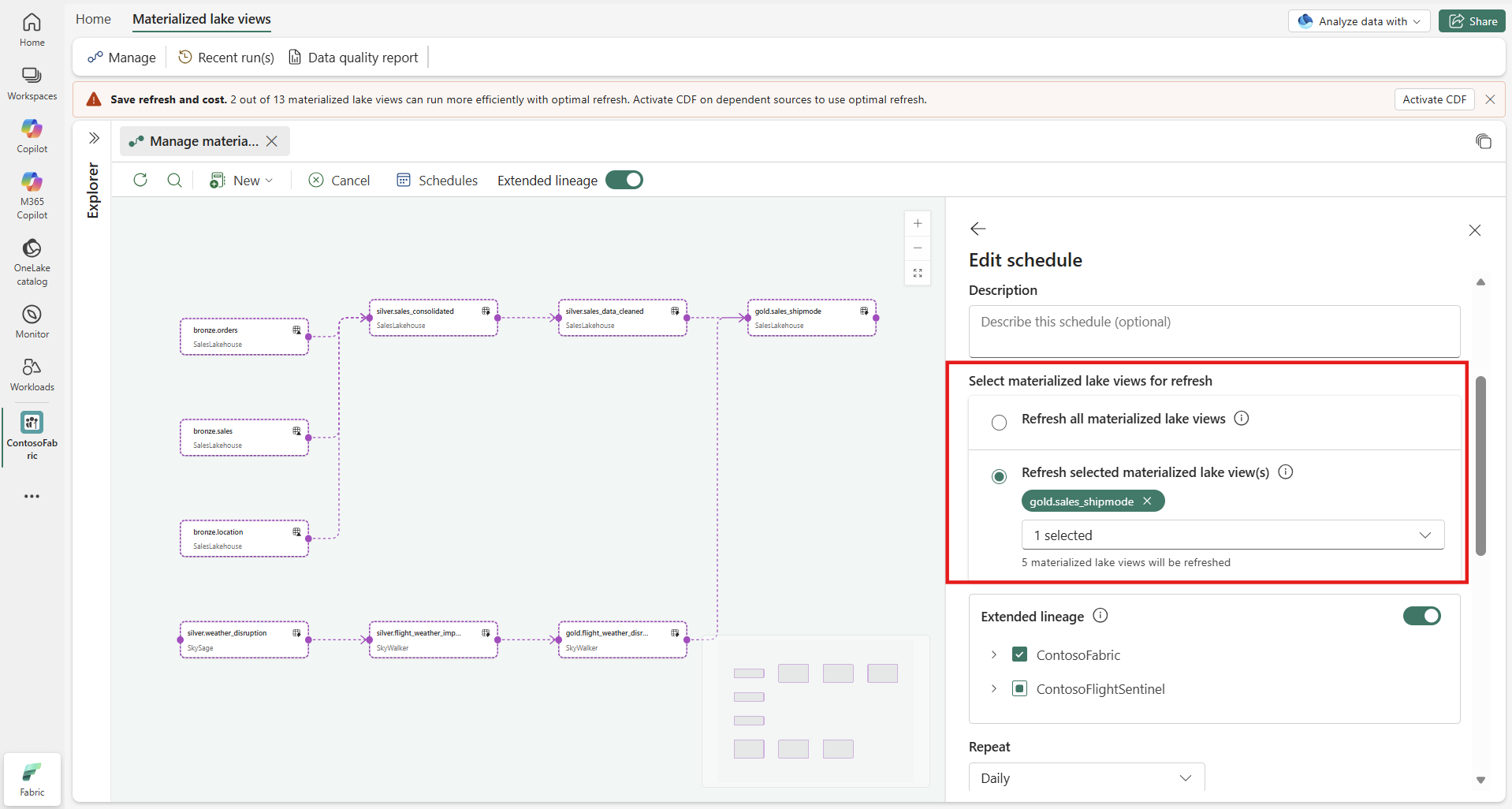
- Refresh selected materialized lake view(s): Refreshes only the views you select.
Search and select views from the dropdown, and then check the left pane to verify included views. The lineage graph highlights selected views with a dashed border so you can confirm scope.
Tip
You can select views at any level in the lineage.
Configure the schedule:
- Set Repeat (minute, hourly, daily, weekly, or monthly).
- Add one or more Time slots.
- Set Start date, End date, and Time zone.
Select Save.
Optional: select Run next to the schedule to trigger an immediate refresh.
Note
A run fails if it exceeds 24 hours. If a new refresh starts while another refresh is in progress, Fabric skips the later refresh. See Recent runs for details.
Run a schedule on demand
To trigger an immediate refresh without waiting for the next scheduled time, select Run next to any schedule in the Schedules pane. The run uses the same scope and settings as the schedule.
Run a single materialized lake view
You can also refresh a single materialized lake view directly from the lineage graph. Select the view to open its detail card, then select Run. This refreshes only that materialized lake view.
Advanced settings
When creating or editing a schedule, expand Advanced settings to fine-tune how the refresh runs:
| Setting | Description | Default |
|---|---|---|
| Spark environment | The Spark environment used for the refresh. You can select any Spark environment you have access to within the same capacity (including environments in a different workspace). | Workspace default |
| Optimal refresh | When On, Fabric chooses incremental or full refresh per view automatically. When Off, every view is fully rebuilt. | On |
Settings follow a priority order: per-schedule settings override lakehouse-level defaults, which override system defaults.
Environment details
By default, refreshes use the workspace environment. You can select a different environment to match workload-specific compute settings. Changes to environment selection apply on the next refresh.
If you don't have access to the selected environment:
- You might not see the environment name or workspace-specific environment details.
- You can't use the Schedule and Run actions.
If the Spark environment is deleted, the environment dropdown shows an error and prompts you to select an accessible environment.
Note
You can select any Spark environment you have access to within the same capacity. It can be in a different workspace.
Manage schedules
From the Schedules pane, search by name or filter by Active/Inactive to find a schedule.
- Edit: Select the pencil icon, update views, recurrence, or date range, and then select Save.
- Pause or resume: Toggle the On/Off switch. Use this option during maintenance or while investigating issues.
- Delete: Select the trash can icon and confirm. This action permanently removes the schedule.
Schedule across lakehouses
When your materialized lake views depend on upstream views in other lakehouses — even in other workspaces — you can refresh the entire chain from one place. Instead of navigating to each upstream lakehouse to set up separate schedules, you turn on Extended lineage and choose which lakehouses to include. Fabric resolves the full dependency order across lakehouses and refreshes everything in the right sequence.
This is useful when your data flows through multiple lakehouses. For example, a Bronze lakehouse ingests raw data, a Silver lakehouse cleans it, and a Gold lakehouse serves reports. Without extended lineage, you'd need to coordinate three separate schedules. With it, you define one schedule in the Gold lakehouse that cascades through Silver and Bronze automatically.
Schedule a cross-lakehouse refresh
Open the Schedules pane and select New schedule (or edit an existing one).
Choose a refresh scope — Refresh all materialized lake views or Refresh selected materialized lake view(s).
Turn on the Extended lineage toggle in the schedule configuration. A lakehouse tree appears below the toggle, showing every upstream lakehouse discovered through the lineage.
Select the lakehouses you want to include. Check one or more lakehouses from the tree. The lineage graph updates to highlight the selected scope with a dashed border so you can confirm which views are covered.
Tip
If you leave all lakehouses unselected, Fabric includes every lakehouse in the extended lineage by default.
Configure the recurrence (Repeat, Time, Start date, End date, Time zone) and select Save.
Fabric refreshes the materialized lake views across all included lakehouses in dependency order. The current lakehouse is always included — you don't need to select it explicitly.
Run an ad-hoc refresh
You can also trigger a one-time refresh without creating a schedule:
Select Run from the lineage toolbar to open the On demand lineage refresh pane.
Enter a Name for the run.
Under Select materialized lake view dependency, choose an execution mode:
- Refresh without dependant lineage — Refreshes only the selected views without their upstream dependencies.
- Refresh with dependant lineage — Refreshes the selected views along with their upstream dependencies within the current lakehouse.
- Refresh with extended lineage — Includes upstream lakehouses in the refresh. A lakehouse tree appears to select which lakehouses to include.
Select Run.
The refresh starts immediately. You can track progress in Recent runs.
Run an ad-hoc cross-lakehouse refresh
To run a one-time cross-lakehouse refresh:
Select Run from the lineage toolbar to open the On demand lineage refresh pane.
Enter a Name for the run.
Under Select materialized lake view dependency, choose Refresh with extended lineage. A lakehouse tree appears, identical to the one in the schedule pane.
Select the lakehouses to include and select Run.
The refresh starts immediately and covers all selected lakehouses in dependency order. You can track progress in Recent runs.
How cross-lakehouse refresh works
When you enable extended lineage for a schedule or ad-hoc run, Fabric refreshes upstream views first, then downstream — across all included lakehouses. Independent branches run in parallel. The Recent runs page shows a single run entry covering all lakehouses.
Permissions and limitations
| Requirement | Detail |
|---|---|
| View upstream lakehouses | ReadAll on the upstream lakehouse. If OneLake-based permissions are enabled, Read on the required tables/MLVs. |
| Include a lakehouse in refresh | ReadWrite on the lakehouse. If OneLake-based permissions are enabled, ReadWrite on the required MLVs. |
| Spark environment | Any Spark environment you have access to within the same capacity. |
| Inaccessible dependencies | Appear as faulted nodes in the lineage graph. If any faulted nodes exist, the lineage refresh won't run. |
| Maximum run duration | A cross-lakehouse run fails if it exceeds 24 hours, same as a standard run. |