Note
Access to this page requires authorization. You can try signing in or changing directories.
Access to this page requires authorization. You can try changing directories.
Fabric materialized lake views (MLVs) help you manage and query large datasets by precomputing and storing query results. In Fabric, lineage helps you understand dependencies and refresh flow so you can operate MLVs more reliably.
This article explains how to view lineage, understand the lineage interface, and use extended lineage to trace dependencies across lakehouses.
View lineage
A materialized lake views lineage shows dependency order for refresh operations. For MLVs, lineage represents the sequence of views that must run when new data is available.
After you create the MLV in Microsoft Fabric, select the Materialized lake views tab in the ribbon, then select Manage to navigate to the MLV lineage.
Materialized lake views lineage
Notebook code defines the lineage (MLV flow), and Fabric creates it when you create the end-to-end MLV flow.
Important
The lineage view treats all shortcuts as source entities. The lineage view treats all tables or materialized lake views in a shortcut schema as source entities.
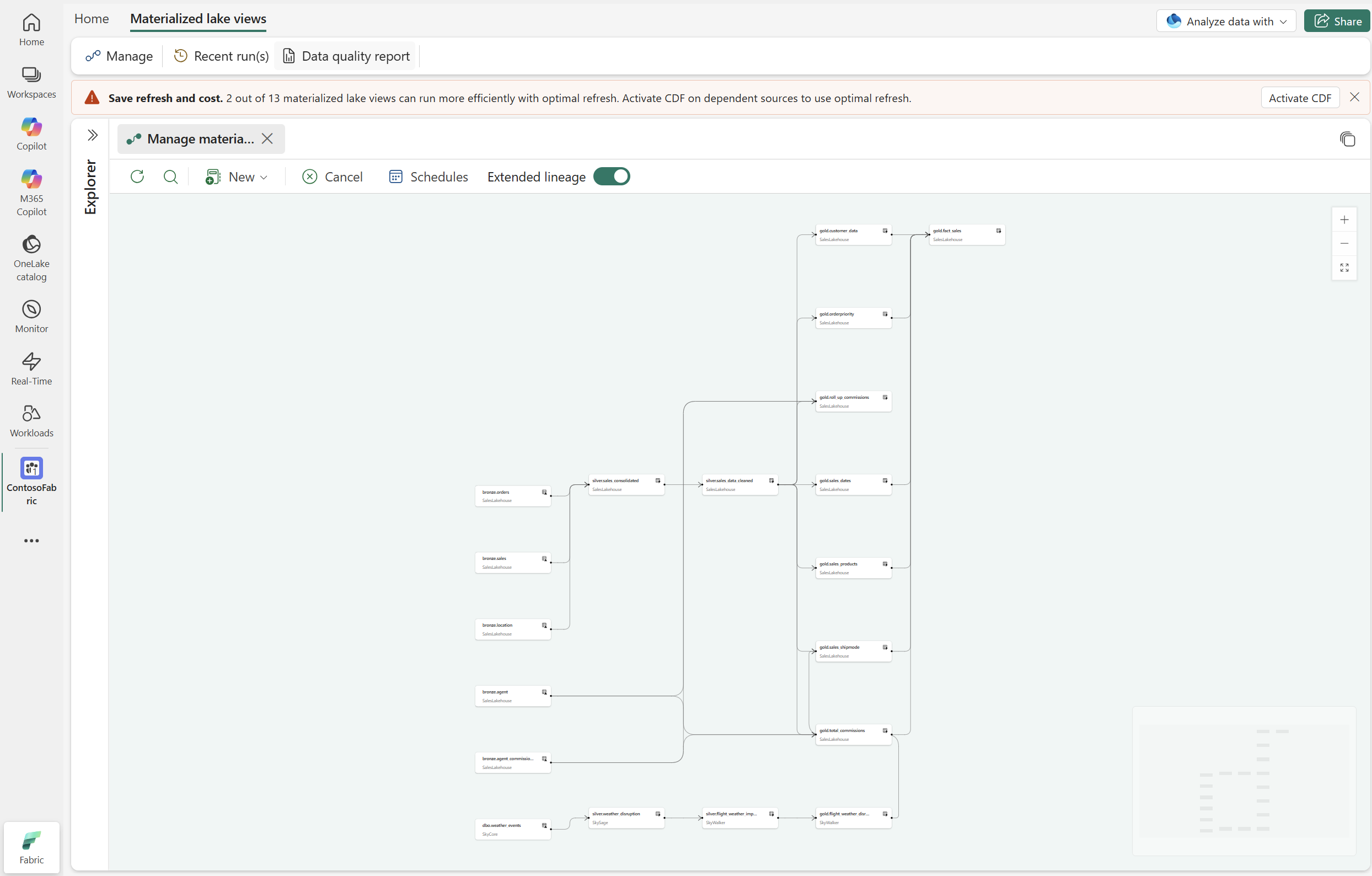
To run lineage, schedule it based on your refresh requirements. After the job is scheduled, go to the current run to view lineage execution.
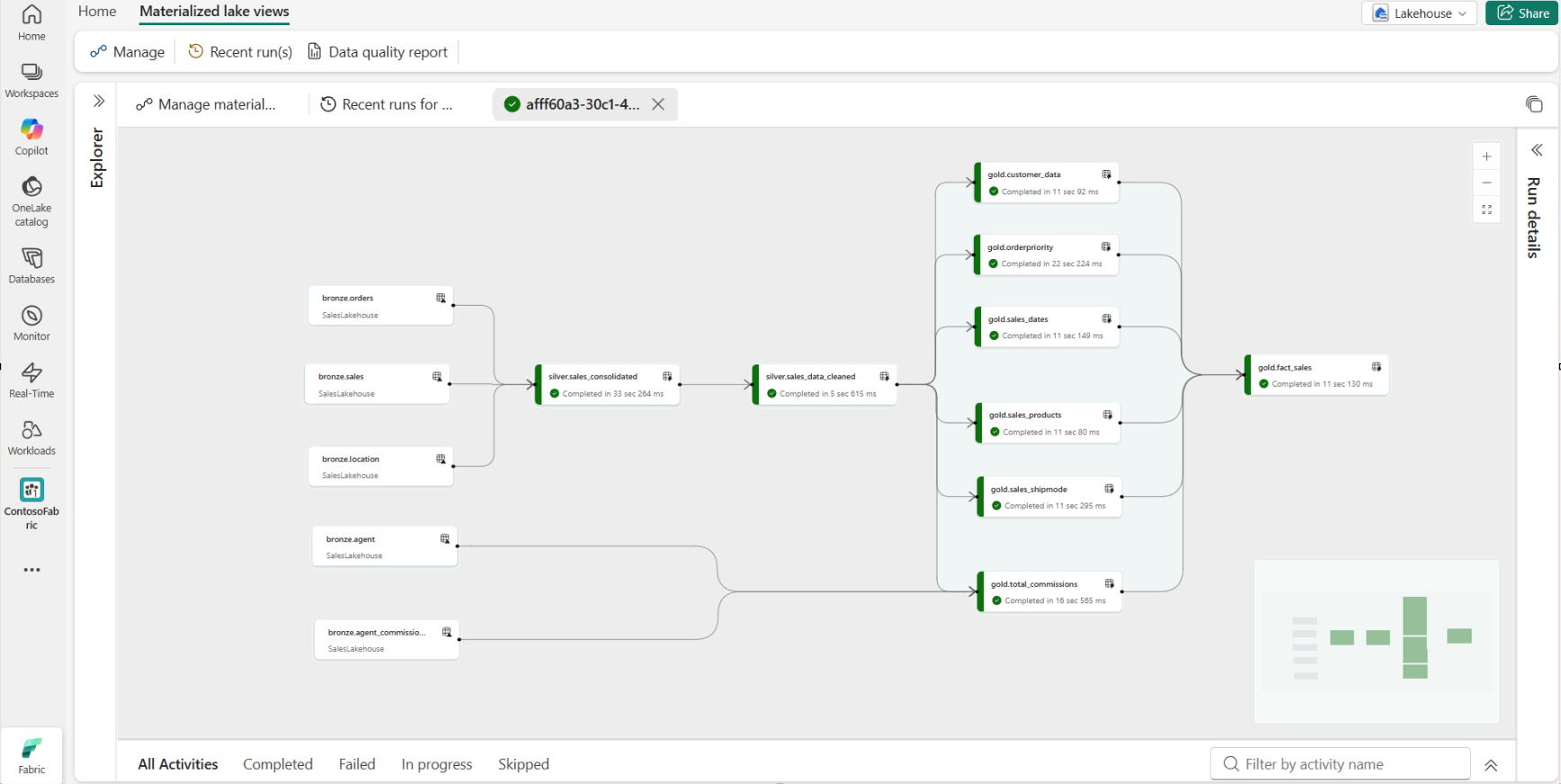
Understand the lineage view
In the materialized lake views lineage view, the system processes data in dependency order. Each materialized lake view represents an operation (for example, reading from a source table or running a transformation). Arrows show the nature of each dependency relationship and execution order.
Select a materialized lake view to inspect upstream and downstream relationships.
The lineage page includes these actions:
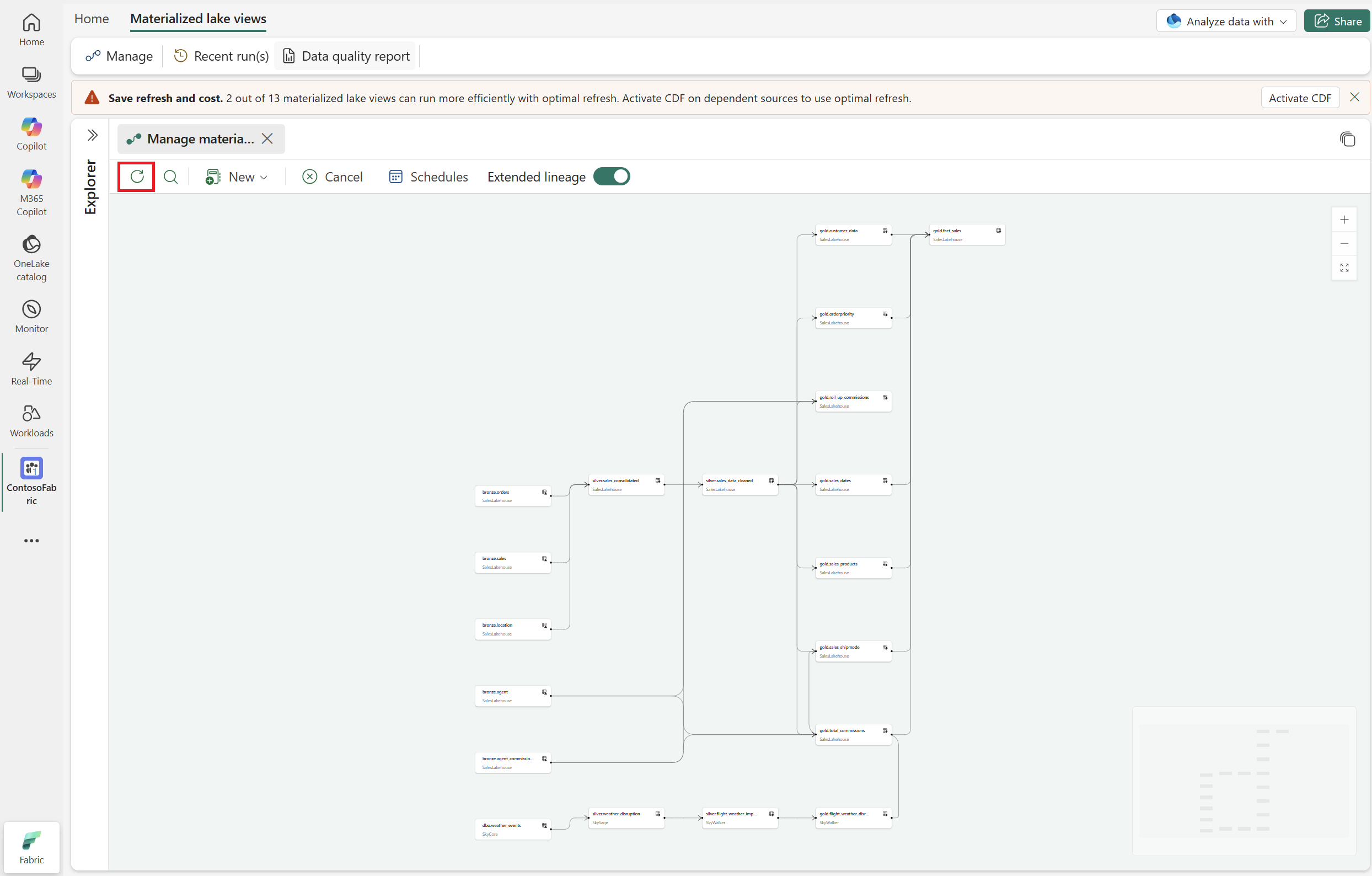
Refresh: Refreshes the lineage view to reflect recent status changes.
Note
This action refreshes only the lineage view. It doesn't refresh data. The lineage view auto-refreshes every 2 minutes when a run is in progress and the browser tab is active.
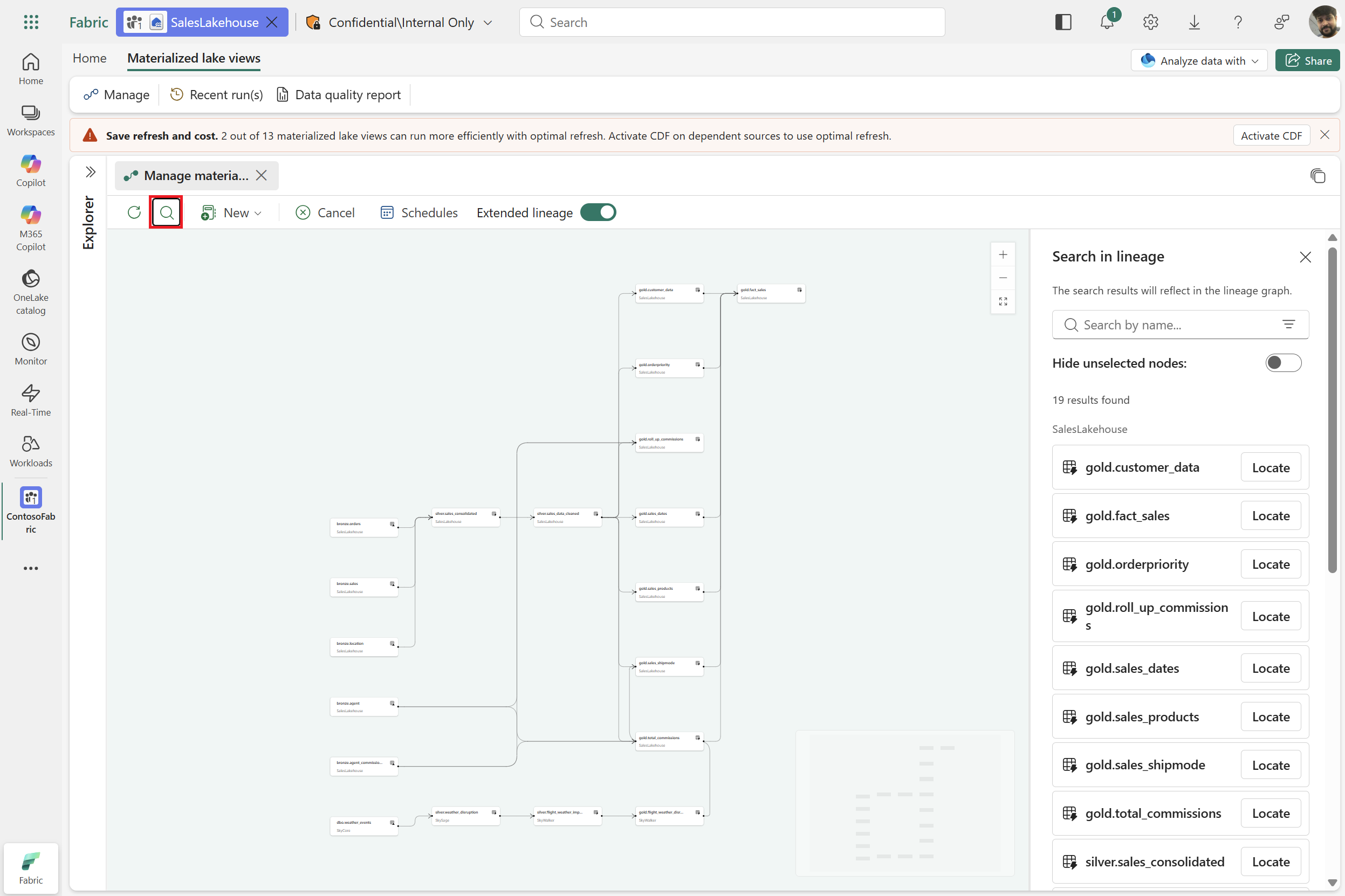
Search in lineage: Search for a specific materialized lake view or table by name within the lineage graph.
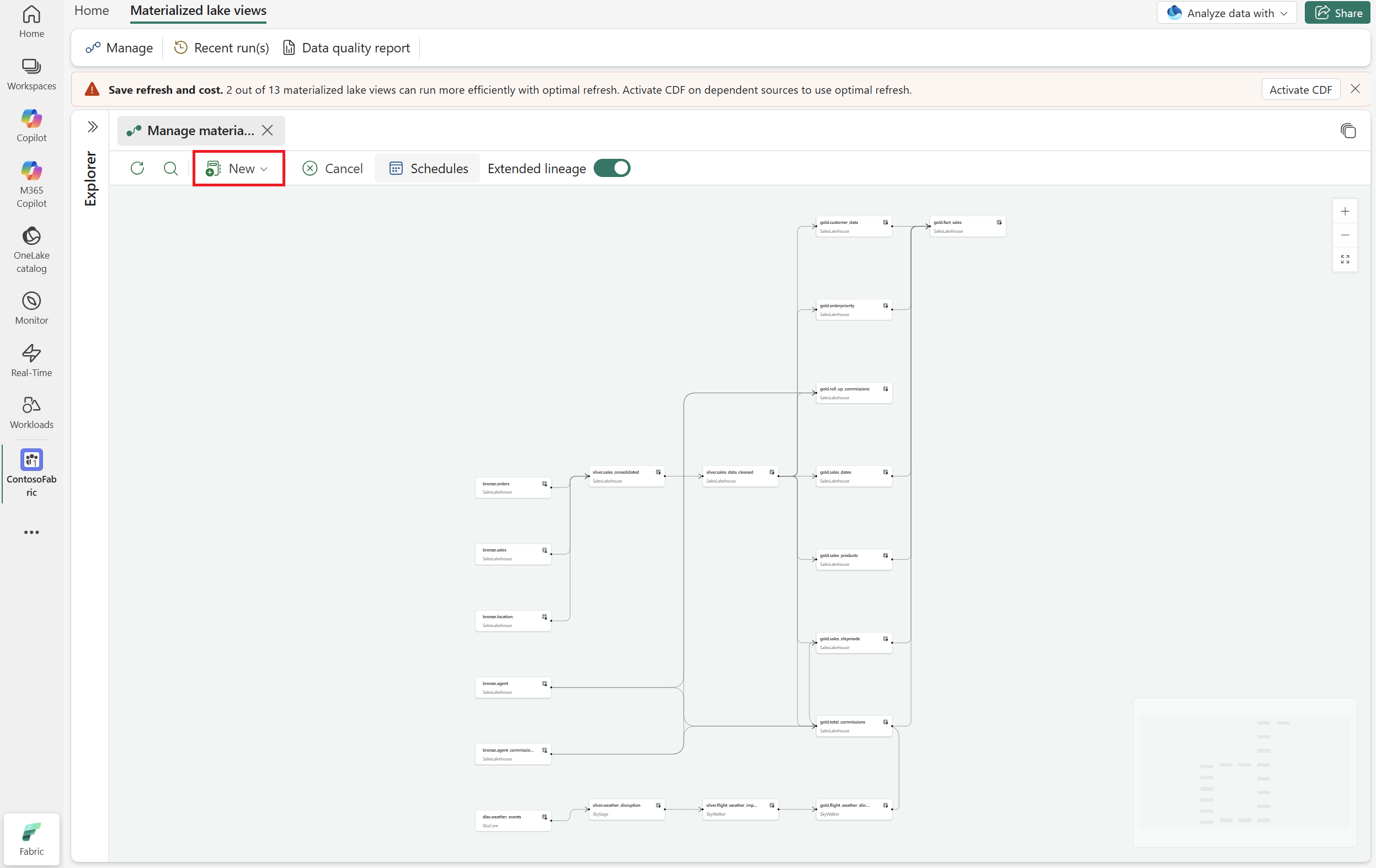
New materialized lake view: Opens a notebook where you can create or modify MLVs.
Note
These notebooks aren't directly linked to the lineage view.
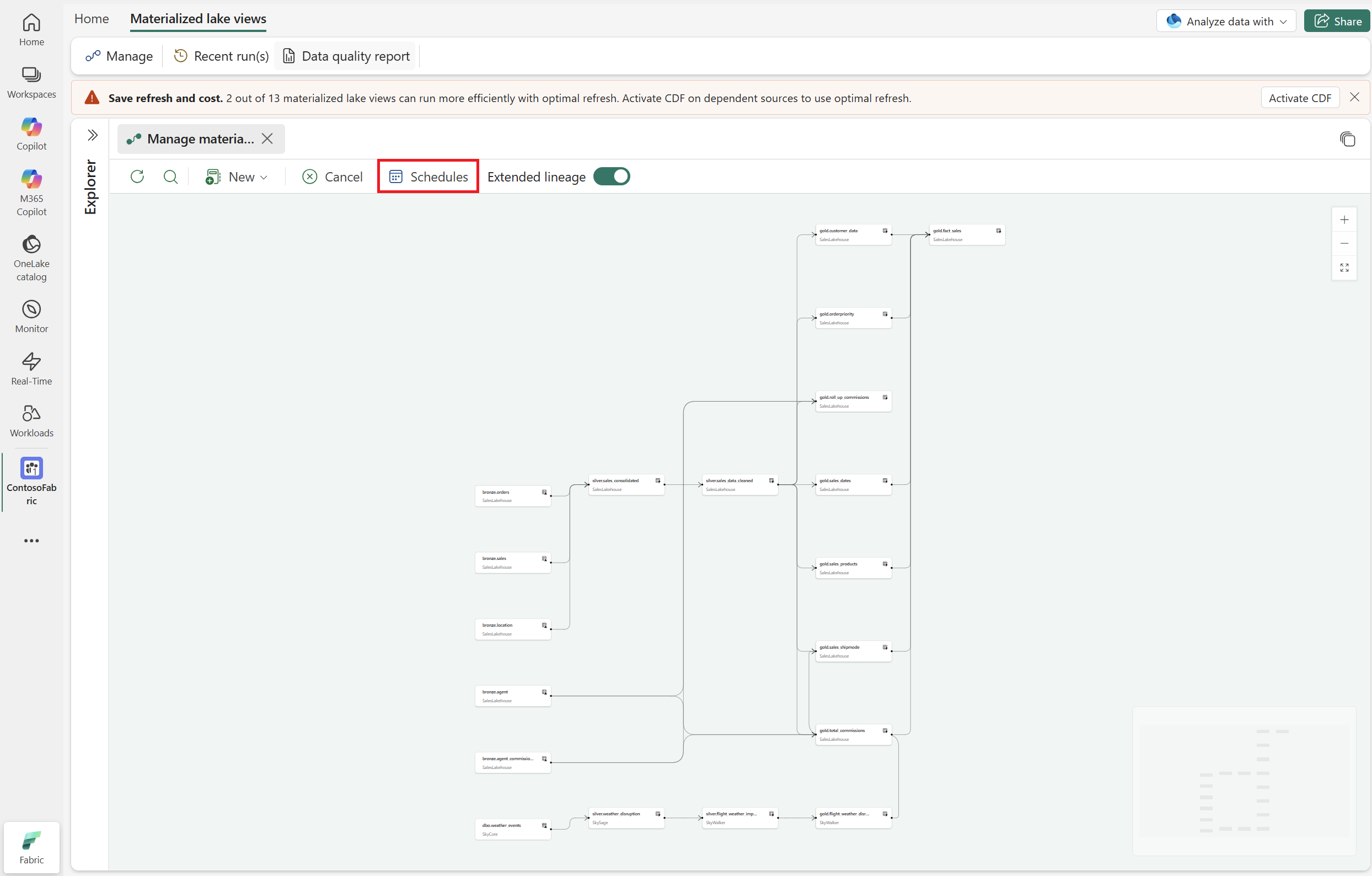
Schedules: Opens the Schedules pane to create or manage refresh schedules.
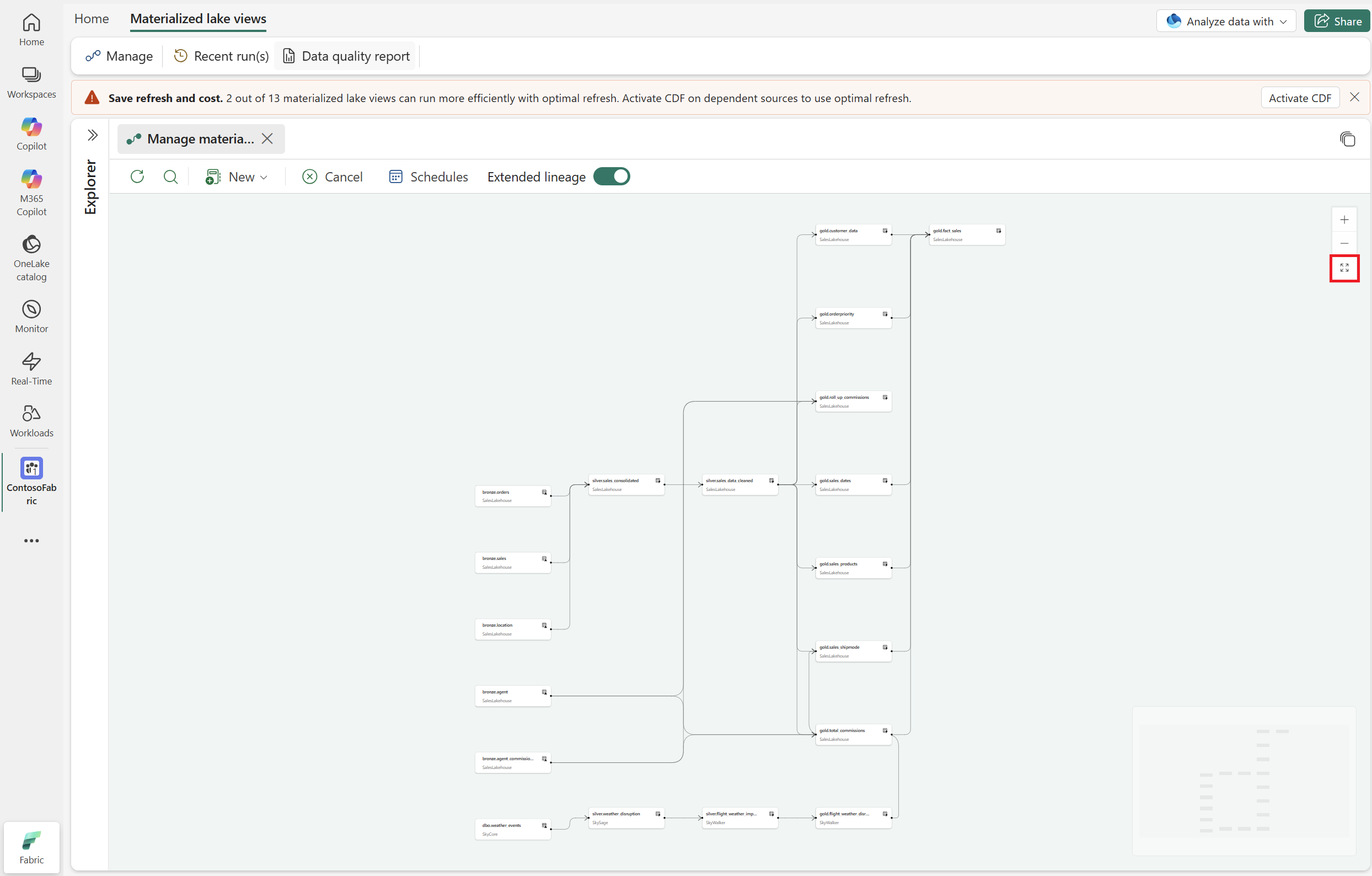
Reset lineage: Resets lineage layout for your current screen size.
View extended lineage
The standard lineage shows dependencies in context of the current lakehouse and its immediate upstream lakehouses or sources (one level deep). Extended lineage expands that view so you can trace every dependency all the way back to its source — recursively across lakehouses.
| Standard lineage | Extended lineage | |
|---|---|---|
| Scope | Current lakehouse + one level of cross-lakehouse parents | Full recursive chain across all lakehouses |
| Upstream MLVs | Shown as leaf nodes — you can't see what feeds them | Fully expanded — every upstream view and its sources are visible |
| Cross-lakehouse | Not shown | Visible if you have read access on the upstream workspace |
To view extended lineage:
Open the Manage tab of the materialized lake view.
Turn on the Extended lineage toggle in the toolbar.
The lineage updates to show all upstream dependencies, including materialized lake views and source tables in other lakehouses. Each node in the graph displays its name and lakehouse. The node type (table, shortcut, or materialized lake view) is indicated by an icon.
Note
You can only see upstream dependencies in workspaces where you have at least read permissions. Dependencies in workspaces you can't access appear as a faulted node.
Faulted nodes
When an upstream dependency is missing, deleted, or inaccessible, it appears as a faulted node in the lineage graph. Faulted nodes display an error indicator with a message explaining the issue (for example, "missing or inaccessible").
Cross-lakehouse execution
Extended lineage enables cross-lakehouse execution. A single lakehouse can define and refresh materialized lake views that reference tables across multiple lakehouses — including lakehouses in other workspaces — eliminating the need to duplicate transformation logic in each one.
For example, if you have three lakehouses — Bronze, Silver, and Gold — you can define all your materialized lake views in the Gold lakehouse while referencing source tables or materialized lake views in Bronze and Silver. These lakehouses can be in the same workspace or different workspaces. Fabric handles the cross-lakehouse reads during refresh, so you maintain one set of definitions instead of three.
Schedule upstream materialized lake views
From the extended lineage view, you can schedule refreshes for upstream materialized lake views in other lakehouses — without navigating to each upstream lakehouse separately. When creating a schedule or an ad-hoc run, you can select which lakehouses to include in the refresh. For details, see Schedule a materialized lake view refresh.
Permissions for extended lineage
| Action | Required permission |
|---|---|
| View extended lineage | Read access on upstream workspaces |
| Schedule upstream materialized lake views | Contributor on the upstream lakehouse |
| View details of upstream dependencies | Read access on the item |