Note
Access to this page requires authorization. You can try signing in or changing directories.
Access to this page requires authorization. You can try changing directories.
Notebooks are both readable documents containing data analysis descriptions and results and executable documents that can be run to perform data analysis. In this article, you learn how to use a Fabric notebook to connect to data in a KQL Database and run queries using native KQL (Kusto Query Language). For more information on notebooks, see How to use Microsoft Fabric notebooks.
There are a few ways to use Fabric notebooks with data from your KQL database:
- Load KQL database data from OneLake catalog
- Use Kusto snippets in a notebook
- Create a notebook from a KQL database
- Analyze data in a KQL Database with a new or existing notebook.
Prerequisites
- A workspace with a Microsoft Fabric-enabled capacity
- A KQL database with at least viewing permissions
Load KQL database data from OneLake catalog
The KQL databases in the OneLake catalog are available as data sources in the notebook environment. You can add a KQL database as a data source to your notebook, and then reference it in your code cells to run KQL queries against it.
In your Workspace, navigate to an existing notebook or create a new one.
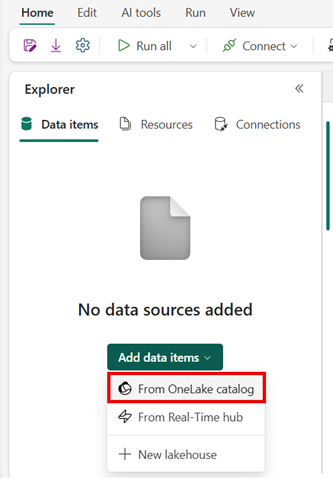
In the Notebook's Explorer pane, select Add data items and then select From OneLake catalog.
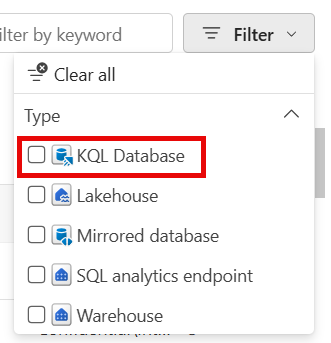
In the OneLake catalog, navigate to your KQL database. You can find it under the Eventhouse that it belongs to, you can filter the list by type and select KQL Database type, or you can search for it by name.
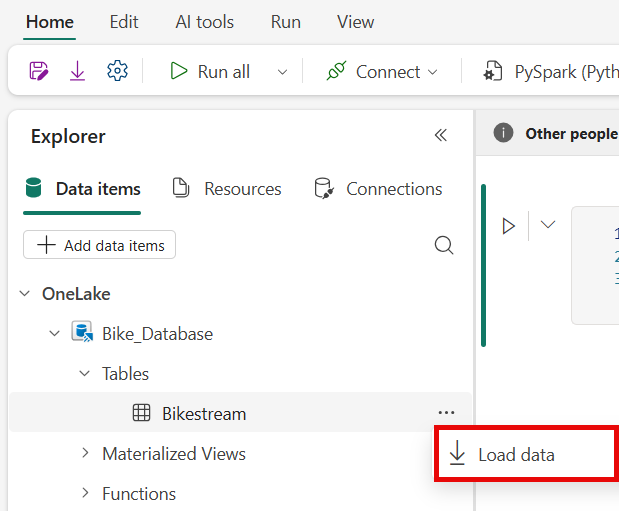
The KQL database is added under OneLake in the notebook's explorer pane.
Expand the database to see the tables within it.
Hover over a table, select the more ... menu, and then select Load data.
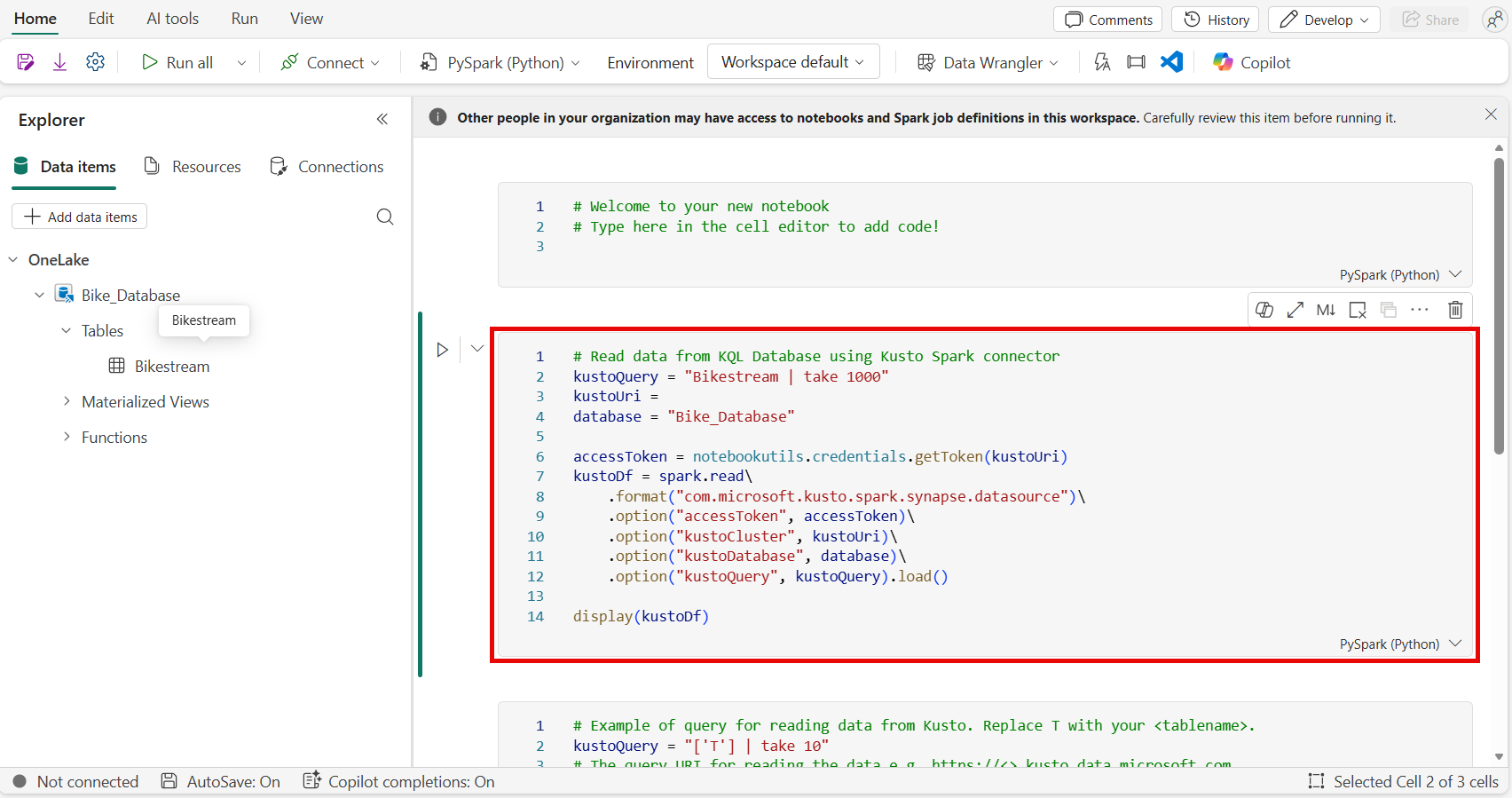
The data from the table is loaded into a new code cell in the notebook, and a connection to the KQL database is automatically established. You can then run the code cell to query the data and return results within your notebook.
For more information on the notebook experience with KQL data and the data analysis options, see xxxxxxx.
Use Kusto snippets in a notebook
Fabric notebooks provide code snippets that help you easily write commonly used code patterns. You can use snippets to write or read data in a KQL database using KQL.
Navigate to an existing notebook or create a new one.
In a code cell, begin typing kusto.
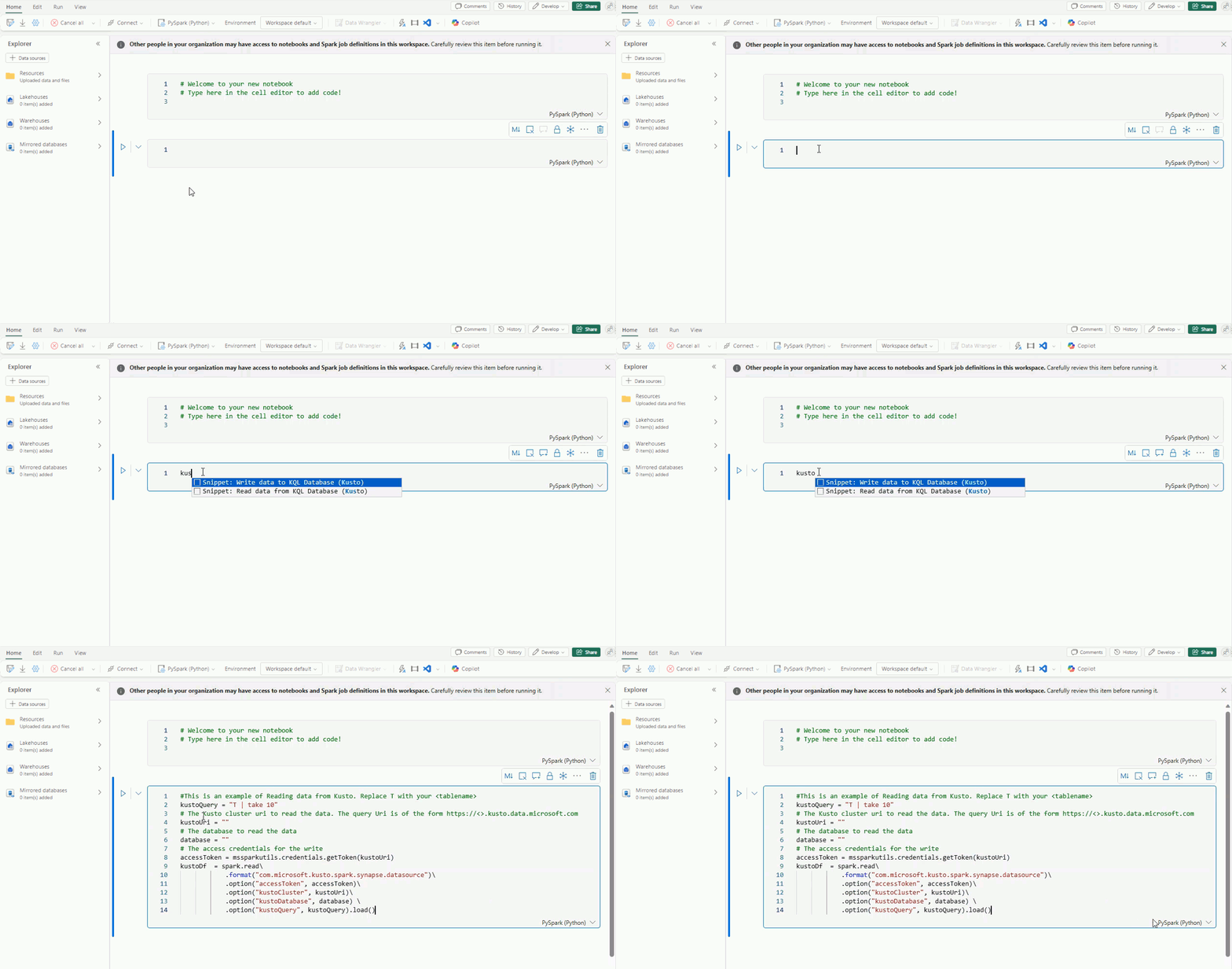
Select the snippet that corresponds to the operation you want to perform: Write data to a KQL database or Read data from a KQL database.
The following code snippet shows the example data read operation:
# Example of query for reading data from Kusto. Replace T with your <tablename>.
kustoQuery = "['T'] | take 10"
# The query URI for reading the data e.g. https://<>.kusto.data.microsoft.com.
kustoUri = "https://<yourKQLdatabaseURI>.z0.kusto.data.microsoft.com"
# The database with data to be read.
database = "DocsDatabase"
# The access credentials.
accessToken = mssparkutils.credentials.getToken('kusto')
kustoDf  = spark.read\
    .format("com.microsoft.kusto.spark.synapse.datasource")\
    .option("accessToken", accessToken)\
    .option("kustoCluster", kustoUri)\
    .option("kustoDatabase", database)\
    .option("kustoQuery", kustoQuery).load()

# Example that uses the result data frame.
kustoDf.show()
The following code snippet shows the example write data operation:
# The Kusto cluster uri to write the data. The query Uri is of the form https://<>.kusto.data.microsoft.com
kustoUri = ""
# The database to write the data
database = ""
# The table to write the data
table    = ""
# The access credentials for the write
accessToken = mssparkutils.credentials.getToken('kusto')

# Generate a range of 5 rows with Id's 5 to 9
data = spark.range(5,10)

# Write data to a Kusto table
data.write.\
format("com.microsoft.kusto.spark.synapse.datasource").\
option("kustoCluster",kustoUri).\
option("kustoDatabase",database).\
option("kustoTable", table).\
option("accessToken", accessToken ).\
option("tableCreateOptions", "CreateIfNotExist").mode("Append").save()
Enter the required information within the quotation marks of each field in the data cell:
Field Description Related links kustoQuery The KQL query to be evaluated. KQL overview KustoUri The query URI of your KQL database. Copy a KQL database URI database The name of your KQL database. Access an existing KQL database data The data to be written to the table. Run the code cell.
Create a notebook from a KQL database
When you create a notebook as a related item in a KQL database, the notebook is given the same name as the KQL database and is prepopulated with connection information.
Browse to your KQL database.
Select New related item > Notebook.
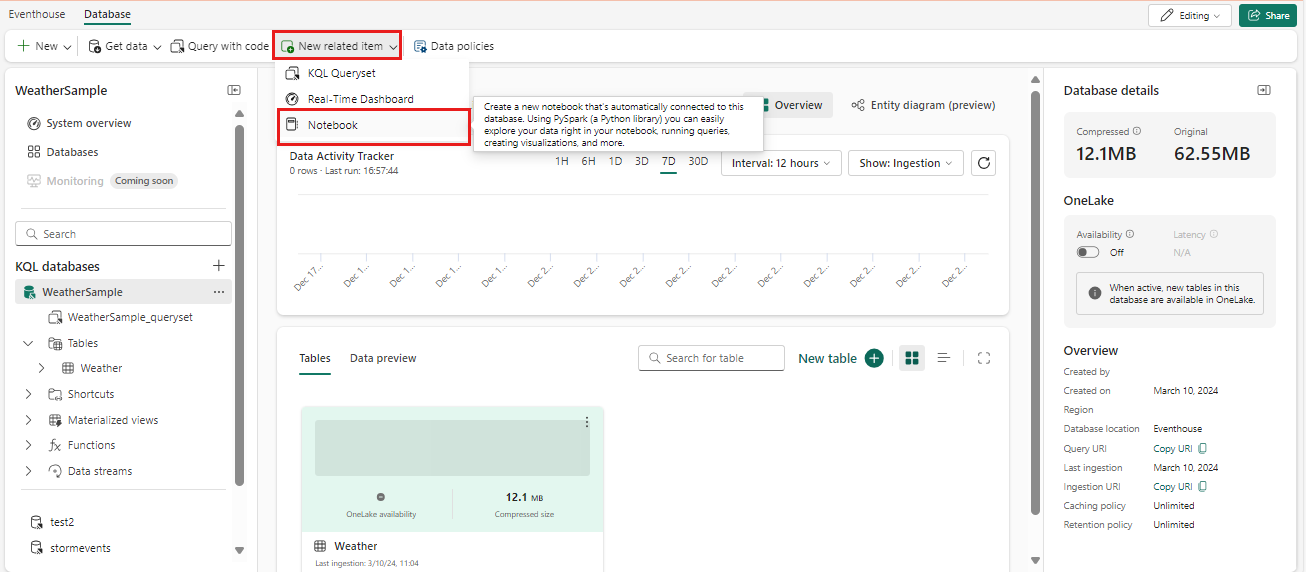
A notebook is created with the KustoUri and database details prepopulated.
Enter the KQL query to be evaluated in the kustoQuery field.
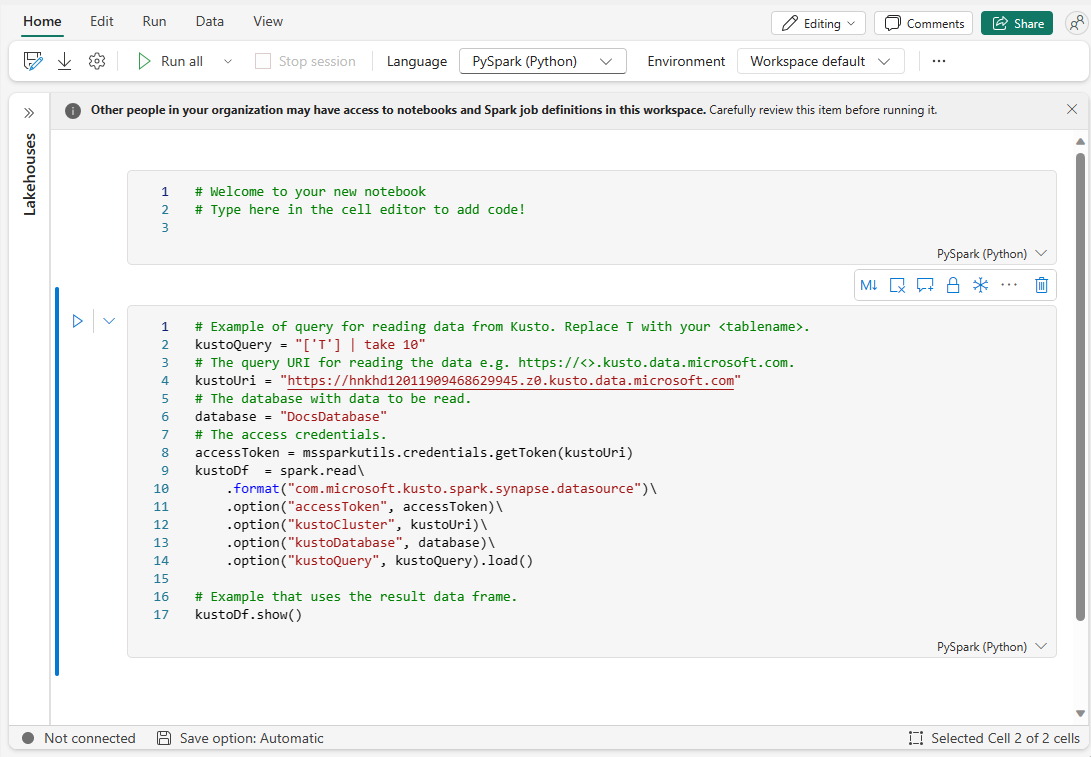
Run the code cell.
