Microsoft 365 and Office | Word | For home | Windows
A family of Microsoft word processing software products for creating web, email, and print documents.

This browser is no longer supported.
Upgrade to Microsoft Edge to take advantage of the latest features, security updates, and technical support.
' cx='32' cy='32' r='32' /%3E%3Ctext x='50%25' y='55%25' dominant-baseline='middle' text-anchor='middle' fill='%23FFF' %3ESC%3C/text%3E%3C/svg%3E)
How do I bring back up the top menu bar in Word documents
A family of Microsoft word processing software products for creating web, email, and print documents.

It is called the Ribbon, unless you mean the QAT.
For the Ribbon, see my article: https://addbalance.com/articles/Getting%20the%20Ribbon%20to%20Show%20Up%20in%20Word.htm
For the QAT, File > Options > Quick Access Toolbar
Check the box to Show Quick Access Toolbar.
I prefer to have mine show up below the Ribbon, but the default is for it to be above.
Hello,
Do you need more assistance with this?
' cx='32' cy='32' r='32' /%3E%3Ctext x='50%25' y='55%25' dominant-baseline='middle' text-anchor='middle' fill='%23FFF' %3EMP%3C/text%3E%3C/svg%3E)
The ribbon is a set of toolbars at the top of the window in Office programs designed to help you quickly find the commands that you need to complete a task.
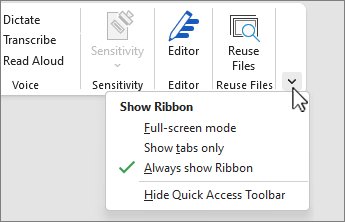
When the ribbon is visible, in the lower-right corner of the ribbon, click the Ribbon Display Options icon.
Choose a state for the ribbon:
Full-screen mode: Hides the ribbon for the best view of your document, and only shows the ribbon when you select the ellipsis (...) in the upper right, or press the ALT key.
Show tabs only: Shows only the ribbon tabs, so you see more of your document, and you can still quickly switch among the tabs.
Always show Ribbon: Keeps all the tabs and commands on the ribbon visible all the time.
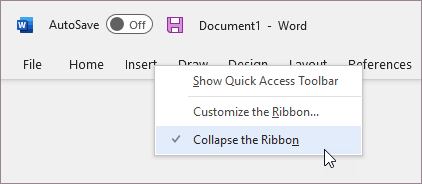
You can toggle between having the ribbon expanded or collapsed in multiple ways.
If the ribbon is collapsed, expand it by doing one of the following:
Right-click any of the ribbon tabs and then uncheck Collapse the ribbon.
If the ribbon is expanded, collapse it by doing one of the following:
Right-click any of the ribbon tabs, and then select Collapse the ribbon. 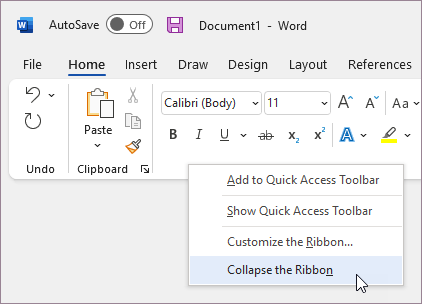
If the ribbon isn't visible at all (no tabs are showing), then you probably have the state set to Full-screen mode. Select the ellipsis (...) at the top right of the screen. This temporarily restores the ribbon.
When you return to the document, the ribbon is hidden again. To keep the ribbon displayed, select Always show Ribbon from the Ribbon Display Options menu.
The ribbon is a set of toolbars at the top of the window in Office programs designed to help you quickly find the commands that you need to complete a task.
If the above response helps answer your question, remember to "Accept Answer" so that others in the community facing similar issues can easily find the solution. Your contribution is highly appreciated.
hth
Marcin
AI answer
In Word, the “top menu bar” is the ribbon. It is usually hidden because Word is in Full-screen/Auto-hide mode.
Use one of these methods to bring it back:
If the menu bar and buttons are still missing in older versions, restart Windows in Safe Mode, open Word, turn off Full Screen on the View menu, then save and restart normally.
References: