Share via

Internet connection sharing not working, when trying to access webpages on the other device it never loads

Anonymous
2014-06-26T19:05:08+00:00

Original Title: ICS not working (Pages don't load on remote device)

Hi,

I had used netsh command for sharing a USB modem network ..... Now the network created is appearing in other devices and the devices get connected to the network. But when I try to access webpages on the other device it never loads... I use a USB Modem and when I try to access webpages on the remote device the program for the modem doesn't show that data is being used by the remote device. And in network and sharing center the network I created shows internet access. 

>>>> I DO NOT WANT INSTRUCTIONS FOR CREATING A WIFI HOTSPOT/SHARED NETWORK/HOSTED NETWORK<<<<

Windows for home | Previous Windows versions | Internet and connectivity

Locked Question. This question was migrated from the Microsoft Support Community. You can vote on whether it's helpful, but you can't add comments or replies or follow the question.

0 comments No comments

10 answers

Sort by: Most helpful
  1. Anonymous
    2014-06-27T14:05:00+00:00
    1. My internet service provider is BSNL , I use a BSNL EVDO modem
    2. Nope the remote device is the device I use for connecting to the hosted network and browsing
    3. The host computer is a Laptop- Lenovo G510 . The remote devices are an iPad and a android phone. The network doesn't work on both devices.

    The modem is not recognized as a Mobile broadband. I have attached a photo for showing that. The USB modem is not shown in the networks are in PC settings.

    Pls help.

    Was this answer helpful?

    6 people found this answer helpful.
    0 comments No comments
  2. Anonymous
    2014-06-27T12:55:47+00:00

    Hi Eugene,

    This issue could be due to settings with the USB modem or firewall could be blocking the connection.

    Please assist me with the following information related to this issue:

    1. Who is your Internet service provider?
    2. When you say remote device, are you trying to connect to a different computer?
    3. What all devices are you referring to?

    Check if you can access Internet correctly when the Internet is shared with only one device at a time.

    Please follow all the steps mentioned under section Troubleshooting in the following link and check:

    Mobile broadband from start to finish

    **http://windows.microsoft.com/en-ca/windows-8/mobile-broadband-from-start-to-finish**

    Please reply us on the status of the issue to assist you further.

    Was this answer helpful?

    4 people found this answer helpful.
    0 comments No comments
  3. Anonymous
    2014-06-27T14:06:53+00:00

    By the way, Is there any way to see if my modem supports sharing in windows.

    Was this answer helpful?

    3 people found this answer helpful.
    0 comments No comments
  4. Anonymous
    2014-06-28T13:10:09+00:00

    I don't think you have understood my problem. I already made a Ad-Hoc network. I do not want to transfer photos and videos. My main purpose is to share my internet with the other devices. I have done the steps until starting the hosted network before and the network connected showed Internet IPV4 connection. But then on my iPad or phone the pages wouldn't load. It would stay loading for ever until the web browser says: the server isn't responding. Here's the status of the shared network before the steps you mentioned

    Now here's the status after the steps

    Was this answer helpful?

    1 person found this answer helpful.
    0 comments No comments
  5. Anonymous
    2014-06-28T09:14:19+00:00

    Hi Eugene,

    Windows 8 comes with ICS (Internet Connection Sharing) feature to allow devices to connect to yours PC internet connection. In this post, we will show you how to easily create and manage ad-hoc connections in Windows 8.

    Steps to Set up Ad Hoc Connection on windows 8

    1. Press the shortcut Windows Key + Q to open the Apps Search on Windows 8.
    2. Type in cmd in the search box on the right, the search result will be displayed on the left.
    3. Right click on the search result, you will get a screen as below:
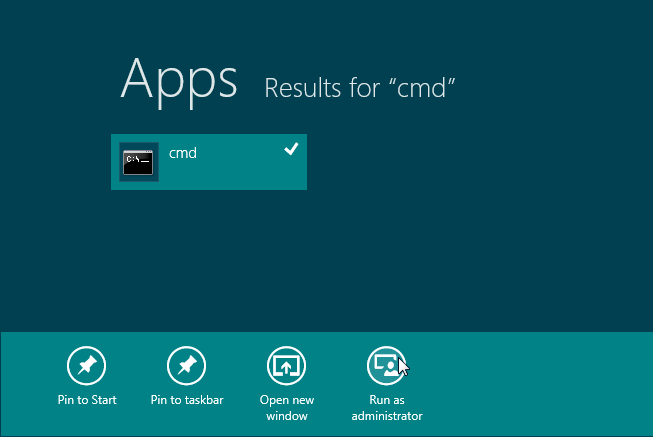
    1. Click on Run as administrator.
    2. Enter the following commands to configure an ad hoc wireless connection.

    netsh wlan set hostednetwork mode=allow ssid=wirelesstransferapp key=12345678

    Press enter, you should see a prompt as below

    The hosted network node has been set to allow….

    1. Now enter below commands to start the wireless network

    netsh wlan start hostednetwork

    Press enter, you should see a prompt as ‘The hosted network started.’ See below figure:
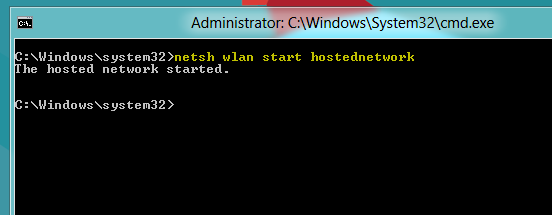
    1. Go to enable Internet Connection Sharing.

    When the hosted network is started, enable ICS for newly created Wi-Fi connection for your currently-active internet connection. Simply head over to Network & Sharing Center, and in the properties for the current internet connection, enable ICS. Make sure to select the ad hoc connection under Home networking connection.

    Now you can join this newly created Wi-Fi connection on your iPhone, iPad or iPod touch and use the wirelss photo transfer app to move photos and videos around them.

    Please reply us on the status of the issue to assist you further.

    Was this answer helpful?

    1 person found this answer helpful.
    0 comments No comments
