Share via

How can I repair Windows 11 on a separate SSD?

Anonymous
2023-07-27T21:23:26+00:00

I had problems with 2 of my SSD's a few days ago, where the OS on the main SSD was broken. Fortunately I was able to fix it myself through some pain and Command Prompt (sfc /scannow). Everything was back to normal, but yesterday I force shutdown my laptop (it was not in the middle of anything). Woke up and basically both systems on both SSDs do not work. I only care about my main SSD (#1), because the other SSD (#2) only has bare Windows 11 and nothing on it. For some reason both OS's are not working, although I was using the #1 OS yesterday. I tried what I could come up with, nothing helped. So I reinstalled Windows 11 on the #2 SSD and I am using it right now. I have the #1 SSD plugged in and I can browse through it as a folder. I can just get all my data and files from it, but the most important thing to me is my whole system and the OS that I was using. I can start anew any time, but I really want to fix my #1 OS somehow.

When I try to use restore points, it says that I need to choose which Windows to restore (even if I have only 1 plugged in) and I can't do that. Tried doing repair install, it doesn't get me anywhere. Tried doing install with the option of transferring everything from the last OS, but that is only possible on the working OS.

Please share any thoughts and ideas on how I can fix my #1 OS without erasing it. Thank you very much in advance.

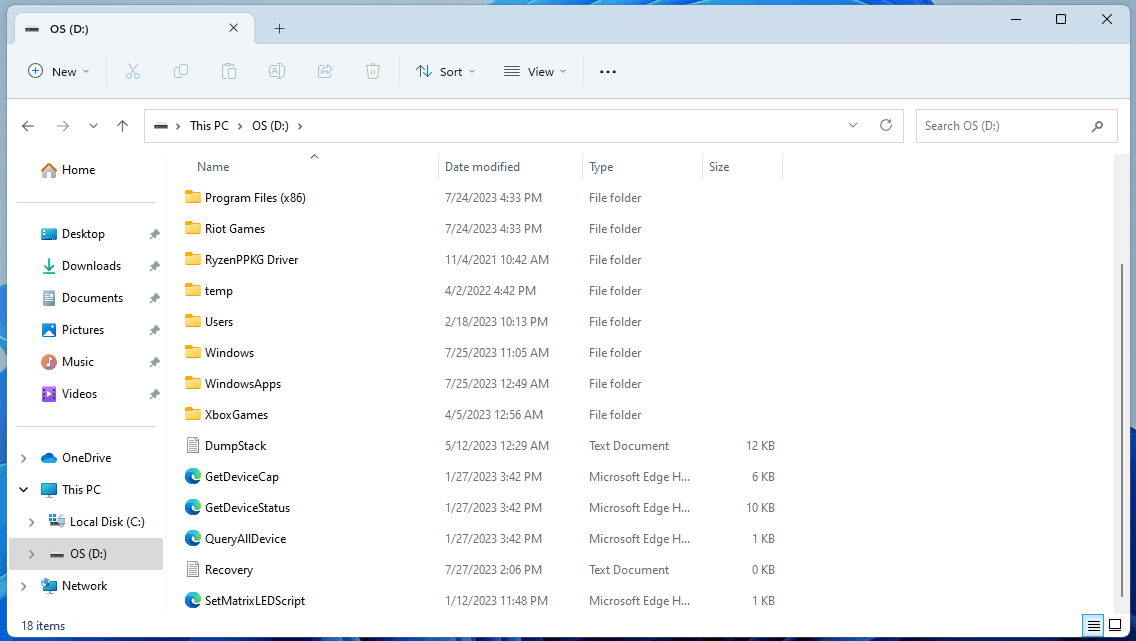
Edit: I have an ASUS laptop. Here is the #1 SSD folder itself, it has a bunch of recovery files. Also, as I understand, the laptop sees #1 SSD as 6 different disks named "SYSTEM", "blank", "OS", "RECOVERY", "RESTORE" and 1 more. I saw that when I was reinstalling the Windows 11 on the #2.
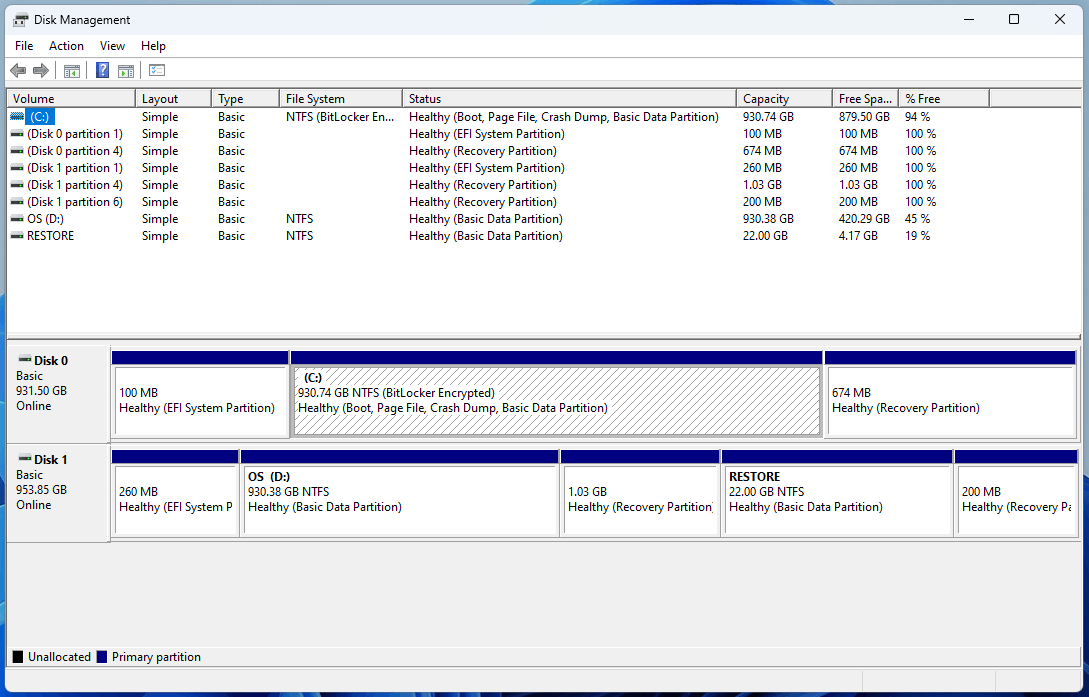
Edit 2: Here is the disk management window. Disk 0 is SSD#2 with new OS, Disk 1 is the original SSD with the old OS that I need to fix.
Windows for home | Windows 11 | Recovery and backup

Locked Question. This question was migrated from the Microsoft Support Community. You can vote on whether it's helpful, but you can't add comments or replies or follow the question.

0 comments No comments

22 answers

Sort by: Most helpful
  1. Anonymous
    2023-07-29T22:35:53+00:00

    Thanks for your feedback.

    No, at this point, dism log cannot help me to identify the root cause. Please start the computer then try to access the recovery environment from the broken os, then select Troubleshoot, Advanced option, next select Command Prompt. From Command Prompt, run

    Bcdedit /set {default} recoveryenabled no

    This command will break the reboot cycle and maybe you will get an error code during the boot process.

    Was this answer helpful?

    1 person found this answer helpful.
    0 comments No comments
  2. Anonymous
    2023-07-28T12:27:43+00:00

    Thanks for your feedback, Grechaniuk.

    This procedure requires a Windows installation media. Please connect a Windows installation media and identify the assigned letter. Next replace the X: from the following command for the assigned letter. This command will repair the broken Windows installation using the installation media.

    dism /image:D:\ /cleanup-image /restorehealth /source:X:\sources\install.wim

    Let me know if that solves it, please.

    Was this answer helpful?

    1 person found this answer helpful.
    0 comments No comments
  3. Anonymous
    2023-07-27T22:32:13+00:00

    Hi, Grechaniuk. I'll be happy to assist you today.

    Sorry to know you're experiencing this hardware issue.

    In order to repair Windows on an offline disk, please open CMD as administrator then paste the following commands:

    chkdsk D: /f

    sfc /scannow /offbootdir=D:\ /offwindir=D:\windows

    Please let me know if you are able to repair broken Windows using those commands, if not let me know the error message.

    Was this answer helpful?

    0 comments No comments
  4. Anonymous
    2023-07-27T22:01:25+00:00

    Thank you.

    Just edited the post and added the screenshot of the disk management.

    Was this answer helpful?

    0 comments No comments
  5. Anonymous
    2023-07-27T21:52:37+00:00

    Your Asus would have been supplied with the single ssd, and disk management would have shown the multiple partitions as you have named.

    You have added another ssd designated D:\

    You should have run the whole sfc/DISM process for any repair

    You need to upload a pic of what is shown in Disk Management, before any advice can be given

    Was this answer helpful?

    0 comments No comments
