Microsoft Security | Microsoft Entra | Microsoft Entra ID
A cloud-based identity and access management service for securing user authentication and resource access

This browser is no longer supported.
Upgrade to Microsoft Edge to take advantage of the latest features, security updates, and technical support.
' cx='32' cy='32' r='32' /%3E%3Ctext x='50%25' y='55%25' dominant-baseline='middle' text-anchor='middle' fill='%23FFF' %3EMD%3C/text%3E%3C/svg%3E)
They do not match with my name

How was generated the account?
Hi, an University provided via an alumni website, and they mentioned that it is microsoft the one in charge via Azure directory.

@markku de vizcaya
Thank you for following up on this!
Since you received your account from an Alumni website, if you can access your user's profile within Azure Active Directory, you can add or change your profile information within the Azure Portal.
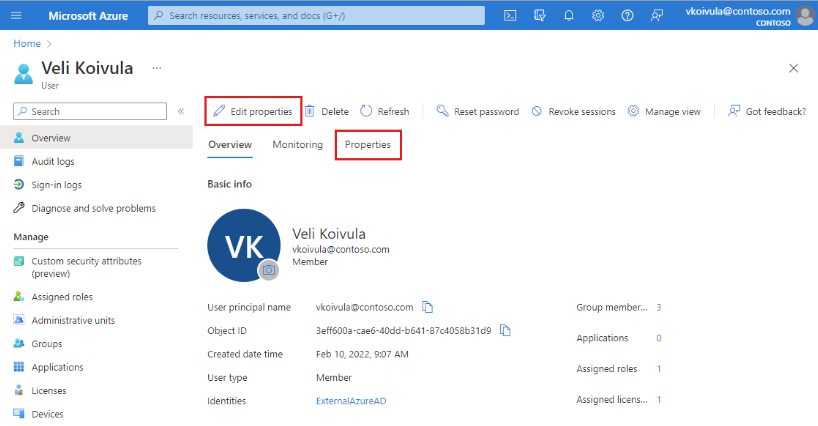
If you don't have access or the correct permissions to change your profile info, I'd recommend reaching out to the Alumni website where you received your account so their admin's can update your profile info.
If you have any other questions, please let me know.
Thank you for your time and patience throughout this issue.
----------
Please remember to "Accept Answer" if any answer/reply helped, so that others in the community facing similar issues can easily find the solution.
@markku de vizcaya
I just wanted to check in and see if you had any other questions or if you were able to resolve this issue?