Cannot access \\computer name error code 0x80070035 using 2 Win 7 Professional x64 machines

Anonymous
2010-02-11T20:04:55+00:00

Driving me crazy!

Computer 1 status: Norton 360 on. Ethernet wired to Linksys router. This computer originally setup homegroup. User name and password same on both machines. Computer 2 can see this machine as expected - sweet!

Computer 2 status: Norton 360 uninstalled. Windows firewall off. Ethernet wired to Linksys router. User name and password same on both machines. This computer cannot be seen by Computer 1 grrrrr!

I have left homegroup on both machines multiple times to no avail. Many reboots. Troubleshooters worthless. I have tried many things posted to this forum and others. My Win 7 machines see my XP machines without a problem. All computers on same workgroup. I can ping Computer 2 from Computer 1 and vice versa.

Earlier this week it was the reverse problem. Computer 2 could not see Computer 1. Even the old-style "advanced sharing" did not work. After 3 days of forums and trying things I reinstalled Win 7 on both computers and everything was fine. Very painful and I'm hesitant to reinstall all my software until this is fixed permanently.

Does anybody have a fix short of reinstalling Win 7?

Any ideas why this keeps happening? I did install a network printer first wireless, then wired, then to USB. I uninstalled all printer software but that didn't help.

Windows for home | Previous Windows versions | Internet and connectivity

Locked Question. This question was migrated from the Microsoft Support Community. You can vote on whether it's helpful, but you can't add comments or replies or follow the question.

0 comments No comments
Answer accepted by question author
Anonymous
2010-02-12T15:53:21+00:00

Hi Jack_W,

Since you are able to see and access Computer 2 from Computer 1 and unable to see computer 2 from computer 1. I would suggest you to first check with both the computer if the Network discovery is turned on both the computer.

To turn on network discovery

1.     Open Advanced sharing settings by clicking the Start button, and then clicking Control Panel. In the search box, type network, click Network and Sharing Center, and then, in the left pane, click Change advanced sharing settings.

2.     Click the chevron to expand the current network profile.

3.     If network discovery is off, under Network discovery, click Turn on network discovery, and then click save changes. If you're prompted for an administrator password or confirmation, type the password or provide confirmation.

Also you may access the link and follow the steps and check if it helps to see the computer 2.

http://windows.microsoft.com/en-us/windows7/Why-can-t-I-connect-to-other-computers

Also you may verify if you can access computer 2 from computer 1 by opening with the run command and typing the IP address of computer 2.

To do this, follow the steps in computer 1.

  1. Click on Start
  2. In the start search box type \ipaddress\ of the computer 2 and press enter eg: \192.168.0.2\

Check if this opens and connects to Computer 2 in the network.

Also you may try to boot both the computer in safe mode with networking and see if they are able to see each other.  To boot to the desktop in safe mode with networking keep tapping F8 key during restart. Once you see the option to boot in safe mode with networking select it and press enter.

Access the link to know more about how to boot the computer in safe mode:

http://windows.microsoft.com/en-US/windows7/Start-your-computer-in-safe-mode

Hope this helps. Let us know the results.

Thanks and Regards,

**Srinivas RMicrosoft Support.**Visit our Microsoft Answers Feedback Forum and let us know what you think.
Was this answer helpful?

2 people found this answer helpful.
0 comments No comments

30 additional answers

Sort by: Most helpful
  1. Anonymous
    2011-09-20T00:35:46+00:00

    Hi,

    Ok i know this is a little late for some people but i was killing myself over "(Error Code: 0x80070035)" for about a week when i purchased Win 7 Pro X64. When i first installed it i could not connect to my 3 Snap Servers on my network at home. I can connect to any computer in the house, including computers on XP, but not my servers. So this is what i did...... Back when 7 came out, i did some searching on the error code. Actually i think my original error code was (0xc000000F), so i did the Hotfix under Article

    978869, by the way if you type in this article # on microsoft.com you can dload the hotfix also. I also had to go into my "Local Security Policy" and change one line: "Network security: LAN Manager authentication Level" I had to change it to "Send LM & NTLM

    responses" 

    So being as that i fixed the problem of the original Error Code, Now i had a new Error Code after reinstalling 7 2 days ago, (Error Code: 0x80070035). I'm not sure if windows did an update or maybe i messed something up but i could not connect to my servers again.  So i did some checking here in this forum and nothing worked. So i would like to post how i fixed the mapping network drive\ error code 0x80070035. I'm going to list is below:

    Start

    type "Security" in the search box

    Click "Local Security Policy"

    Click "Local Policies"

    Click "Security Options"

    Scroll down to "Network Security: Minimum session security for NTLM SSP based (including secure RPC) client , Right click on it and go to properties, UNCHECK Require 128-bit encryption then press ok

    Now do the same for the next line down.

    Network Security: Minimum session security for NTLM SSP based (including secure RPC) Server.

    Now i only spelled it out because some of these posts are kinda confusing and people can get lost fast if they don't know much about a computer. I'm sure there is an easier way to do this but this is what i did and how i did it.

    I just wanted to add the experience i had with this error. Also i did not have to disable my firewall or connect to a home group. good luck everyone.....

    Richard

    Was this answer helpful?

    0 comments No comments
  2. Anonymous
    2011-09-12T14:17:40+00:00

    Just start the service "server" from services.msc. This should resolve the issue.

    Was this answer helpful?

    0 comments No comments
  3. Anonymous
    2011-04-14T16:50:23+00:00

    That is not true I have Windows 7 on two computers and the laptop will not see or access the desktop and this all started after getting windows 7 updates I have to go back to an image before upgrades and then it works and as soon as I get the update it is back where the laptop can not access the desktop.  I also have two other computers with Vista on them and they talk to any other computer including this laptop.  But the laptop will not talk with any other computer.  I can go to any desktop and it talks to the laptop but not the other way around, I can boot up to XP Pro and Xp Pro will talk to the Window 7 or Vista but Vista and Window 7 will not talk to XP Pro.  Thanks for non of the help.  It almost like Linux and windows will not talk to each other unless I use only IP address.  But the Linux system can talk to and connect to the printers.  MS needs to work on there product and try and make them better instead of worst.  That is all I see in Windows 7 they took 25 steps backwords where as XP Pro worked the best all they had to do was correct where there was a problem.

    Was this answer helpful?

    0 comments No comments
  4. Anonymous
    2011-01-29T21:20:59+00:00

    Hi

    I have No idea What the contribution of the security used is.

    Many 3rd party security pose "challenge" to Win 7 Networking (see example -http://social.answers.microsoft.com/Forums/en-US/w7network/thread/306dd446-7630-4d5b-8aa0-40fb839b293a ).

    Most 3rd party Network Managers (like Apple Bonjour) can affect negativly other Computers/Devices that are on the Network as well.


    As far as the OS per-se is concerned.

    Permission and Security issues with Vista/Win7, check the following settings.

    All users that are allowed to share need to have account on all the computers that they are allowed to connect to.

    Everyone is an account, it means a group of all of the users that already have an account and been established as users.

    Using the Everyone feature saves the need of configuring permission to each of theestablished users, it does not mean Everyone that feel that they would like to login. 

    Users that do not have an account on the computer are Not part of the Everyone Group.

    If security on the LAN is Not needed and users are Not established, then switching On the Guest account provides semi-open configuration.

    http://windows.microsoft.com/en-US/windows7/Turn-the-guest-account-on-or-off


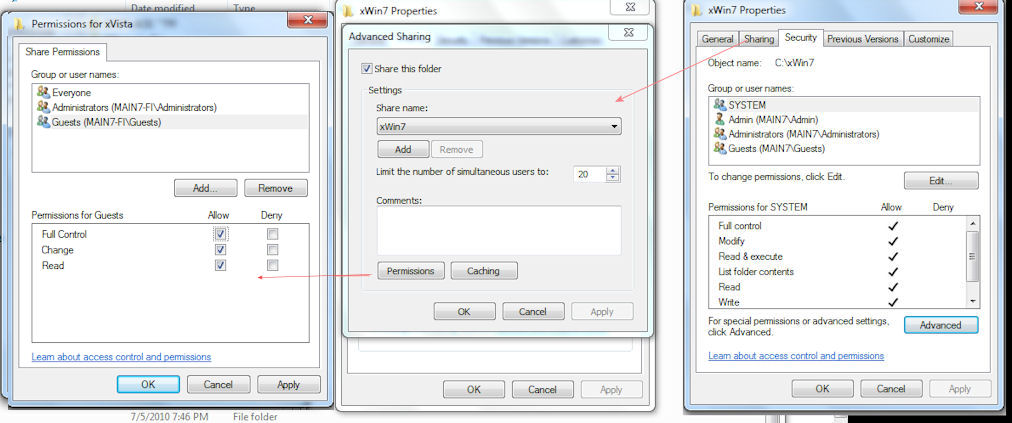
    Point to the a Folder that meant to  to be share. Right click and choose properties.

    In the properties

    Click on the Security tab shown in the pic bellow to the right) and check that the users and their permission (shown in the pic bellow center and left) are correctly configured. Then do the same to the Permission tab.

    This screen shot is from Win 7, Vista's menus are similar.

    In both the Security panel, and the Permission panel you have to highlight each User/Group and examine that the Permission Controls are checked correctly.

    When everything is OK, Reboot the Network (Router, and computer).

    * Note . The Groups and Users shown in the screen-shoot are just an example. Your list will look the way your system is configured. 


    If more control is needed take a look at this page, http://windows.microsoft.com/en-US/windows-vista/Share-files-and-folders-over-the-network-from-Windows-Vista-Inside-Out

    ------------------------

    BTW, if the Network is a Business Network. Try re-post here, http://social.technet.microsoft.com/Forums/en-US/w7itpronetworking/threads?sort=firstpostdesc


    Jack - Microsoft MVP, Windows Networking. WWW.EZLAN.NET

    Was this answer helpful?

    0 comments No comments