Constant BSODs, usually after having a game running for a few minutes.

Anonymous
2024-09-10T15:11:19+00:00

I don't play a huge variety of games, mainly only Rainbow Six Siege and Minecraft, but after a few minutes of having either up and running, my laptop sometimes gives me the BSOD. In the past few months (up to past year) I have been having this issue and would let my laptop restart and I would relaunch the game and no further problems. However, the past few weeks have been worse, as almost 100% of the time my laptop would BSOD after a few minutes of the game launching. Then once my laptop restarts, it shows the BIOS interface. I normally Save and Exit, usually taking me to the login screen, but the past few days I would have to Save and Exit a few times as it would bring me back to the interface. Just yesterday I upgraded to Windows 11, hoping it would fix things but it didn't and the problems persist. Now the problem is that I can't risk opening any games as I'm worried I won't even be able to login at all, as this happened this morning. I'm not sure why but seeming to leave my laptop powered off for about an hour means I can login without any problems after, but once I open a game for a few minutes and I get a BSOD, it's incredibly difficult to get access again without waiting an hour.

Was just about to post, but I think the fault may be with my SSD, as on the BIOS interface I mentioned, sometimes the info for the Micron storage isn't displayed and sometimes is (see below).
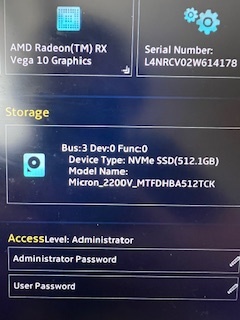
I've had various BSOD error messages but only managed to note down a few as sometimes the BSOD only flashes:

IO1_INITIALIZATION_FAILED

WHEA_UNCORRECTABLE_ERROR

Sorry it this is long, just trying to give as much detail as possible.

Laptop Specs:

ASUS FX505DV

AMD Ryzen 7 3750H with Radeon Vega Mobile Gfx 2.30 GHz

NVIDIA GeForce RTX 2060, 6GB Dedicated Memory

16GB RAM

Micron_2200V_MTFDHBA512TCK (512GB)

Thanks for reading this far and thanks in advance for any help and advice. If you need anything more info to help inform a course of action, please let me know.

Windows for home | Windows 11 | Performance and system failures

Locked Question. This question was migrated from the Microsoft Support Community. You can vote on whether it's helpful, but you can't add comments or replies or follow the question.

0 comments No comments

7 answers

Sort by: Most helpful
  1. Anonymous
    2024-09-10T20:36:29+00:00

    Once I restarted after turning on the Driver Verify, I struggled getting back on, being stuck in a BIOS loop. I haven't been able trigger any more crashes, so I have only managed to get one minidump file, hopefully accessible here: Minidump

    If you need more minidump files, I can probably get more tomorrow, as the BSOD's are usually worse at after starting up my laptop after multiple hours. For now, I will keep the Driver Verify on to capture any more crashes

    Was this answer helpful?

    1 person found this answer helpful.
    0 comments No comments
  2. DaveM121 950.3K Reputation points Independent Advisor
    2024-09-10T17:35:14+00:00

    If you have no minidump files available, to try to force Windows to create minidump files and show any faulting drivers, the best option would be to turn on Driver Verifier, let your PC crash 3 times, then you must turn off Driver Verifier, and finally, upload any newly created minidump files

    Before you run Driver Verifier, please create a new System Restore Point

    https://answers.microsoft.com/en-us/windows/for...


    Note, if you have any difficulty getting into Windows with Driver Verifier enabled:

    Start your PC, just as Windows attempts to load (spinning dots), press and hold Power Button for 5 - 10 seconds to perform a Hard Shut Down

    Do this twice

    On the third start Windows will boot into the Recovery Environment and from there you can access System Repair, Safe Mode, Command Prompt... etc.

    Go to Troubleshoot - Advanced Option - Startup Settings and click Restart

    Upon restart, press 4 to enter Safe Mode

    Open Command Prompt as Administrator and run these two commands, then restart your PC.

    verifier /reset

    verifier /bootmode resetonbootfail

    Was this answer helpful?

    0 comments No comments
  3. Anonymous
    2024-09-10T17:12:53+00:00

    Hi Dave,

    Thanks for responding!

    I tried to locate any minidump files but I couldn't find any. If you have any solutions to being able to generate the minidump files, I'd be happy to try them.

    Thanks,
    James

    Was this answer helpful?

    0 comments No comments
  4. DaveM121 950.3K Reputation points Independent Advisor
    2024-09-10T15:44:31+00:00

    Hi, I am Dave, I will help you with this.

    If you have just upgraded to Windows 11 and the BSOD's have survived that, most likely there is a hardware issue causing the crashes, and that may be your drive.

    Please check to see if your PC is producing any minidump files, I will check those to see if they provide any insight into a potential cause of the system crashes.

    Open Windows File Explorer.

    Navigate to C:\Windows\Minidump

    Copy any minidump files onto your Desktop, then zip those up.

    Upload the zip file to the Cloud (OneDrive, DropBox... etc.), then choose to share those and get a share link.

    Then post the link here to the zip file, so we can take a look for you.

    Was this answer helpful?

    0 comments No comments
  5. Anonymous
    2024-09-10T15:13:00+00:00

    Was this answer helpful?

    0 comments No comments