Share via

100% cpu usage after windows update. Issue started d. 10/10-2018

Anonymous
2018-10-13T15:37:35+00:00

Hi everyone

Im having isses with my cpu. It goes to 100% as i log into windows.

Fans is at max speed and the cpu heats up.

This all started d. 10/10 after a window update.

i have scanned my computer by Norton and 4-5 other programs but no virus found.

Reset my Bios and updated Bios to newest version. Reinstalled windows 2 times.

Tried changing power settings from balance to high performance and to power saving.

I can get my cpu down to 47% usage by lowing the max percentage of the cpu.. at least the fans wont spin like crazy.

As you see in Task cpu is at 100%


But thats not what ProcessExplorer shows.

System Spec.

Hope the link below can help anyone telling me whats wrong because i am running out of ideas.

Windows Performance recording

Windows for home | Windows 10 | Performance and system failures

Locked Question. This question was migrated from the Microsoft Support Community. You can vote on whether it's helpful, but you can't add comments or replies or follow the question.

0 comments No comments

5 answers

Sort by: Most helpful
  1. Anonymous
    2018-10-17T19:30:35+00:00

    Found my solution on another site.

    Now my cpu is running normal and my games work like a charm agian :)

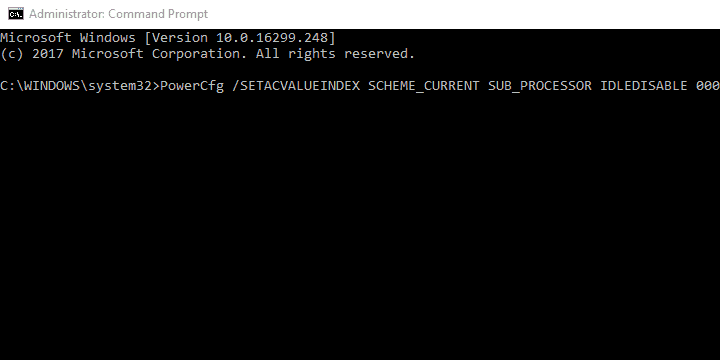
    Here’s how to do it in a few simple steps:

      1. In the Windows Search bar, type cmd, right-click on the Command Prompt and run it as admin.
      2. In the command line, paste the following commands and press Enter after each:
        • PowerCfg/SETACVALUEINDEXSCHEME_CURRENT SUB_PROCESSORIDLEDISABLE000
        • PowerCfg/SETACTIVESCHEME_CURRENT
      3. After that, reboot your PC and look for changes.

    Was this answer helpful?

    5 people found this answer helpful.
    0 comments No comments
  2. Anonymous
    2018-10-16T20:28:12+00:00

    Okay i found out what's causing this!

    Starting windows by using diagnostic startup and activating everything one by one i found out its because of the service called Power

    When i activate that service cpu jumps to 100% at once!

    Anyone have a idea what i need to do next?

    changing power settings or set them to default dont do the trick.

    Shadea

    Was this answer helpful?

    1 person found this answer helpful.
    0 comments No comments
  3. Anonymous
    2018-10-18T09:54:39+00:00

    Hi Shadea.dk,

    Thanks for sharing the information, your suggestion will be beneficial to all community members in this forum.

    Appreciate your time and patience to work on this issue.

    Regards,

    Srimadhwa B

    Microsoft Community-Moderator

    Was this answer helpful?

    0 comments No comments
  4. Anonymous
    2018-10-14T13:13:51+00:00

    Hi Muralidhar

    Thank you for your reply.

    I did all thing things you listed.

    I recently got a MSI 2080Ti and new monitor but they have been running without issues for over 1 week so i dont think they are the cause.

    I use Norton internet security

    I tried starting in safe mode but did not fix the issue.

    I tried the clean boot but did not fix it either.

    But when i use this setting and press ok and reboot my CPU is running normal :)

    Hope you have more suggestions in mind :)

    Shadea

    Was this answer helpful?

    0 comments No comments
  5. Anonymous
    2018-10-14T11:06:08+00:00

    Hi,

    Thank you for writing to Microsoft Community Forums.

    1. Have you recently made any changes on the device?
    2. What is the make and model number of the device?
    3. Are you running any third part Antivirus software?

    Method 1. Run Sy stem maintenance troubleshooter


    Press Windows key + X , select Control panel.

    Change the View by option on the top right to Large icons .

    Click on troubleshooting and click on the view all option on the left panel.

    Select Bluetooth , right click on it and Run as administrator .

    Restart your computer and check if the issue is resolved.


    Method 2: Start your computer in Safe mode

    You may refer this article on how to start your computer in Safe mode in Windows 10 and refer section “From the sign-in screen”.

    Method 3: Perform a clean boot in Windows 10


    You may put the computer in a “Clean boot” state and check if any third party applications or startup items are causing this issue.

    Note: A ‘clean boot’ starts Windows with a minimal set of drivers and startup programs, so that you can determine whether a background program is interfering with your game or program.

    Your computer may temporarily lose some functionality while in a clean boot environment, however, that functionality will return when you reset the computer to start normally after you have finished your troubleshooting.

    You may refer the article on how to perform clean boot. If your issue is resolved after performing Clean Boot, then follow the steps mentioned in the same article to narrow down the exact source (Refer section: How to determine what is causing the problem after performing a Clean boot).

    Also refer the section Reset the computer to start normally after clean boot troubleshooting from the same article.

    Hope it helps.

    Muralidhar

    Microsoft Community Moderator

    Was this answer helpful?

    0 comments No comments