Task Manager - App History - Uninstalled Process

Anonymous
2025-04-09T02:31:09+00:00

Good day,

Reaching out with some curiosity on trying to find an understanding of why my Uninstalled Processes network data is so high in App History within task manager? Of all the Apps within this tab, Uninstalled Processes has the most data processed over the network at 26000 MB. I noticed when I open a new application or make a search online the data amount will increase as if it is tracking the applications that are open and closed. If I do not command the computer do anything the data appears to stay idle until a new command is administered. Now the curiosity is if this is a security concern? I have ran a malware detection and everything came back fine.

Thank you for any input

Windows for home | Windows 11 | Security and privacy

Locked Question. This question was migrated from the Microsoft Support Community. You can vote on whether it's helpful, but you can't add comments or replies or follow the question.

0 comments No comments
{count} vote

3 answers

Sort by: Most helpful
  1. Ramesh Srinivasan 68,715 Reputation points Independent Advisor
    2025-04-09T05:29:50+00:00

    Hi, This is Ramesh.

    It may not be caused by malware.

    There is no official explanation about what exactly is included under "Uninstalled processes." But here's a neat explanation from one of the volunteers at SuperUser.

    https://superuser.com/a/1110272/542839

    The resources used by an executable that no longer exists are added to the Uninstalled processes entry.

    Anyway, if you want your system thoroughly inspected for malware and miners, please run the Farbar Scanner and share your logs.

    1. Download Farbar Recovery Scan Tool 64-bit (FRST64.exe)

    https://www.bleepingcomputer.com/download/farba...

    (or)

    https://downloads.malwarebytes.com/file/mbst-fr...

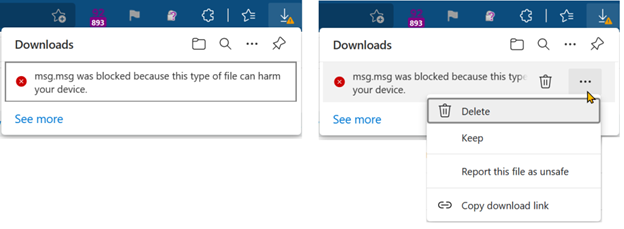
    Note: If Microsoft Edge or Chrome mislabels the Farbar Scanner executable as PUA/malware, choose to keep it by tapping … in the bottom bar, choosing Keep, and then choosing Keep anyway in the dialog that appears.

    See this screenshot: https://learn.microsoft.com/en-us/deployedge/me.... It's a safe tool used in most antimalware forums.

    1. If the OS language is not English, rename FRST64.exe to FRST64English.exe.
    2. Run the program. Don't check or uncheck any options. Click "Scan".
    3. Add the two logs, FRST.txt and Addition.txt, to a Zip archive, upload them to your OneDrive or GoFile.io and share the link here.

    Standard Disclaimer: There is a link to a non-Microsoft website. The page appears to provide accurate, safe information. Watch out for ads on the site that may advertise products frequently classified as PUPs (Potentially Unwanted Products). Thoroughly research any product advertised on the site before you decide to download and install it.

    0 comments No comments
  2. Anonymous
    2025-04-13T09:32:00+00:00

    "There is no official explanation about what exactly is included under "Uninstalled processes.""

    How is that possible.. it sounds like they built a car with a P R D and when asked what the P stands for the answer is.. There is no official explanation about what exactly is included under "P".

    So are these programmers just completely blind when they build OSs?

    If a Microsoft Windows OS designer created this code then they know what it does and why it is there.. if not then it is a 3rd party program and most definitely is Malware.

    The P stands for Park.. wouldn't want to hit that while driving at any speed without first applying the breaks and coming to a full stop.

    Lingering apps? BS. It also uses resources as well. In fact it's the 4th most resource consuming Malware that is running on my computer. It does not do anything that anyone says it does and all the responses are sus. Kind of as if the designer of the virus is the one responding to everyone and telling them that there is nothing to worry about.

    There is no official explanation about what exactly is included under "Uninstalled processes." <- This is not a response from a reliable source.

    And don't be dumb enough to download anything from a random person online for a solution.

    0 comments No comments
  3. quietman7 MVP Alumni 19,675 Reputation points Volunteer Moderator
    2025-04-13T12:50:50+00:00

    When you uninstall an application, it's associated processes should terminate and no longer run in the background. However, in some cases, remnants of the uninstalled application's process may still be present due to an incomplete of faulty uninstallation and can show up as "Uninstalled processes" in the Task Manager list. Sometimes when a program is uninstalled, not all of its related processes are terminated or removed and any residual processes that remain may appear under "Uninstalled processes." Further, some programs install numerous background services that continue to run even after the main application has been uninstalled and they too may appear under "Uninstalled processes." For this reason, many software vendors (especially antivirus) provide clean-up tools to run after an uninstallation.
     
    Windows Task Manager is useful but does not always provide enough information. These are tools to investigate running processes, programs that run at startup, services, CPU usage, file description, location and gather additional information to identify them or resolve problems. Most of them are stand-alone portable apps in a zip file so no installation is necessary.

    With all that said, I suggest you follow the instructions provided by Ramesh Srinivasan so he can investigate further with FRST.

    0 comments No comments
