Azure Data Factory
An Azure service for ingesting, preparing, and transforming data at scale.
This browser is no longer supported.
Upgrade to Microsoft Edge to take advantage of the latest features, security updates, and technical support.
' cx='32' cy='32' r='32' /%3E%3Ctext x='50%25' y='55%25' dominant-baseline='middle' text-anchor='middle' fill='%23FFF' %3ENP%3C/text%3E%3C/svg%3E)
We are trying to move ADF pipelines from one subscription to other subscription. For this purpose we are planning to use download all json support files and upload in other ADF account (this account might be in different subscription or all to gather different account).
we are not find any option to upload Json support files on ADF. Can anyone please help on it. Thank you in advance.

Hello @Nikunj Patel ,
Thanks for the question and using MS Q&A platform.
You can use Azure PowerShell to upload the downloaded JSON supported files to other subscription.
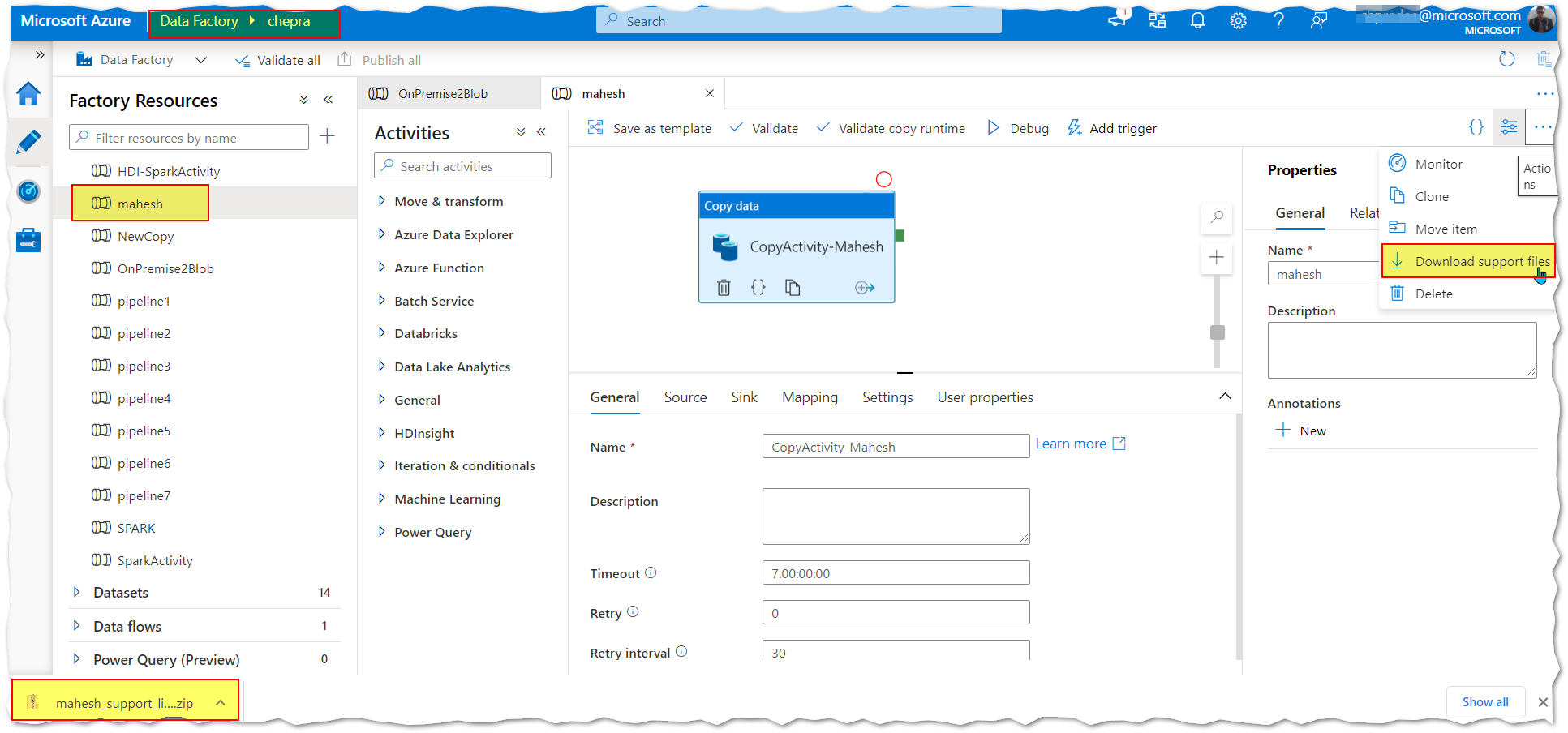
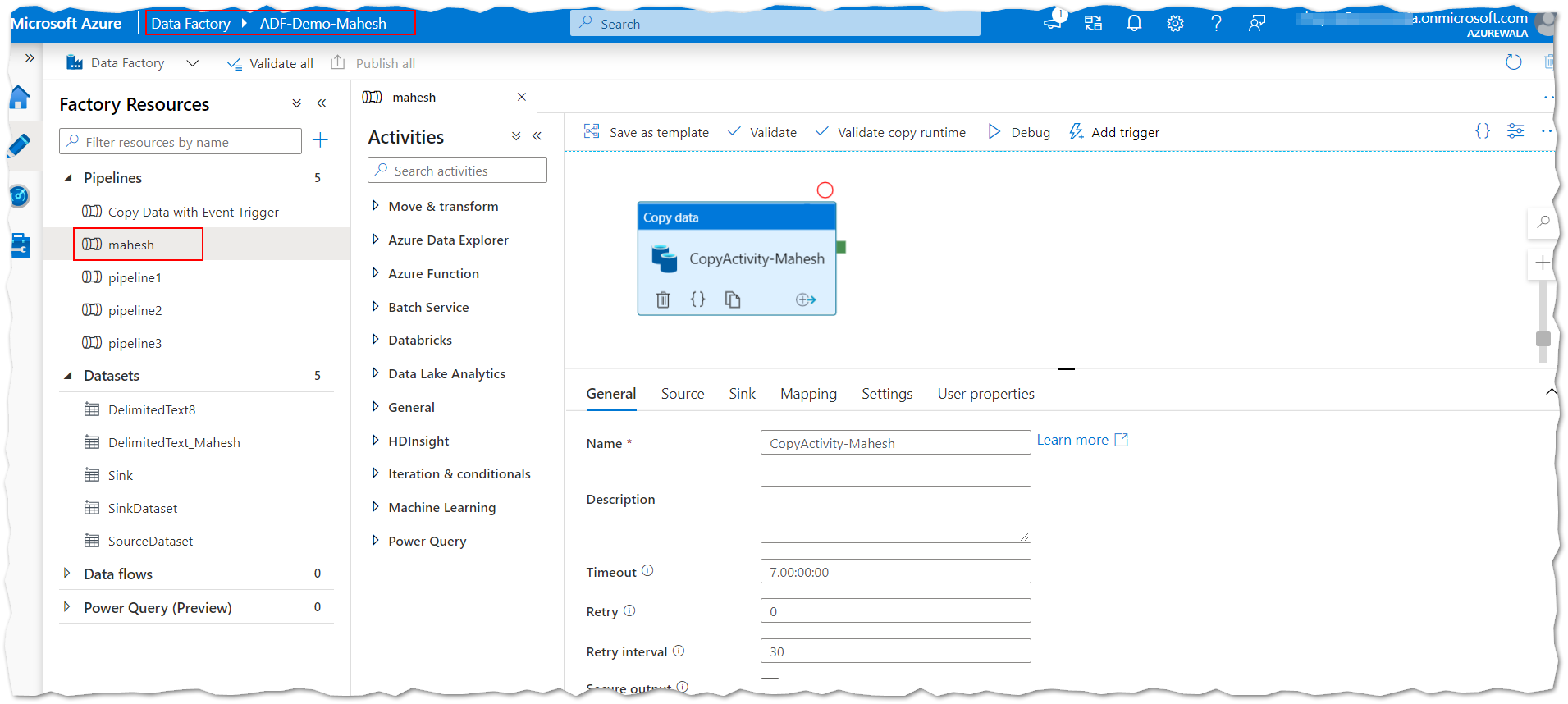
Here in the below example I'm trying to move ADF pipeline from one subscription (ADF:chepra & Subscription:MSFT) to another subscription (ADF: ADF-Demo-Mahesh & Subcription: Azurewala).
After upload the JSON files to ADF in other subscription, make sure to modify the linked services configuration. Else, you get this error message
Cloud stored credentials cannot be found with retry, please check whether related resource had been deleted before.
Note: To avoid the above error, You can now parameterize a linked service and pass dynamic values at run time. For example, if you want to connect to different databases on the same logical SQL server, you can now parameterize the database name in the linked service definition
Step1: Once you download the supported JSON files from the ADF.
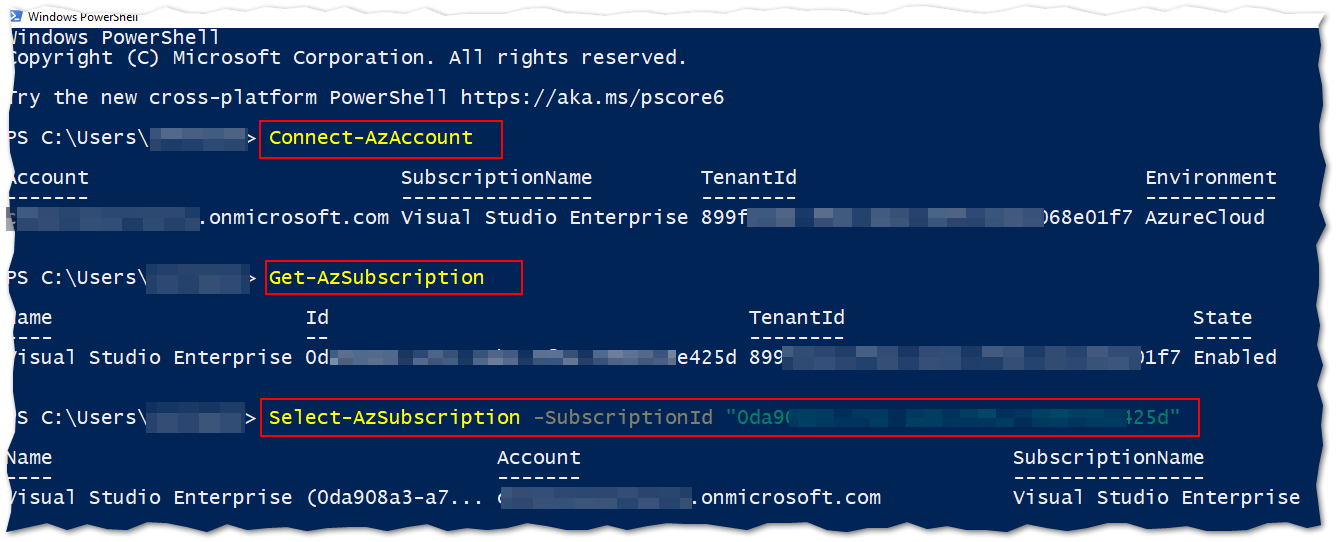
Step2: Log in to PowerShell (Make sure to use other subscription where you want to upload the JSON files)
Run the following command, and enter the same Azure user name and password that you use to sign in to the Azure portal:

Connect-AzAccount

Run the following command to view all the subscriptions for this account:

Get-AzSubscription

If you see multiple subscriptions associated with your account, run the following command to select the subscription that you want to work with. Replace SubscriptionId with the ID of your Azure subscription:

Select-AzSubscription -SubscriptionId "<SubscriptionId>"
Step3: To upload downloaded JSON support files on ADF v2 on another subscription.
Create a linked service:

Set-AzureRmDataFactoryV2LinkedService -ResourceGroupName "ADF" -DataFactoryName "WikiADF" -Name "LinkedServiceCuratedWikiData" -File "C:\\samples\\WikiSample\\LinkedServiceCuratedWikiData.json" | Format-List

To create a dataset:

Set-AzureRmDataFactoryV2Dataset -ResourceGroupName "ADF" -DataFactoryName "WikiADF" -Name "DAWikipediaClickEvents" -DefinitionFile "C:\\samples\\WikiSample\\DA_WikipediaClickEvents.json"

To create a pipeline:

Set-AzureRmDataFactoryV2Pipeline -ResourceGroupName "ADF" -Name "DPWikisample" -DataFactoryName "WikiADF" -File "C:\DPWikisample.json"
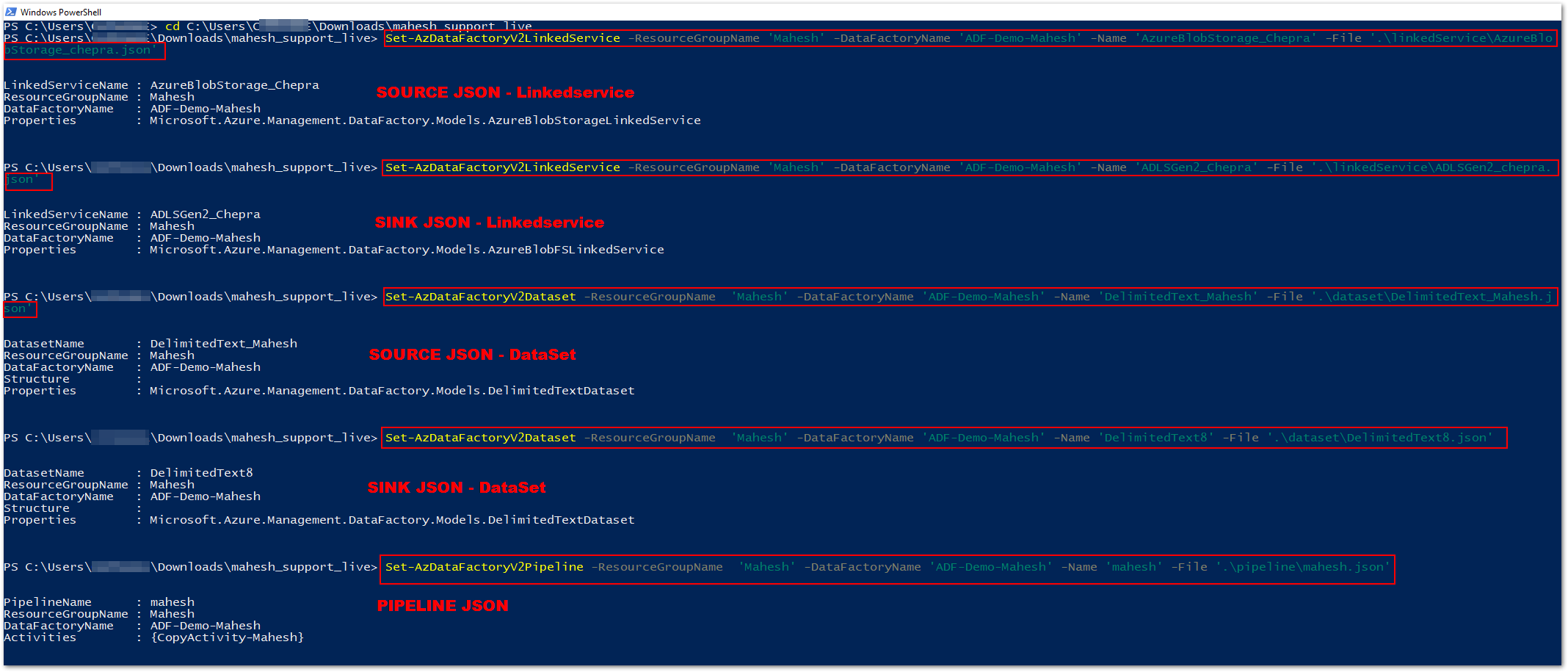
Now we had successfully uploaded the downloaded JSON files from one subscription to another subscription.
For more details, refer AzureRM.DataFactories.
Hope this helps. Do let us know if you any further queries.
------------
Please don’t forget to Accept Answer and Up-Vote wherever the information provided helps you, this can be beneficial to other community members.