Hi all,
since the last upgrade of the enterprise desktop, I cannot use anymore the Search button in Outlook for Windows: the button itself is working, however it shows no results.
I already tried 8 of the 15 suggested actions in https://support.microsoft.com/en-us/office/troubleshooting-outlook-search-issues-2556b11f-f4d8-46be-b0a7-de33a3f4f066#bkmk_incompleteresults ; however I cannot perform the other 7, because I have no Admin privileges (red=cannot perform, Italic=maybe I performed or partially performed; green=performed):
- Windows Search Troubleshooter: it fixes Windows Search issue, but still didn't solved the Outlook issue
- Verifying indexing is complete: after 1h30 still doesn't show infos:

- Check Data Files are selected: if it's this button, it's fine:

- Verify Windows Search is enabled and running: done, but still didn't solved the Outlook issue
- Include Outlook data in indexing: cannot perform, because I cannot find the Outlook folder/icon path
- Configure Indexing Options: msg extension is included, but it doesn't mention "Office Outlook MSG IFilter"
- Rebuild Search Catalog: already done, but still didn't solved the Outlook issue
- Check if search works in a new profile: cannot do it, because I cannot run Profile Admin
- Use filters: no hay cambios
- Repair Office from Control Panel: I could run only the Fast Repair, because I have no access to the full one.
- Uninstall and Reinstall Office: I'm not allowed to do that
- Include Deleted Items Folder: done, but still didn't solved the Outlook issue
- Increase the Sync slider: I cannot reach this step (it only shows the POP account Step, and then the Done Step)
- Allow search to show all results: done, but still didn't solved the Outlook issue
- Select Current Folder: done, but still didn't solved the Outlook issue
The major problem is about the Action 5 - Include Outlook data in indexing: literally, there is no Outlook icon among the available paths/folders, even if I use "Show all paths/folders":
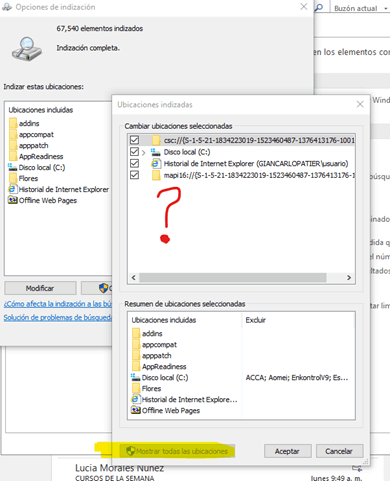
I'm having misunderstandings with the enterprise IT team (we entered in a mailing loop, where I tell them the problem, they send me the Action 5 explained in Spanish, and I tell them that I cannot perform that action, no matter if they send me the explanation in Spanish, English or Urdu...), so I think it could be faster here, in English with a worldwide community, than trying to explain in Spanish only to 4 specific people. Besides that, I already told them that probably I'm missing a very basic thing, but simply I'm not realizing what is, and also told that this is a low priority issue (I can still scroll all over the mailbox and search visually), so they eventually solve them during the next computer upgrade.
Any clues about how to fix at least the Action 5 - Include Outlook data in indexing?
' cx='32' cy='32' r='32' /%3E%3Ctext x='50%25' y='55%25' dominant-baseline='middle' text-anchor='middle' fill='%23FFF' %3EA%3C/text%3E%3C/svg%3E)
