Spell Checker Functionality in New Outlook, only when message is popped out.

Anonymous
2024-05-30T20:24:15+00:00

While using the new outlook, whether I am composing or replying, spell checker will identify mis-spelled words no problem. However, when right clicking the option for a correction is nonexistent. What I have found is that if I pop the message out of the outlook pane, then the corrections functionality will appear. I know this is not intended. Is there a fix for this? It is very annoying to have to pop out a message to apply spell check corrections.

Please advise Microsoft!!!

Outlook | Windows | New Outlook for Windows | For business

Locked Question. This question was migrated from the Microsoft Support Community. You can vote on whether it's helpful, but you can't add comments or replies or follow the question.

0 comments No comments
{count} votes
Answer accepted by question author
  1. Anonymous
    2024-06-05T01:05:03+00:00

    Great! I am glad that I could successfully solve your problem. To help other customers who may be facing the same issue, please choose ‘Yes’ underneath the post that had the solution for you. This highlights the information for other customers. Thanks for your cooperation. 

    Best regards

    Yoko - MSFT | Microsoft Community Support Specialist

    1 person found this answer helpful.
    0 comments No comments
Answer accepted by question author
  1. Anonymous
    2024-06-04T01:18:59+00:00

    Dear winnerman818,

    You can try the following steps to see if this is the cause, someone had the same situation as yours and solved it with this.

    In Settings, open “General”, select “Privacy and Data”, select“ Privacy Settings”, and in “Connection Experience”, you must turn on the optional connected experiences, and then the editor can be restored.

    Image

    Best regards

    Yoko - MSFT | Microsoft Community Support Specialist

    1 person found this answer helpful.
    0 comments No comments

6 additional answers

Sort by: Most helpful
  1. Anonymous
    2024-05-31T04:54:54+00:00

    Dear winnerman818,

    Welcome to the Microsoft community.

    I understand that you are using new outlook with no errors suggested by the spell checker, sorry for the inconvenience.

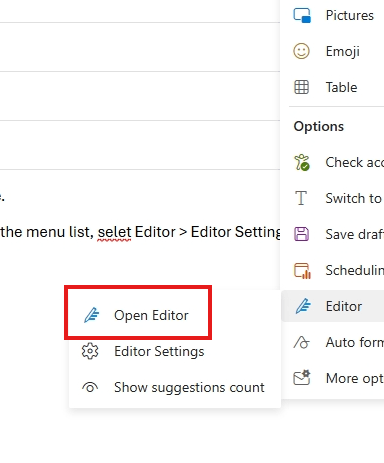
    In an email draft, in the simplified ribbon, select the (...) overflow menu. In Classic ribbon, select the Editor icon. Using the menu list, select Editor > Editor Settings. You can refer to this link for details. (Note that the corresponding version is selected.)

    Check spelling before sending a message - Microsoft Support


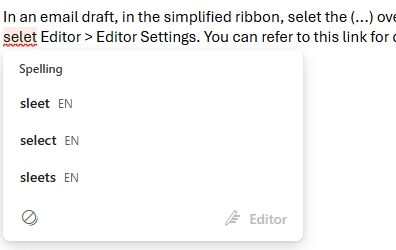
    Note: Right-clicking on a misspelled word will not work. Try left clicking on the word to see the spell check suggestions.

    Feel free to post a post if you need more help.

    Best regards

    Yoko - MSFT | Microsoft Community Support Specialist

    0 comments No comments
  2. Anonymous
    2024-06-03T01:50:10+00:00

    Thank you for your reply.

    Left clicking does not work when I have spelling error, and more interestingly, I cannot find the editor menu to make these suggested changes. I am using new outlook for desktop, not outlook.com.

    0 comments No comments
  3. Anonymous
    2024-06-03T10:00:49+00:00

    Dear winnerman818,

    Understand your mood, the method provided in this link, Check spelling before sending a message - Microsoft Support. You need to select the corresponding version, I have screenshots in the previous reply.

    I know you are using the new outlook. It does not matter, I directly put the steps to screenshot down, you can reference.

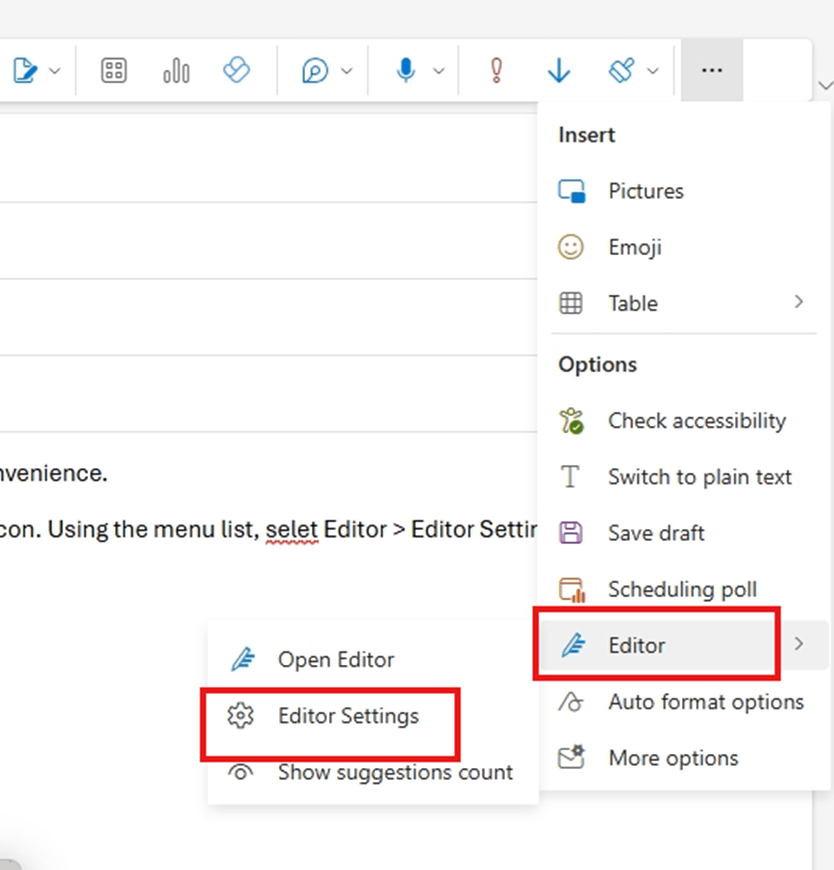
    1.While in an email draft, in the simplified ribbon, select the (...) overflow menu.
    In Classic ribbon, select the Editoricon. 

    2.Using the menu list, select Editor > Editor Settings.

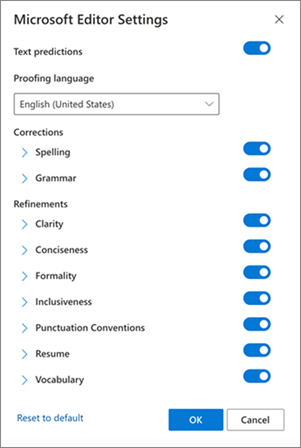
    3.The Microsoft Editor Settings panel is displayed. Select the buttons on or off per your preferences. If needed, you can select Reset to default.  

    4.Select OK to return to your draft.

    5.Select Open Editor.

    6.left clicking on the word to see the spell check suggestions.
    0 comments No comments