Developer technologies | Windows Presentation Foundation
A part of the .NET Framework that provides a unified programming model for building line-of-business desktop applications on Windows.
This browser is no longer supported.
Upgrade to Microsoft Edge to take advantage of the latest features, security updates, and technical support.

Hi
I have created a class with a datatable
public DataTable DatenTB = new DataTable();

    public void initDataTB()
    {

        DatenTB.Columns.Add("ID", typeof(string));
        DatenTB.Columns.Add("Name", typeof(string));
...
}
bind it to datagrid
InitializeComponent();


        DT.initDataTB();
        DT.loadDataTB();

        dGrid.DataContext = DT.DatenTB;
and it works ... with autogeneratedColums
Now I would like to use custom columns -
set autogenerated to false and it doesn't work - Column header appears but no data
didn't find the error - any help?
<Window.DataContext>
        <local:DatenTable/>
    </Window.DataContext>


 <DataGrid ItemsSource="{Binding DatenTB}" ...


 <DataGrid.Columns>
                <DataGridTextColumn Header="ID" Binding="{Binding ID}" />
                <DataGridTextColumn Header="Name" Binding="{Binding Name}" />
            </DataGrid.Columns>
' cx='32' cy='32' r='32' /%3E%3Ctext x='50%25' y='55%25' dominant-baseline='middle' text-anchor='middle' fill='%23FFF' %3EEH%3C/text%3E%3C/svg%3E)
Make sure DatenTB is IEnumerable, ie List<Data> or ObservableCollection<Data>. You don't need DataTable in this case.
yeah but i would like to use it - it works before - maybe another error?
You can have something like this in your viewmodel:
class MainVM
{
    public DataTable Entries { get; set; }
    public MainVM() {
        Entries = new DataTable() {
            Columns = {
                new DataColumn("DrHead", typeof(string)),
                new DataColumn("CrHead", typeof(string)),
                new DataColumn("DrAmount", typeof(int)),
                new DataColumn("CrAmount", typeof(int)),
            }
        };
        for (int i = 0; i < 5; i++)
            Entries.Rows.Add("Dr", "Cr", 100, 200);
    }
}
and these in xaml:
<Window x:Class="WPFTest.MainWindow"...>
    <Window.DataContext>
        <local:MainVM/>
    </Window.DataContext>
    <Grid>
        <DataGrid ItemsSource="{Binding Entries}"
                AutoGenerateColumns="False">
            <DataGrid.Columns>
                <DataGridTextColumn Header="Dr Head" Binding="{Binding DrHead}"/>
                <DataGridTextColumn Header="Cr Head"  Binding="{Binding CrHead}"/>
                <DataGridTextColumn Header="Dr Amount" Binding="{Binding DrAmount}"/>
                <DataGridTextColumn Header="Cr Amount"  Binding="{Binding CrAmount}"/>
            </DataGrid.Columns>
        </DataGrid>
    </Grid>
</Window>
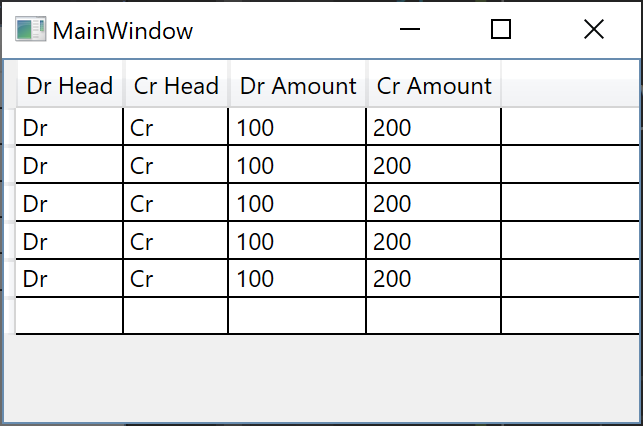
and you'll get this:
No one uses this approach. Use List, ObservableCollection, etc. instead.
EDIT
---
With ObservableCollection/List, you simply do this:
class MainVM
{
    public ObservableCollection<Entry> Entries { get; set; }
    public MainVM() {
        Entries = new ObservableCollection<Entry>();
        for (int i = 0; i < 5; i++) {
            Entries.Add(new Entry() {
                DrHead = "Dr",
                CrHead = "Cr",
                DrAmount = 100,
                CrAmount = 200
            });
        }
    }
}
class Entry
{
    public string DrHead { get; set; }
    public string CrHead { get; set; }
    public int DrAmount { get; set; }
    public int CrAmount { get; set; }
}
Your first approach is the one I do - the second I tried before with celleditending and update observableCollection and so on
for my little App is seems easier to use datatable like in the old times and ...
I found the error ... I changed
<DataGrid ItemsSource="{Binding DatenTB}"
to
<DataGrid ItemsSource="{Binding}"
and it's working :)
Thanks for all your answers
' cx='32' cy='32' r='32' /%3E%3Ctext x='50%25' y='55%25' dominant-baseline='middle' text-anchor='middle' fill='%23FFF' %3EA%3C/text%3E%3C/svg%3E)