Developer technologies | Windows Presentation Foundation
A part of the .NET Framework that provides a unified programming model for building line-of-business desktop applications on Windows.
This browser is no longer supported.
Upgrade to Microsoft Edge to take advantage of the latest features, security updates, and technical support.

First and foremost, I apologize for my grammatical errors; my first language is Persian (Iran).
I have a problem when I try to print from right to left, you can see my details and problem in this link:
printing-groupbox-without-using-printdialog-in-wpf.html
Thanks
' cx='32' cy='32' r='32' /%3E%3Ctext x='50%25' y='55%25' dominant-baseline='middle' text-anchor='middle' fill='%23FFF' %3EHL%3C/text%3E%3C/svg%3E)
Hi,@ RezaJafery. How do you print from right to left? Please show me the relevant code. And could you show me the specific string of Persian you want to print?
Hi, I use the code you gave me in this link: printing-groupbox-without-using-printdialog-in-wpf.html
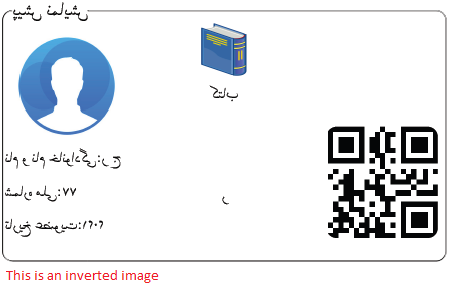

when I print in Persian (with your code) the output is first image "This is an inverted image", I changed the second image by rotating it horizontally.
Is there any way to rotate horizontally?
Can anyone help?
I found the solution. To solve this problem, we can use ScaleTransform class.
First: we must use this <ElementName.RenderTransform> <ScaleTransform ScaleX="{Binding}"/> <ElementName.RenderTransform/> in XAML.
For example:
                 <Grid x:Name="PrintPreview_Grid" Height="206" Width="398" Margin="1,0,1,0">
                   <Grid.RenderTransform>
                     <ScaleTransform ScaleX="{Binding}"/>
                   </Grid.RenderTransform>
                 </Grid>
Then I used the following code for printing:
    private void PrintButton_PreviewMouseLeftButtonDown(object sender, MouseButtonEventArgs e)
    {
        switch (App.EnumLanguage)
        {
            //For left to right languages
            case AllLanguage.English:
                (PrintPreview_Grid.RenderTransform as ScaleTransform).ScaleX = 1;
                break;
            //For right to left languages
            default:
                (PrintPreview_Grid.RenderTransform as ScaleTransform).ScaleX = -1;
                break;
        }
        PrintDialog PD = new PrintDialog();
        var Printer = new LocalPrintServer().GetPrintQueues();
        //We can change the name of the printer we want
        var SelectedPrinter = Printer.FirstOrDefault(P => P.Name == "Microsoft Print to PDF");
        PD.PrintQueue = SelectedPrinter;
        var Size = new Size(PD.PrintableAreaHeight, PD.PrintableAreaWidth);
        PrintPreview_Grid.Measure(Size);
        PrintPreview_Grid.Arrange(new Rect(new Point(29, 0), Size));
        PD.PrintVisual(PrintPreview_Grid, "Print");
        //To return to the default state
        (PrintPreview_Grid.RenderTransform as ScaleTransform).ScaleX = 1;
    }
Result for left-to-right languages:
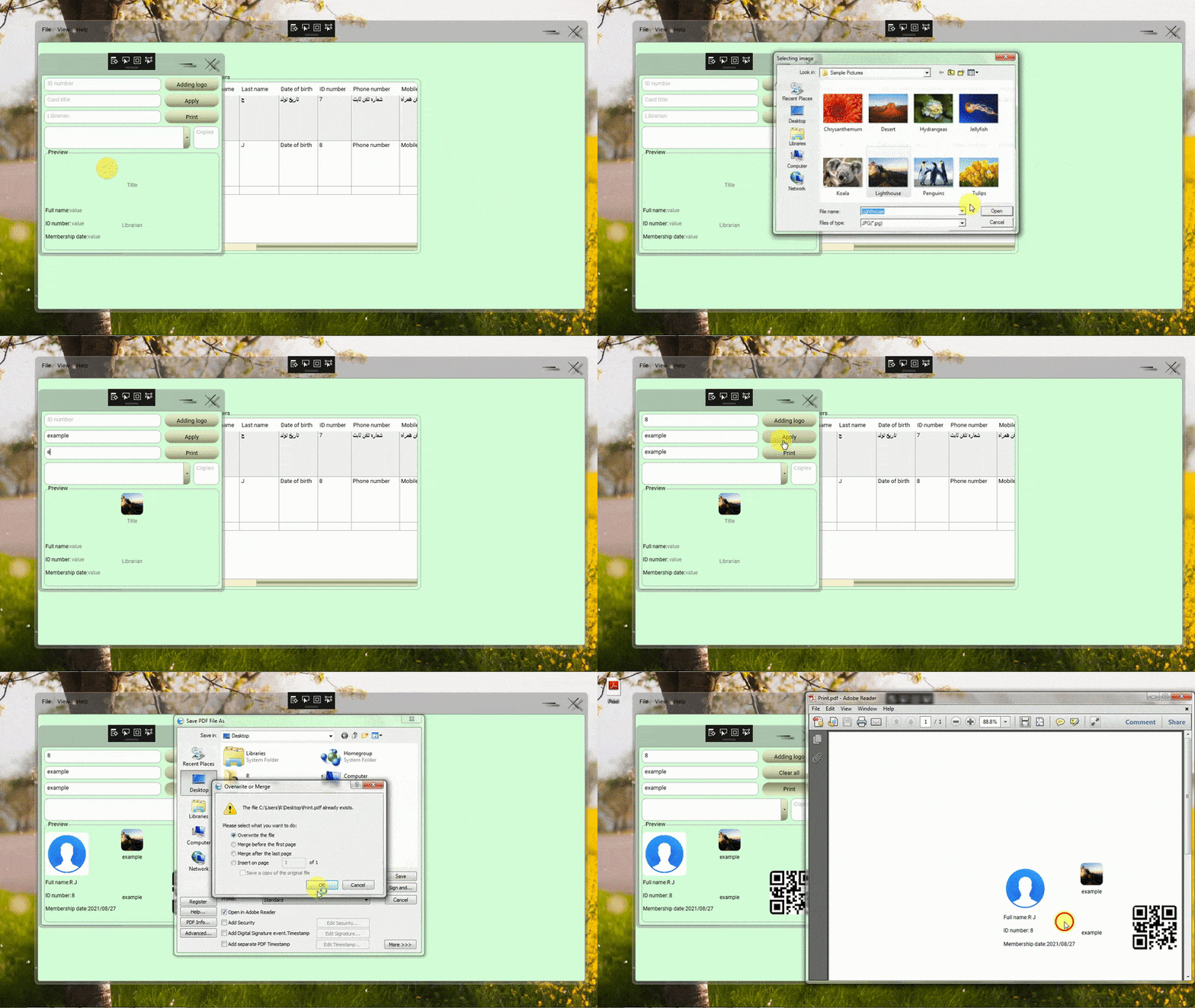
Result for right-to-left languages:
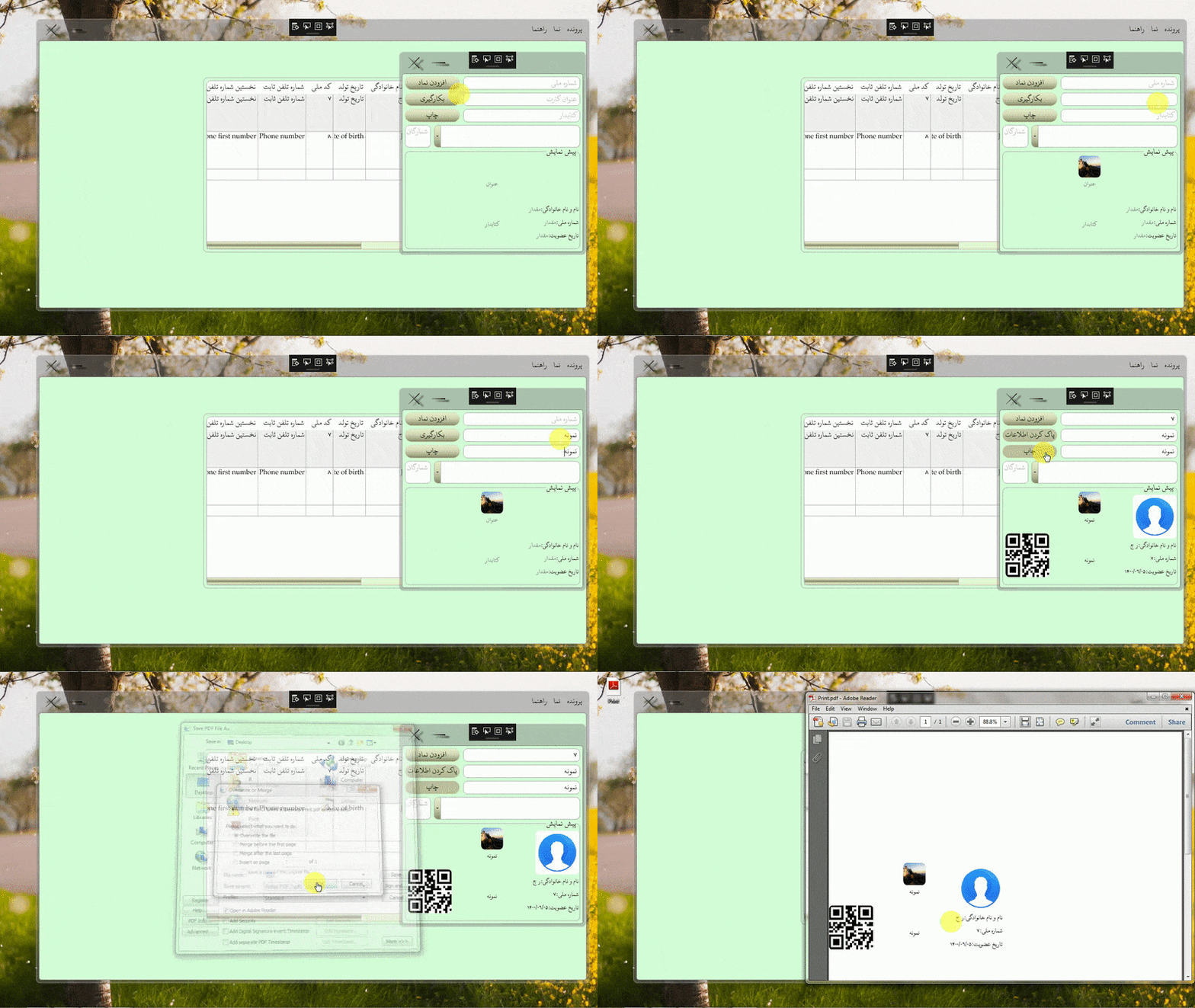
Thanks
Your print result is the same as the window display. To print the result from right to left, we can set the window content from right to left.
I added FlowDirection="RightToLeft" to the GroupBox and the code is as follows:
The updated code is as follows:
<GroupBox x:Name="PrintPreview_GroupBox" Header="Preview" Width="400" Height="250" Background="Transparent"
                      HorizontalAlignment="Left" Visibility="Visible" Margin="14,228,0,14" FlowDirection="RightToLeft"  >
Your code…
</GroupBox>
The print result is as shown in the figure:
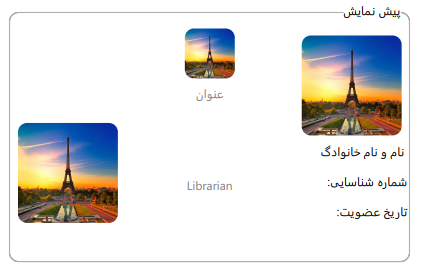
For the flow direction of specific strings, you could refer to here.
If the response is helpful, please click "Accept Answer" and upvote it.
Note: Please follow the steps in our [documentation][3] to enable e-mail notifications if you want to receive the related email notification for this thread.
[3]: https://learn.microsoft.com/en-us/answers/articles/67444/email-notifications.html