Microsoft 365 and Office | Excel | For business | Windows
A family of Microsoft spreadsheet software with tools for analyzing, charting, and communicating data

This browser is no longer supported.
Upgrade to Microsoft Edge to take advantage of the latest features, security updates, and technical support.
' cx='32' cy='32' r='32' /%3E%3Ctext x='50%25' y='55%25' dominant-baseline='middle' text-anchor='middle' fill='%23FFF' %3EA%3C/text%3E%3C/svg%3E)
Is there an accessibility option for activating the Insert Options button in Excel?
Reference: https://www.ablebits.com/office-addins-blog/excel-insert-column/
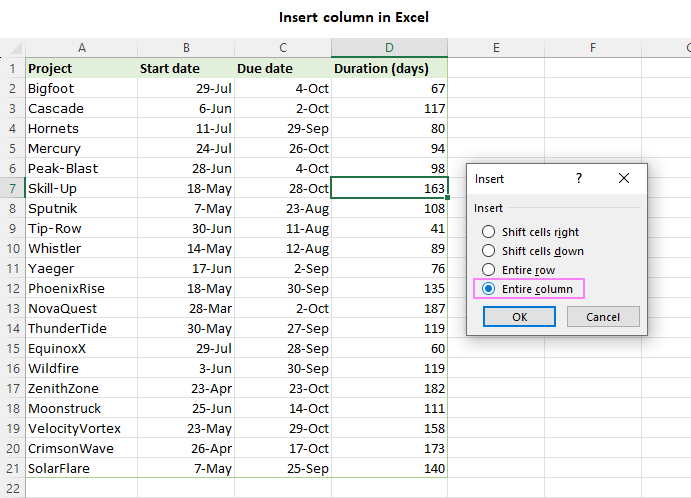
Right-click on any cell in the column.
From the context menu that appears, select the Insert command.
In the Insert menu that opens, choose the Entire column option and click OK.
Inserting a column in Excel
Whichever method you use, you will notice the Insert Options button that appears next to the newly added column. This button provides three useful formatting options:
Format Same As Left - the newly inserted column will inherit the formatting of the column to its immediate left (default). This is helpful when you want consistent formatting across adjacent columns.
Format Same As Right - the newly inserted column will adopt the formatting of the column to its immediate right. This is also useful when you want the formatting of adjacent columns to match.
Clear Formatting - will remove all formatting attributes, such as font styles, borders, and background colors, from the inserted column.
Format options for the newly inserted column
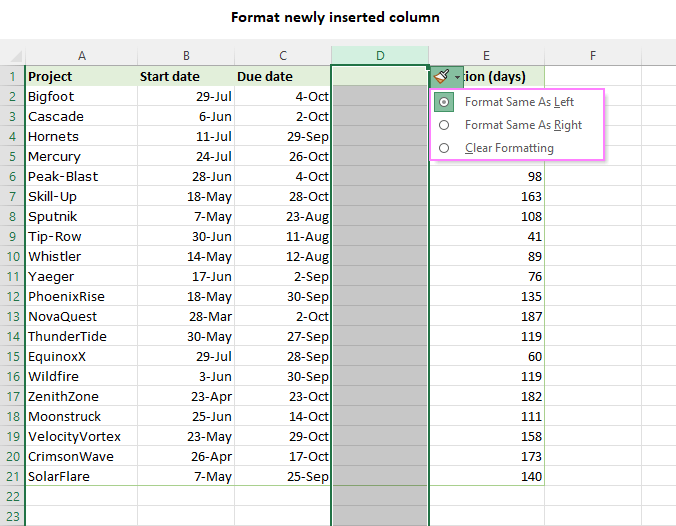
By utilizing these formatting options, you can easily manage the appearance of your spreadsheet as you insert new columns.
Locked Question. This question was migrated from the Microsoft Support Community. You can vote on whether it's helpful, but you can't add comments or replies or follow the question.
Thank you for sharing.
Does Excel currently support the ability to activate the Insert Options button in Excel similar to pressing "Ctrl" when pasting (Ctrl+V) data? Is this an accessibility feature that currently exists or is planned to be added?
Screenshots for examples when pasting:
After you’ve copied the data, press Ctrl+Alt+V, or Alt+E+S to open the Paste Special dialog box.
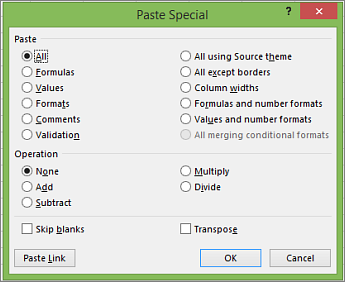
Yes, the copy and paste functions offer a lot of shortcuts and accessibility options. This does not seem to be the case for activating the Insert Options button when trying to insert a new column or row without an data being pasted.
Is there a way to enable the (Ctrl) shortcut for the Insert Options button when inserting blank rows or columns?
Select any cell. Then Ctrl+shift+"+"