Microsoft 365 and Office | Excel | For business | Windows
A family of Microsoft spreadsheet software with tools for analyzing, charting, and communicating data

This browser is no longer supported.
Upgrade to Microsoft Edge to take advantage of the latest features, security updates, and technical support.
' cx='32' cy='32' r='32' /%3E%3Ctext x='50%25' y='55%25' dominant-baseline='middle' text-anchor='middle' fill='%23FFF' %3EA%3C/text%3E%3C/svg%3E)
Is there an accessibility option for activating the Insert Options button in Excel?
Reference: https://www.ablebits.com/office-addins-blog/excel-insert-column/
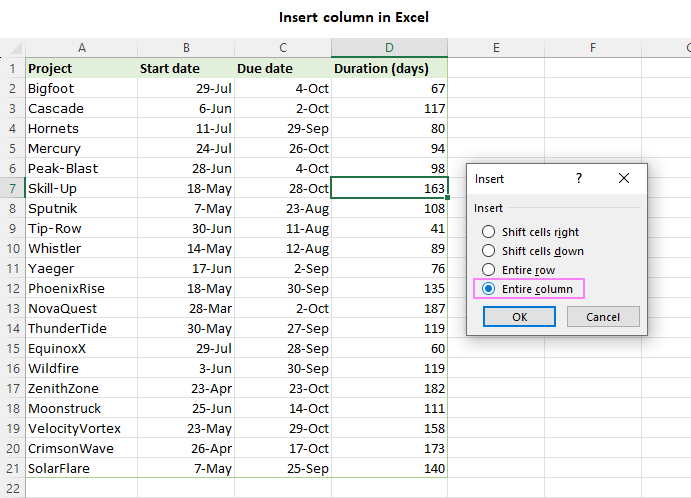
Right-click on any cell in the column.
From the context menu that appears, select the Insert command.
In the Insert menu that opens, choose the Entire column option and click OK.
Inserting a column in Excel
Whichever method you use, you will notice the Insert Options button that appears next to the newly added column. This button provides three useful formatting options:
Format Same As Left - the newly inserted column will inherit the formatting of the column to its immediate left (default). This is helpful when you want consistent formatting across adjacent columns.
Format Same As Right - the newly inserted column will adopt the formatting of the column to its immediate right. This is also useful when you want the formatting of adjacent columns to match.
Clear Formatting - will remove all formatting attributes, such as font styles, borders, and background colors, from the inserted column.
Format options for the newly inserted column
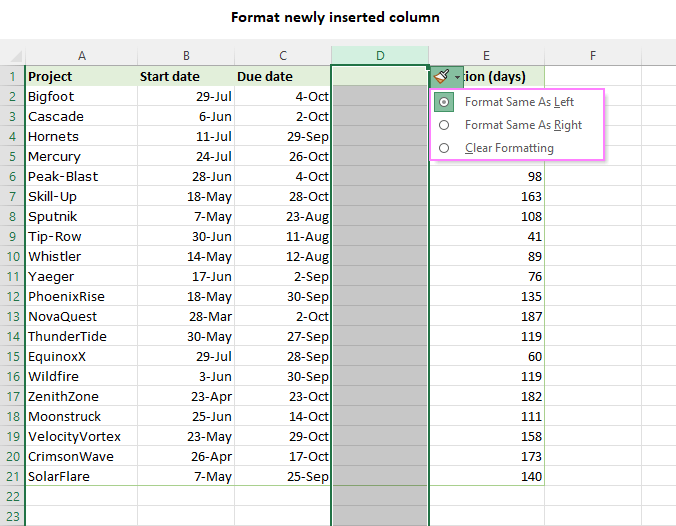
By utilizing these formatting options, you can easily manage the appearance of your spreadsheet as you insert new columns.
Locked Question. This question was migrated from the Microsoft Support Community. You can vote on whether it's helpful, but you can't add comments or replies or follow the question.
Select Row 2
"Ctrl" + "+" to insert row. Default is to insert row above selection with formatting of above.
By default, it copies the formatting above the row (to the left of the column), instead, I would want it to copy the formatting of what is below.
Goal: Insert above selection, with formatting of selection.
Now one way to do that is by using your mouse and clicking on the (Insert Options) button giving these options:
Selecting "Format Same As Below" then results in what accomplishes that goal:
My question is, how do I activate the (Insert Options) button without using a mouse?
2.Select A2
3.Ctrl+Alt+V
4.Alt+T
5.Enter
- Select A3:C3, Copy
2.Select A2
3.Ctrl+Alt+V
4.Alt+T
5.Enter
This does not address inserting a row, formatting same as below (or column, formatting same as right).
The issue originally reported has nothing to do with copying and pasting.
It can be done by macro.
Rows("2:2").Insert Shift:=xlDown, CopyOrigin:=xlFormatFromRightOrBelow
' default is xlFormatFromLeftOrAbove
microsoft excel - Changing line insert default formatting - Super User
It can be done by macro.
Rows("2:2").Insert Shift:=xlDown, CopyOrigin:=xlFormatFromRightOrBelow
' default is xlFormatFromLeftOrAbove
microsoft excel - Changing line insert default formatting - Super User
This would be the closest option for a solution and thank you for providing an additional source explaining a possible solution.
Unfortunately, it wouldn't really help in environments where Excel Macros are restricted or prohibited and where there may be Accessibility concerns.
I think for the purpose of this forum post, all possible solutions were explored.
Summary
Question 1
Q: Is there an accessibility option for activating the Insert Options button in Excel?
A: No. There is not an option similar to the (Ctrl) that comes up with the (Paste Options) button.
Question 2
Q: Does Excel currently support the ability to activate the Insert Options button in Excel similar to pressing "Ctrl" when pasting (Ctrl+V) data?
A: No.
Question 3
Q: Regarding Question 2, is this an accessibility feature that currently exists or is planned to be added?
A: Unanswered/unresolved
Follow-up Q: Is there a way to report or request this feature?
Question 4
Q: How do I activate the (Insert Options) button without using a mouse?
A: There is not option or feature to activate the Insert Options button without a mouse; therefore, an alternate procedure must be performed.
Question 5
Q: Can an Excel macro be leveraged to circumvent the Microsoft default formatting setting of taking the cell formatting from either the left of an inserted column or above an inserted row?
A: Yes:
Rows("2:2").Insert Shift:=xlDown, CopyOrigin:=xlFormatFromRightOrBelow

' default is xlFormatFromLeftOrAbove
microsoft excel - Changing line insert default formatting - Super User
Question 6
Q: Does an option exist for taking the cell formatting from either the right of an inserted column or below an inserted row that doesn't involve a macro due to an environment where Excel Macros are restricted or prohibited, or complex work around where there may be Accessibility concerns?
A: No.
Based on Follow-up from Question 3 above, is there a way to report or request a change to the Insert Options button to improve Accessibility and efficiency?
I am good with calling this forum post resolved and that a solution is available for most cases. Thanks for the assistance!