Developer technologies | C#
An object-oriented and type-safe programming language that has its roots in the C family of languages and includes support for component-oriented programming.
This browser is no longer supported.
Upgrade to Microsoft Edge to take advantage of the latest features, security updates, and technical support.
' cx='32' cy='32' r='32' /%3E%3Ctext x='50%25' y='55%25' dominant-baseline='middle' text-anchor='middle' fill='%23FFF' %3EKS%3C/text%3E%3C/svg%3E)
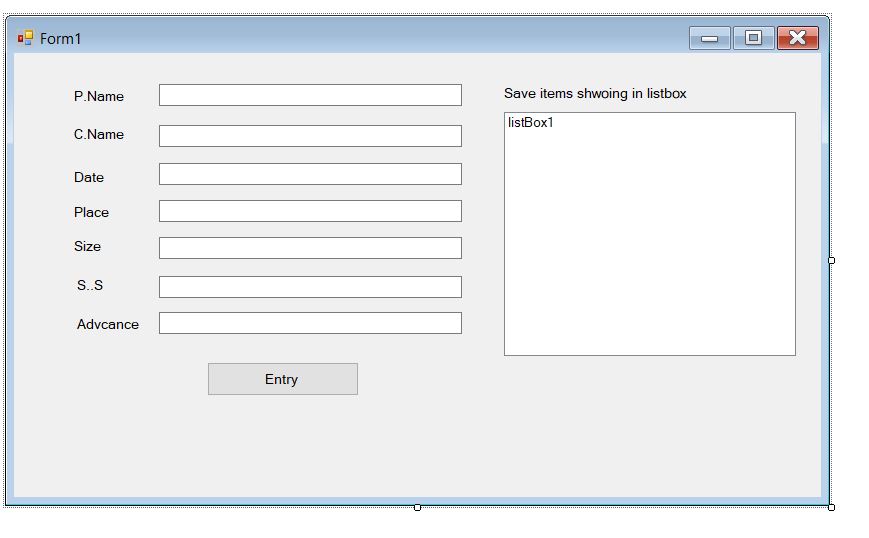
I want to save the item in listbox in c#
Could you share the code ?
Thanks in Advance

One path (of several) is to create a class which represents your data on the form which implements INotifyPropertyChanged interface. In the form, create a form level scoped BindingList<T> where T is the class representing your data. Couple this with a BindingSource where the BindingList becomes the DataSource of the BindingList and the BindingSource is the DataSource of the ListBox.
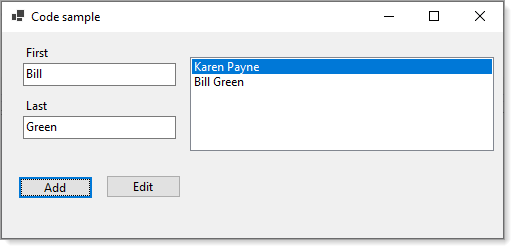
Sample class where .ToString becomes the string to show in the ListBox
public class Customer : INotifyPropertyChanged
{
 private string _firstName;
 private string _lastName;
 public int CustomerIdentifier { get; set; }

 public string FirstName
 {
    get => _firstName;
    set
    {
       _firstName = value;
        OnPropertyChanged();
 }
 }

 public string LastName
 {
    get => _lastName;
    set
    {
       _lastName = value;
       OnPropertyChanged();
 }
 }

 public override string ToString() => $"{FirstName} {LastName}";


 public event PropertyChangedEventHandler PropertyChanged;
 protected virtual void OnPropertyChanged([CallerMemberName] string propertyName = null)
 {
 PropertyChanged?.Invoke(this, new PropertyChangedEventArgs(propertyName));
 }
}
Form code. Since this was done quickly to show conceptually the moving parts the edit aspect is half-baked but does work
namespace CustomersDemo
{
    public partial class ListBoxSaveForm : Form
    {
        private BindingList<Customer> _customersBindingList;
        private readonly BindingSource _customersBindingSource = new();
        public ListBoxSaveForm()
        {
            InitializeComponent();

            Shown += OnShown;
        }

        private void OnShown(object? sender, EventArgs e)
        {
            _customersBindingList = new BindingList<Customer>();
            _customersBindingSource.DataSource = _customersBindingList;
            CustomersListBox.DataSource = _customersBindingSource;
        }

        private void AddButton_Click(object sender, EventArgs e)
        {
            if (!string.IsNullOrWhiteSpace(FirstNameTextBox.Text) && !string.IsNullOrWhiteSpace(LastNameTextBox.Text))
            {
                _customersBindingList.Add(new Customer() { FirstName = FirstNameTextBox.Text, LastName = LastNameTextBox.Text });
            }
        }

        private void EditCurrentButton_Click(object sender, EventArgs e)
        {
            if (_customersBindingSource.Count > 0 && CustomersListBox.SelectedIndex > -1)
            {
                if (!string.IsNullOrWhiteSpace(FirstNameTextBox.Text) && !string.IsNullOrWhiteSpace(LastNameTextBox.Text))
                {
                    _customersBindingList[CustomersListBox.SelectedIndex].FirstName = FirstNameTextBox.Text;
                    _customersBindingList[CustomersListBox.SelectedIndex].LastName = LastNameTextBox.Text;
                }
            }
        }
    }
}
Save to Json class
using System;
using System.IO;
using System.Text.Json;

namespace CustomersDemo
{
    public static class SystemJson
    {
        public static (bool result, Exception exception) JsonToFile<T>(this T sender, string fileName, bool format = true)
        {

            try
            {
                /*
                 * explore other options besides WriteIndented
                 */
                var options = new JsonSerializerOptions
                {
                    WriteIndented = true
                };

                File.WriteAllText(fileName, JsonSerializer.Serialize(sender, format ? options : null));

                return (true, null);

            }
            catch (Exception exception)
            {
                return (false, exception);
            }

        }
    }
}
Button click
private void JsonSaveButton_Click(object sender, EventArgs e)
{
    if (_customersBindingList.Count <= 0) return;
    var (success, exception) = _customersBindingList.JsonToFile("CustomersSaved.json");
    MessageBox.Show(exception is null ? "Saved" : $"Failed\n{exception.Message}");
}
Another path is to use a BindingSource with a DataTable.
If you need to save there are a handful of sources e.g. database, text file, xml file, json to name a few.
Could you send me class file
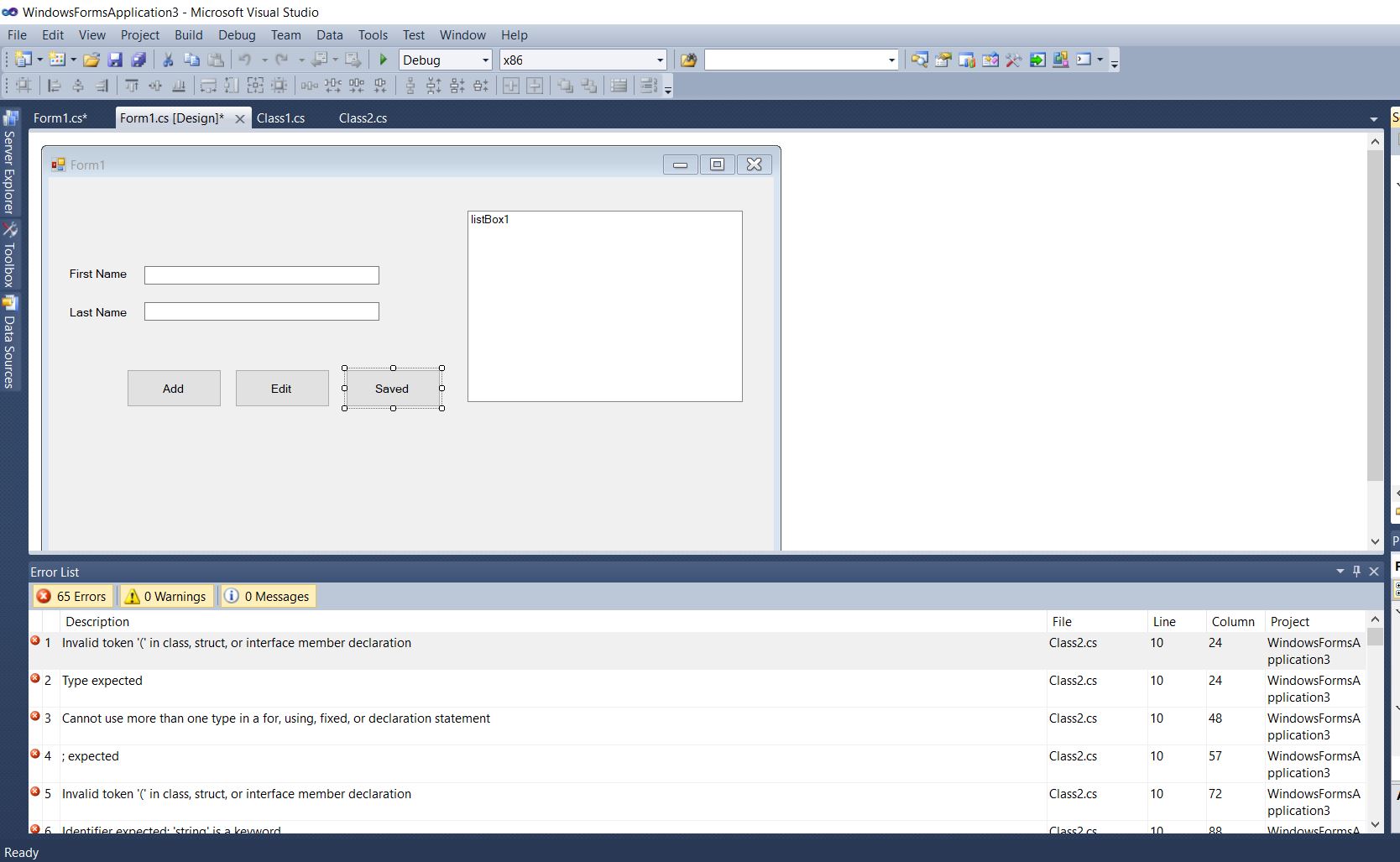
Many File Missing, Please send me class file with source code of Form in c#
' cx='32' cy='32' r='32' /%3E%3Ctext x='50%25' y='55%25' dominant-baseline='middle' text-anchor='middle' fill='%23FFF' %3EP8%3C/text%3E%3C/svg%3E)
Use the code from the Codeproject article in the msdn link, it works perfectly
Full source is here
https://github.com/karenpayneoregon/windows-forms-csharp/tree/Version1/CustomersDemo
Make sure to read readme.md
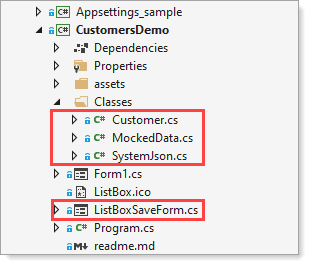
Code is fine and worked well but save item can't show in listbox
Works for me, add three people, click save and get expected results
[
  {
    "CustomerIdentifier": 0,
    "FirstName": "Karen",
    "LastName": "Payne",
    "Street": null,
    "City": null,
    "PostalCode": null,
    "CountryIdentifier": 0
  },
  {
    "CustomerIdentifier": 0,
    "FirstName": "Bill",
    "LastName": "Smith",
    "Street": null,
    "City": null,
    "PostalCode": null,
    "CountryIdentifier": 0
  },
  {
    "CustomerIdentifier": 0,
    "FirstName": "Jill",
    "LastName": "Smith",
    "Street": null,
    "City": null,
    "PostalCode": null,
    "CountryIdentifier": 0
  }
]
Yes It's worked for me. But "new" can't find
I have used .NET Framework 4.8 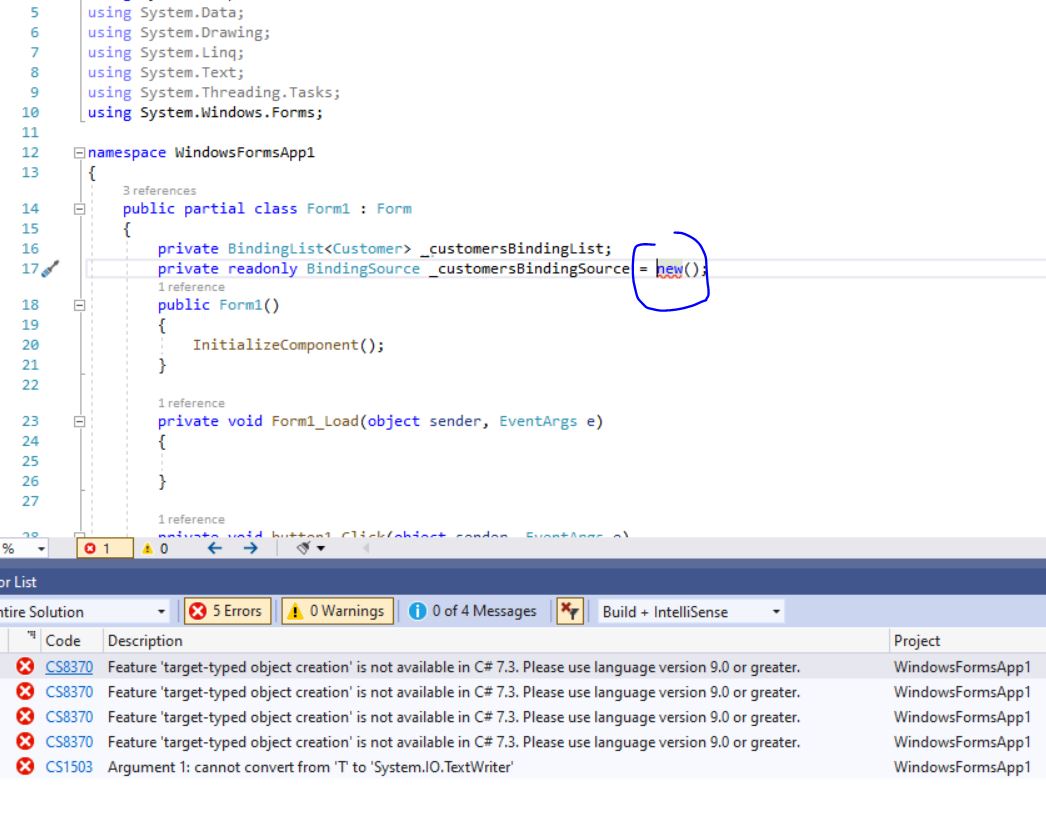
Could you suggest instead of new
As in the error message you are not C# 7.3 which does not support target type creation so you use the conventional creation as shown below.

Fine Worked Thanku so much
Where is saved in Data Please send me code of save file in HDD
Please send me code of save file in HDD
It's all in the link I provided.
' cx='32' cy='32' r='32' /%3E%3Ctext x='50%25' y='55%25' dominant-baseline='middle' text-anchor='middle' fill='%23FFF' %3ETY%3C/text%3E%3C/svg%3E)
@Kailash Sahu
Is this what you are looking for?
SystemJson.cs
Everything is fine !
One thing is problem ...
Here is Mocked Data
When client is enter the data and save the file, It's saved on Drive not in MockedData...
Only Save .json File not save in MockedData if mocked data will save, i can show in listbox.
Everything is fine !
One thing is problem ...
Here is Mocked Data
When client is enter the data and save the file, It's saved on Drive not in MockedData...
Only Save .json File not save in MockedData if mocked data will save, i can show in listbox.
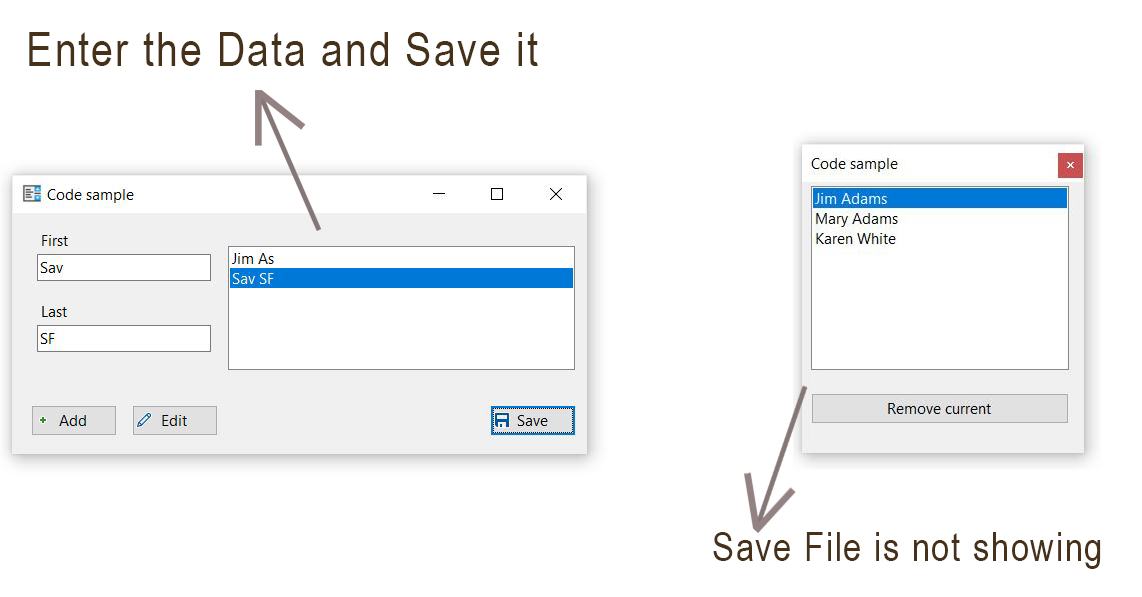
Save File is not showing
Save File is not showing
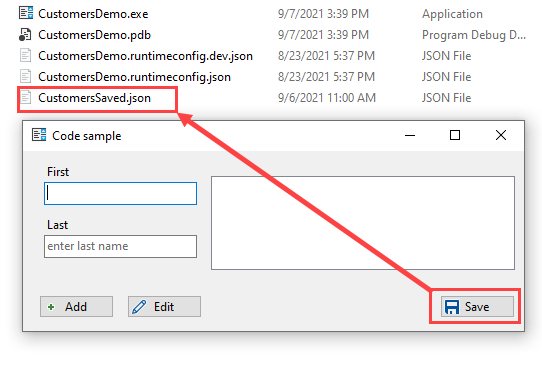
It's your task to fill in the missing things. In regards to mocked data, never was suppose to save to this container as it's a static container while if I were doing this I'd go with a database and not json. Json was used to show conceptually the mechanics.
I want to CusomersSaved.json file read in listbox ya textbox?
Is that possible to read json file ?

See threads like : C# How To save Listbox items ?