Windows updates not working

justin luk 5 Reputation points
2025-07-30T10:29:11.3766667+00:00

My windows 11 laptop has been pretty weird after i upgraded my ram and updates will always fail and Virus and Threat protection page is missing, it just says your IT administrator has restricted access but i dont have any work or student accounts and windows updates will always fail even if i download them manually from the website and it'll give me Install error - 0x8007042b or it will get stuck at downloading at 6% ive tried all the command prompt solutions, deleted cache files and even tried a usb boot repair and its still there. i think my laptop hates me

Windows for home | Windows 11 | Windows update
0 comments No comments
{count} vote

7 answers

Sort by: Most helpful
  1. Ramesh Srinivasan 173.4K Reputation points Volunteer Moderator
    2025-07-30T12:44:34.7833333+00:00

    Hi Justin,

    0x8007042B is a time-out error. Please reset the Windows Update cache using the following batch file.

    First, please boot into "Safe mode with networking" mode:

    https://support.microsoft.com/en-us/windows/windows-startup-settings-1af6ec8c-4d4a-4b23-adb7-e76eef0b847f


    In Safe mode with networking, reset Windows Update using the batch file below.

    1. Download the zip file and extract the batch file to the desktop. https://gist.github.com/winhelponline/af9296c106448a664a6229d8146a85fd
    2. Right-click on the batch file, click Properties, click "Unblock" (if present), and OK.
    3. Double-click the batch file to run it.
    4. After it completes execution, don't close it yet.
    5. Right-click on that Command Prompt window, click "Edit" and click "Select all"
    6. Right-click on that Command Prompt window, click "Edit" and click "Copy" (This copies the output to the clipboard.)
    7. Paste the info (Ctrl + V) into your reply window.
    1 person found this answer helpful.

  2. Ramesh Srinivasan 173.4K Reputation points Volunteer Moderator
    2025-07-30T13:20:03.1766667+00:00

    Please disregard my previous command to delete the "SoftwareDistribution" folder. From your screenshot, I find that the timeout error is when installing the Defender update.

    Boot into normal mode.

    From admin Command Prompt, please run this command:

    "C:\Program Files\Windows Defender\MpCmdRun.exe" -SignatureUpdate -MMPC
    

    Press Enter.

    Post the output.

    The above command updates Defender definitions.

    1 person found this answer helpful.

  3. Ramesh Srinivasan 173.4K Reputation points Volunteer Moderator
    2025-07-30T13:30:32.0466667+00:00

    The error code 0x800106ba indicates that the Microsoft Defender Antivirus service is not running. This could be due to a third-party antivirus being installed or malware disabling Defender.

    Please share your Farbar scan logs for analysis.

    1. Download Farbar Recovery Scan Tool 64-bit FRST64.exe
    2. If the OS language is not English, rename FRST64.exe to FRST64English.exe.
    3. Run the program. Don't check or uncheck any options. Click "Scan".
    4. Add the two logs, FRST.txt and Addition.txt, to a zip archive.
    5. Share the zip file on OneDrive or GoFile.io, and post the link here.

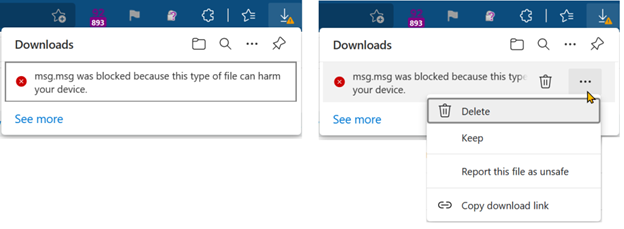
    Note: If Microsoft Edge or Chrome mislabels the Farbar Scanner executable as PUA/malware, choose to keep it by tapping … in the bottom bar, choosing Keep, and then choosing Keep anyway in the dialog that appears. See this screenshot. It's a safe tool used in most antimalware forums.

    1 person found this answer helpful.

  4. Ramesh Srinivasan 173.4K Reputation points Volunteer Moderator
    2025-07-30T13:49:56.73+00:00

    The Defender platform folder is missing. As a result, the Defender antivirus and NIS services are not operable. We can fix Defender manually using a REG file. However, considering the other error you're getting when installing updates, I think it's a good idea to do a repair installation.

    User's image

    Launch Settings > System > Recovery. Under "Fix problems using Windows Update", select "Reinstall now."

    This does a repair installation, keeping your files, apps, and settings.

    See:

    Fix issues by reinstalling the current version of Windows - Microsoft Support

    1 person found this answer helpful.
    0 comments No comments

  5. Ramesh Srinivasan 68,565 Reputation points Independent Advisor
    2025-07-30T17:36:37.3466667+00:00

    Hi Justin,

    Based on the FRST logs, the Defender platform folder is missing. As a result, the Defender antivirus and NIS services are not operable. We can fix Defender manually using a REG file. However, considering the other error you're getting when installing updates, I think it's a good idea to do a repair installation.

    User's image

    Launch Settings > System > Recovery. Under "Fix problems using Windows Update", select "Reinstall now."

    This does a repair installation, keeping your files, apps, and settings.

    See:

    Fix issues by reinstalling the current version of Windows - Microsoft Support

    1 person found this answer helpful.

Your answer

Answers can be marked as 'Accepted' by the question author and 'Recommended' by moderators, which helps users know the answer solved the author's problem.