Hi @ultimatum9954 yerrick,
Thank you for posting your question in the Microsoft Q&A forum.
Based on your description, you recorded an oral presentation with slides using Cameo and enabled access to the internal microphone, yet the resulting video plays with no audio. We truly understand and appreciate the thorough effort you have already made updating drivers, running troubleshooters, and restarting.
This can occur when PowerPoint is set to a different input device than Windows, when app permissions block narration, or when the export is created without recorded narrations. In some cases, audio enhancements or exclusive control settings interfere with capturing narration.
Please try these four main steps:
1/ Start by ensuring the microphone is operational and permissions are correctly configured.
- Check the microphone in Settings > System > Sound > Input and confirm the input meter moves.
- Ensure microphone access is allowed for apps: Settings > Privacy & security > Microphone. If using PowerPoint on the web, allow mic access in browser settings.
2/ Proceed by setting up the appropriate PowerPoint options.
- In PowerPoint, go to the Record tab, select the correct microphone from the dropdown, and ensure it’s not muted.
- In Settings > Sound > Volume mixer, set PowerPoint’s input device to the internal microphone.
3/ Then, review and modify advanced audio settings as needed.
- Open Control Panel > Sound > Recording > Properties > Advanced. Disable “Allow applications to take exclusive control” and turn off audio enhancements.
- Test recording with Voice Recorder or Camera app to confirm audio works outside PowerPoint.
4/ Conclude by re-recording and ensuring proper export settings.
- Use Record Slide Show, then File > Export > Create a Video, selecting Use Recorded Timings and Narrations.
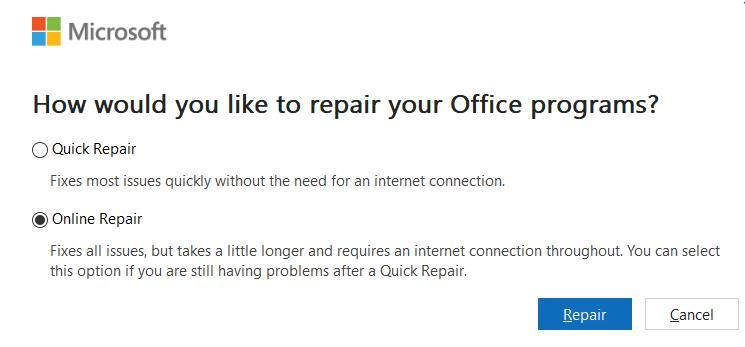
- If the issue persists, run Quick Repair for Office (Settings > Apps > Microsoft 365 > Modify).
- As an alternative, record narration using Clipchamp or Microsoft Stream and insert the audio into PowerPoint.
5/ For a more efficient resolution, we recommend using your administrator account or contacting your IT administrator to submit a support request directly to Microsoft Support team.
They can raise a support ticket by visiting: Get support - Microsoft 365 admin | Microsoft Learn
If the issue continues, please reply with your Windows version, PowerPoint build number, and whether you are using the desktop or web app so we can assist further.
Please understand that our initial response does not always resolve the issue immediately. However, with your help and more detailed information, we can work together to find a solution.
I hope this information is helpful. Please follow these steps and let me know if it works for you. If you have any updates regarding the issue, please feel free to share them with me.
Thank you for your patience and your understanding. If you have any questions or need further assistance, please feel free to share them in the comments of this post so I can continue to support you.
I look forward to continuing the conversation.
If the answer is helpful, please click "Accept Answer" and kindly upvote it. If you have extra questions about this answer, please click "Comment".
Note: Please follow the steps in our documentation to enable e-mail notifications if you want to receive the related email notification for this thread.
' cx='32' cy='32' r='32' /%3E%3Ctext x='50%25' y='55%25' dominant-baseline='middle' text-anchor='middle' fill='%23FFF' %3EUY%3C/text%3E%3C/svg%3E)


' cx='32' cy='32' r='32' /%3E%3Ctext x='50%25' y='55%25' dominant-baseline='middle' text-anchor='middle' fill='%23FFF' %3EVN%3C/text%3E%3C/svg%3E)