Git with VS 2022 and SourceTree

Dani_S 4,771 Reputation points
2025-12-08T11:21:40.5+00:00

Hi,

Prerequisites:

1.Git installed in your machine.

If not  install it from :https://git-scm.com/downloads

After config Git in command line:

git config --global user.name "Your full name"

git config --global user.email "Your full address"

 2.Sourcetree is installed in your machine__.__

If not, install from: https://www.sourcetreeapp.com/

1. Create a repository for your project in the GIT server.

2.Open SourceTree in new tab and press Clone.

Fill details:

Source Url that we get in step  1  and

Target folder where to download the project and press Clone.

The results is the folder you specify with folder inside named .git.

Remark: The clone operation set for us the remote server automatically,

You can see it in while opening SourceTree in Setting Tab

4.Open new Visual Studio and choose open “Open local folder” option and give

the target folder we specify in step 3.

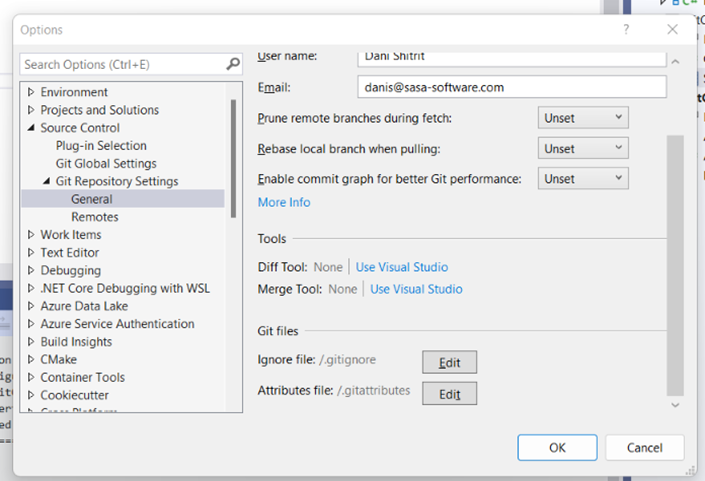
5.Go to Git in the menu, choose Settings and later Git Repository Settings, later General. In this tab: Add ignore file and Attributes file and press OK.
User's image

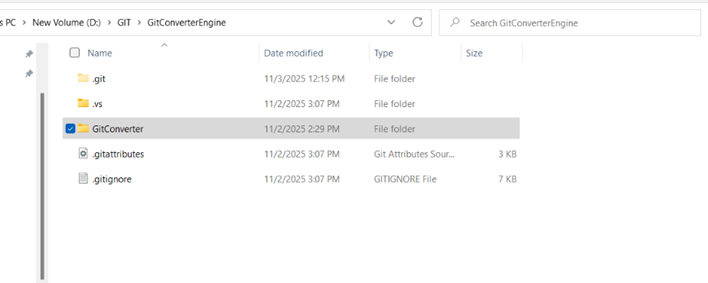
Results: Visual Studio creates these files in your target folder as follows:
User's image

  1. Save these files using SourceTree (Commit + Push) in GIT Server.

7.Copy your project to your project folder and save files using SourceTree (Commit + Push) in GIT Server.

  1. From here you can save new tasks/bugs using SourceTree.

Is it the right way ?

Thanks in advance,

Developer technologies | Visual Studio | Other
A family of Microsoft suites of integrated development tools for building applications for Windows, the web, mobile devices and many other platforms. Miscellaneous topics that do not fit into specific categories.
0 comments No comments
{count} votes

Answer accepted by question author
  1. Marcin Policht 68,060 Reputation points MVP Volunteer Moderator
    2025-12-08T12:12:04.47+00:00

    Your sequence is mostly correct and will work in many typical cases, but there are a few important details and edge cases to cover so you don’t run into problems. First, the Git installation and global user.name/user.email configuration are exactly right and necessary. Make sure you also configure authentication that SourceTree will use (either an SSH key added to the Git server or credentials/token for HTTPS) before you try to push; otherwise SourceTree will prompt repeatedly or fail on push. Also consider setting core.autocrlf appropriately for your team and adding a .gitattributes file to normalize line endings.

    Creating the remote repository on the server is correct, but be aware some hosting services require at least one commit (README or .gitignore) to create a default branch so a normal clone works. If the remote is empty and the host doesn’t provide a default branch, a clone may not behave as you expect; in that case either create the repository with an initial README on the host, or initialize the repo locally, add the remote, then push the initial branch with an upstream set (for example push with --set-upstream origin main). SourceTree can do both flows, but it’s good to know which situation you have.

    Cloning into your target folder and seeing a .git directory is correct and confirms the clone worked. After cloning, before you copy your project files into that folder, it’s best practice to add and commit .gitignore and .gitattributes immediately so undesirable files (bin, obj, .vs, user-specific files, build artifacts) don’t get committed accidentally when you add the project. Visual Studio can create recommended .gitignore entries for you; if you add them from VS, commit and push those files from SourceTree before copying the full project into the working tree.

    Opening Visual Studio using “Open local folder” is fine for folder-based workflows, but if you have a .sln solution file it’s usually better to open the solution (Open -> Project/Solution) so VS hooks into the solution and project-level Git features and build/debug settings more smoothly. Your step to add ignore and attributes in VS Git settings is valid; ensure they are saved as .gitignore and .gitattributes at the repository root and verify their contents. Also check that VS isn’t creating user-specific files like *.suo or *.user that should be ignored.

    When you commit and push from SourceTree, make sure you’ve set the correct upstream branch (SourceTree usually prompts to set upstream on first push). Confirm in SourceTree’s settings that the remote URL and branch mapping are correct. If you and teammates use different GUI tools or the command line interchangeably, agree on the main branch name (main vs master) and on merge/rebase workflows so everyone’s pushes and pulls behave predictably.


    If the above response helps answer your question, remember to "Accept Answer" so that others in the community facing similar issues can easily find the solution. Your contribution is highly appreciated.

    hth

    Marcin

    You found this answer helpful.

0 additional answers

Sort by: Most helpful

Your answer

Answers can be marked as 'Accepted' by the question author and 'Recommended' by moderators, which helps users know the answer solved the author's problem.