Developer technologies | Visual Studio | Debugging
A core feature of Visual Studio that allows developers to inspect, analyze, and troubleshoot code during execution.
This browser is no longer supported.
Upgrade to Microsoft Edge to take advantage of the latest features, security updates, and technical support.
' cx='32' cy='32' r='32' /%3E%3Ctext x='50%25' y='55%25' dominant-baseline='middle' text-anchor='middle' fill='%23FFF' %3EMX%3C/text%3E%3C/svg%3E)
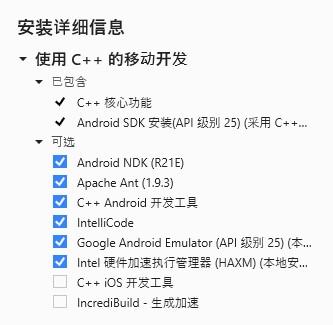
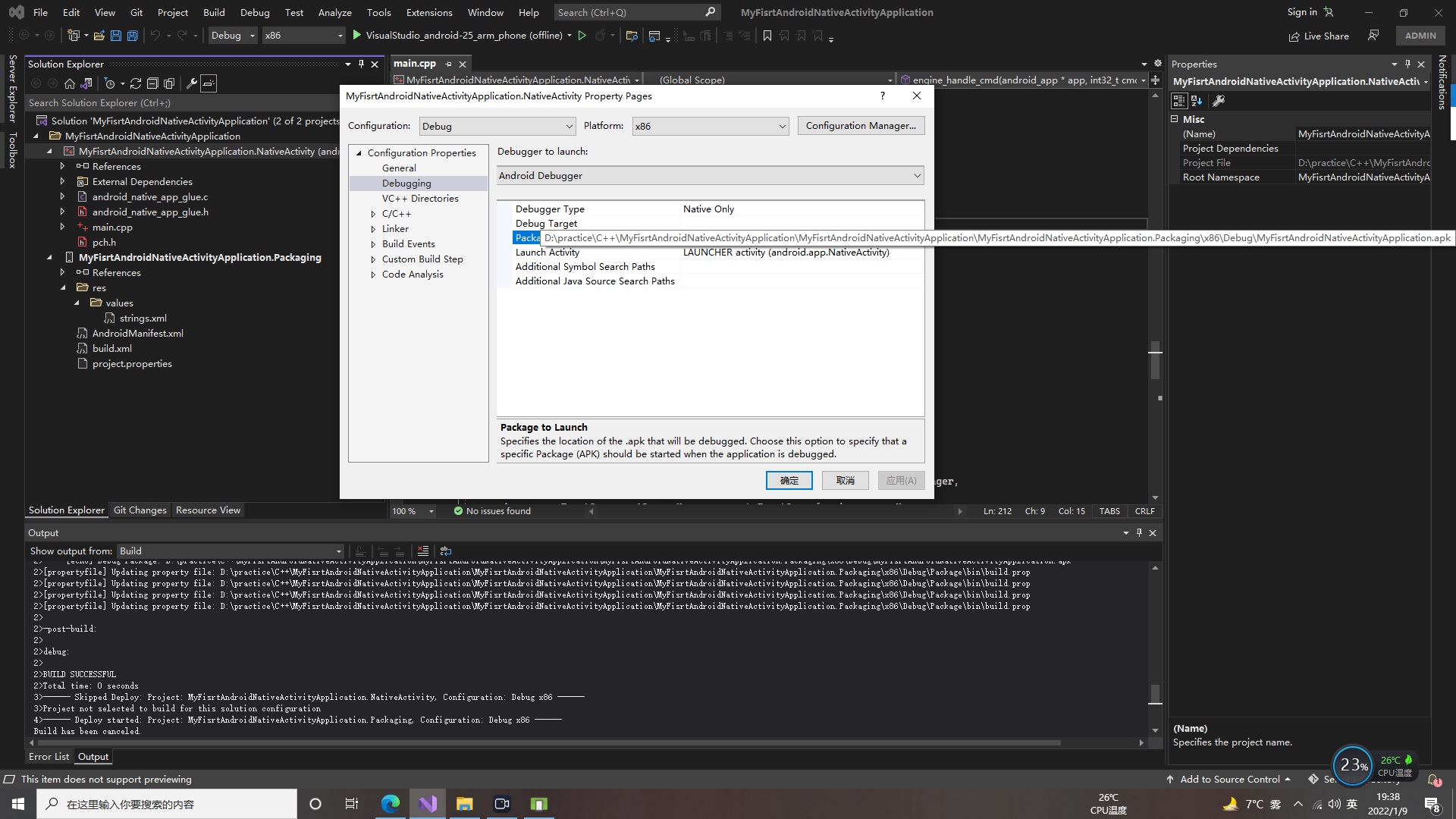
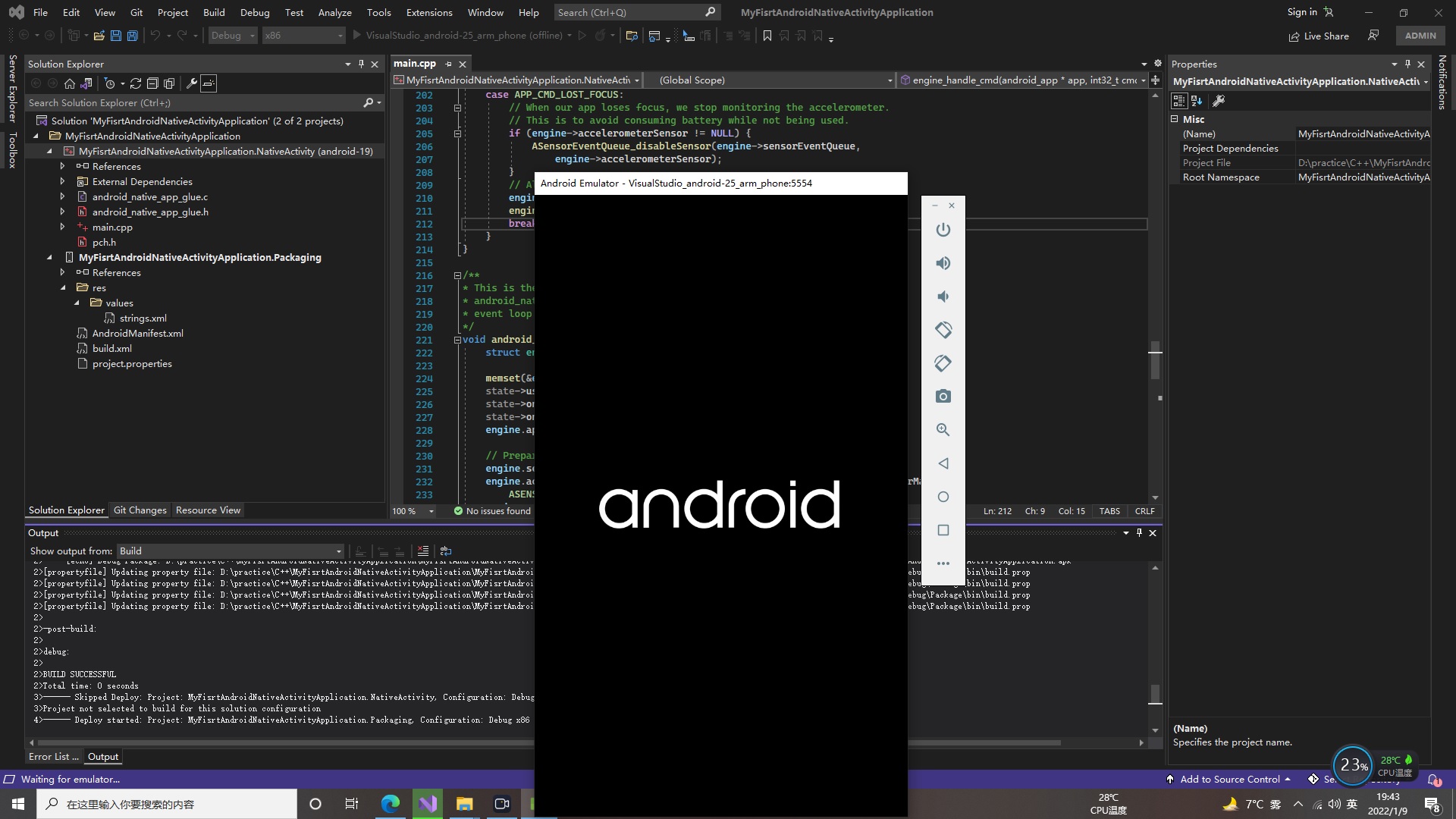
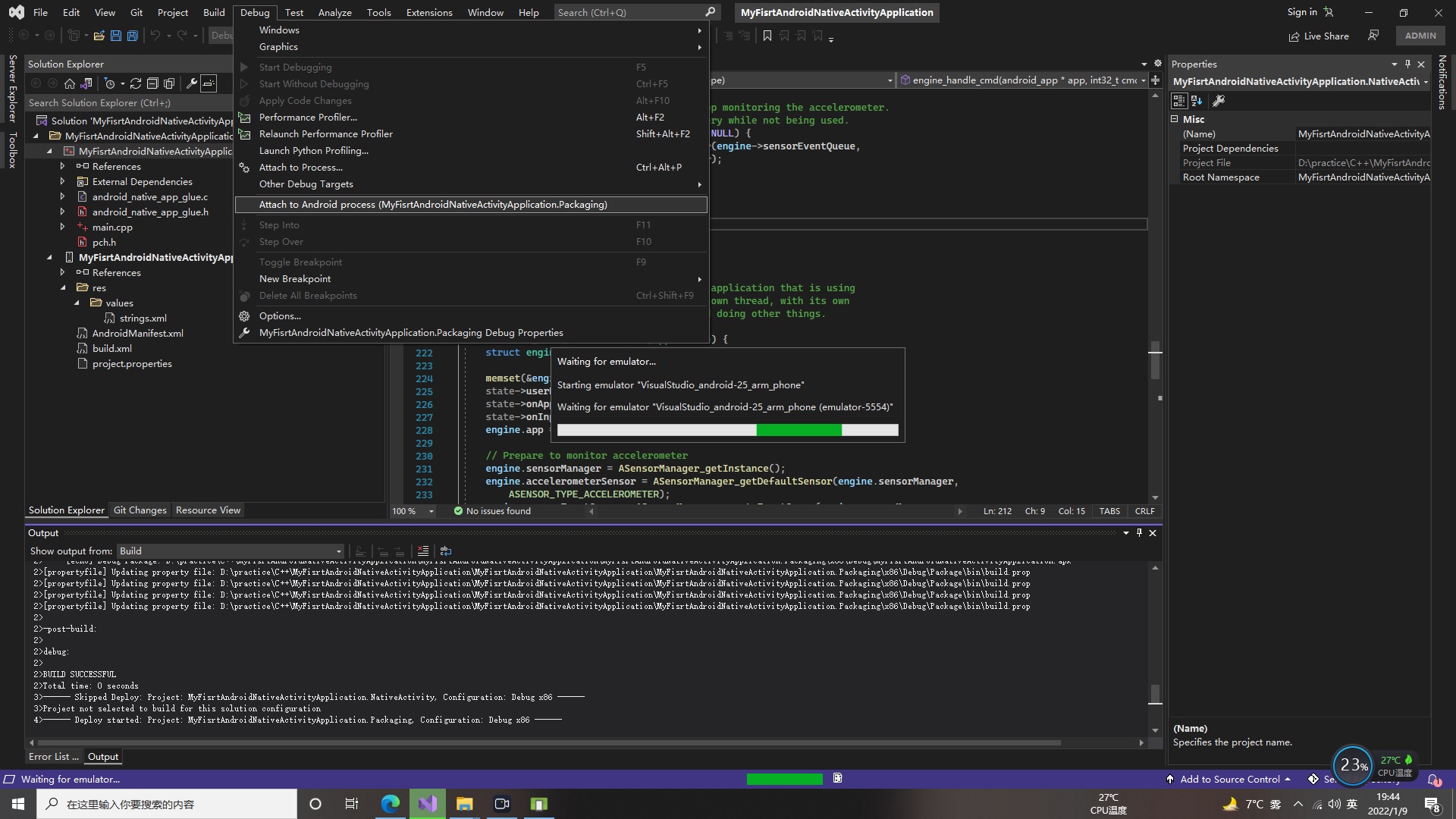
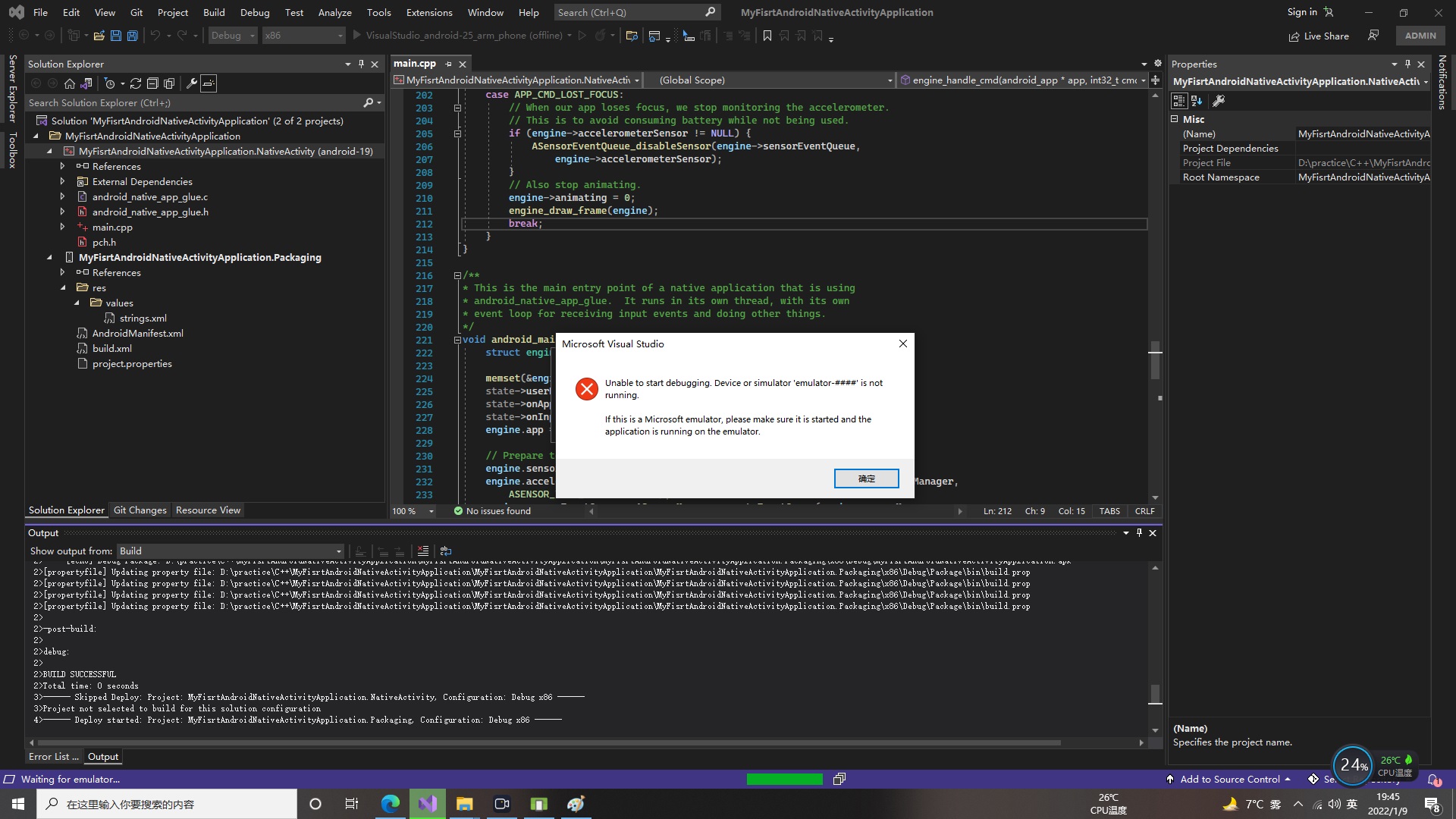
I use Visual Studio 2022, this is my first time to develop android application.
My steps is recorded as follows:
' cx='32' cy='32' r='32' /%3E%3Ctext x='50%25' y='55%25' dominant-baseline='middle' text-anchor='middle' fill='%23FFF' %3EA%3C/text%3E%3C/svg%3E)
Hello,
Welcome to our Microsoft Q&A platform!
This issue is related to the android emulator do not start or start too slow.
Firstly, Please install an x86-based system image emulator, I notice your emulator's name is ARM, the virtual device will not be accelerated and will run slowly.
If you do not know how to create a x86-based system image emulator, please refer to this article: Managing Virtual Devices with the Android Device Manager step by step.
If you create an emulator base on x86-based system image, then you need to enable the Hardware acceleration for emulator.
Before debugging your application, please start your emulator firstly in the Android Device Manager(Launch the Android Device Manager from the Tools menu by clicking Tools > Android > Android Device Manager:), then run your application and debug it.
Best Regards,
Leon Lu
If the answer is the right solution, please click "Accept Answer" and kindly upvote it. If you have extra questions about this answer, please click "Comment".
Note: Please follow the steps in our documentation to enable e-mail notifications if you want to receive the related email notification for this thread.
@Maverick Xiang May I know if you have got any chance to check my answer? I am glad to help if you have any other questions
Because I use Visual Studio 2022. The menu may not be the same.Please see following
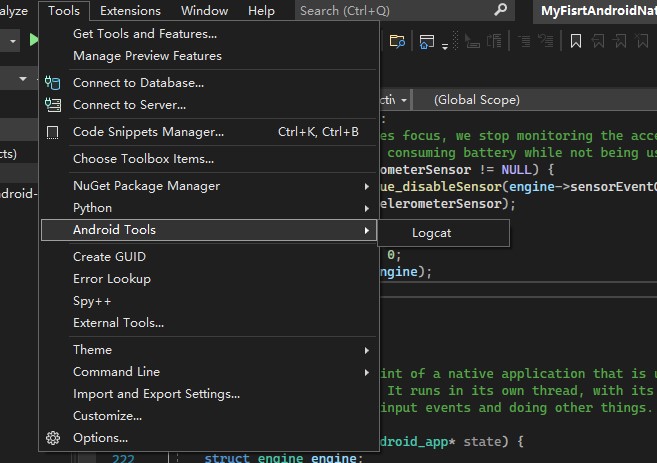
The Android SDKs and Tools have not been found. The following is my installed option