Microsoft 365 and Office | SharePoint | For business | Windows
A group of Microsoft Products and technologies used for sharing and managing content, knowledge, and applications.

This browser is no longer supported.
Upgrade to Microsoft Edge to take advantage of the latest features, security updates, and technical support.
' cx='32' cy='32' r='32' /%3E%3Ctext x='50%25' y='55%25' dominant-baseline='middle' text-anchor='middle' fill='%23FFF' %3ECM%3C/text%3E%3C/svg%3E)
Hello.
I want to continue with the below formula to reference more column;
=TEXT([Selective Onsite Day 1],"dddd mmmm yy")
Its working with one column = Friday April 2022
but how do i reference 3 more column?
I had several attempts but cant get it working.
=TEXT([Selective Onsite Day 1]& " " &([Selective Onsite Day 2],"dddd mmmm yy"))
Can someone help?
Got it working with this formula ;
=TEXT([Selective Onsite Day 1],"dddd mmmm yy")&" "&TEXT([Selective Onsite Day 2],"dddd mmmm yy")
Does anyone know how I can add line break?

Hi @Chris Moks
Use this formula we could get the view without add any line break:
=TEXT([Selective Onsite Day 1],"dddd mmmm yy")&" "&TEXT([Selective Onsite Day 2],"dddd mmmm yy")
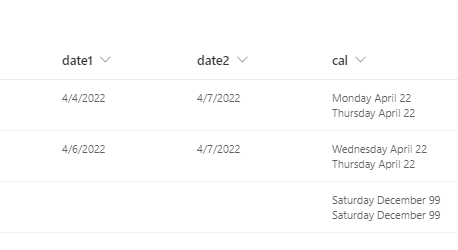
Currently I have not found how to add line break in calculated formula in sharepoint online. As a workaround, we could use column formatting to add line break:
{
  "$schema": "https://developer.microsoft.com/json-schemas/sp/column-formatting.schema.json",
  "elmType": "div",
  "txtContent": "=replace(@currentField,'ABC','\n')"
}
As a result, you could see that the view is changed from A to B:
A: 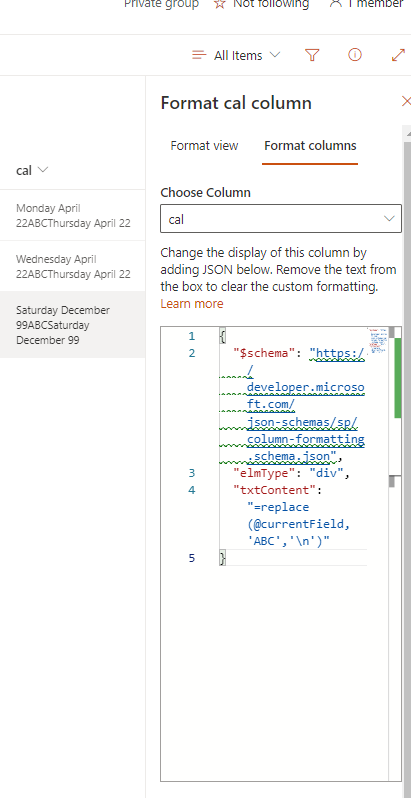
B: 
If the answer is helpful, please click "Accept Answer" and kindly upvote it. If you have extra questions about this answer, please click "Comment".
Note: Please follow the steps in our documentation to enable e-mail notifications if you want to receive the related email notification for this thread.
Hi @Chris Moks
Would you please provide some update of this issue? Please feel free to reply.