Microsoft 365 and Office | Install, redeem, activate | For business | Windows
Processes in Microsoft 365 for setting up Office apps, redeeming product keys, and activating licenses.

This browser is no longer supported.
Upgrade to Microsoft Edge to take advantage of the latest features, security updates, and technical support.
' cx='32' cy='32' r='32' /%3E%3Ctext x='50%25' y='55%25' dominant-baseline='middle' text-anchor='middle' fill='%23FFF' %3EBP%3C/text%3E%3C/svg%3E)
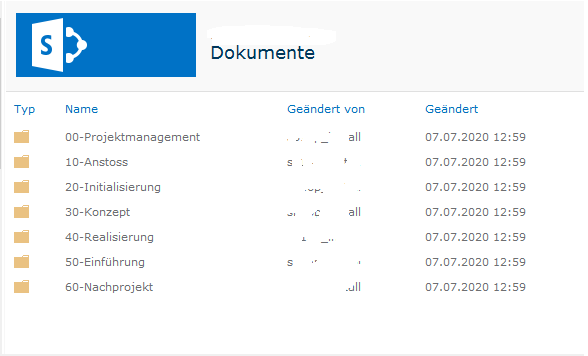
We are using Office version with SharePoint on-premises 2016. Users have been migrated from previously using a Fileshare to SharePoint and are more familiar with the "normal" Save As dialog. When using Office and pointing to a SharePoint library, a web view is displayed. This has some disadvantages, for example you cannot type in a character to quickly jump to a specific folder.
See the two screenshots, the first showing the web view, versus the second one with the folder dialog
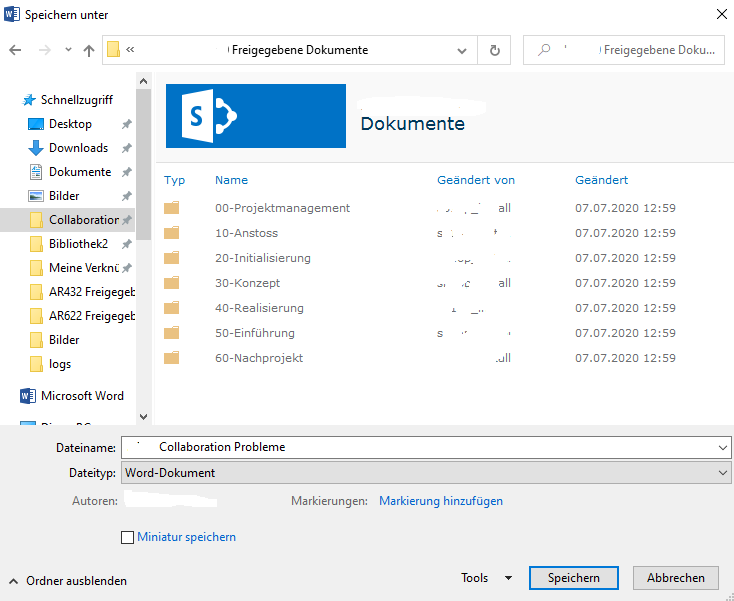
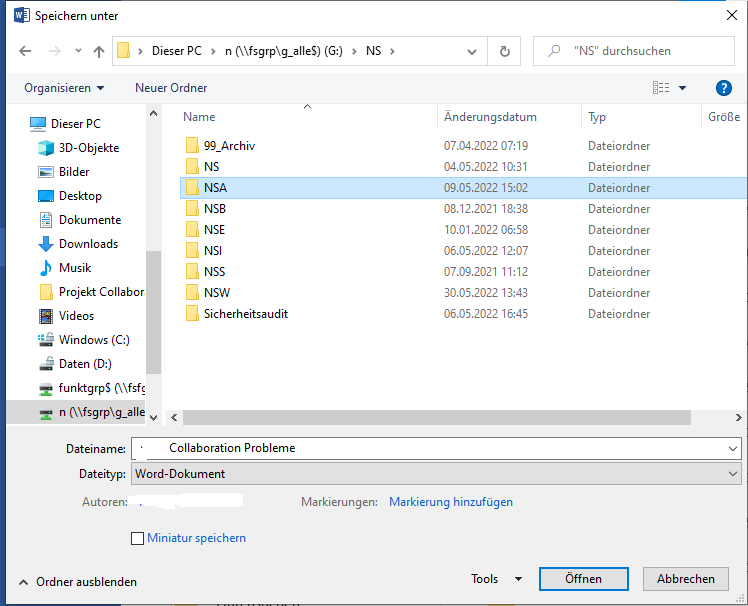
Is there any way to disable the web view and have the normal folder view shown for SharePoint libraries

Hi,
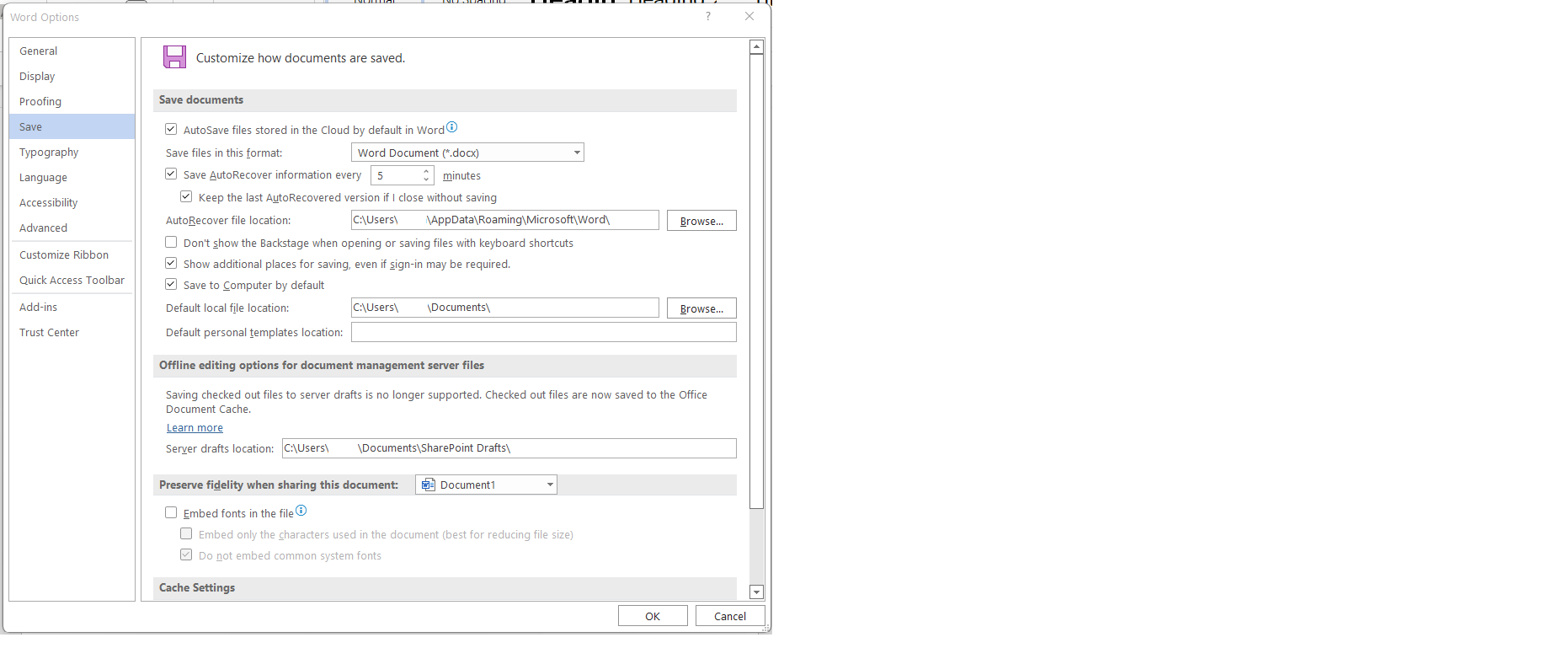
I suggest you go to File- Options- Save- check the option: "Save to Computer by default"(Set the default location):
Just checking in to see if the information was helpful. Please let us know if you would like further assistance.
If the response is helpful, please click "Accept Answer" and upvote it.
Note: Please follow the steps in our documentation to enable e-mail notifications if you want to receive the related email notification for this thread.
Hi,
Just checking in to see if the information was helpful. Please let us know if you would like further assistance.
If the response is helpful, please click "Accept Answer" and upvote it.
Note: Please follow the steps in our documentation to enable e-mail notifications if you want to receive the related email notification for this thread.
Hi
Thanks for your response. No, this does not help at all. I do not want to save everything locally, I want to save to SharePoint. But I do not want the web view to be displayed (with the blue bar and the SharePoint logo). Instead, I want the display to just show folders.
Regards
Peter
Hi Peter,
Do you want to set the sycned folders in locally and set the local path as the default location to save?
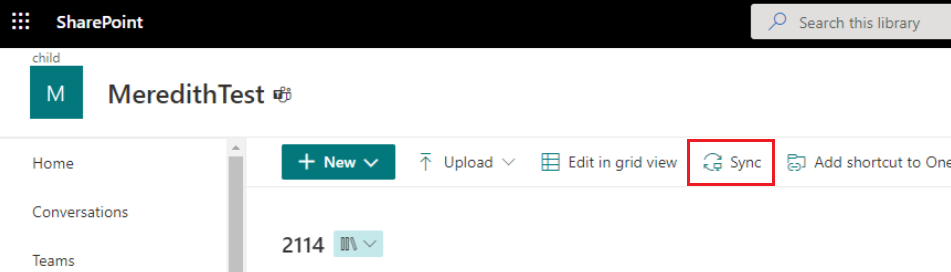
No. We do not want to sync. Just Save As... to a SharePoint library. We just don't want the web view to show. There does not seem to be a possibility to switch this off.
This is by default for saving to the service, in my opinion the UI design is used to help you differentiate between local and cloud locations.

I will say yes to this (maybe). We don't need the file to save directly to the cloud, as it were. It can save first to the local synced folder (like your screenshot above), and then sync itself through the client (just like newly created local files do).
Not sure if that's the best way, but anyway that gets around this old SharePoint dialog. We've had users so confused by it that they just decide not to save the file.