Note
Access to this page requires authorization. You can try signing in or changing directories.
Access to this page requires authorization. You can try changing directories.
This article describes the concepts that you must understand to create and use Azure Monitor health models. This article includes the components that make up a model, how those components are related, and how the health of each component is determined. To define customer commitments before you choose components and signals, see Health modeling with Azure Monitor health models. For details on creating and configuring these components, see Designer in Azure Monitor health models.
Entities
Entities are the building blocks of an Azure Monitor health model. They represent the different components of your workload and any supporting business processes. You can add entities manually, or you can use a discovery to add them automatically based on supported discovery methods.
There are three distinct types of entities as described in the following sections.

| Entity type | Description |
|---|---|
| Root entity | All health models have a single entity called the root entity that represents the model itself. While not required, all other entities in the health model typically connect to the root either directly or through other relationships. The root entity can't be deleted. The primary use of the root entity is to represent the overall health of the workload or application represented by the health model. You can track health of the application over time and create alerts based on the health of the root entity either in addition or instead of the individual entities in the model. |
| Azure resource entity | An Azure resource entity represents an Azure resource from the current subscription or from another subscription that you can access. You can either add the resource or configure discovery to add matching resources automatically. The health model includes a representation of the Azure resource and not the resource itself. A resource can be represented in multiple health models, and each can define different monitoring requirements and business logic. If the resource is represented by multiple entities in different models, then the signals for each entity are evaluated separately, and each has its own independent health state. |
| Generic entity | A generic entity represents some part of the application or workload that isn't an Azure resource. It may represent some manual process in the workflow, or you may use it to represent some aggregation of other entities such as a region or a business unit. A generic entity can have its own signals, although it may just have a health state determined by the health of its child entities. You create most generic entities manually, although a generic entity may also be automatically created to support health rollup for entities that are automatically added through discovery. |
Relationships
A relationship represents the dependency of one entity on another, or it may represent the aggregation of multiple entities into a single entity in order to track their collective health. An entity can have multiple child entities and multiple parent entities. The primary function of relationships is to support health propagation as described in Health states.
In most health models, all entities will connect directly or indirectly to the root entity. This allows you to roll up the health of all entities in the model to the root entity. This is useful for tracking the overall health of your workload and for alerting on the health of the entire workload.
Health states
The health state of an entity represents its ability to perform its required tasks. The entity might be fully functional and performing within an expected range, or it might have limited functionality or degraded performance. It might not be functional at all. One or more signals and any child dependencies determine the health state of an entity. A signal is a value from a metric or query that's periodically compared to threshold values for each health state. One or more signals determine the health state of an entity.
Azure Monitor health models use the health states in the following table to represent the health of each entity in the model. There's no objective definition of the thresholds that determine each of these health states, but you'll specify each according to the requirements of your particular workload and business.
| Icon | State | Description |
|---|---|---|

|
Healthy | The entity is working as expected. |

|
Degraded | The entity is working but with diminished functionality or performance. Doesn't count as downtime for health objective. |

|
Unhealthy | The entity isn't working or is working with unacceptable performance. Counts as downtime for health objective. |

|
Unknown | Insufficient data or a lack of signals prevents determining the health state of the entity. |
Signals
A signal is a value from a metric or query that's periodically compared to threshold values for each health state. Health models don't collect source telemetry for signals. Instead, a signal samples or queries data that Azure Monitor already collects for the represented resources, as well as health information from other supported sources, such as Azure Resource Health. Users can also send external health reports to entities by using the Health Report Ingestion API.
The signals applied to each Azure resource entity are evaluated from the metrics or logs that are associated with the resource. The collection of this data is defined for the resource itself and not in the health model. The health model instead focuses on how to interpret that data in the context of the role of the resource in the workload.
The following example illustrates an Azure resource entity with multiple metric signals. Each has a defined range for degraded and unhealthy states. When the value of each signal is outside of the degraded threshold, the health state of the entity is healthy to match all of its signals. When the value of a signal is within the degraded or unhealthy threshold, then that signal is set to the corresponding health state, and the entity is set to the worst state of all its signals.
In the following example, the entity is set to a degraded state since one of its signals is in a degraded state and the other two are healthy. If any of the signals were unhealthy, then the entity would be set to an unhealthy state.

Dynamic thresholds
By default, a signal compares each value against fixed static thresholds that you set for the degraded and unhealthy states. For metrics with regular fluctuations or seasonal variance, use dynamic thresholds instead. They let the signal adapt to the metric's normal patterns rather than a fixed value.
Dynamic thresholds use machine learning to compute a baseline from the metric's historical behavior. Sensitivity controls how easily the signal reacts to deviations from the machine learning-computed baseline.
During warm-up periods, or when data is missing, the signal falls back to in-place statistical evaluation of the available data until enough history is collected. You configure dynamic thresholds on an Azure resource signal in the designer. For steps, see Create and configure signals.
Health propagation
In addition to its own signals, the health state of an entity is affected by its child entities. This typically represents the dependency of one entity in your health model on another entity. While the signal for the parent may be healthy, you can assume that it isn't fully operational since another entity that it depends on isn't working properly.
You may also use health rollup to consolidate the health of multiple entities. For example, you may want to track the health of a particular component of your application, or the resources in a particular region or business unit. In this case, you can add a generic entity to your model that rolls up the health of the child entities you want to aggregate.
The following example illustrates health propagation in a sample health model. Signals are shown for an event hub entity and a generic entity representing an application component that processes incoming messages. Even though the signal for the message processor is healthy, its entity health state is unhealthy due to the unhealthy state of the event hub that it depends on. This unhealthy state is propagated to the root entity because it's the worst state of the entities connected to the root.

Health propagation settings
You can modify the default health propagation behavior on both the parent and child entity by using the impact and dependencies settings as described in the following sections. Use these settings to tune health propagation to fit the specific needs of your workload and to accurately represent the health of your application. For step-by-step instructions, see Configure health rollup in an Azure Monitor health model.
Impact (child)
The impact setting of a child entity determines how its health state is propagated to its parent(s). The following table describes the different impact settings. Select the setting for each entity in the entity editor.
| Option | Description |
|---|---|
| Standard | Propagates the entity state up to the parent. This is the default setting and the most common. |
| Limited | Doesn't propagate a degraded state and propagates an unhealthy state as degraded. The parent will never receive an unhealthy state from this entity. For example, you may have an application that depends on a cache. If the cache is unhealthy, then the application will keep performing but with degraded performance. |
| Suppressed | Doesn't propagate any health state. Even if the entity is degraded or unhealthy, the parent will appear as healthy. For example, your application may have a backup operation represented by an entity in the health model. Even though the backup operation is unhealthy, the application continues operating normally. |
The following sample shows the effect of each impact setting. Each of the child entities is in an unhealthy state, but the parent health states are different based on the impact setting of each child.

Dependencies (parent)
The dependencies setting of a parent entity determines how its health state is propagated from its child(ren). The following table describes the different dependency settings. Select the setting for each entity in the entity editor.
| Option | Description |
|---|---|
| Worst of | Propagates the worst health state among all dependencies. This is the default setting and the most common. |
| Healthy limit | The entity becomes degraded or unhealthy when the number of healthy dependencies drops to the specified threshold. Specify a separate threshold, either absolute value or percentage, for each health state. |
| Not-healthy limit | The entity becomes degraded or unhealthy when the number of not-healthy dependencies reaches the specified threshold. Specify a separate threshold, either absolute value or percentage, for each health state. |
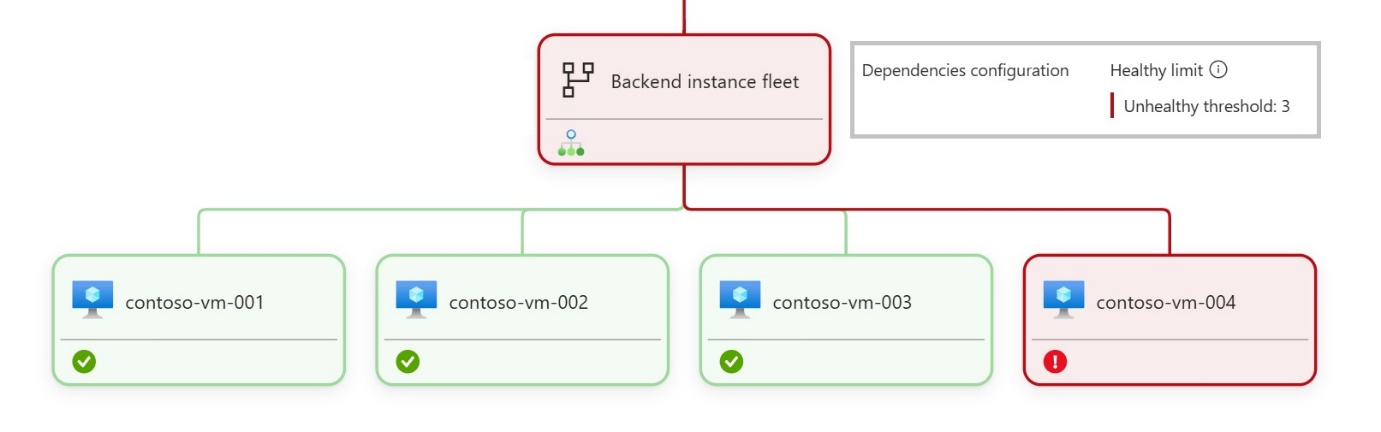
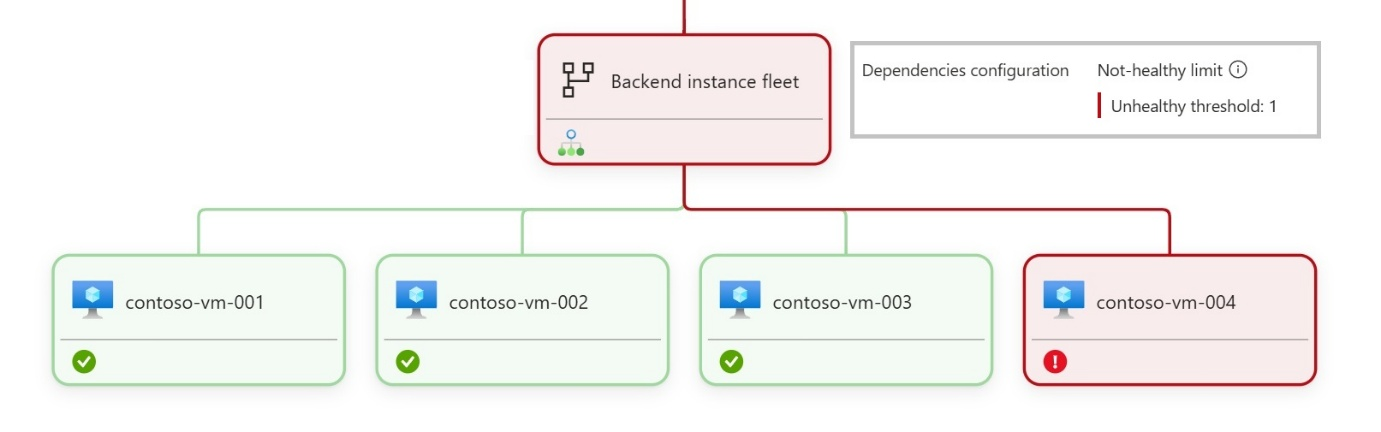
For example, consider the following application that relies on four virtual machines, but the application is still considered healthy if one of the machines is offline. For this functionality, use a generic entity to aggregate the health of the virtual machines. Use the Healthy limit dependency configuration on the generic entity with an unhealthy threshold of 3. Alternatively, you can use the Not-healthy limit dependency configuration with a threshold of 1.
The following screenshot shows the Worst of dependency setting where the parent entity propagates the worst health state from its children. If any single dependency is unhealthy, the parent is unhealthy.

The following screenshot shows the Healthy limit dependency setting with an unhealthy threshold of 3. The parent remains healthy as long as at least three dependencies are healthy.
The following screenshot shows the Not-healthy limit dependency setting with a threshold of 1. The parent becomes unhealthy only when more than one dependency is not healthy.
Nested health models
A health model can be added to another health model just as any other Azure resource, which allows you to create a health model that includes other health models as child components. This pattern lets you build separate health models for different applications, domains, or complex subsystems, and then combine them into a single all-up view.
When you add a health model to another health model, the nested model state is the health state of its root entity. The parent model then rolls up that state with other entities by using the same relationship, impact, and dependency settings described earlier in this article.
This approach is useful for enterprise-level monitoring scenarios, such as:
- One health model per application, with a top-level portfolio health model.
- One health model per complex component, with a parent model for end-to-end service health.
You can also set a health objective on the top-level root entity to track SLO attainment for the combined workload.
Alerts
Alerts trigger when the health state of an entity changes to degraded or unhealthy, but only when you configure an alert on that entity. Along with action groups, they allow you to be proactively notified when critical issues occur in the workload represented by the health model.
While health models generate the same alerts as resource-specific alert rules in Azure Monitor and use the same action groups for notifications and automation, they provide significant advantages:
- Reduce alert noise by firing only a single alert when health state changes even though multiple signals may be degraded or unhealthy.
- Automatically resolved when the entity returns to a healthy state.
- Fire alerts on a parent entity consolidating the health of multiple child entities.

Health objective
The health objective for an entity is the target percentage of time this entity should be healthy. This allows you to track the achievement of your availability goals over time. Health objective is an optional value. Instead of setting one for each entity in the health model, you may choose to only set a health objective for the root entity which represents a health objective for the entire workload. Select the setting for each entity in the entity editor.
