Note
Access to this page requires authorization. You can try signing in or changing directories.
Access to this page requires authorization. You can try changing directories.
User identity authentication provides a straightforward way to authorize AzCopy operations by using your personal Microsoft Entra ID credentials. This authentication method is ideal for interactive scenarios where you manually run AzCopy commands or work in development environments.
This article shows you how to authenticate AzCopy by using your user identity with environment variables, the interactive AzCopy login command, or by leveraging existing Azure CLI or Azure PowerShell sessions.
To learn about other ways to authorize access to AzCopy, see Authorize AzCopy.
Verify role assignments
Ensure your user identity has the required Azure role for your intended operations:
For download operations, use Storage Blob Data Reader (Blob Storage) or Storage File Data Privileged Reader (Azure Files).
For upload operations, use Storage Blob Data Contributor or Storage Blob Data Owner (Blob Storage) or Storage File Data Privileged Contributor (Azure Files)
For role assignment instructions, see Assign an Azure role for access to blob data (Blob Storage) or Choose how to authorize access to file data in the Azure portal (Azure Files).
Note
Role assignments can take up to five minutes to propagate.
If you're transferring blobs in an account that has a hierarchical namespace, you don't need to have one of these roles assigned to your security principal if your security principal is added to the access control list (ACL) of the target container or directory. In the ACL, your security principal needs write permission on the target directory, and execute permission on container and each parent directory. To learn more, see Access control model in Azure Data Lake Storage.
Authorize with environment variables
To authorize access, set in-memory environment variables. Then run any AzCopy command. AzCopy retrieves the authentication token required to complete the operation. After the operation completes, the token disappears from memory. AzCopy retrieves the OAuth token by using the credentials that you provide.
After you've verified that your user identity has been given the necessary authorization level, type the following command, and then press the ENTER key.
Then, run any azcopy command (for example: azcopy list https://contoso.blob.core.windows.net).
This command returns an authentication code and the URL of a website. Open the website, provide the code, and then select the Next button.
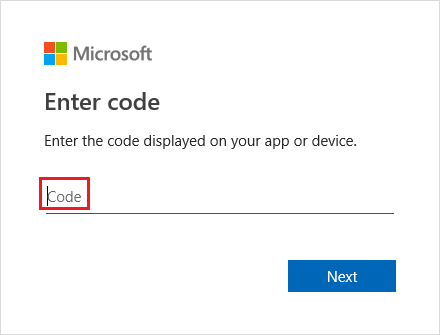
A sign-in window appears. In that window, sign in to your Azure account by using your Azure account credentials. After you successfully sign in, the operation completes.
Authorize with the AzCopy login command
As an alternative to using in-memory variables, you authorize access by using the azcopy login command.
The azcopy login command retrieves an OAuth token and then places that token into a secret store on your system. If your operating system doesn't have a secret store such as a Linux keyring, the azcopy login command doesn't work because there's nowhere to place the token.
After you verify that your user identity has the necessary authorization level, open a command prompt, type the following command, and then press the ENTER key.
azcopy login
If you receive an error, try including the tenant ID of the organization to which the storage account belongs.
azcopy login --tenant-id=<tenant-id>
Replace the <tenant-id> placeholder with the tenant ID of the organization to which the storage account belongs. To find the tenant ID, select Tenant properties > Tenant ID in the Azure portal.
This command returns an authentication code and the URL of a website. Open the website, provide the code, and then select the Next button.
A sign-in window appears. In that window, sign into your Azure account by using your Azure account credentials. After you successfully sign in, you can close the browser window and begin using AzCopy.
Authorize with Azure CLI
If you sign in by using Azure CLI, then Azure CLI obtains an OAuth token that AzCopy can use to authorize operations.
To enable AzCopy to use that token, type the following command, and then press the ENTER key.
For more information about how to sign in with the Azure CLI, see Sign into Azure interactively using the Azure CLI.
Authorize with Azure PowerShell
If you sign in by using Azure PowerShell, then Azure PowerShell obtains an OAuth token that AzCopy can use to authorize operations.
To enable AzCopy to use that token, type the following command, and then press the ENTER key.
$Env:AZCOPY_AUTO_LOGIN_TYPE="PSCRED"
$Env:AZCOPY_TENANT_ID=<tenant-id>
For more information about how to sign in with Azure PowerShell, see Sign in to Azure PowerShell interactively.
Next steps
For more information about AzCopy, see Get started with AzCopy.
If you have questions, issues, or general feedback, submit them on GitHub page.