Note
Access to this page requires authorization. You can try signing in or changing directories.
Access to this page requires authorization. You can try changing directories.
Use the Dynamics 365 Field Service mobile app to scan a barcode to search for records or simplify data entry.
Scan a barcode to search for a record
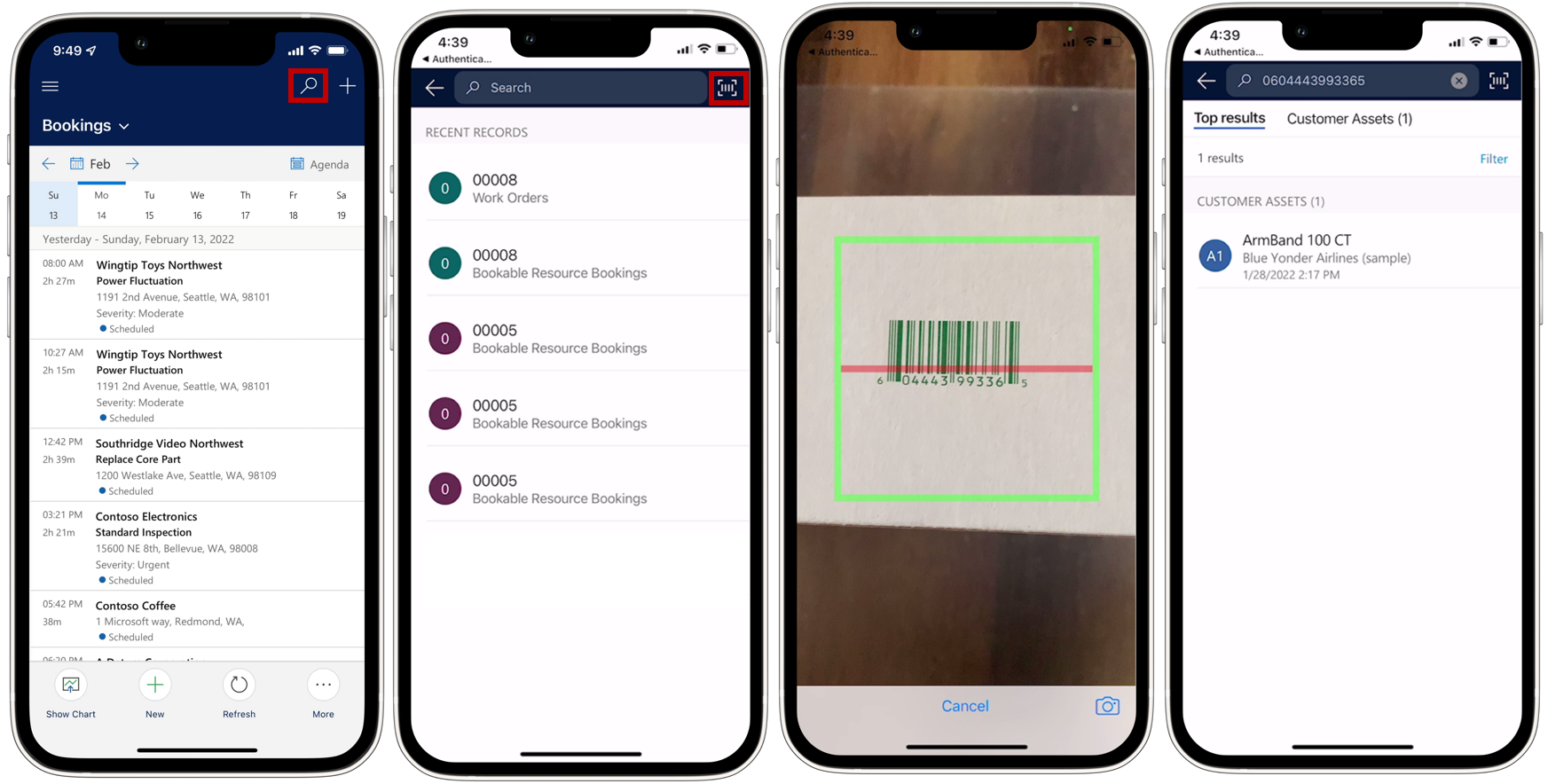
Scan a barcode to search the database for records that match the barcode.
Note
Global search with barcode scanning isn't available on tablet and Windows versions of the app.
In the Field Service mobile app, select the Search icon.
Select the barcode icon. The camera opens and is ready to scan.
Scan a barcode or QR code.
If a record matches the scanned barcode, the result displays.
Scan a barcode to populate a field value
In the mobile app, a barcode-enabled field has a barcode icon. To populate the field, select the barcode icon. For example, scan a barcode to populate the Asset Tag field.
In the mobile app, open the page with the barcode-enabled field. In this example, select the Asset page and select New. Scroll to the Asset Tag field.
Select the barcode icon. The camera opens and is ready to scan. Scan a barcode or QR code.

After a successful scan, the barcode value is automatically added to the field.
Select Save.