Note
Access to this page requires authorization. You can try signing in or changing directories.
Access to this page requires authorization. You can try changing directories.
The Recommended Actions Agent uses the risk and action insights from your sales agents and ranks them based on strategic importance, risk criticality, and priority. In this article, you learn how to view action cards, how the agent prioritizes and displays them in the carousel, and how to interact with them to effectively manage and nurture your Contacts, Opportunities, Leads, and Accounts.
View AI-recommended risk and action cards
The action cards appear in a carousel for contacts, opportunities, leads, and accounts that you and your team own in Dynamics 365 Sales.
- Go to Contacts, Opportunities, Leads, or Accounts page in your sales app.
- Select Read Only Grid from the top of the list.
- Wait for the Suggested actions carousel to load. If you don't see the carousel, check with your admin to ensure that the corresponding research agents such as the Sales Qualification Agent or Sales Opportunity Agent are configured for the entity.
- Select the carousel header, if collapsed, to expand the section and view the action cards.
The following image shows an example of the action cards carousel for opportunities:
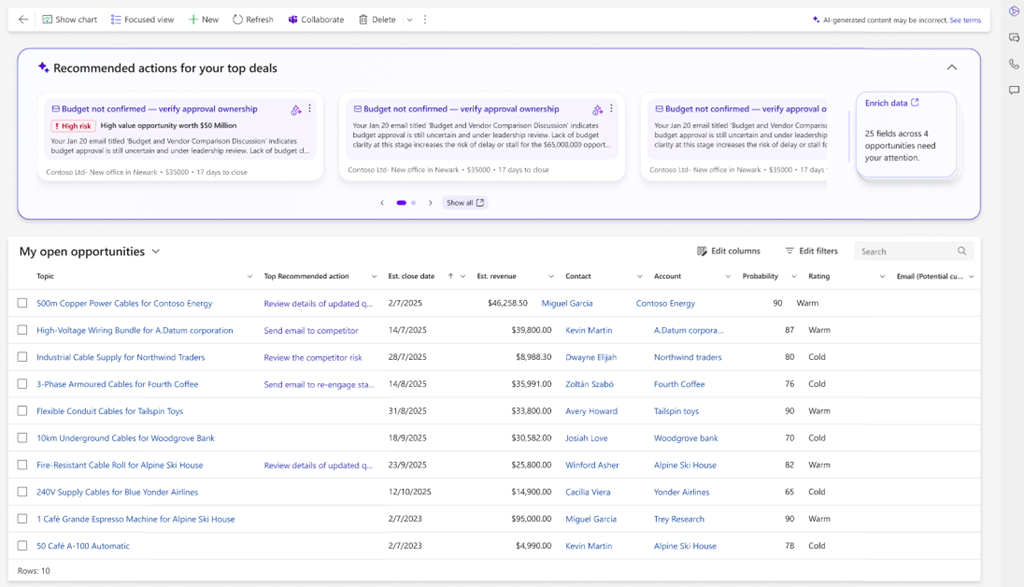
The carousel shows action cards and data enrichment cards. Select Show all to view all action cards for the selected record type. To view enrichment cards, select the stacked card for data enrichment at the end of the carousel.
Interact with action cards
The source agent, such as the Sales Qualification Agent or Sales Opportunity Agent, generates action cards when it detects a risk or opportunity in a record. The carousel shows prioritized cards first. Each card highlights a specific risk or action item, such as a stalled deal, disengaged contact, or missing account information. The card explains the risk and recommends actions to address it.
The carousel shows one card per record and highlights the top priority. After you address that item, the next highest priority action appears in the carousel. This process continues until you resolve all priority items for the record.
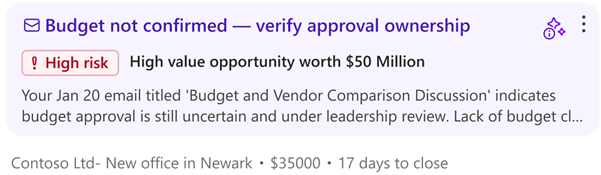
Each action card displays the top priority item for a record and includes the following information and options:
Basic card details: The card header highlights the action or risk detected and the record name. The body contains the reason for the recommendation. Select the card to open the corresponding agent's research insights page and view more details about the recommendation and next steps. Other detected items for the record are also shown on the insights page.
Reason for recommendation: Select the sparkle icon
 on the card to view the reason for the recommendation.
Perform more tasks: The more options icon ⋮ on the card provides additional options as described in the following table:
Task Description Not relevant If the action isn't relevant to the record, select this option to remove the card from the carousel. Mark as done If you took the suggested action, select this option to mark the task as completed. The card is removed from the carousel. Go to record form Select this option to go to the record to view more details and take additional actions. Provide feedback: To provide feedback on the relevance of an action card, hover over the card and select the thumbs up or thumbs down icon on the card. If you select thumbs down, you can enter additional feedback in the pop-up window.
Reason for priority: Each card includes a reason for why the action is prioritized. At the bottom of the card, you find a brief explanation of the key factors contributing to the card's priority ranking. Hover over the reason to view a detailed breakdown of how the card's priority was determined based on the scoring model dimensions (Urgency, Impact, Confidence, Effort) and the specific signals that influenced each dimension. This information can help you understand why a particular action is recommended and how it can impact your record.
Interact with data enrichment cards
When the Data Enrichment Agent detects missing or outdated information in a record, it generates data enrichment cards that appear in the carousel alongside action cards. These cards provide insights about the missing or outdated information and recommend actions to update the record data.
Select stacked cards in the carousel and the Data Enrichment pane opens with details about the data issue and recommended actions to resolve it.

Select all to update the suggested fields directly from the pane. After you update the information, the data enrichment card is removed from the carousel.
Select the History tab in the Data Enrichment pane to view a log of all data enrichment actions taken for the record, including past updates and their timestamps.
To learn more about data enrichment cards, see Review and approve Data Enrichment suggestions.
How action cards are generated
The agent generates action cards by detecting risks and opportunities that come from the source agents such as the Sales Qualification Agent and the Sales Opportunity Agent. It turns these insights into a prioritized set of action cards for your records.
How action ranking works
The Recommended Actions Agent ranks actions by applying a consistent scoring and prioritization pipeline across all incoming actions.
Note
Data enrichment cards aren't ranked or prioritized. They are stacked at the end of the carousel.
Scoring model (UICE framework)
The scoring engine evaluates each action across four dimensions, with scores ranging from 0 to 10:
- Urgency – How time-sensitive or critical the action is
- Impact – The potential business value or outcome
- Confidence – Reliability of the underlying insight
- Effort – Level of effort required to complete the action
The scoring engine generates these scores by using entity data, agent-provided signals, and derived insights.
Priority score calculation
The final priority score uses a weighted formula:
Priority = (Urgency × 0.30)
         + (Impact × 0.35)
         + (Confidence × 0.20)
         − (Effort × 0.15)
         + (Principles × 0.05)
- Impact and Urgency contribute the most to the score
- Effort reduces the score
- Principles adds a small boost based on business priorities
Role of signals in scoring
The scoring engine derives UICE values by using:
- Entity signals such as deal value, stage, and competitors
- Agent-provided signals passed through msdyn_prioritizationdata
- Derived insights such as sentiment or deal health
Signal definitions include dimension influence hints that guide how each signal affects urgency, impact, confidence, or effort.
Prioritization principles
Each agent maps its actions to one or more prioritization principles (for example, Risk Reduction, Deal Velocity, Revenue Generation).
These principles:
- Represent organizational priorities
- Slightly influence the final score through the Principles weight
- Help align ranking with business objectives
Ranking and filtering
After scoring:
- Actions are processed with floor and ceiling rules to filter or boost relevance
- All actions are ranked globally across all agents
- The system surfaces only the top-ranked actions in the Recommended Actions carousel
Default prioritization behavior
By default, prioritization is based on the combined evaluation of the following factors:
- Business impact: Measures the expected value of the action, such as revenue growth, customer retention, or opportunity progression.
- Urgency: Assesses how time-sensitive the action is and whether immediate execution is required.
- Risk: Evaluates the potential risks associated with taking or not taking the action.
- Confidence: Determines how well the action aligns with the current context and how confident the system is in the underlying data and insights.
This prioritization logic is applied consistently across all selected data sources.