Note
Access to this page requires authorization. You can try signing in or changing directories.
Access to this page requires authorization. You can try changing directories.
Use this article to trace SMS and voice requests end to end with Choose Your Own Telephony Provider (CYOT), find where a request stopped, and contact the right team to resolve it: Microsoft support, your Azure team, or your telephony provider.
How a CYOT request flows
Each request passes through four stages, and each stage is recorded in its own logs:
| Stage | What happens | Where to look |
|---|---|---|
| 1. Microsoft Entra sends the request | Microsoft Entra requires an SMS or voice code and sends the request to your endpoint. | Microsoft Entra audit logs |
| 2. Your endpoint processes it | Your Function App receives the request and sends it to your telephony provider. | Function App logs |
| 3. Your provider delivers it | Your provider sends the SMS message or voice call to the user's phone. | Your provider's portal |
| 4. The user signs in | The user enters the code, and Microsoft Entra completes authentication. | Microsoft Entra sign-in logs |
Find the request in audit logs
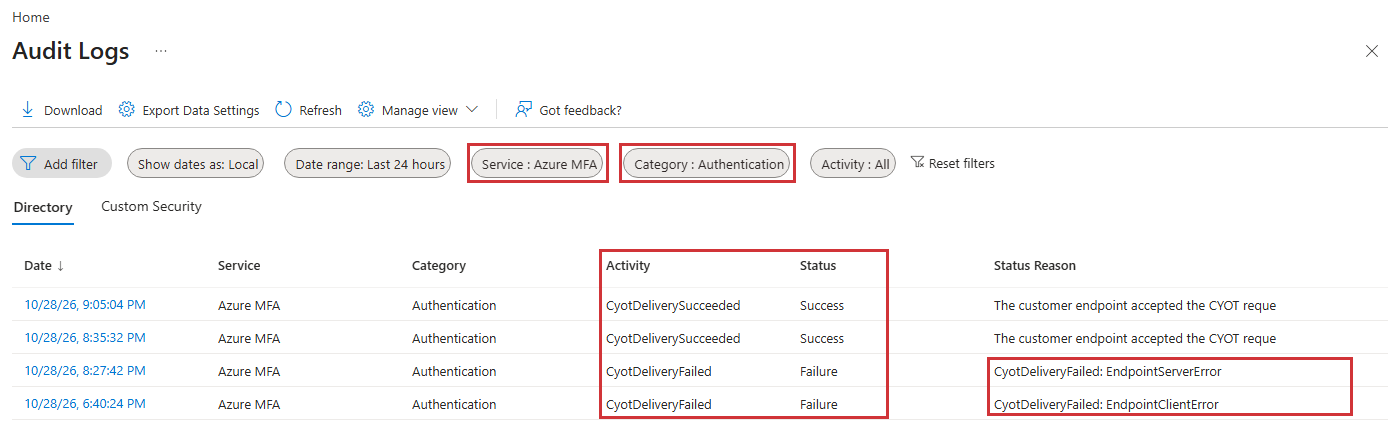
- Sign in to the Microsoft Entra admin center as at least a Reports Reader.
- Go to Entra ID > Monitoring & health > Audit logs, and select the Directory tab.
- Set the Date range, and add these filters: Service: Azure MFA and Category: Authentication.
- Leave Activity set to All so you see both successful and failed requests.
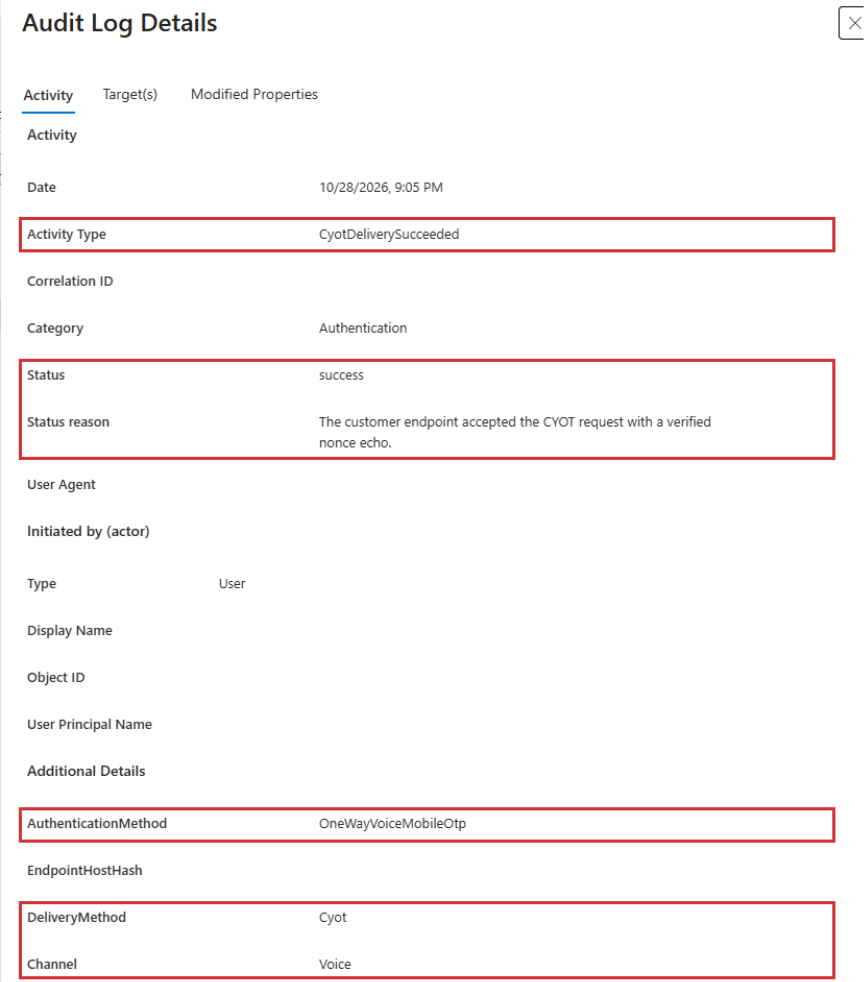
Select the request to open Audit Log Details, and note these values:
| Field | What it tells you |
|---|---|
| Activity Type | CyotDeliverySucceeded means your endpoint accepted the request. CyotDeliveryFailed means it didn't complete. |
| DeliveryMethod | Cyot for a live request through your provider. CyotEvaluation for an evaluation request. |
| Channel | Sms or Voice. |
| AuthenticationMethod | The method used, such as OneWaySms or OneWayVoiceMobileOtp. |
| Correlation ID | The identifier to share with support. |
| FailureReason | Why a failed request didn't complete. |
Check sign-in logs
Use sign-in logs to confirm whether the user completed authentication.
- Go to Entra ID > Monitoring & health > Sign-in logs.
- Find the sign-in by user and time, and open it.
- On Authentication Details, review the method, whether the step succeeded, and the result detail.
Sign-in logs show the method as Text message or Voice. To confirm that the request was sent through your provider, use audit logs.
Check Function App logs
Use your Function App logs to see how your endpoint processed the request and what it returned to Microsoft Entra.
In the Azure portal, open the Function App created by setup.
Go to Monitoring > Application Insights, and open the linked Application Insights resource.
Select Logs, and run the following query for the time of the attempt:
 AppRequests
 | where TimeGenerated > ago(1h)
 | where Url has "/api/SendOtp"
 | project TimeGenerated, ResultCode, Success, DurationMs, OperationId
 | order by TimeGenerated desc
ResultCode shows what your Function App returned to Microsoft Entra. To see your provider's response for the same request, query AppTraces with its OperationId.
Identify who can help
Use what you see in audit logs to find the right contact.
| What you see | What to check | Contact |
|---|---|---|
| No CYOT activity in audit logs | Confirm the date range and filters, that the user is included in SMS or voice targeting, and that a new phone challenge was required. | Microsoft support |
Only CyotEvaluation activity |
The profile is in Evaluation. Switch to Production to route traffic through your provider. | No support needed |
CyotDeliveryFailed with EndpointClientError |
Your endpoint rejected the request. Check your Function App logs and authentication settings. | Your Azure team |
CyotDeliveryFailed with EndpointServerError |
Your endpoint returned an error or didn't respond in time. Check your Function App logs and your provider's status. | Your Azure team |
CyotDeliveryFailed with NonceMismatch |
Your endpoint's response didn't match what Microsoft Entra expects. Compare any customizations with the CYOT sample. | Your Azure team |
CyotDeliverySucceeded, but the user didn't receive the code |
Your endpoint accepted the request. Check your provider's delivery records. | Your telephony provider |
| The user received the code, but sign-in failed | Check the sign-in logs for an expired, reused, or incorrect code. | Microsoft support |
| Delivery blocked to certain countries/regions, fraud blocks, or unexpected charges | Review your provider's fraud, destination, and spending controls. | Your telephony provider |
Tip
When a request times out, check your provider's records before you try again. Your provider might have already accepted the original request.
Contact support
| Contact | Covers | How to reach |
|---|---|---|
| Microsoft support | Authentication method policy, Microsoft Entra authentication, and the request to your endpoint | Get support for Microsoft Entra |
| Your Azure team | Your Function App, its configuration, and Azure resources | Internal. For Azure platform issues, contact Azure support. |
| Your telephony provider | Provider account, delivery, fraud controls, and usage charges | Support details in the provider's Microsoft Security Store listing |
Information to include
- Tenant ID, channel (SMS or voice), and the UTC time of the attempt.
- The audit log Correlation ID,
DeliveryMethod, andFailureReason. - Your provider's transaction ID, if available.
- Any recent configuration changes.
Related content
- Set up SMS and voice with your own telephony provider in the Microsoft Entra admin center.
- Plan for resiliency and high availability.
- Protect against telephony fraud with your own telephony provider.
- What are Microsoft Entra audit logs?.
- What are Microsoft Entra sign-in logs?.
- Monitor Microsoft Entra ID sign-ins.
- Setup and onboarding troubleshooting.
- Integrate Microsoft Entra logs with Azure Monitor logs.
- Analyze Microsoft Entra activity logs with Log Analytics.