Note
Access to this page requires authorization. You can try signing in or changing directories.
Access to this page requires authorization. You can try changing directories.
The dbt job activity lets you run a dbt job as part of a Fabric data pipeline. You can select an existing dbt job from your workspace, create a new one inline, and chain it with other activities to build end-to-end data workflows. All dbt job settings support dynamic content, so you can build metadata-driven pipelines with parameterized configurations.
What you can do with the dbt job activity
- Select an existing dbt job from your workspace.
- Create a new dbt job if one doesn't exist.
- Chain with other activities in your pipeline using success, failure, or completion dependencies.
- Pass dynamic runtime parameters from your pipeline to the dbt job, enabling reusable, parameterized workflows
- Build metadata-driven dbt pipelines with parameterized orchestration.
- Send Teams or email notifications after a dbt job runs.
- Monitor the dbt job's progress and status within pipeline run history.
Prerequisites
Before you begin, make sure you have the following prerequisites:
- A Microsoft Fabric tenant account with an active subscription. Create a free account.
- A Microsoft Fabric enabled workspace. Create a workspace.
- Permission and access for dbt jobs in Microsoft Fabric.
Add a dbt job activity to a pipeline
Create a new pipeline or open an existing one, then add a dbt job activity from the activity pane.
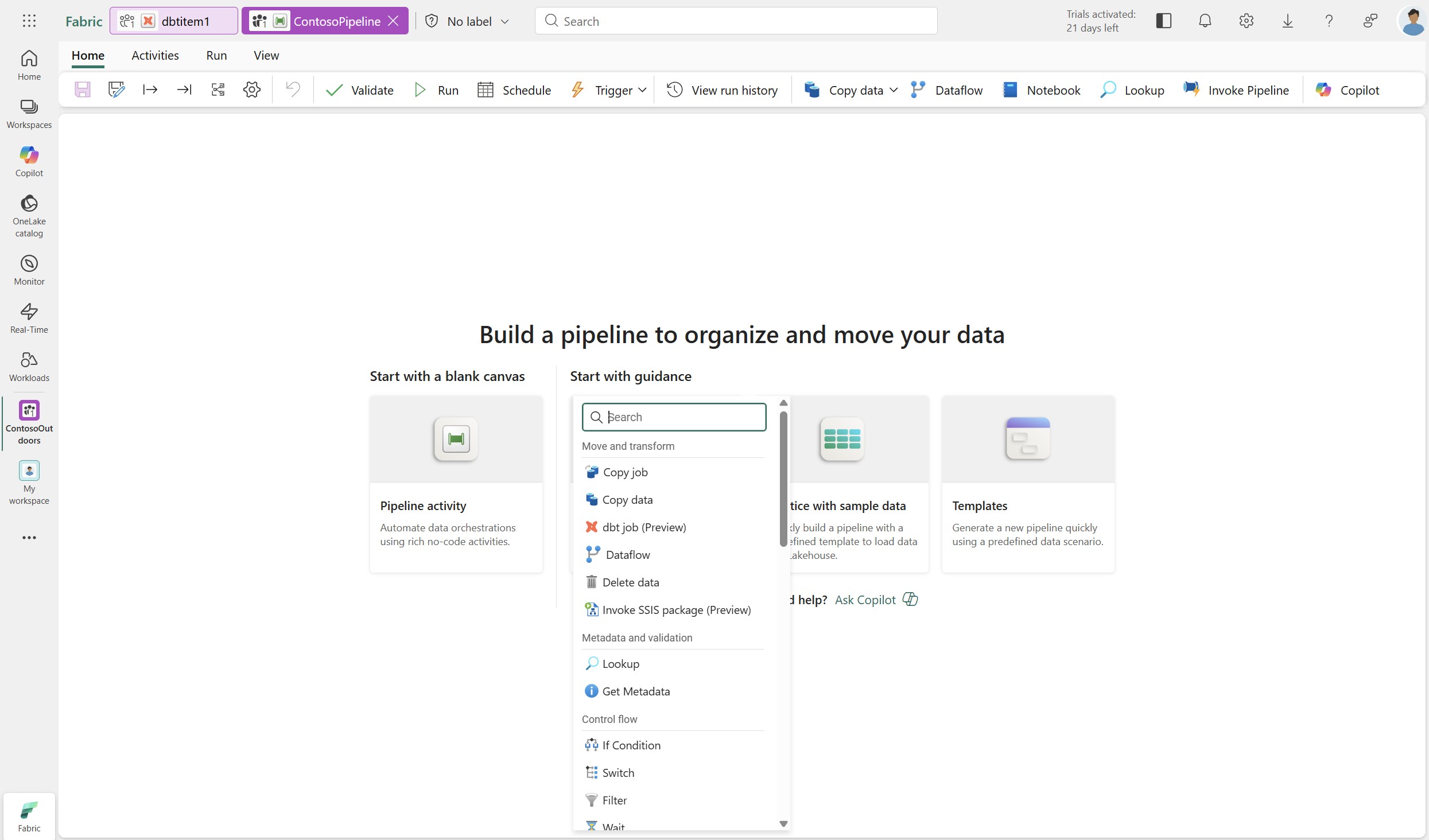
Go to the activity's Settings tab. Under Connection, use an existing connection from drop-down or select Browse all to open the Get data page. Select dbt job to create a new connection.
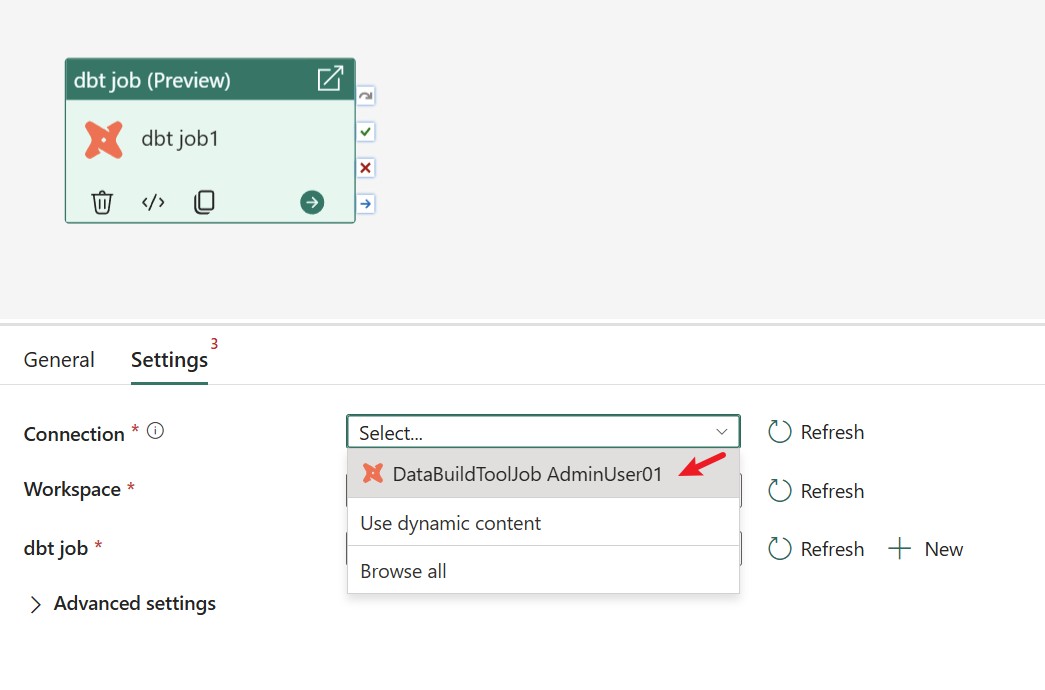
Select the workspace and dbt job item to orchestrate in your pipeline. If you don't have a dbt job item, create one by selecting the + New button in the dbt job settings within the activity.
Configure parameters in a dbt job activity
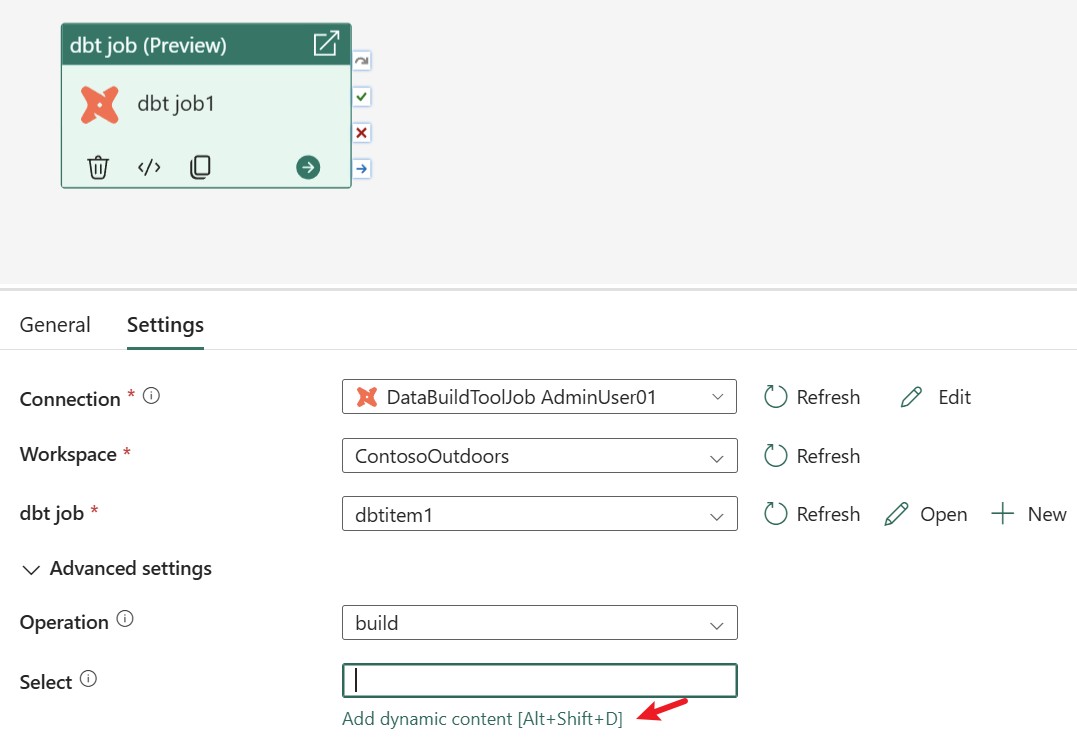
You can use parameters to control the behavior of a pipeline and its activities. Select Add dynamic content to specify parameters for any dbt job activity property. Dynamic content is supported for all columns in the Settings tab.
For example, you can pass a parameter to the Select field so that each pipeline run executes only the dbt models you specify. Follow these steps to set it up:
In the Settings tab, select the Select field and choose Add dynamic content.
In the Add dynamic content pane, select the Parameters tab, then select + to create a new parameter.
Specify a name for the parameter, for example model_name, and set a default value such as my_model. Select the parameter to insert it as the dynamic value for the Select field.
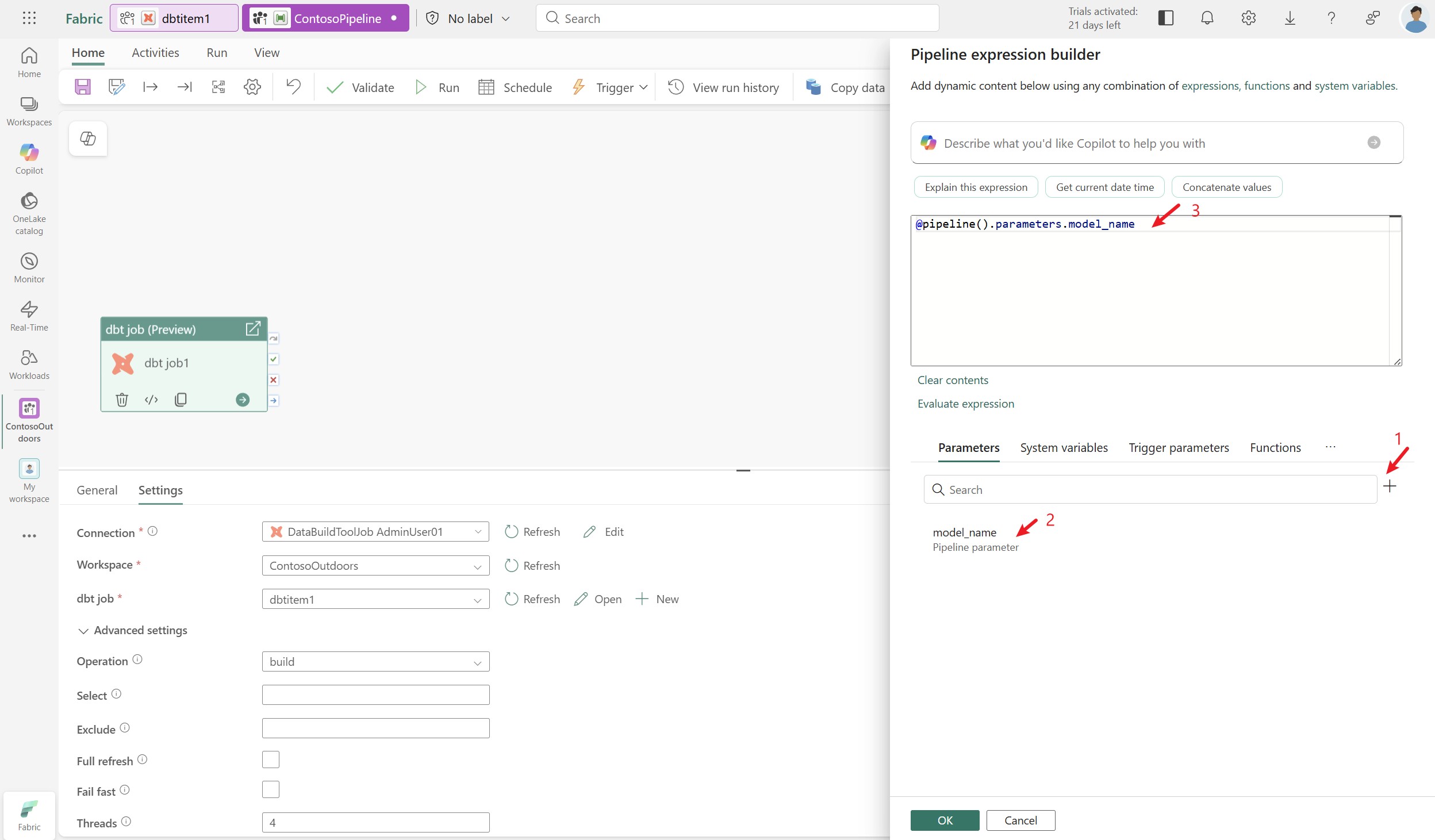
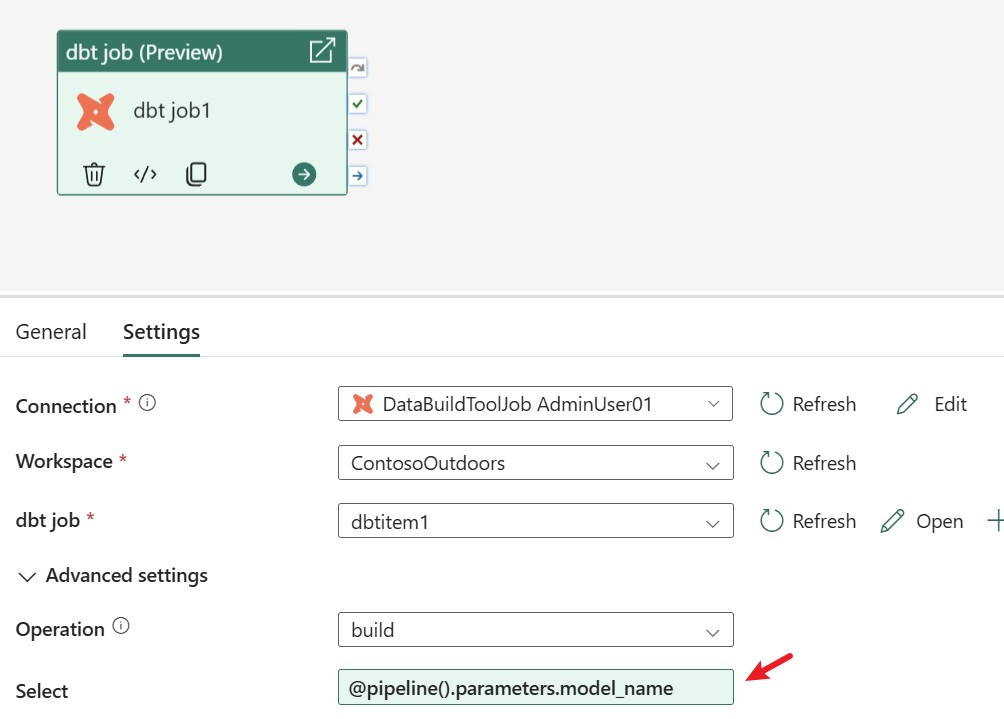
When the pipeline runs, the Select field resolves to the parameter value, so dbt executes only the matching model. You can override the default value each time you trigger the pipeline to target different models without editing the activity.
You can add dynamic content for any column in Settings using the same approach.
dbt job activity advanced settings
The Settings tab contains the advanced settings for dbt command options, node selection, and execution behavior.
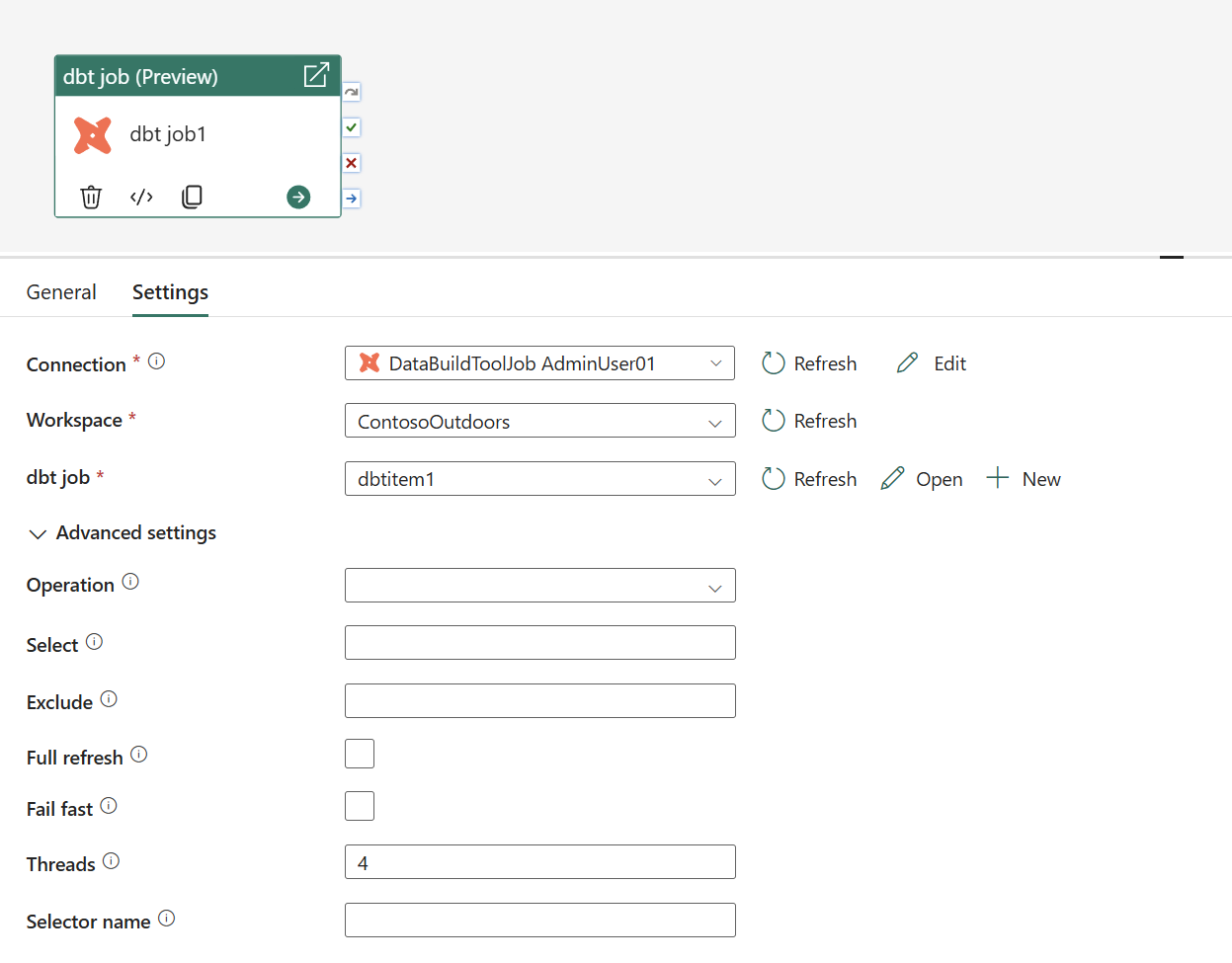
The following table describes each setting.
| Setting | Description | JSON script property |
|---|---|---|
| Option | Specifies the dbt command to execute: build, run, compile, snapshot, or test. | operation |
| Select | Specify selection criteria (for example, models, project, directory, package, tag, or path) to choose a subset of nodes to dbt execute. Learn more about node selection syntax. | select |
| Exclude | Specify exclusion criteria (for example, models, project, directory, package, tag, or path) to exclude a subset of nodes from dbt execution. Learn more about exclude syntax. | exclude |
| Full refresh | Specify whether to force dbt to rebuild all models from scratch. Learn more about refreshing incremental models. | fullRefresh |
| Fail fast | Specify whether dbt should exit immediately if a single resource fails to build. Learn more about failing fast. | failFast |
| Thread | The number of threads to use to construct the dbt graph. The default is 4. Learn more about using threads. | threads |
| Selector name | Specify the name of a selector from the project's selectors.yml file. Using a selector overrides the select and exclude arguments. Learn more about YAML selectors. | selectorName |