Note
Access to this page requires authorization. You can try signing in or changing directories.
Access to this page requires authorization. You can try changing directories.
Microsoft Fabric policies enable administrators to centrally define and enforce granular governance rules across Fabric. By using Microsoft Fabric policies, you can create rules that control specific operations based on conditions such as workspaces, security groups, sensitivity labels, and more.
This article introduces the key concepts of Microsoft Fabric policies, explains the entry points for creating and activating policies, and walks through the end-to-end policy lifecycle.
Why use Fabric policies?
Organizations using Fabric often face challenges with:
- Feature enablement. Organizations need granular control to enable features that align with their governance requirements.
- Administrative overhead. Managing resources and ensuring compliant workflows through manual processes or separate systems is time-consuming.
- Limited visibility. Administrators struggle to track existing settings, understand default configurations, and manage governance scope across the organization.
Fabric policies address these challenges and provide the following benefits:
- Granular, condition-based governance. Define rules that apply only under specific conditions, such as a particular workspace, security group, or sensitivity label.
- Centralized policy management. Manage governance from a single place, the OneLake catalog Policies page.
- Visibility and auditability. Track configuration and enforcement decisions through Fabric audit logs.
- Programmatic management. Automate policy management with REST APIs, Git integration, and service principals.
Together, these capabilities deliver consistent governance across the tenant, increase administrative visibility, and reduce governance friction.
Key concepts in Fabric policies
Fabric policies use a small set of concepts that work together to define and enforce governance. The following diagram shows how those concepts combine to evaluate a user action and allow or block it. The steps after the diagram walk through the same flow.
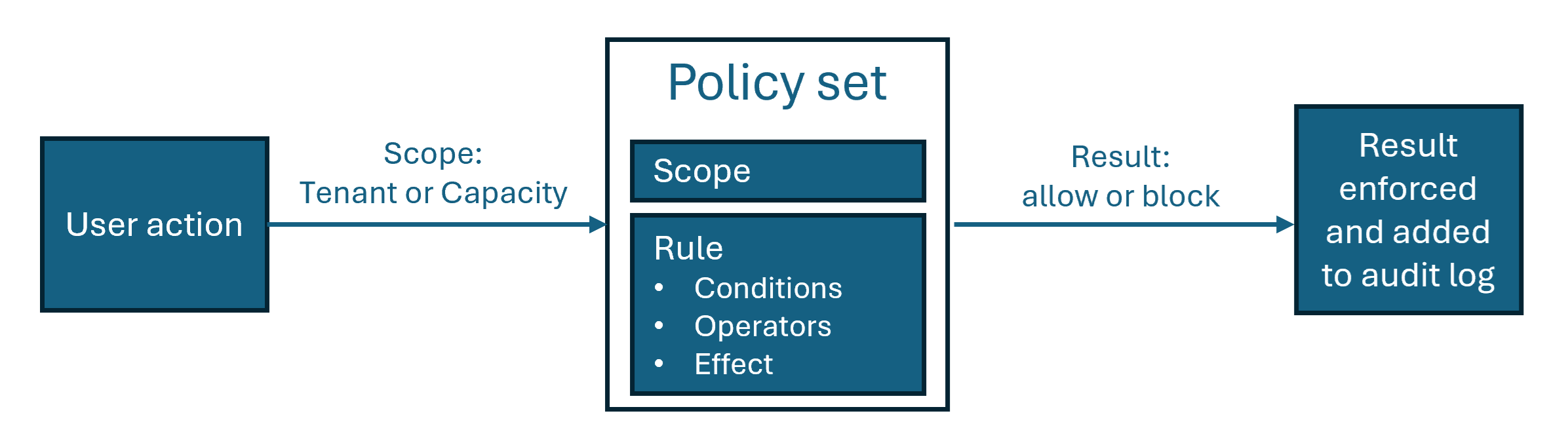
Fabric evaluates a user action in the following order:
Action. A user attempts a governed action.
Admin scope. The action is associated with an admin scope: Tenant or Capacity.
Active policy. Fabric loads the active policy for that scope.
Rule check. Fabric checks whether the policy has any rules. If it doesn't, Fabric applies the policy default and stops.
Condition match. If rules exist, Fabric evaluates each rule's conditions with its operators. If no rule matches, Fabric blocks the action. If a rule matches, Fabric applies the Allow effect and permits the action.
Result. Fabric enforces the result, whether default, block, or allow, and records it in the audit logs.
Fabric Policies tenant setting
The Policies (preview) tenant setting controls the availability of Fabric policies and allows Fabric tenant admins and capacity admins to create policy sets and apply policy rules. You can use the security group selector to limit this access to specific security groups.
Fabric policy items
Fabric stores each policy as an item in a workspace. This item model gives policies standard Fabric item capabilities, including public REST APIs, Git integration, CI/CD, the standard Fabric permission model, and discovery and management in the OneLake catalog.
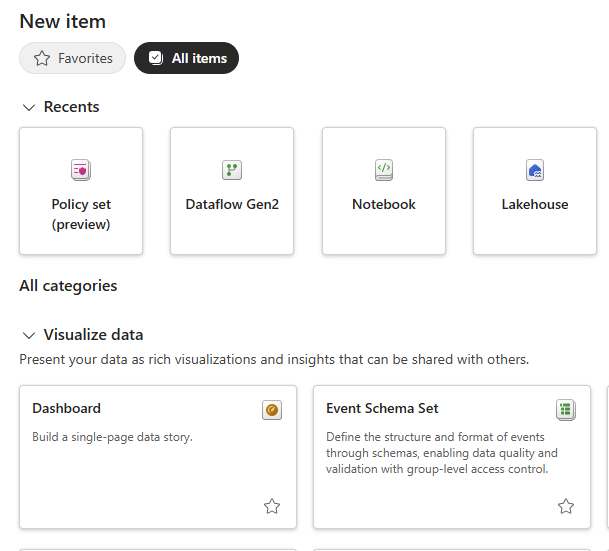
Fabric policies have the following characteristics:
You assign each policy to an admin scope (Tenant or Capacity) when you create it. You can't change the scope.
You must activate the policy before its rules take effect.
You can activate only one policy per admin scope at a time.
You can use Git and CI/CD automation to manage and deploy policies. However, you can't activate a policy through Git.
Anyone with permission can create and manage the policy item or edit its rules, but those rules take effect only after activation. To activate a policy, you need the appropriate admin permissions: a Fabric administrator for Tenant scope or a capacity administrator for Capacity scope.
Fabric policy rules
A policy rule is the core unit of governance. Each rule consists of:
- Metadata, including a system-generated rule ID, a display name, a description, and creation and modification dates.
- Conditions that determine when the rule applies. Fabric combines multiple conditions with a logical AND.
- An effect that determines what happens when the conditions are true.
The number of rules a policy can contain depends on the admin scope: up to 100 rules per policy at Tenant scope, and up to 50 rules per policy at Capacity scope.
Fabric policy conditions and operators
Conditions determine when a rule applies. Each condition pairs a policy attribute, such as a workspace, a security group, or a recipient email domain, with an operator that defines how Fabric tests the action's value for that attribute against the values you configure. The conditions available for a policy depend on what the policy evaluates:
- For an action performed within an item (for example, sharing data externally), you can base conditions on the item, the user, the workspace, and policy-specific properties.
- For an action at the workspace level (for example, changing workspace settings), you can base conditions on the workspace, security groups, and policy-specific properties.
The available condition types are:
| Condition type | Description | Applies to | Notes |
|---|---|---|---|
| Workspaces | Fabric workspaces where the policy applies. | All policies | Maximum 50 per rule. |
| Security groups | Microsoft Entra ID security groups the policy applies to. | All policies | Maximum 50 per rule. |
| Sensitivity labels | Microsoft Purview sensitivity labels that must be present on items. | Selected policies | Includes a No label option. |
| Recipient email domain | Email domains allowed for external data sharing. | External data sharing policy | — |
| Item type | Fabric item types the policy applies to. | Item creation policy | — |
| Workspace settings | Specific settings within a workspace that the policy applies to. | Workspace settings policy | — |
Condition evaluation logic:
- Multiple conditions within a rule are combined with AND.
- Multiple values within a condition are combined with OR (for
AnyOf) or NOR (forNoneOf). - Unspecified conditions evaluate to TRUE (match all).
The operator available for a condition depends on its format:
- ID-based conditions (security groups, workspace IDs, and sensitivity labels) use
AnyOf(at least one configured value matches) andNoneOf(no configured value matches).
Example: Allow selected users to create specific item types
This capacity-scoped example allows approved data team to create DataFlow Gen2 items.
| Setting | Value |
|---|---|
| Policy | Allow item creation |
| Rule name | Only data team can create Dataflow Gen2 |
| Security groups | Any of: Data-team |
| Item type | Any of: Dataflow Gen2 |
Fabric policy effects
The effect defines what happens when a policy's conditions evaluate to true. Currently, the only available effect is Allow.
| Effect | Description |
|---|---|
| Allow | Permits the operation when conditions are met. If no rules match, the operation is denied. |
When you configure a policy with rules and conditions, it behaves as an allow list. The action is only permitted if it meets all conditions specified in the policy. Fabric blocks any action that doesn't meet the conditions.
Fabric policy admin scopes
An admin scope is the administrative boundary where Fabric enforces a policy. The scope determines which policies are available, which workspaces a rule can target, and who can activate the policy.
| Admin scope | Description | Activated by |
|---|---|---|
| Tenant | Policies apply across the entire organization | Fabric administrator |
| Capacity | Policies apply to the workspaces assigned to a specific capacity | Capacity administrator |
Policies center in the OneLake catalog
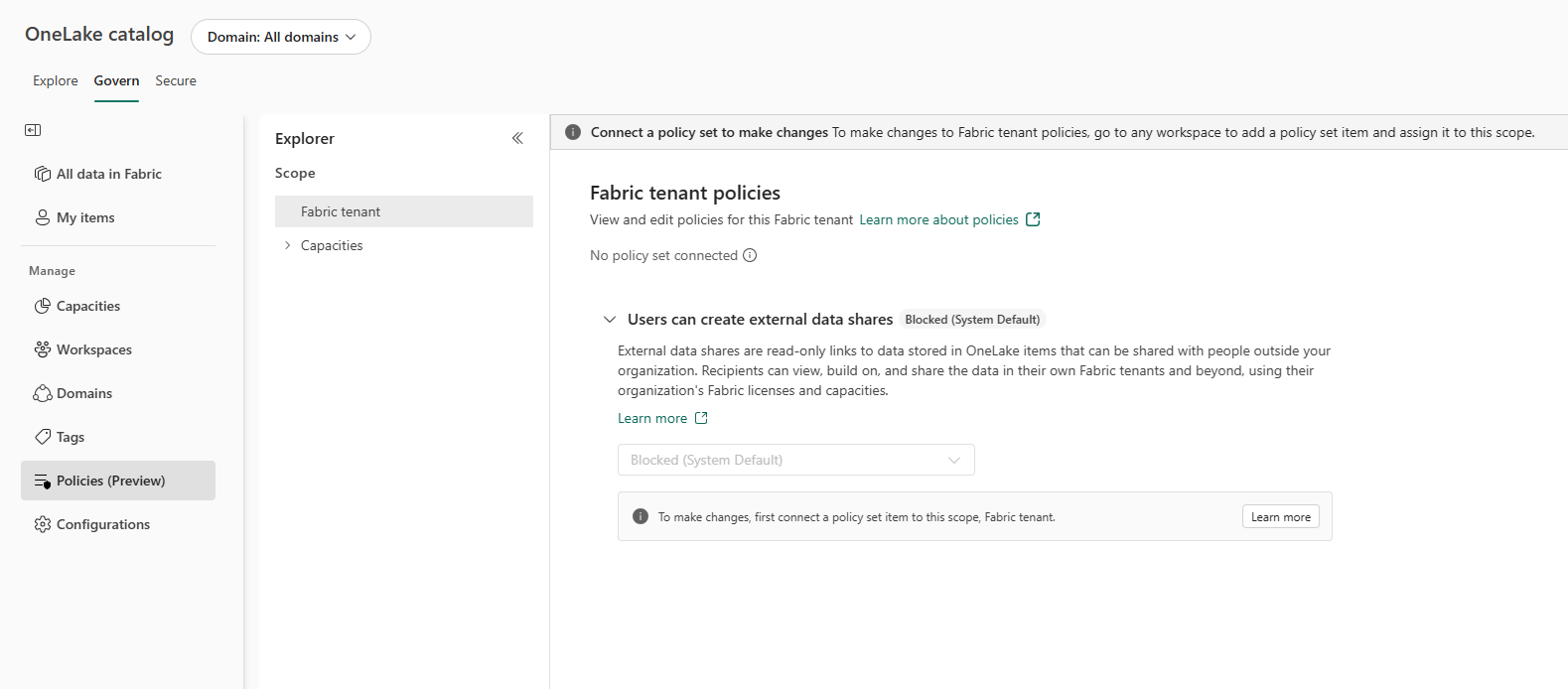
The Policies center on the OneLake catalog Govern tab is the primary place to manage active policies for each admin scope. A policy appears in the center after its activation.
In the Policies center, you can:
- View policies by admin scope.
- See policy status (Set by admin or Default) and action type (Allow all, Blocked, or Advanced).
- Create, edit, and delete rules.
- Monitor policy activity through audit logs.
Access depends on your role: a tenant administrator sees all admin scopes, while a capacity administrator sees only their assigned capacities.
How Fabric policies work
A Fabric policy enforces governance when a user attempts a governed action. The Fabric feature calls the policy engine, which evaluates the active policy rules for the relevant scope and policy and returns an Allow or Deny result. The feature enforces the result and provides feedback to the user.
Fabric policies move from definition to enforcement in four stages:
Policy definition. An administrator creates a policy and defines rules by using conditions and effects. Fabric stores the policy in a policy item.
Policy activation. The administrator activates the policy for an admin scope. Only one policy can be active per scope.
Policy evaluation. When a user attempts an operation, the owning feature calls the policy engine, which evaluates the operation's attributes against the active rules.
Policy enforcement. Fabric returns an Allow or Deny result, the owning feature enforces it, and the user receives feedback about the result.
During evaluation, Fabric checks whether any rules exist for the scope and policy:
- If no rules exist, Fabric returns the policy's default behavior.
- If rules exist, Fabric evaluates each rule's conditions. When the conditions match, Fabric applies the effect.
- If rules exist but no conditions match, Fabric denies the operation for Allow-effect policies.
Fabric audit logs record all evaluation results.
Create and activate policies
You can create a policy in a workspace or programmatically with the REST API. A policy is stored as a policy item in a workspace and associated with an admin scope.
Activation is an explicit step that turns policy intent into enforcement. Until you activate a policy, it has no effect. Only one policy can be active per scope.
For step-by-step instructions, see Get started with Fabric policies.
Create a policy as a workspace item
You can create a policy directly in any workspace. Use a secured, dedicated administrative workspace. Fabric stores each policy in a policy item. A single workspace can contain multiple policies associated with different capacity scopes.
When creating a policy, choose the admin scope, review the system default for each policy, and add rules. You must activate the policy separately before it takes effect.
Create a policy with the REST API
You can create, configure, and activate policies programmatically for automation and CI/CD scenarios. Git doesn't support activation. For more information, see Automate Fabric policies with the REST APIs.
Example scenarios
The following example scenarios illustrate how Fabric policies can be used to control item creation and external data sharing.
Limit item creation in production workspaces
In this example, a capacity administrator wants to limit the creation of Dataflow Gen2 items in production workspaces to only a specific security group. The administrator creates a policy at the capacity scope with the Allow item creation policy and two rules.
Rule 1 - Allow Dataflow Gen2 only for the approved group
| Condition | Operator | Values |
|---|---|---|
| Security groups | AnyOf | DataflowGen2-Creators |
| Workspaces | AnyOf | Prod-Analytics, Prod-Reporting |
| Item type | AnyOf | DataflowGen2 |
Rule 2 - Allow all other item types for all users
| Condition | Operator | Values |
|---|---|---|
| Workspaces | NoneOf | Prod-Analytics, Prod-Reporting |
Result: Because the policy contains rules with conditions, it behaves as an allow list. Rule 1 ensures that only members of DataflowGen2-Creators can create Dataflow Gen2 items in the specified workspaces. On its own, Rule 1 would block all other item creation across the capacity, so Rule 2 ensures that any user can create any item type in other workspaces.
JSON example: Allow policy rule for external data sharing
The following JSON shows the structure of an Allow policy rule for external data sharing:
{
  "policyRuleId": "789e1234-e89b-12d3-a456-426614174999",
  "policy": "ExternalDataShare",
  "displayName": "External Data Sharing Policy for finance and marketing",
  "description": "Controls which users and workspaces are allowed to share data externally.",
  "conditions": [
    {
      "type": "Principal.UserAndSecurityGroup",
      "predicate": { "operator": "AnyOf", "values": ["DataStewards", "BIAdmins"] }
    },
    {
      "type": "Workspace.Id",
      "predicate": { "operator": "AnyOf", "values": ["MarketingWS", "FinanceWS"] }
    },
    {
      "type": "EDS.RecipientEmailDomain",
      "predicate": { "operator": "AnyOf", "values": ["@contoso.com", "@fabrikam.com"] }
    }
  ],
  "then": { "effect": "Allow" }
}
How this rule evaluates
The rule allows external data sharing when all of the following conditions are true:
- The user belongs to the DataStewards or BIAdmins security group.
- The action is performed in the MarketingWS or FinanceWS workspace.
- The recipient email domain is @contoso.com or @fabrikam.com.
Best practices for creating a policy
These recommendations aren't required, but they simplify policy administration and testing.
- Use a secured, admin-managed workspace to store policies.
- Store all policies for the admin scopes managed by the same administrator or admin team in the same workspace. This approach provides one location for tenant- and capacity-scoped policies and simplifies access management, discovery, and lifecycle management.
- Use clear policy set and rule names that identify the admin scope and purpose.
- Use test users who are members and nonmembers of the configured security groups to validate both allow and deny outcomes before broader rollout.
Supported Fabric policies
The following policies are available:
| Policy | Admin scope | Effect | Default behavior | What it controls |
|---|---|---|---|---|
| Allow external data sharing | Tenant | Allow | Block all | Controls external data sharing. |
| Allow item creation | Capacity | Allow | Allow all item types | Controls which item types users can create in workspaces assigned to the scope. |
| Allow workspace settings editing | Tenant | Allow | Allow editing of all workspace settings | Controls which workspace admins can edit certain workspace settings. |
Licensing and billing
Fabric Policies is included with your Fabric license at no extra charge. Policies don't consume capacity units.
General limitations
Fabric policies aren't currently supported in the following capacity regions: West Europe, North Europe, and West US.
You can activate only one policy at a time for an admin scope.
Tenant-scoped policies support up to 100 rules per policy.
Capacity-scoped policies support up to 50 rules per policy.
A condition supports up to 50 values.
Policy changes take effect within 15 minutes of activation.