Note
Access to this page requires authorization. You can try signing in or changing directories.
Access to this page requires authorization. You can try changing directories.
Important
This feature is in preview.
Copilot experiences are available across many of the applications people use every day, bringing AI closer to the work happening in each product. However, separate entry points and conversations can make it difficult to know which Copilot experience to use.
Microsoft is working toward a consistent Copilot experience that is available wherever people work. Users shouldn't need to leave the application they're using to find Copilot. Instead, Microsoft Copilot can come into their current experience, carry conversation context with them, and connect to the specialized intelligence of each product.
As an important step toward that goal, Microsoft Copilot is integrated directly into Power BI and Microsoft Fabric in public preview. The integration gives users one familiar place to bring together business context and trusted data.
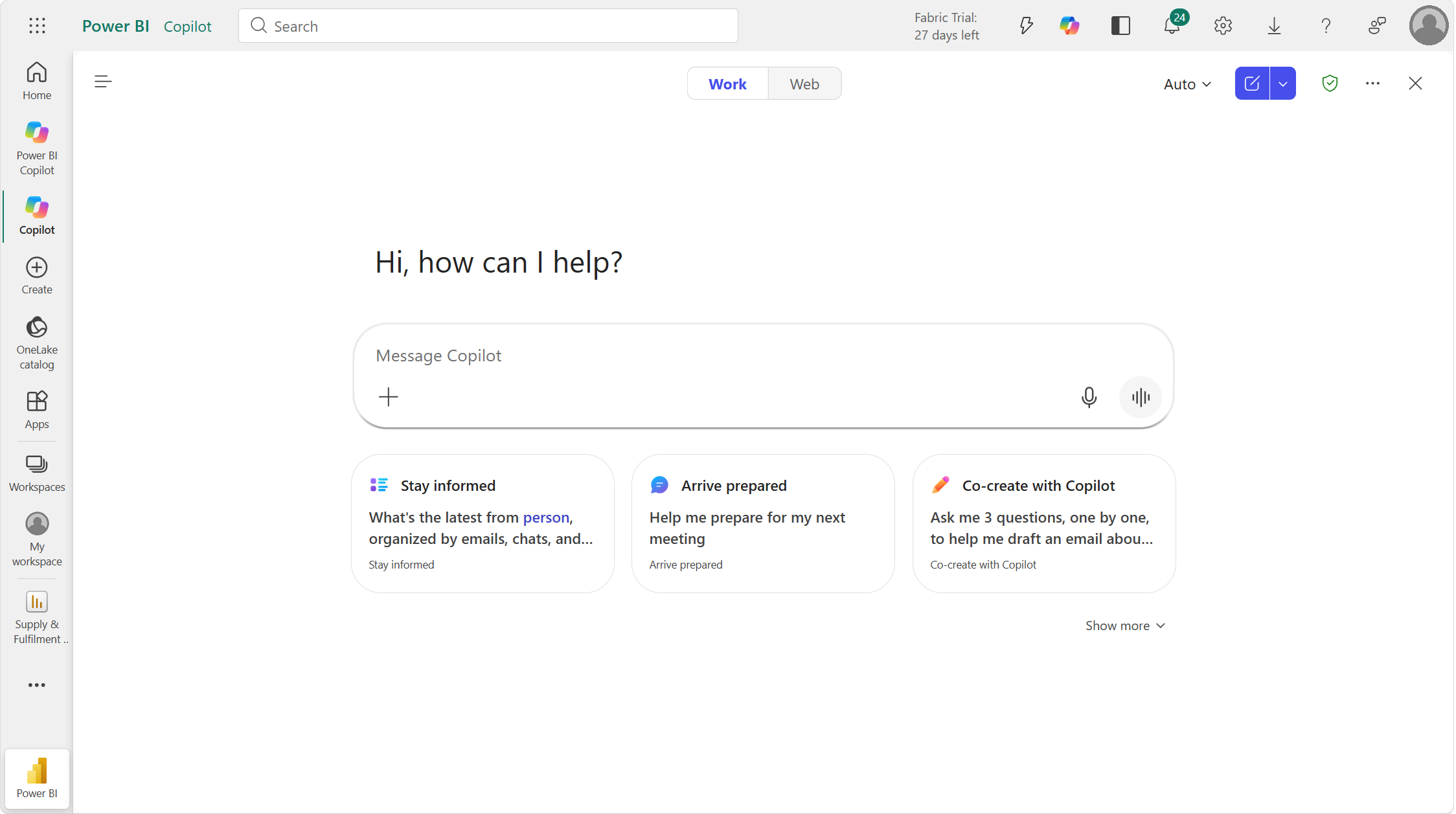
Users can ask questions about Power BI data with Fabric IQ. Users with a Microsoft Copilot license can also use Work IQ to bring relevant context from Microsoft 365, such as emails, meetings, chats, and documents, into the same conversation. Shared conversation history lets users continue a discussion as they move between supported Microsoft Copilot experiences instead of starting over in each application.
How Microsoft Copilot works with Fabric data
Microsoft Copilot connects the context surrounding a business decision with the data used to make it. For example, a sales leader can:
- Use Fabric IQ to identify which regions are behind plan.
- Use Work IQ to connect those results with customer emails, meetings, account plans, and documents.
- Summarize the complete picture in the same conversation.
- Where available, use Microsoft Copilot Cowork to initiate follow-up actions and tasks.
The user can complete this workflow from Power BI without switching to a separate Copilot experience. The broader work context and ability to move from insight to action aren't available in the standalone Power BI Copilot experience.
What you can do
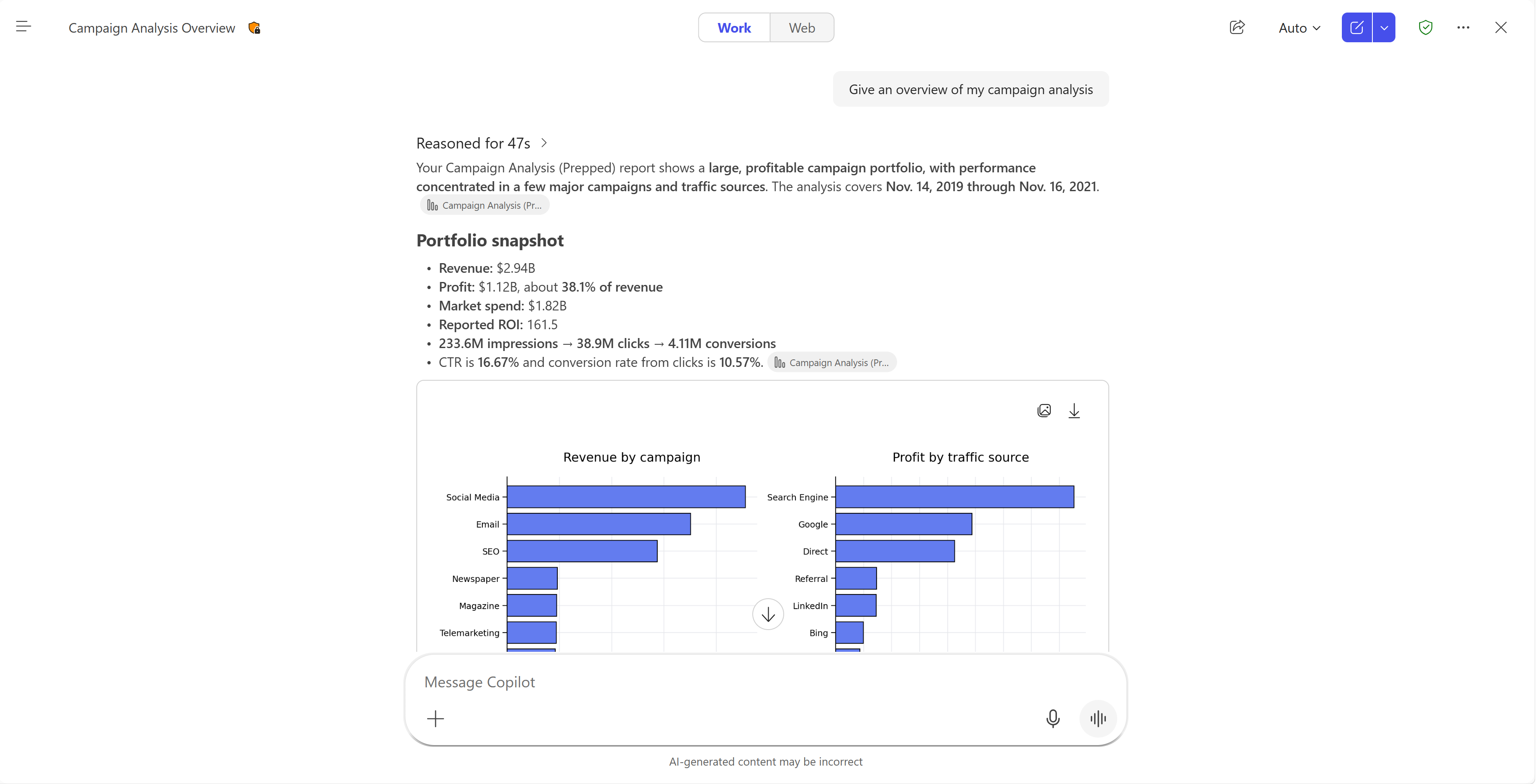
From Microsoft Copilot in Power BI and Fabric, you can:
- Find Power BI reports and other supported Fabric items that you have permission to access.
- Ask natural-language questions about Power BI data and receive answers grounded in the report and its underlying semantic model.
- Explore trends, comparisons, summaries, and specific data points.
- Attach supported Power BI content or reference it by link or name.
- Continue conversations across supported Microsoft Copilot experiences.
- With a Microsoft Copilot license, combine Fabric data with relevant Microsoft 365 work context.
For more information about data answering, see Fabric IQ in Microsoft Copilot Chat.
Licensing and available capabilities
When the feature is enabled, the Microsoft Copilot entry point appears to users in the tenant. The capabilities available within the M365 experience depend on each user's license and access to Fabric content.
| User | Available experience |
|---|---|
| Copilot (Premium) | Microsoft Copilot with Fabric IQ and Work IQ. The user can work with Fabric data and permitted Microsoft 365 context. |
| Copilot chat (basic) | Fabric IQ is available for supported Fabric and Power BI data. Work IQ and grounding in organizational Microsoft 365 content aren't available. Basic license limits apply. |
| M365 Copilot (basic) | Fabric IQ is available for supported Fabric and Power BI data. Work IQ and grounding in organizational Microsoft 365 content aren't available. Basic license limits apply. |
A user's Power BI license type, such as Free, Pro, or Premium Per User (PPU), doesn't determine which Microsoft Copilot experience they receive. However, users must still have permission and licensed access to the Power BI or Fabric content they want to use. For more information on license types see License Types
Prerequisites
Before users can use Microsoft Copilot in Power BI and Fabric:
- A Fabric administrator must enable Users can use Copilot and other features powered by Azure OpenAI in the Fabric admin portal.
- A Fabric administrator must enable Make Microsoft Copilot available in Power BI and Fabric. This preview setting is off by default.
- A Microsoft 365 administrator must enable Fabric data available in Microsoft Copilot.
- Users must have permission and licensed access to the Power BI reports, semantic models, and other supported Fabric items they want to use.
- The tenant and content must be in a supported region.
You don't need to enable the Share Fabric data with your Microsoft 365 services setting when you explicitly reference supported content by link or name. However, this setting affects whether Power BI content appears in Microsoft 365 discovery and attachment experiences. For more information, see Metadata passed from Microsoft Fabric to Microsoft Graph.
You don't need to use Copilot in Fabric, or have access to an F SKU, to use Copilot in this scenario.
Enable Microsoft Copilot in Power BI and Fabric
Fabric administrators can make the experience available to their organization.
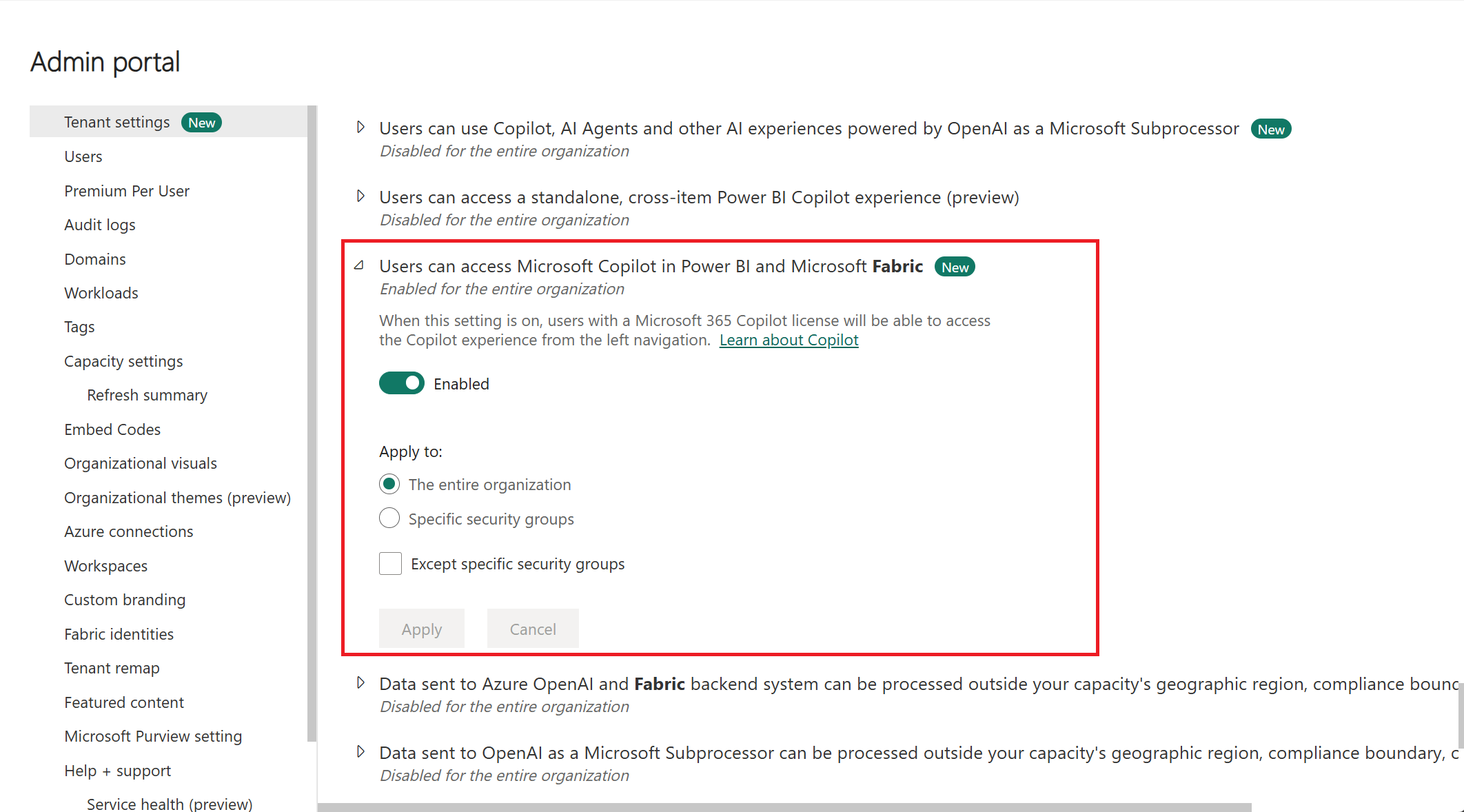
- Sign in to the Fabric admin portal.
- Select Tenant settings.
- Verify that Users can use Copilot and other features powered by Azure OpenAI is enabled for the intended users.
- Enable Make Microsoft Copilot available in Power BI and Fabric.
- Apply the setting to the entire organization or to the supported security groups available in the setting.
- Select Apply.
The setting is off by default during public preview. An administrator can turn it off to remove the Microsoft Copilot entry point from Power BI and Fabric.
Note
The Power BI Copilot standalone setting remains independent of the Microsoft Copilot tenant setting. Disabling the standalone tenant setting will remove the entry point in the left nav, the Copilot on Home experience, and the standalone experience in Teams and Mobile.
Note
Microsoft 365 administrators must also enable Fabric data available in Microsoft Copilot. If that Microsoft 365 setting is disabled, the entry point might still be visible, but Copilot can't use Fabric data in its responses.
Find Microsoft Copilot
After an administrator enables the preview, select the Microsoft Copilot entry point in the left navigation pane of Power BI or Fabric.
During the preview, Microsoft Copilot and the standalone Power BI Copilot experience can coexist:
- If both tenant settings are enabled, users see entry points for both experiences. The standalone experience continues to appear on Power BI Home.
- If Microsoft Copilot is enabled and standalone Power BI Copilot is disabled, users see the Microsoft Copilot entry point but don't see the standalone experience on Home.
- If the Microsoft Copilot setting is disabled, users don't see the Microsoft Copilot entry point in Power BI or Fabric.
Transition from standalone Power BI Copilot
For the time being, standalone Power BI Copilot remains independent from the introduction of this preview. It's not automatically removed when the preview begins. The two experiences coexist during the transition so that organizations have time to evaluate Microsoft Copilot in Power BI and Fabric, prepare users and administrators, and provide feedback. If an organization chooses to disable the classic standalone experience, it removes the experience from the Power BI and Fabric left nav, Teams, and mobile experiences.
In a future phase:
- The Microsoft Copilot tenant setting will be enabled by default.
- Microsoft Copilot will become the primary Copilot experience in Power BI and Fabric.
- Standalone Power BI Copilot will be retired, including Teams and Mobile experiences.
Microsoft will publish the final retirement date and provide administrators with advance notice before standalone Power BI Copilot is removed.
Security, permissions, and governance
Microsoft Copilot in Power BI and Fabric uses the existing permissions of the signed-in user. Copilot can only access Power BI and Fabric content that the user is authorized to view. Row-level security (RLS) and object-level security (OLS) on Power BI semantic models continue to apply.
Microsoft Purview provides data security and compliance controls for Microsoft Copilot and Copilot Chat:
- Data Loss Prevention (DLP) policies can detect and restrict sensitive information in Copilot interactions according to your organization's policy configuration.
- Microsoft Purview Information Protection sensitivity labels and their associated access controls continue to protect supported content.
- Microsoft Purview auditing and compliance capabilities can help administrators investigate Copilot activity.
Power BI and Fabric governance controls continue to apply to the source content. Microsoft Copilot doesn't grant users access to content they couldn't otherwise open.
If a Fabric administrator enables Only show approved items in the standalone Copilot in Power BI experience, the approved-item restriction is also honored by the Microsoft Copilot experience during this preview.
For more information, see:
- Microsoft Purview DLP for Microsoft Copilot and Copilot Chat
- Microsoft Copilot data protection architecture
- Sensitivity labels in Power BI
Considerations and limitations
- This experience is in preview and might change before general availability.
- The Microsoft Copilot tenant setting is off by default during the preview.
- Enabling the setting makes the entry point visible tenant-wide. Licensing and content permissions determine which capabilities each user can use.
- Users with basic licenses can use Fabric IQ but can't ground responses in organizational Microsoft 365 content through Work IQ.
- The standalone Power BI Copilot experience remains available during the preview when its separate tenant setting is enabled.
- The Share Fabric data with your Microsoft 365 services setting affects discovery and recommendations. Turning it off doesn't prevent users from explicitly referencing supported Power BI content by link or name.
- Copilot answers reflect the data available in the most recent successful semantic model refresh.
- Copilot responses can be inaccurate. Review generated answers and validate important decisions against the source data.
- The public preview rolls out progressively to organizations. Fabric administrators choose when to enable the experience for their tenant.
For regional and general Copilot requirements, see Enable and configure Copilot in Microsoft Fabric.
Share feedback
Your feedback helps Microsoft improve this preview. Use the thumbs-up or thumbs-down button in Copilot Chat to provide feedback about an answer. Include details when:
- Copilot doesn't find Fabric content that you expected it to use.
- An answer uses the wrong report, semantic model, or filters.
- The response doesn't reflect the source data.
- The available capabilities don't match the user's license or permissions.