Note
Access to this page requires authorization. You can try signing in or changing directories.
Access to this page requires authorization. You can try changing directories.
Use Dragon admin center to customize the Microsoft Dragon Copilot experience for physicians. Global administrators or Dragon administrators can use the Settings tab to configure Dragon Copilot for your entire organization, for specific organizational units, and for individual users.
Prerequisites
Purchase a license from either a Microsoft representative or your certified Microsoft partner. For more information, see: Licensing.
Assign the appropriate licenses and roles to your end users by using Microsoft 365 admin center. For more information, see: Get started with Dragon admin center.
Create an environment. For more information, see: Environments.
Provision an instance of Dragon Copilot (physicians). You can only create one instance of a Dragon Copilot capability per environment. For more information, see: Provision Dragon Copilot.
Create your organization hierarchy, manage your clinical app connectors and users (for Dragon Copilot embedded only), and create groups of users associated with your organizational units. For more information, see: Organization hierarchy.
To configure Dragon Copilot
- In the Dragon Copilot section of the navigation pane, select Physicians.
- Select Settings.
By default, you see the name of the top-level organizational unit in your organization hierarchy. Any changes you make to this top-level organization automatically populate to lower levels of the hierarchy.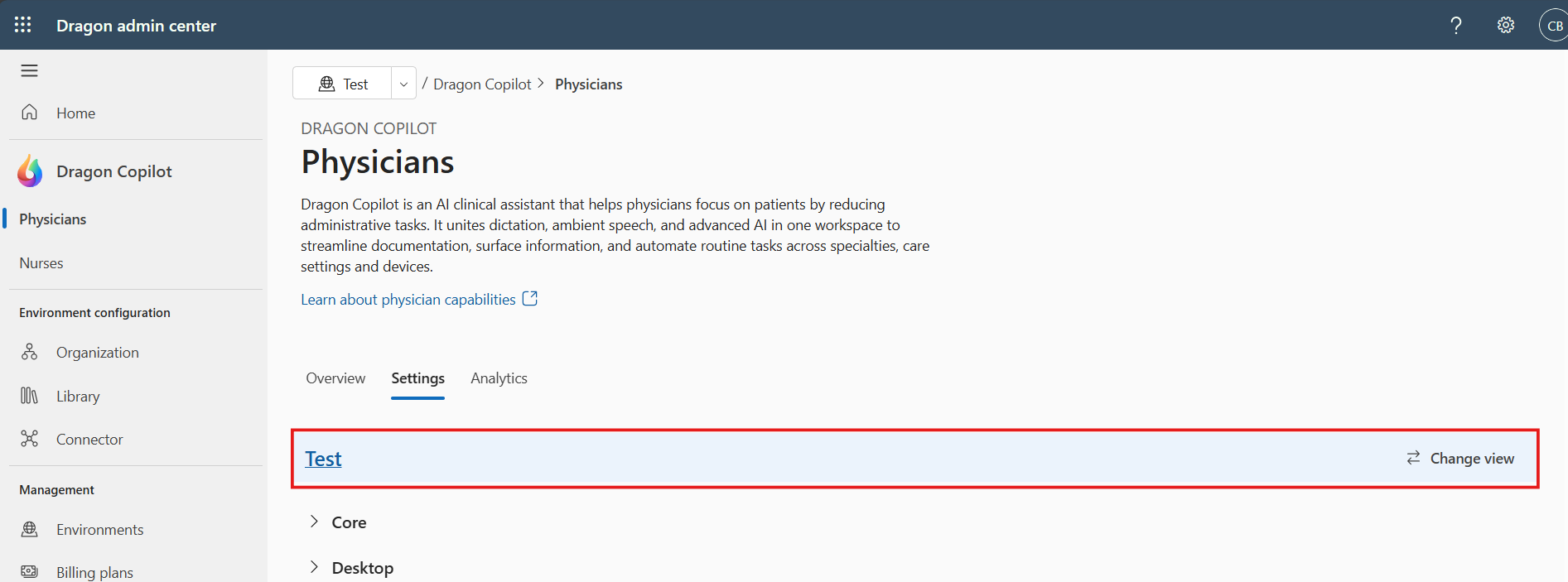
- To change the settings for a specific organizational unit or a specific user, select Change view and select the organizational unit or specific user.
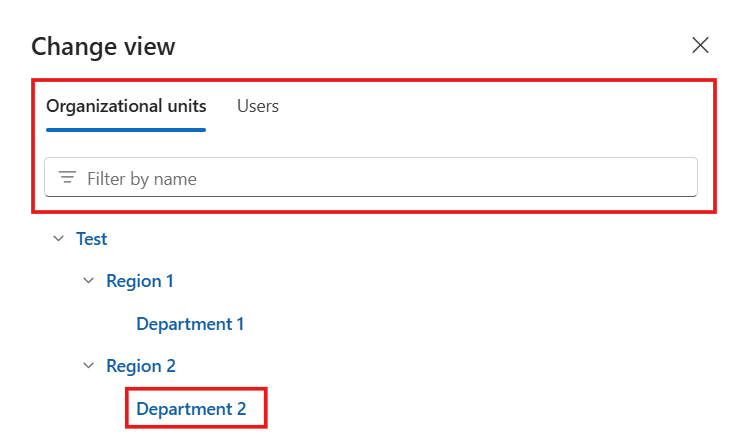
- When you finish updating settings, select Save settings.
- To reset back to the default settings, select Reset to default.
Inheritance and locking
The Source column shows you where each setting comes from; either the current user or organizational unit, or one of its parent units.
Organizational units inherit their settings from their parent units. This inheritance means that when you change a setting for a higher-level unit, the change cascades down to lower-level units.
Individual users get their settings from the units they're assigned to, either directly or through their groups.
By default, when you configure a setting directly for a unit or a user, it stops inheriting the setting from its parent groups. You can override this default behavior at the parent level by using the lock toggle switch:

When you lock a setting for a higher-level unit, it overwrites the setting for all child units and their users. The setting is no longer configurable for child units and users.
For example, you configure the Dictation memos setting to be displayed for an organizational unit, and all users within this unit see the dictation memo. If you lock the setting, you can't make any changes at the user level or lower levels of the hierarchy. If you don't lock the setting, you can hide the dictation memo for individual users, or at lower levels of the hierarchy.
How Dragon admin center resolves conflicting settings
You can configure each organizational unit with different settings. You can assign a user to multiple organizational units, directly and through groups, which means that the user's settings from their assignments can potentially conflict with one another.

In this example, the user is directly assigned to Region 1, Department 1, and Department 2. The user is indirectly assigned to Department 3 through membership in 'Test group'. The user's Dragon Copilot configuration is based on settings defined for Test, Region 1, Region 2, Region 3, Department 1, Department 2, and Department 3. If some of those settings from different organizational units contradict each other, Dragon admin center resolves the conflict as follows:
Dragon admin center prioritizes settings from organizational units lower in the hierarchy. Department 1, Department 2, and Department 3 have priority over Region 1.
When organizational units are at the same level, direct assignments have priority over indirect assignments through group membership. The user is directly assigned to Department 1 and Department 2, and indirectly assigned to Department 3, so Department 1 and Department 2 have priority over Department 3.
If organizational units are still tied, alphanumeric order determines priority. Department 1 has priority over Department 2.
Settings applied to the user account have priority over settings applied to organizational units.
List of settings
Note
Availability of Dragon Copilot settings might vary depending on your region, license type, and other deployment factors. Some settings might not be available in your current configuration.
Core settings
| Setting | Description |
|---|---|
| Session list | Displays the session list. This setting only applies to the standalone Dragon Copilot app. |
| Note | Displays the Note tab. |
| Orders | When said in a recording, captured orders appear on the Orders card on the patient view. In an embedded system, confirmed orders are automatically displayed in the EHR. |
| Memos | Displays the memos icon. |
| Dictation memos | Dsisplay the dictation memo when recording in unsupported text fields. This setting is available when Memos is enabled. |
| Delete dictation memo after transfer | Controls how dictation memos behave once their content has been transferred from Dragon Copilot. This setting is available when Memos is enabled. |
| Standby | Enables users to start hands-free recording with the wake word. In Canada this setting must be disabled for organizations with French configured as the default language. For organizations with English configured as the default language, this setting enables users to start hands-free recording with the wake word. |
| Standby active at launch | Indicates if the user has enabled standby mode to always be active when they open the app. In Canada this setting must be disabled for organizations with French configured as the default language. For organizations with English configured as the default language, this setting indicates if the user has enabled standby mode to always be active when they open the app. |
| User has enabled standby mode | Indicates if the user has enabled standby mode. In Canada this setting must be disabled for organizations with French configured as the default language. For organizations with English configured as the default language, this setting indicates if the user has enabled standby mode. |
Desktop settings
These settings only apply to the Dragon Copilot standalone desktop app for physicians.
| Setting | Description |
|---|---|
| Standard text control | Enables users to switch standard text control on or off in Dragon Copilot desktop. When users dictate into an unsupported text control with Standard text control switched on, the recognition results are inserted as plain text. |
| Keystroke delay | Configure how long Dragon Copilot waits before sending a keystroke to a third-party system. Enter a value between 0 and 60 milliseconds (default: 2 milliseconds). This applies to the organization and isn't configurable by users. |
| Enable embedded field navigation | Enables the user to navigate between embedded text fields by using voice commands, keyboard shortcuts, and microphone buttons. |
| Stay signed in | Enables the user to stay signed in to Dragon Copilot over multiple sessions. |
| User workflows | Enables the user to create and manage custom workflows triggered by a voice command. The Transfer checkbox enables the the user to include a Transfer step in the workflow, to transfer content from Dragon Copilot to supported EHR fields. |
| Speech anchoring | Enables users to anchor the cursor to where they want dictation text to go, while navigating through other apps. |
| Anchor speech focus automatically | Automatically anchors the speech focus to the active text field or input area. |
| Give Dragon Medical One priority | Enables Dragon Copilot users to give priority to Dragon Medical One; it can now use PowerMic devices and advanced dictation features in third-party apps. For more information, see Dragon Medical One priority. |
| User has given Dragon Medical One priority | Indicates if the user has given Dragon Copilot priority to Dragon Medical One. |
| Patient match | Ensures the patient session in focus on Dragon Copilot matches the patient in the EHR. |
| Patient follow | The Dragon Copilot patient session automatically follows the patient in the EHR. This setting is available when Patient match is enabled. |
Embedded settings
These settings only apply to the Dragon Copilot embedded experience for physicians.
| Setting | Description |
|---|---|
| Popup window | In EHRs with restricted recording capabilities, Dragon Copilot opens in a popup window. The user can record normally by using the popup window. |
| Send recordings to web and desktop apps | Makes sessions started in the EHR available in the Dragon Copilot standalone app. |
| Retrieve patient list | Retrieves the patient list from the integrated EHR. |
| Retrieve patient schedule | Enables users to retrieve and view their patient schedule from the EHR, via the General settings. |
| Adaptive link to join drop-in support | Enables users to join drop-in support sessions where they can connect with a live consultant for assistance. The system adjusts how drop-in support opens for embedded apps; the drop-in support opens in a local browser. |
Dictation settings
| Setting | Description |
|---|---|
| Dictation microphone | Enables dictation mode for the microphone. |
| Dictation formatting | Displays the Dictation formatting card in the user's Settings pane. Users can apply their own formatting settings to dictated text. |
| Block domains for dictation | Defines if website domains can be blocked for dictation and enables users to define additional blocked domains in the Dragon Copilot settings. |
| Domains to block | Specifies the website domains where dictation is blocked. |
| User texts | Displays the library and enables users to create and manage standard blocks of text. The Insert additional texts checkbox enables users to insert read-only texts such as disclaimers or signatures in the standalone app. |
| User vocabulary | Displays the library and enables users to create and manage words and phrases that are frequently used during dictation. |
| Preferred mic (embedded) | Sets the preferred microphone for Dragon Copilot embedded in your EHR. This setting can only be configured at the user level. |
| Preferred mic (desktop) | Sets the preferred microphone for the Dragon Copilot desktop app. This setting can only be configured at the user level. |
| Preferred mic (web) | Sets the preferred microphone for the Dragon Copilot web app. This setting can only be configured at the user level. |
| Record Transcribe Enter/select Custom right/function D Tab backward Tab forward Rewind Fast forward Stop/play Custom left/function B Function C Function A |
Microphone button names for devices such as PowerMic. Indicates the configured microphone button action. Select an action for the corresponding button. |
| Mobile mic | Enables the mobile mic feature and adds the mobile mic to the list of available devices in the Microphone settings. |
Ambient settings
| Setting | Description |
|---|---|
| Ambient microphone | Enables ambient mode for the microphone. |
| Quick-start ambient recording | Enables the user to quickly start an ambient recording from the worklist. For Dragon Copilot standalone mobile app, users can partially swipe a session in the worklist to open the option to start an ambient recording for that session and fully swipe a session in the worklist to open the session and start ambient recording. This setting is available when Ambient microphone is enabled. |
| Ambient microphone hotkeys | Enables the user to assign a keyboard shortcut to the ambient microphone. This setting is available when Ambient microphone is enabled. |
| Ambient transcript | Enables the Transcript tab. |
| Copy and paste to Copilot Chat | Enables users to copy and paste selected transcript content to Copilot Chat. This setting is available when Ambient transcript and Copilot Chat are enabled. |
Generative AI settings
| Setting | Description |
|---|---|
| Generative AI | Enables AI capabilities and style features. This switch enables or disables all the other settings in this section. |
| Context-aware AI capabilities | Enables Dragon Copilot access to patient data to improve AI responses. |
| Product prompts | Enables prompts and AI actions. When you enable this setting, you can use the AI prompts drop down box to enable or disable the prompts individually. The following prompts are available: Apply my note style: Applies the user's defined style preferences. Change pronouns to: Changes the patient's pronouns throughout the note. Draft after-visit summary: Generates a patient-friendly summary with details on the visit, education, and instructions. Get coaching: Provides the user with helpful feedback after reviewing the transcript and note to improve the quality of generated AI artifacts and answers or results. Summarize evidence: Provides detailed insights into the diagnoses in the Assessment and Plan section, with references to evidence in the transcript and draft note. Summarize note: Summarizes the session and provides key takeaways. |
| Copilot Chat | Displays the Copilot icon and Copilot Chat section on the homepage; users have access to the Copilot Chat features. |
| Enable focus | Provides AI-powered assistance at the cursor based on the current context. Requires Copilot Chat to be enabled. |
| Allow editing | Copilot Chat can directly edit users' content. |
| Style | Enables style and formatting settings in note templates. Users can configure their own styles for their clinical notes. |
| User prompts | Users can create and manage their own prompts in the library. |
| Create intent | Enables the create intent, which helps users create a wide range of content including letters, patient instructions, work or school notes, after visit summaries, and more. |
| Enable Information Assist | Enables Information Assist, which gives access to vetted and verified medical knowledge sources. |
| Information Assist user setting | Enables the user to switch Information Assist on or off in the Extensions settings. The Information Assist sources field displays the information sources the user has enabled in their Information Assist settings. |
| Custom prompts | Enables users to select a prompt that automatically runs after their note is generated. |
| Structured plan | Provides a structured plan with diagnoses, recommended codes, treatment plans, and orders. |
| Templates | Displays the Templates card in the user's settings and enables them to create and manage their templates. |
| Note section templates | Displays predefined note section templates for users to view and manage. This setting is available when Templates is enabled. |
| User note section templates | Enables users to create and manage note section templates. This setting is available when Templates is enabled. |
| Transcript-aware note section templates | Enables note section templates to access transcript data.. This setting is available when Templates is enabled. |
| Product document templates | Enables predefined document templates out of the box.. This setting is available when Templates is enabled. When this setting is enabled, the following Letter types are available: Consultation summary letter or Letter to GP: A letter addressed to the patient's general practitioner that is written in a formal tone, using medical language. Letter to patient: A letter addressed to the patient written in a less formal tone, using patient-appropriate language. At the end of the document, a glossary explaining relevant medical terms is added. Referral letter: A letter addressed to the specialist or service that the patient is being referred to. This letter is written in a formal tone, using medical language. |
| User document templates | Enables users to build and save reusable document templates in the Dragon Copilot library and use them to generate future clinical documents. This setting is available when Templates is enabled. |
| Multi-intent prompts | Enables users to create prompts that have multiple intents. This means the prompt can trigger a sequence of actions rather than just one. |
| Note types | Enables users to define the structure and format used to generate AI-assisted notes. This setting influences how AI-generated content is organized. |
| AI apps and agents | Enables users to use first-party and third-party AI apps and agents in Dragon Copilot. |
| Diagnosis specificity suggestions | Provides diagnosis specificity suggestions that recommend more specific diagnosis codes in the note. This setting is available when AI apps and agents is enabled. |
| Enable AI highlighting | Enables the Show AI action for generated notes, documents, and when users view the version history. This allows Dragon Copilot to highlight AI changes made to a generated note or document, or when viewing previous versions of notes or documents. |
| Default state of AI highlighting | Controls whether the Show AI option is by default enabled or disabled for documents generated in a session. |
Language settings
Note
Dragon Copilot doesn't provide translation or AI-assisted translation. Language settings can't be used for translation purposes.
Users should use ambient recording only for languages they have the appropriate linguistic competence in.
| Setting | Description |
|---|---|
| Recording languages | Toggle: Switch the recording language. Menu: Define which recording languages are available for users to select as the ambient recording language in the app. |
| Note languages | The languages available for text output. This setting can't be changed. |
| App languages | The languages available for the user interface. This setting can't changed. |
| Default recording language | Sets the default recording language. This must be the same as the default note and app languages. |
| Default note language | Sets the default text output language. This must be the same as the default recording and app languages. |
| Default app language | Sets the default user interface language. This must be the same as the default recording and note languages. |
Recording language - multilingual
Dragon Copilot supports more than 50 recording languages. If you select Multilingual as the recording language, the user interface language isn't changed, the AI-generated transcripts are written in the spoken language (the output is in one paragraph and speakers are not identified), and notes are written in the user interface language. The accuracy of transcripts and notes varies by the language the user is speaking and all output must be reviewed.
Select to see a list of supported languages
| Afrikaans | Arabic | Armenian | Azerbaijani | Bangla (Bangladesh) | Bengali (India) | Bosnian | Bulgarian | Catalan | Chinese Mandarin | Chinese Cantonese | Croatian | Czech | Danish | Dutch | English | Estonian | Filipino (Tagalog) | Finnish | French | Galician | German | Greek | Hebrew | Hindi | Hungarian | Icelandic | Indonesian | Italian | Japanese | Kannada | Kazakh | Korean | Latvian | Lithuanian | Macedonian | Malay | Marathi | Nepali | Norwegian | Persian | Polish | Portuguese | Punjabi | Romanian | Russian | Serbian | Slovak | Slovenian | Spanish | Swahili | Swedish | Tamil | Thai | Turkish | Ukrainian | Urdu | Vietnamese | Welsh |
Keyboard shortcuts settings
| Setting | Description |
|---|---|
| Keyboard shortcuts | Defines keyboard shortcuts for common actions: Ambient microphone start/stop Dictation microphone start/stop Cancel requests Go to prompt field Go to next field Go to previous field Split view These settings only apply to the Dragon Copilot standalone desktop app for physicians: Maximize app Minimize app Anchor/release speech focus |
Notifications settings
| Setting | Description |
|---|---|
| Setup wizard complete | Enables the first run experience. |
| Replay tour | Enables the onboarding tour in the first run experience. |
| Stand-by timeout (minutes) | Sets the number of minutes before Dragon Copilot enters stand-by mode due to inactivity. |
| Session timeout (minutes) | Sets the number of minutes before a Dragon Copilot session times out due to inactivity. |
| Session timeout warning (minutes) | Sets the number of minutes to display a warning before the session times out due to inactivity. |
| Display user satisfaction survey | Displays the user satisfaction survey to users after they've created the number of sessions configured in the Session count. Enter a number between 10 and 40 in the Session count. |
| Don't show survey | Displays surveys the user has chosen not to complete. |
| User survey status | Displays the status of surveys for the user. |
| Audio feedback | Enables audio feedback. |
User preferences settings
These settings only apply to the Dragon Copilot standalone app. They can only be configured at the user level.
| Setting | Description |
|---|---|
| Transfer headings | Displays the Transfer headings option in note templates. This option control whether note section headings are transferred together with the content in note templates. |
| Enable text field delimiter editing | Enables the Text field delimiters settings; users can edit their own start and end delimiters, which indicate variable sections in their texts. For more information on text fields, see: Text fields |
| Start delimiter | Defines the left text field delimiter that the user recognizes when using commands such as next field, next section, field complete, or accept defaults. Delimiters are used in the creation of library texts. For example, Patient is an (age) year old (gender) who presents today for (problem). |
| End delimiter | Defines the right text field delimiter that the user recognizes when using commands such as next field, next section, field complete, or accept defaults. Delimiters are used in the creation of library texts. For example, Patient is an (age) year old (gender) who presents today for (problem). |
| Keep screen on while recording (mobile only) | Keeps the mobile device screen active while the Dragon Copilot mobile app is recording. |
| Mobile mic - accept defaults | Enables the user to accept the system generated default option using a mobile mic button. |
| Mobile mic - library | Enables the user to open the library menu using a mobile mic button. |
| Mobile mic - speech anchoring | Enables the user to anchor the speech focus using a mobile mic button. |
| Mobile mic - transfer | Enables the user to transfer text to another device using a mobile mic button. |
| Theme (embedded) | The display theme set by the user for the Dragon Copilot embedded app: Light has a bright background; Dark has a darker, low-light-friendly look. |
| Theme (web) | The display theme set by the user for the Dragon Copilot web app: Light has a bright background; Dark has a darker, low-light-friendly look. |
| Theme (mobile) | The display theme set by the user for the Dragon Copilot mobile app: Light has a bright background; Dark has a darker, low-light-friendly look. |
| Theme (desktop) | The display theme set by the user for the Dragon Copilot desktop app: Light has a bright background; Dark has a darker, low-light-friendly look. |
| User-blocked domains for dictation | The list of website domains where the user has blocked dictation. |