Note
Access to this page requires authorization. You can try signing in or changing directories.
Access to this page requires authorization. You can try changing directories.
Testing an Outlook add-in on a mobile device requires a slightly different workflow than testing on the web or desktop. You don't sideload the add-in directly in Outlook on Android or on iOS. Instead, you first sideload it in Outlook on the web, on Windows (new or classic), or on Mac, then validate the mobile experience on the devices you support.
Use the guidance in this article to set up a testing environment for mobile support and test an add-in in Outlook on mobile.
Before you begin
To test your add-in in Outlook on mobile, you must meet the following prerequisites.
Your add-in uses an add-in only manifest.
Note
Add-ins that use the unified manifest for Microsoft 365 aren't supported in Outlook on mobile devices. We're working hard to provide support in mobile devices. For more information, see Support for add-ins with the unified manifest for Microsoft 365.
Your manifest is configured for mobile support. For more information, see Add support for add-in commands in Outlook on mobile devices.
You have a Microsoft 365 or Outlook.com account that supports add-ins in Outlook on mobile.
Note
Add-ins aren't supported in Outlook on Android, on iOS, and modern mobile web with on-premises Exchange accounts. Certain iOS devices still support add-ins when using on-premises Exchange accounts with classic Outlook on the web. For information about supported devices, see Requirements for running Office Add-ins.
Your add-in is hosted on an HTTPS endpoint that is reachable from the mobile device.
Sideload the add-in
To make an add-in available in Outlook on mobile, sideload it to the same mailbox from Outlook on the web, on Windows, or on Mac.
Sideload the add-in by following Sideload Outlook add-ins for testing.
Sign in to the Outlook app on your mobile device with the same Microsoft 365 or Outlook.com account that you used to sideload the add-in.
Open a supported item that matches the activation scenario in your manifest, such as a message in read mode.
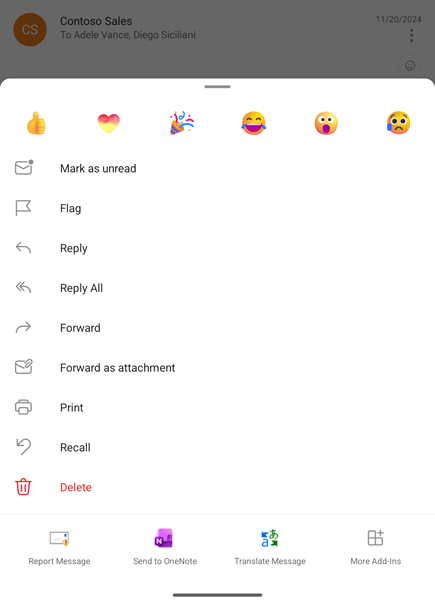
Locate and open the add-in to test it. To locate an add-in from a message in Read mode, select More options (three vertical dots), then choose the add-in you want to test.
Remove a sideloaded add-in
To remove a sideloaded add-in from Outlook on mobile, remove it from Outlook on the web, on Windows (new or classic), or on Mac. For guidance, see Sideload Outlook add-ins for testing.
Tip
In Outlook on mobile, you can manage available and installed add-ins from Settings > Add-ins. A checkmark next to an add-in indicates that it's installed. If you clear the checkmark, the add-in no longer appears in the applicable activation surface (for example, in the More options menu of a message in Read mode). However, the add-in remains in the list of add-ins you can install. When you remove a sideloaded add-in during testing, the add-in is removed from the list.
Troubleshoot during testing
If you need to troubleshoot your add-in during testing, try the following steps.
Confirm that the add-in is installed for the correct mailbox account. For guidance on managing accounts in Outlook on Android or on iOS, see Outlook for iOS & Android FAQs.
Verify that the installed add-in appears for the same mailbox account in other supported clients, such as Outlook on the web.
Note
Modern Outlook on the web on iPhone and Android smartphones is no longer available for testing Outlook add-ins.
Verify that the manifest includes the required mobile configuration in the manifest. For information on supporting add-in commands on mobile, see Add support for add-in commands in Outlook on mobile devices.
Confirm that the scenario is supported on mobile. For more information on supported modes and APIs, see What makes a good scenario for Outlook mobile add-ins? and Outlook JavaScript APIs supported in Outlook on mobile devices.
Ensure that the endpoint hosting the add-in is running and reachable from the mobile device.
Use your preferred web debugging tool to send logs from your mobile device to an accessible endpoint for analysis.
Note
Microsoft Edge DevTools isn't supported in Outlook on mobile devices.
See also
Collaborate with us on GitHub
The source for this content can be found on GitHub, where you can also create and review issues and pull requests. For more information, see our contributor guide.
Office Add-ins