Note
Access to this page requires authorization. You can try signing in or changing directories.
Access to this page requires authorization. You can try changing directories.
Sign in as a guest user
Once you're signed in, you have two options to proceed from here:
Select the blue "Switch tenants" button.
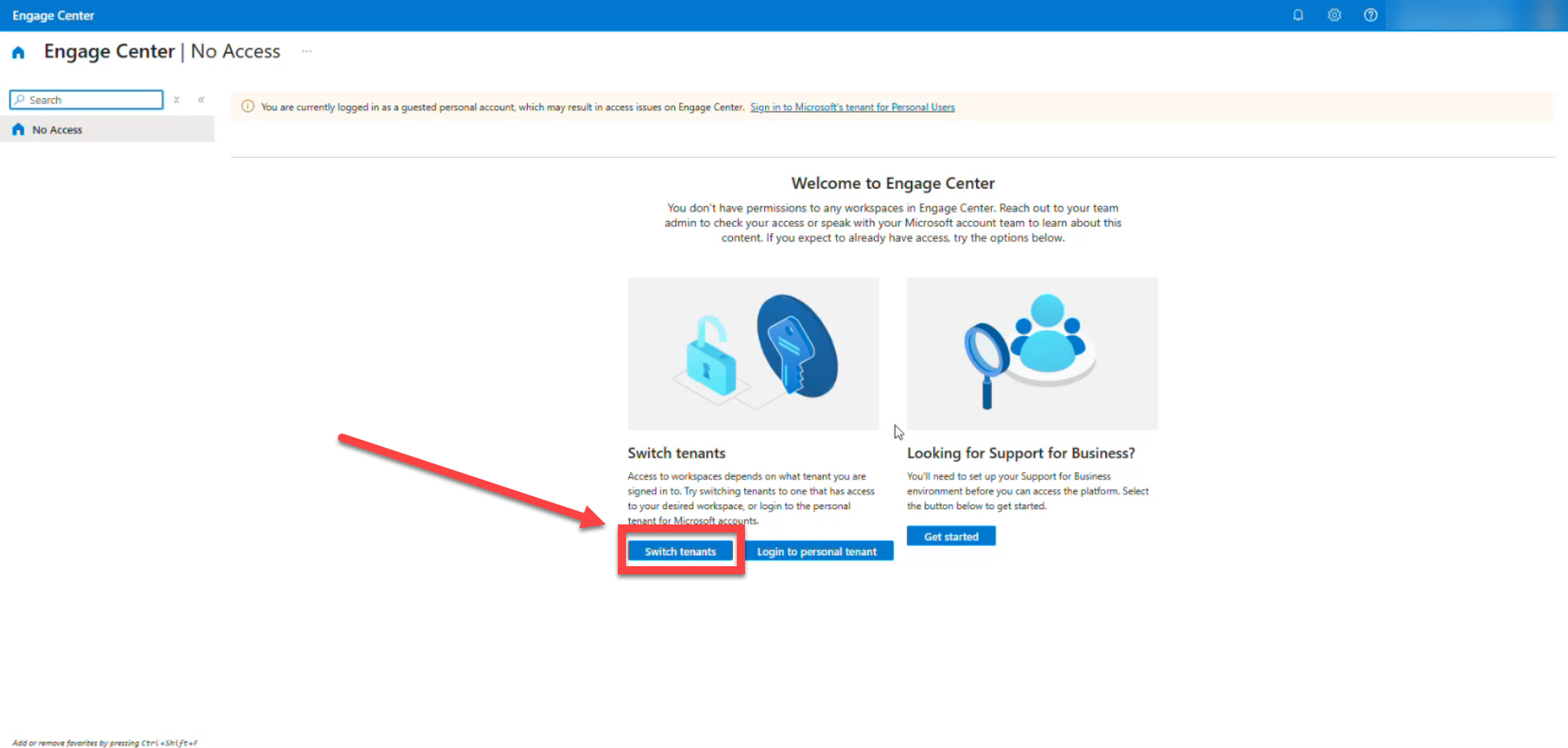
Then move on to Step 3.
OR
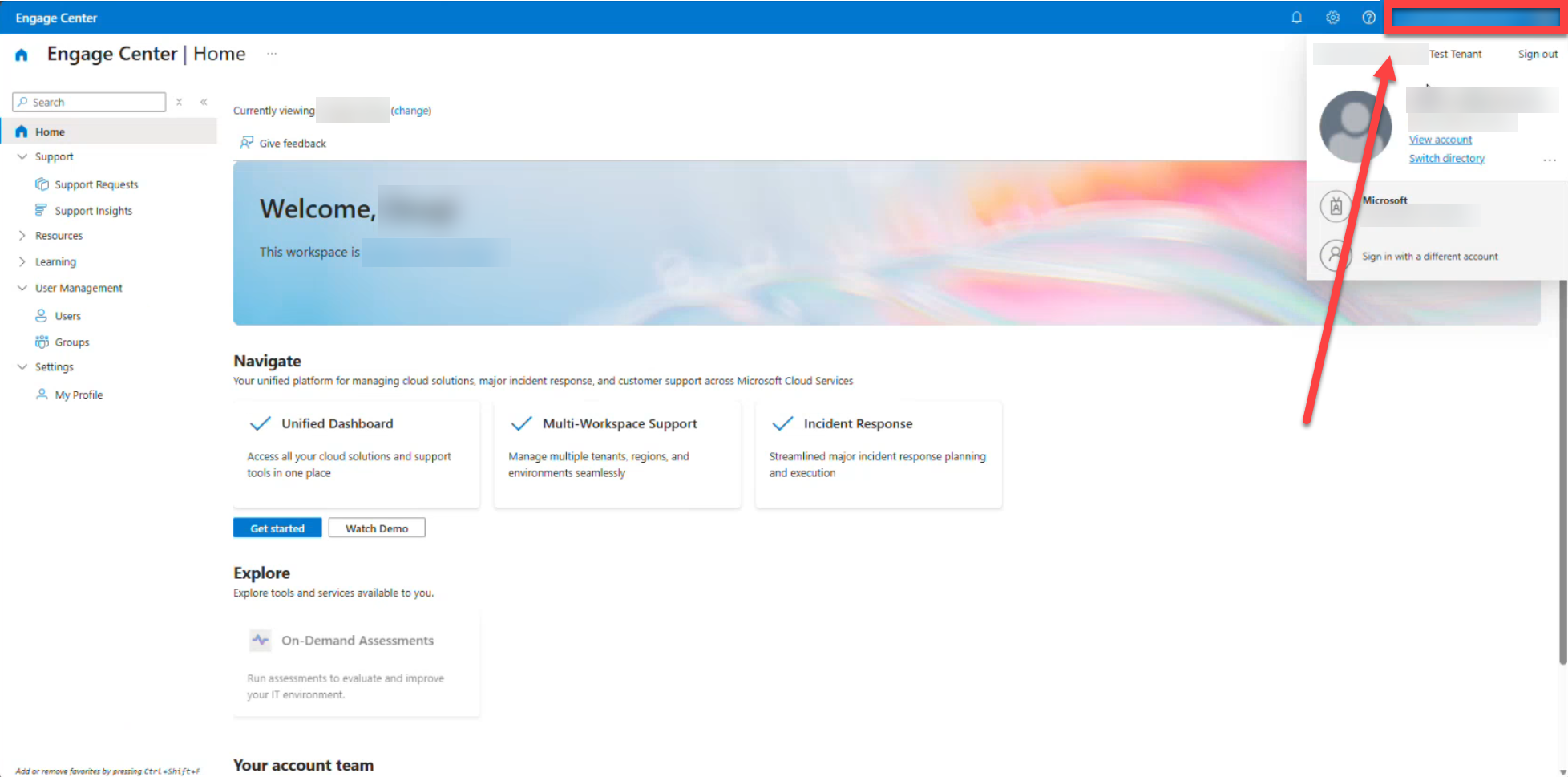
Select Your name:
Then select "Switch directory":
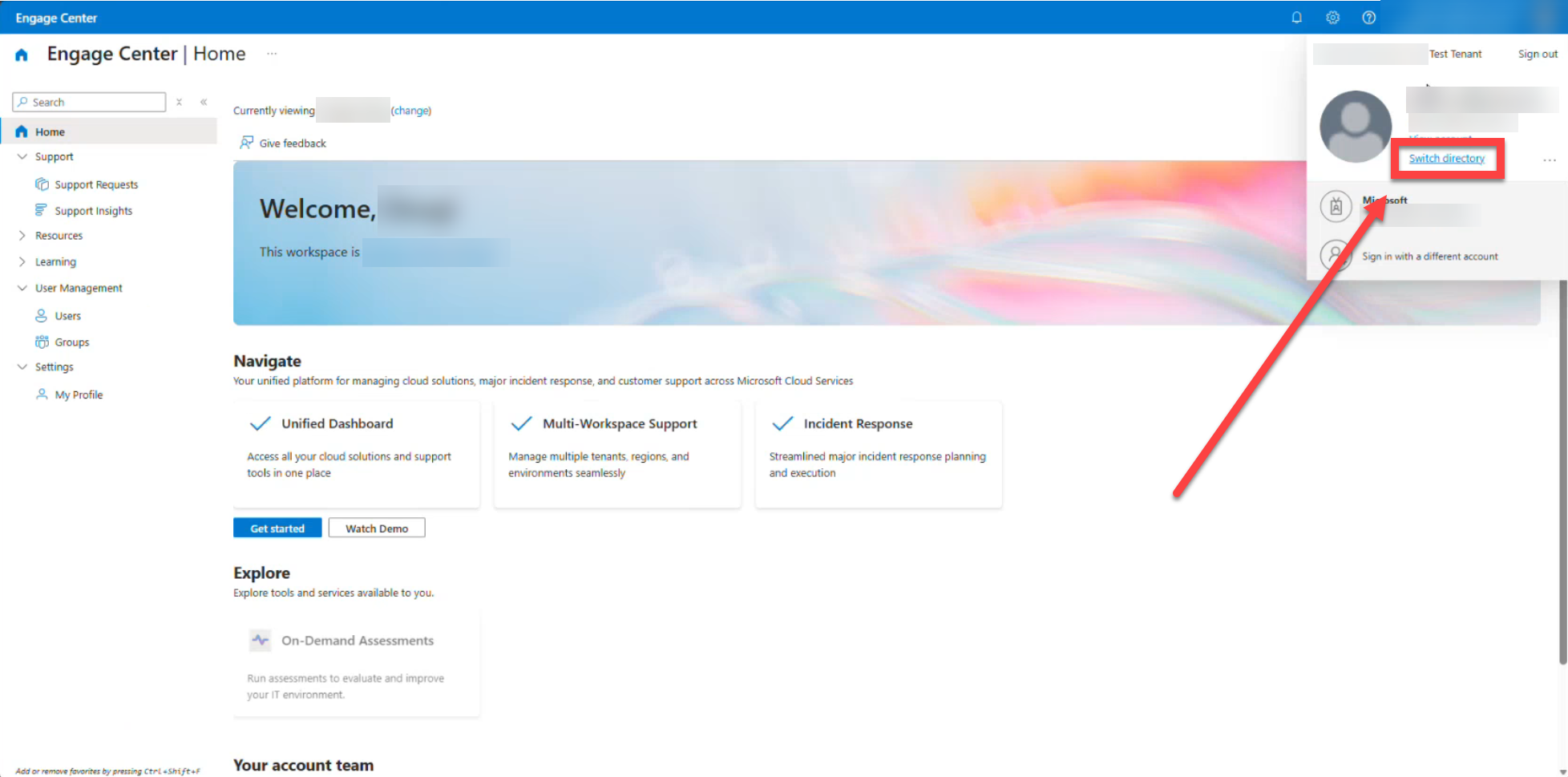
Then move on to Step 3.
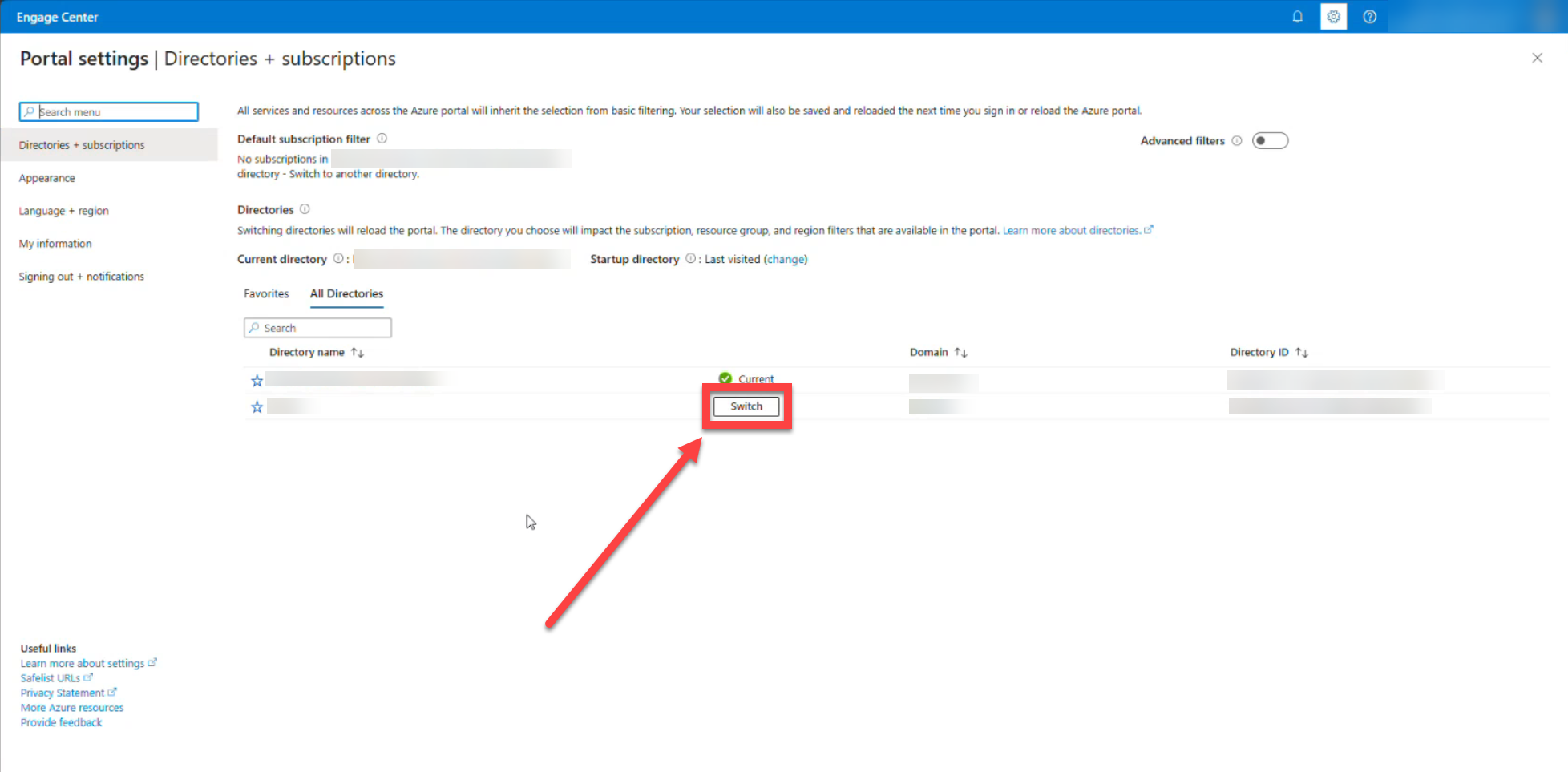
In the list of available tenants that appears, select the "Switch" button for the tenant you want.
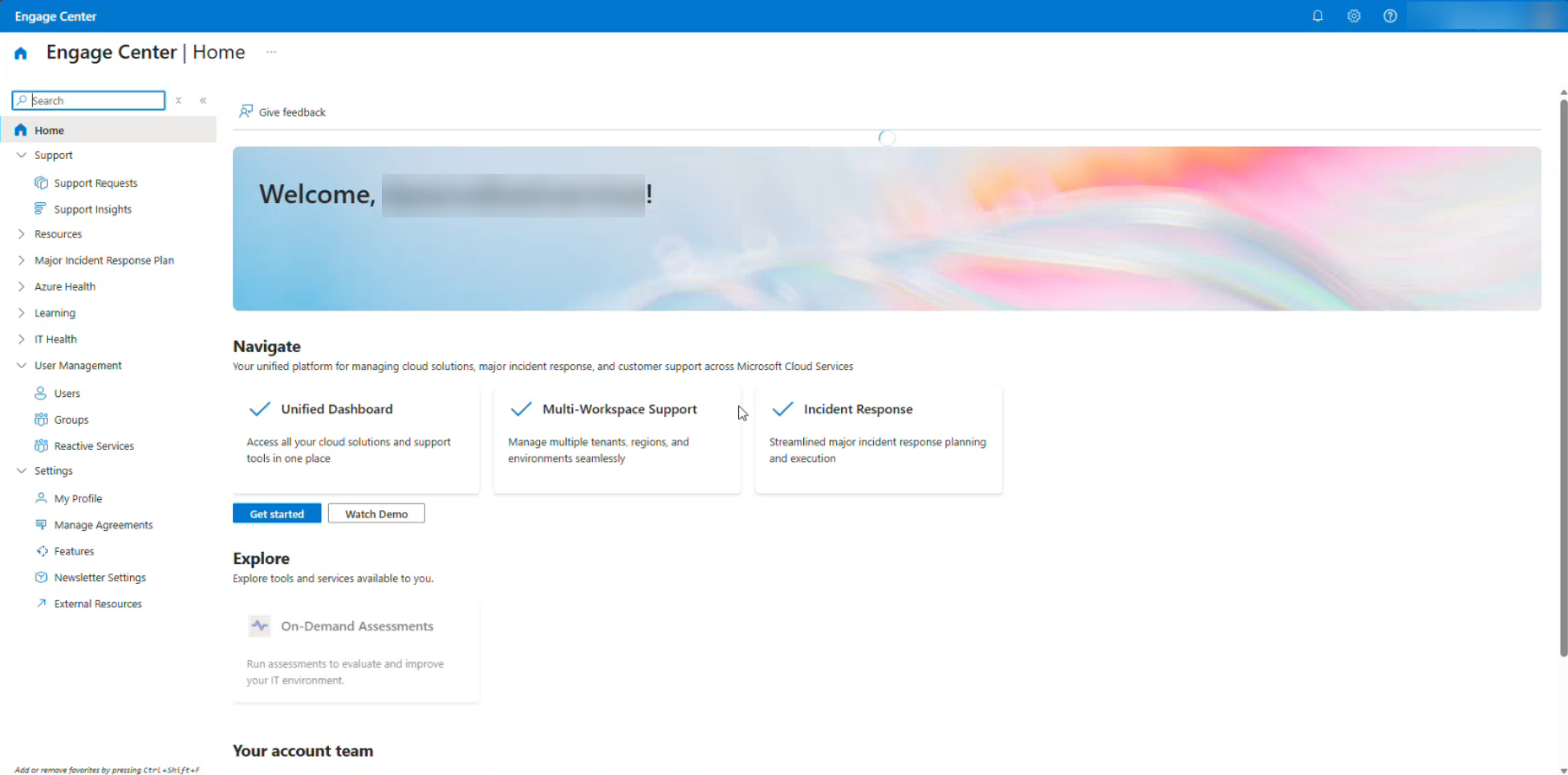
The site takes you to the main page of Engage Center, and you now have access as a guest user.
Identifying Guest users
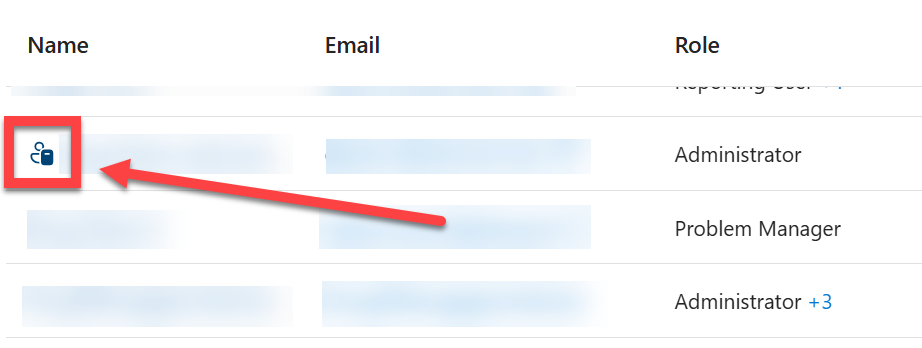
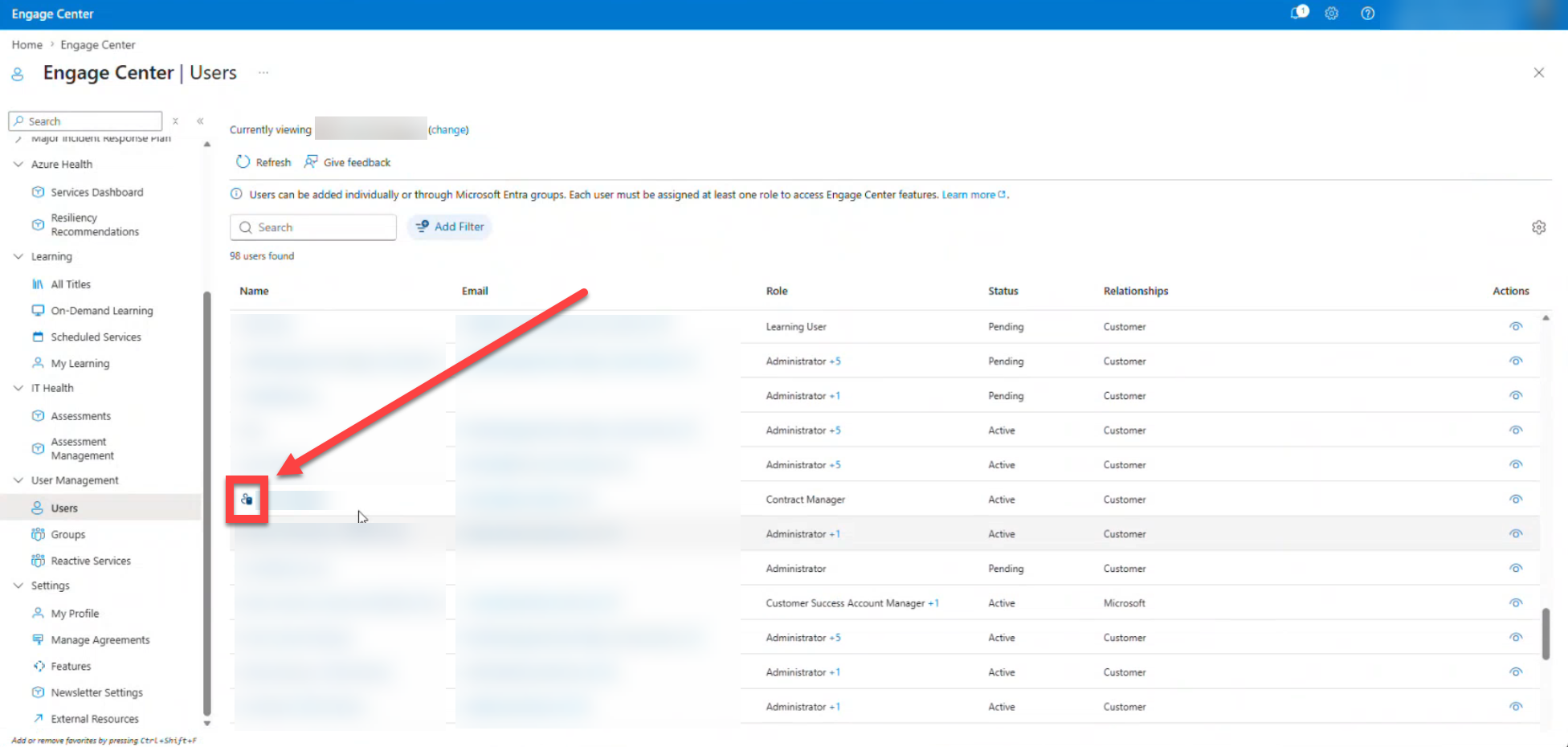
Within User management, you an identify any guest user by looking for the following icon:
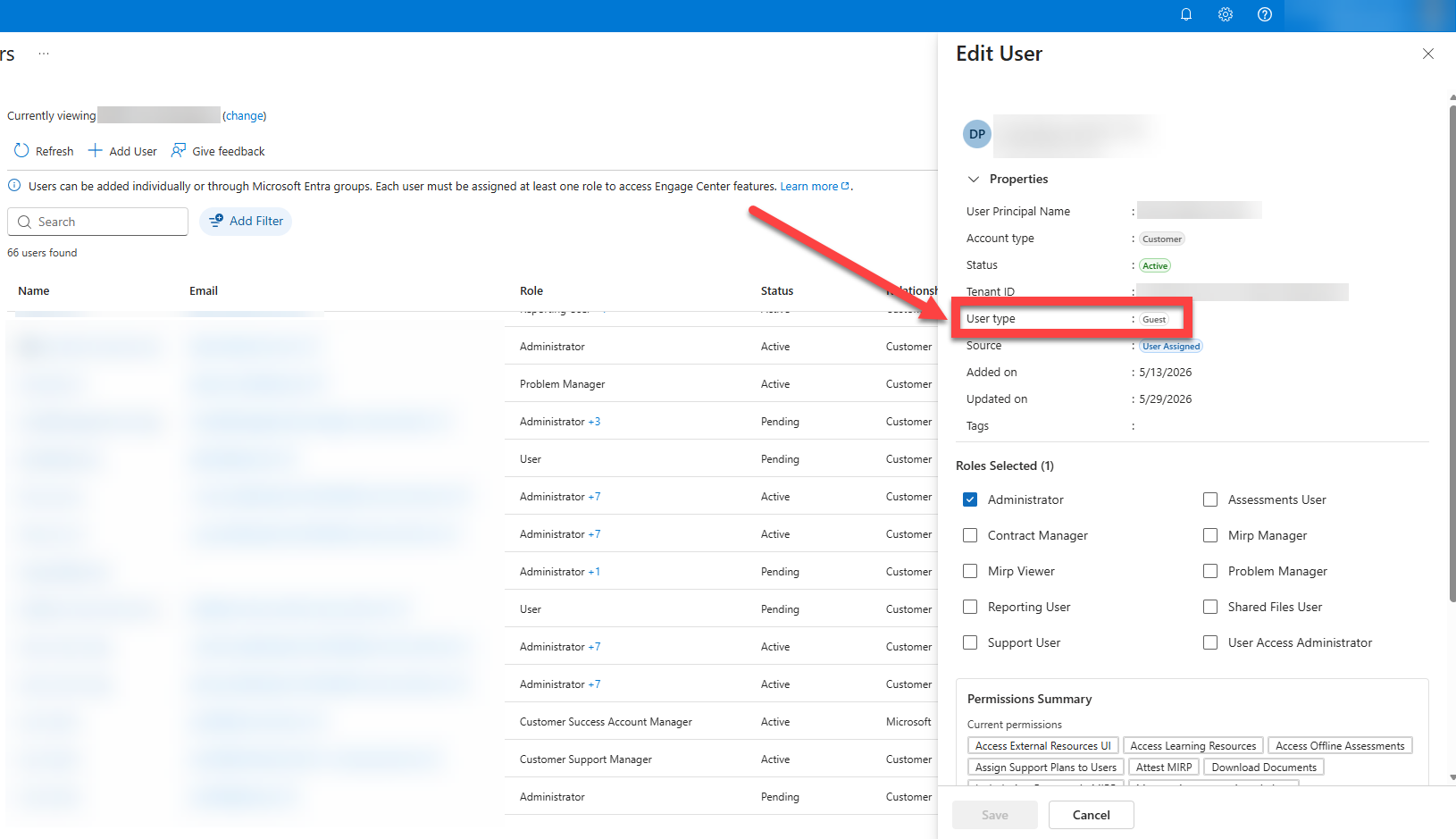
You can also open a users Properties and you'll see the User type listed as Guest