Note
Access to this page requires authorization. You can try signing in or changing directories.
Access to this page requires authorization. You can try changing directories.
If you're a Microsoft account (MSA) user signing in to Microsoft Engage Center, there are two ways you can sign in:
- You can sign in natively, as described in this article's MSA user sign-in process section
- You can sign in as a guest in a separate tenant, as described in Guest users in Microsoft Engage Center.
MSA user sign-in process
Login to personal tenant (sign in natively)
Note
The ability to login natively with MSA is being retired. Review the MSA retirement plan for details on timing and implications.
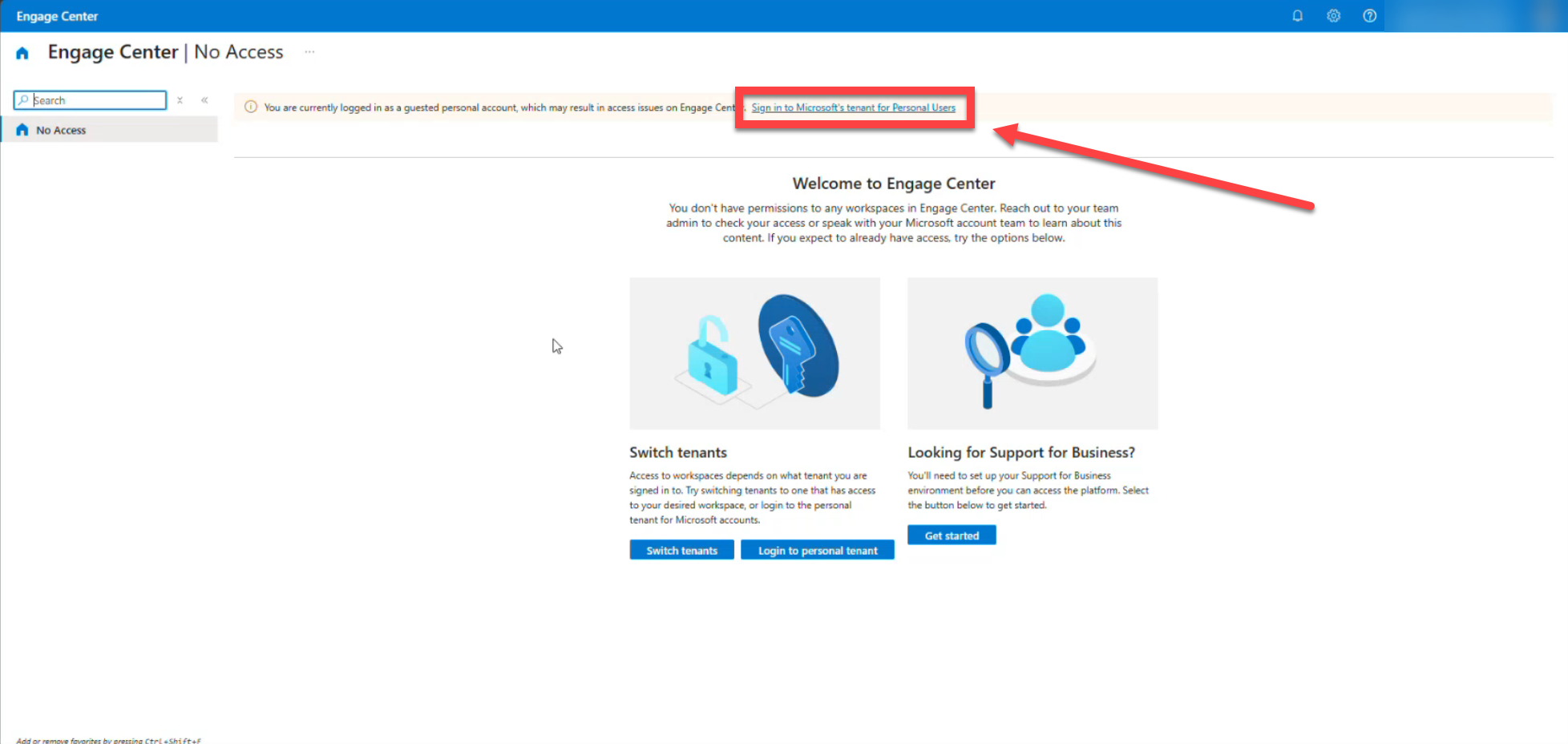
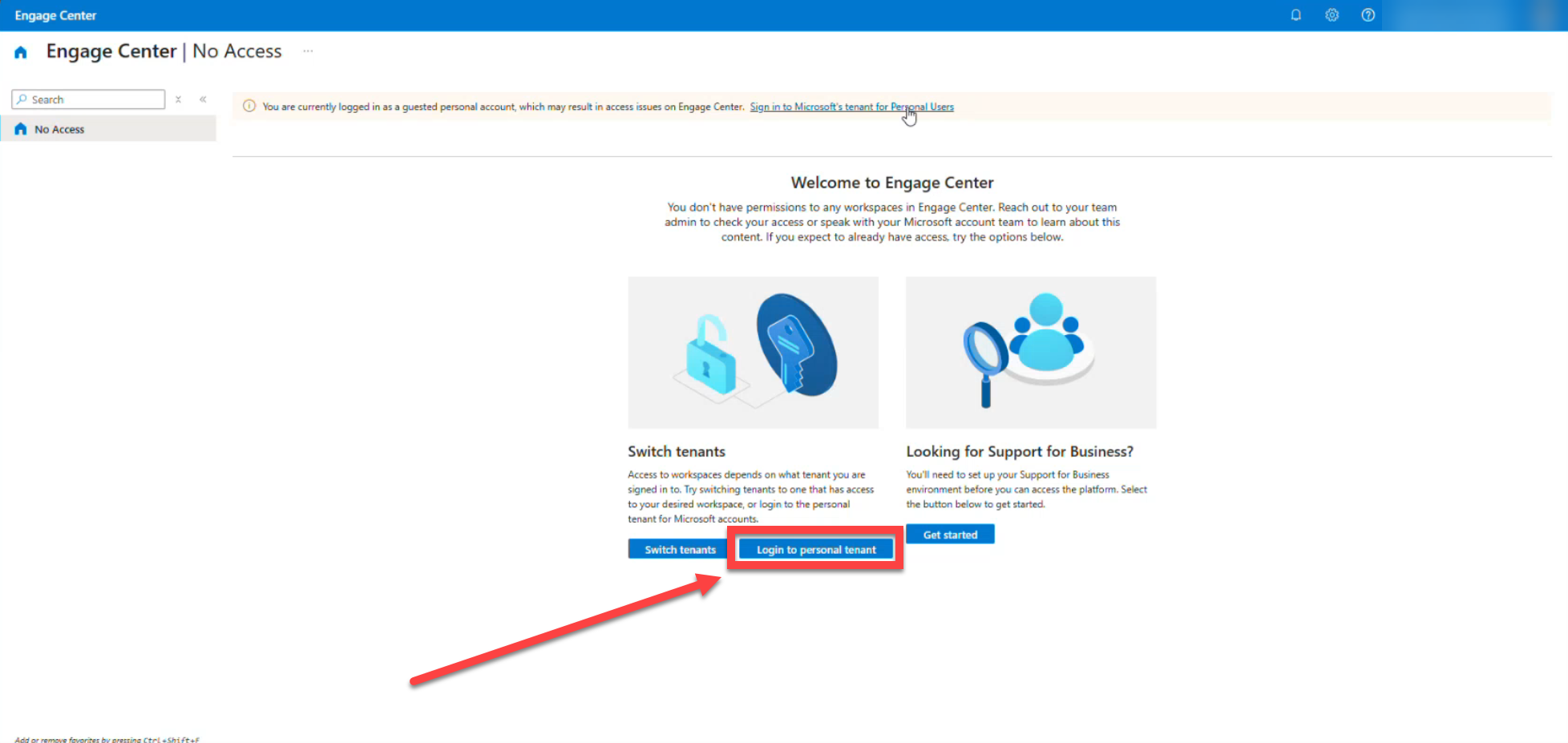
Once you're signed in, you'll see a view that looks like the following screenshot. You have two options to proceed from here:
- Select "Sign in to Microsoft's tenant for Personal Users" in the small banner near the top of the page
OR
- Select the blue button labeled "Login to personal tenant."
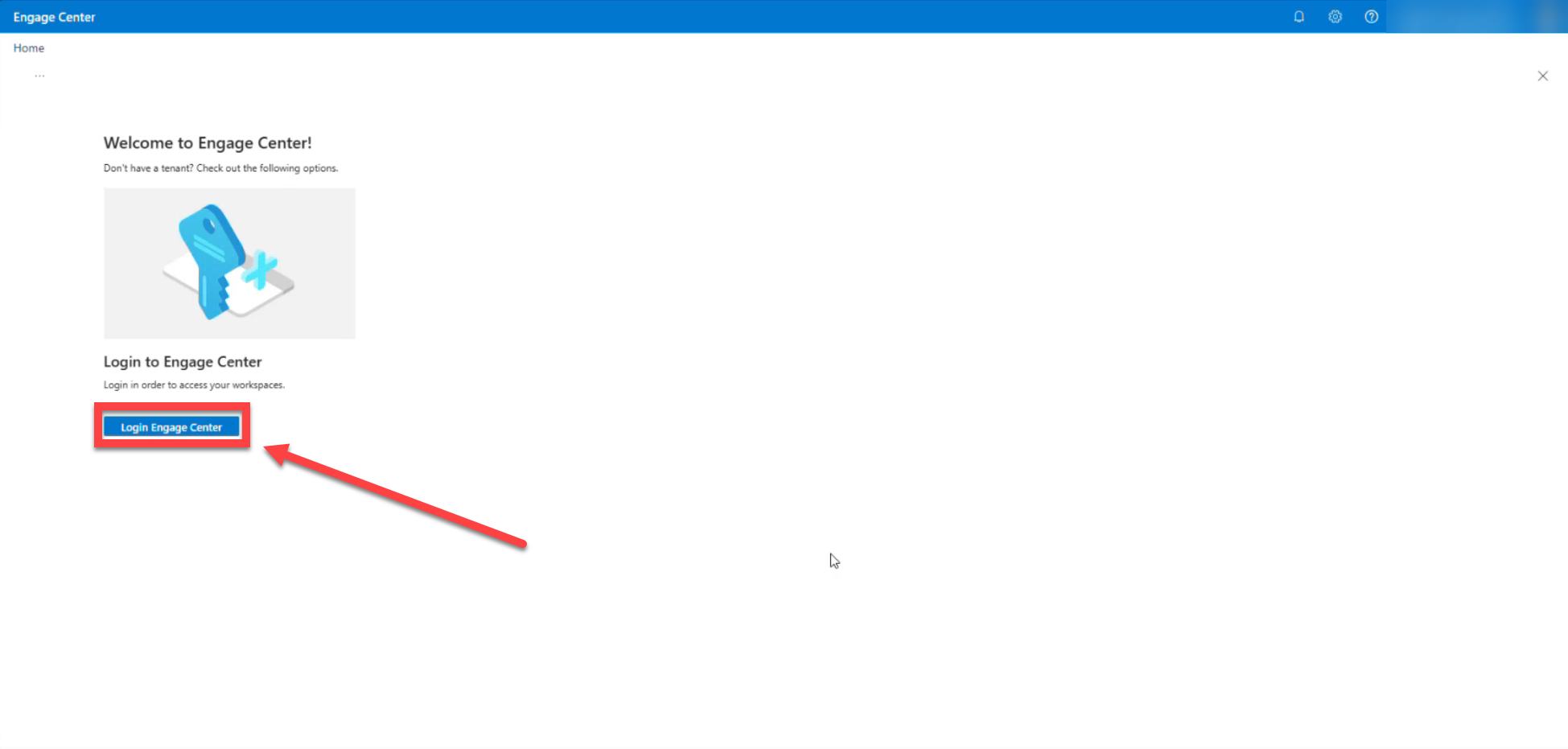
Next, you're taken to a second "Welcome to Engage Center!" screen with another blue button labeled "Login Engage Center"; select that blue button.
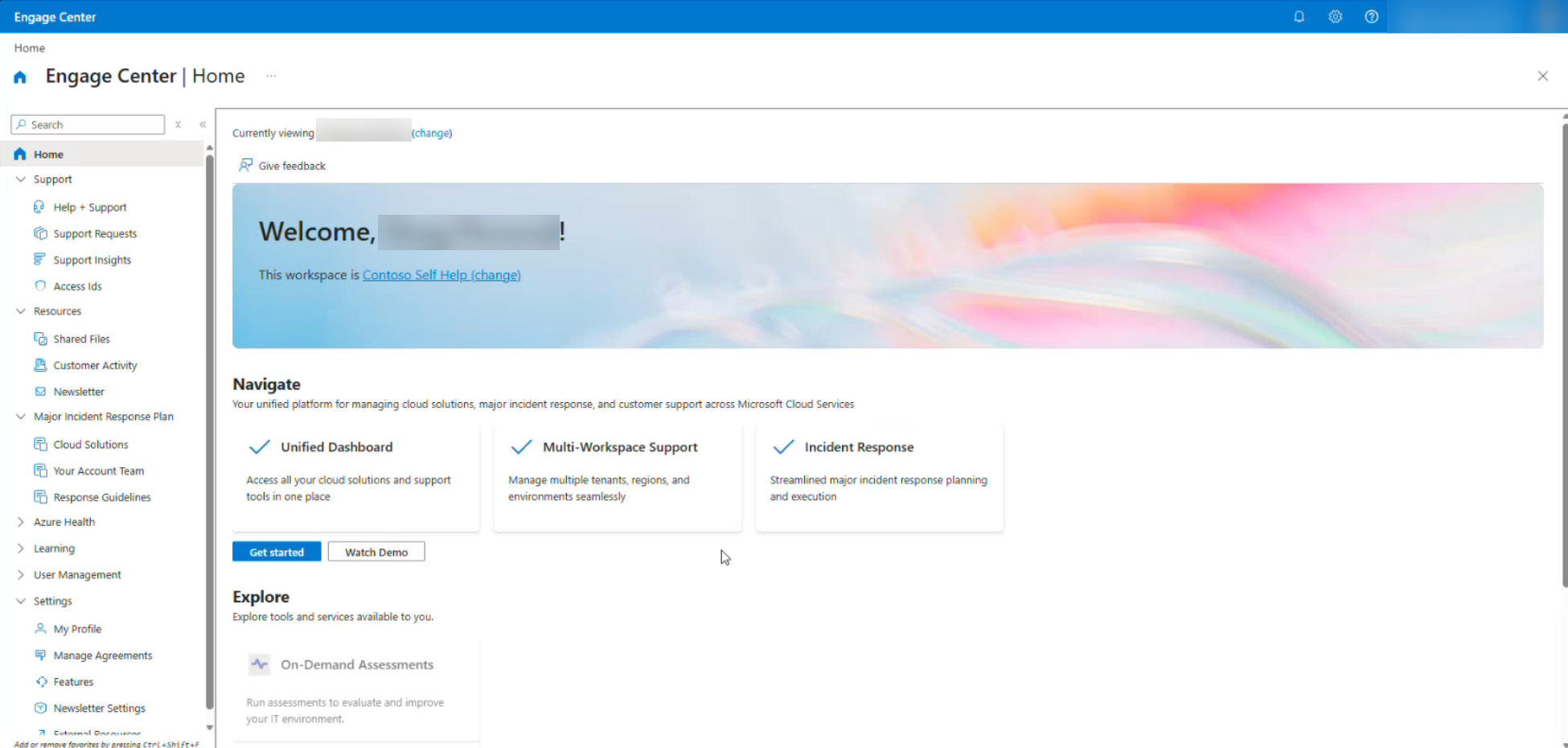
The site takes you to the home page of Engage Center.
Note
You might still need to switch workspaces to access the desired workspace.
Identify MSA users
Within User management, you can identify any user logging in natively with MSA by looking for the following icon:
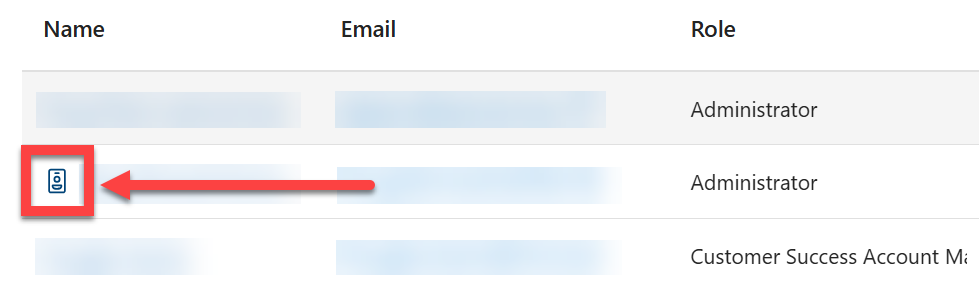
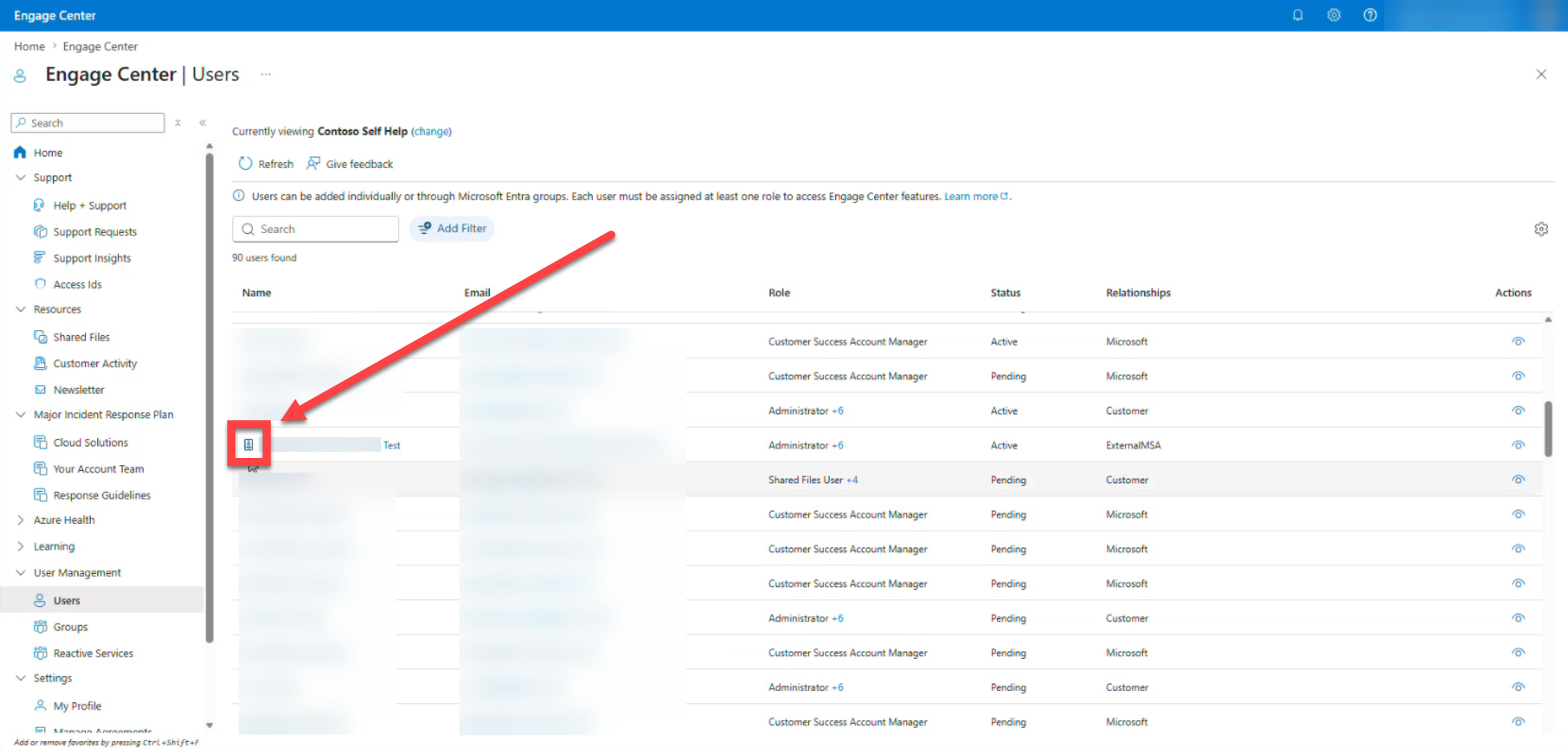
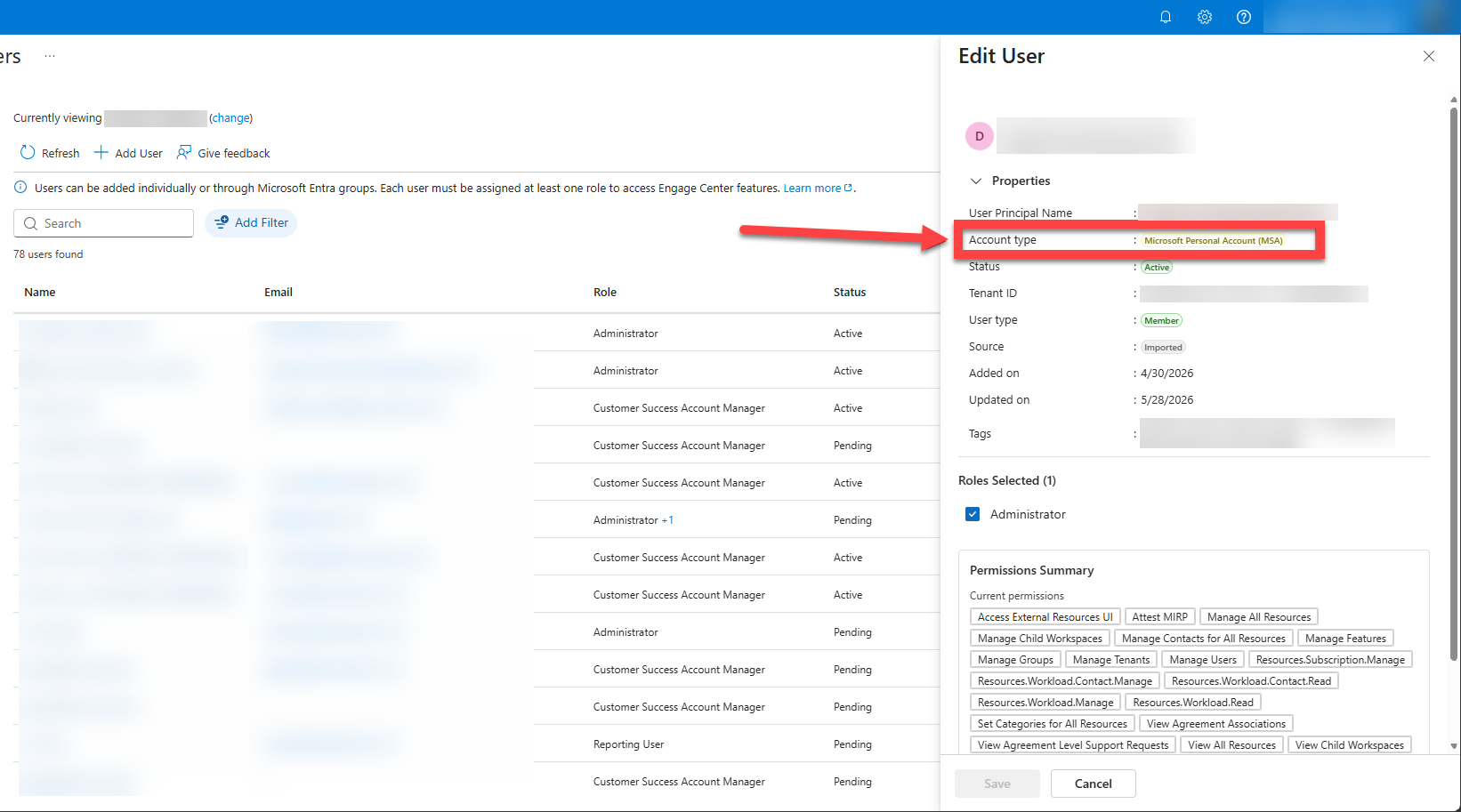
You can also review a user's Properties and see the Account type listed as "Microsoft Personal Account (MSA)".
Troubleshoot signing in with a Microsoft account (MSA)
When you sign in to Engage Center for the first time with a Microsoft account (MSA), you might see an error if the account was previously associated with a Microsoft Entra tenant that is no longer active.
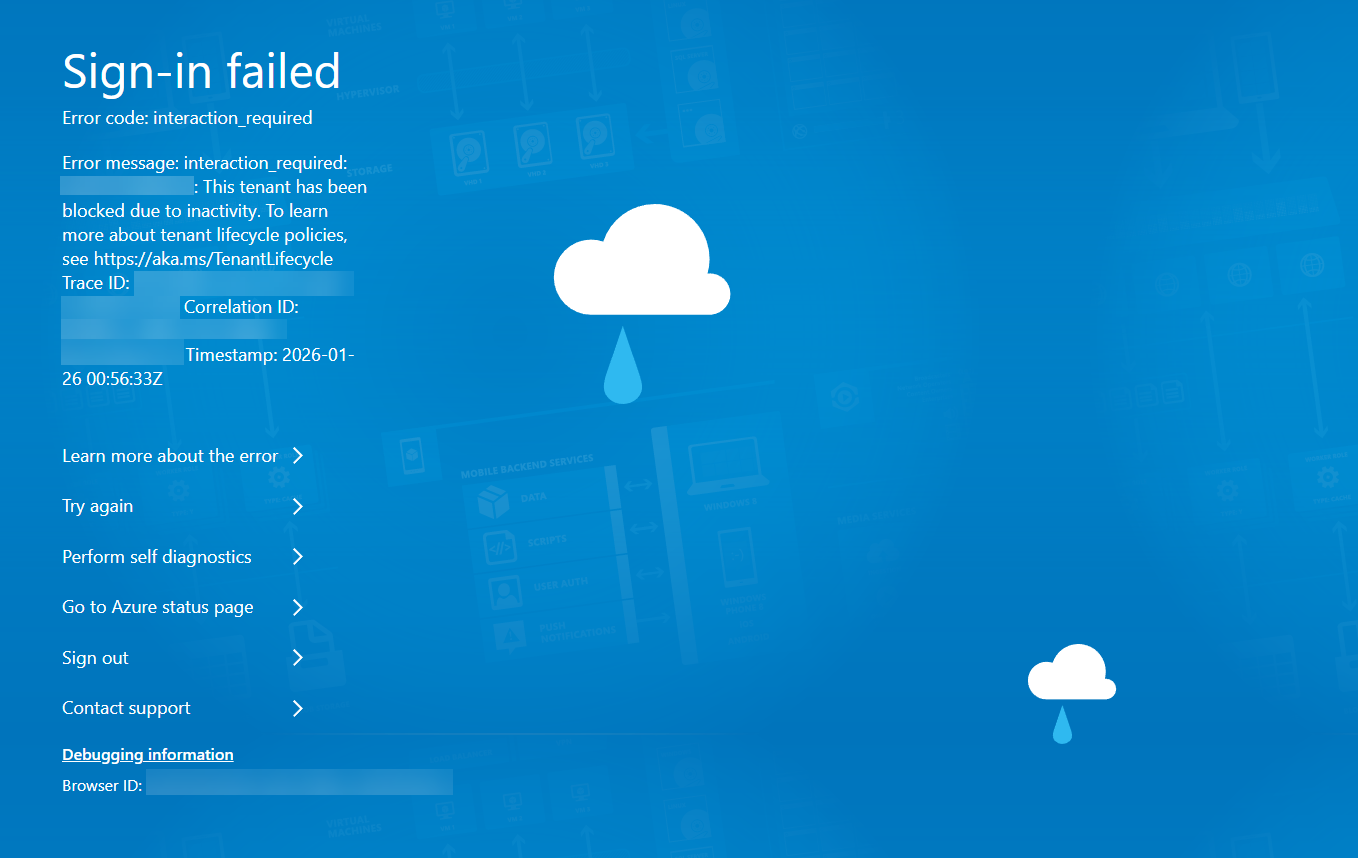
Resolution
Use the following direct Engage Center link to complete your initial sign-in:
https://engagecenter.microsoft.com/f8cdef31-a31e-4b4a-93e4-5f571e91255a
After you sign in successfully, you don't need to use this direct link again. For future visits, go to: