Note
Access to this page requires authorization. You can try signing in or changing directories.
Access to this page requires authorization. You can try changing directories.
APPLIES TO:  2013 2016 2019
 Subscription Edition SharePoint in Microsoft 365
Learn about the new features and updates introduced in the SharePoint Server Subscription Edition Version 26H2 feature update.
Summary of the features
The following table provides a summary of the new features introduced in the SharePoint Server Subscription Edition Version 26H2 feature update.
| Feature | Release ring | More information |
|---|---|---|
| AMSI Body Scan Defaults to “Full Mode” | Standard release | For more information, see AMSI Body Scan Defaults to “Full Mode”. |
| Config to exclude "Everyone" claim on People Picker | Standard release | For more information, see Config to exclude "Everyone" claim on People Picker. |
| Support JWE encrypted tokens from Entra ID | Early release | For more information, see Support JWE encrypted tokens from Entra ID. This was part of Early release in the Version 25H2 feature update. |
| Drag and drop functionality for web parts in publishing sites | Early release | For more information, see Drag and drop functionality for web parts in publishing sites. This was part of Early release in the Version 25H2 feature update. |
| Enhance Document Virus Check with AMSI Option | Early release | For more information, see Enhance Document Virus Check with AMSI Option. This was part of Early release in the Version 25H2 feature update. |
| New enhancements for the Text web part | Early release | For more information, see New enhancements for the Text web part. This was part of Early release in the Version 25H2 feature update. |
| Opt-in People Picker search throttling settings | Early release | For more information, see Opt-in People Picker search throttling settings. |
Detailed description of features
This section provides detailed descriptions of the new and updated features in SharePoint Server Subscription Edition Version 26H2.
Note
Features previously introduced in the Version 26H1 feature update won't be described here. For more information on Version 26H1, see New and improved features in SharePoint Server Subscription Edition Version 26H1.
Opt-in People Picker search throttling settings
People Picker Search Configuration
Overview
In large directory environments, the People Picker can issue a search query on nearly every keystroke as a user types a name. At scale this produces a cascade of directory queries, adding load to Active Directory / the configured identity sources and, in some environments, slowing the picker for end users.
This release introduces two administrator-configurable settings that give you control over when and how often the People Picker queries the directory. Both are set per web application and apply across the modern and classic People Picker experiences (sharing dialogs, permission panels, group membership, and list forms).
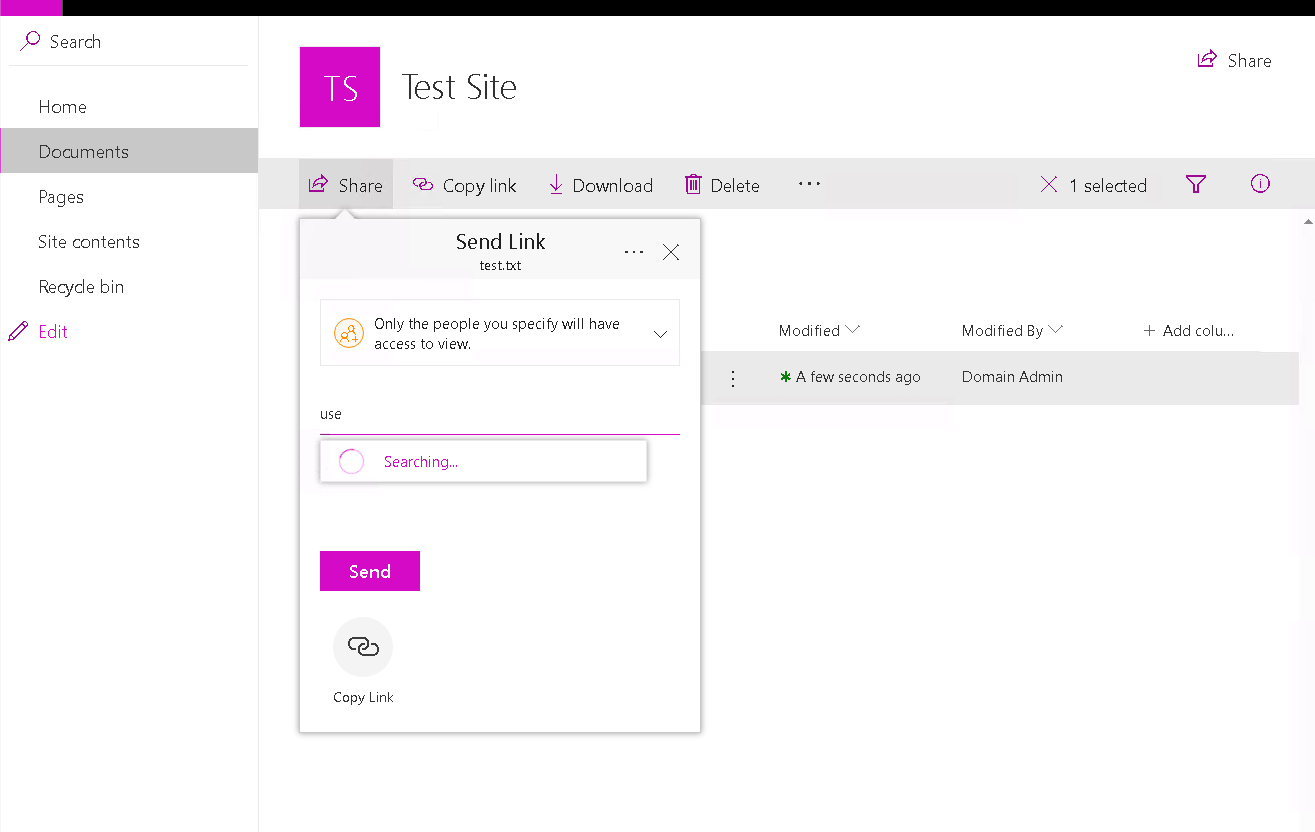
The People Picker in use.
A standard People Picker (e.g., the Share dialog) where a user is resolving names
What's new
| Setting | What it does | Default |
|---|---|---|
| RequireExplicitSearch | Searches only when the user presses Enter, instead of automatically while typing. | Off |
| AutoSearchDelayMilliseconds | Debounce delay applied after the user stops typing before a query fires which prevents a query per keystroke. | 250 |
All settings are managed with the Set-SPPeoplePickerConfig and Get-SPPeoplePickerConfig cmdlets.
Prerequisites
- You must be a farm administrator to run the configuration cmdlets.
- Run all commands from the SharePoint Management Shell.
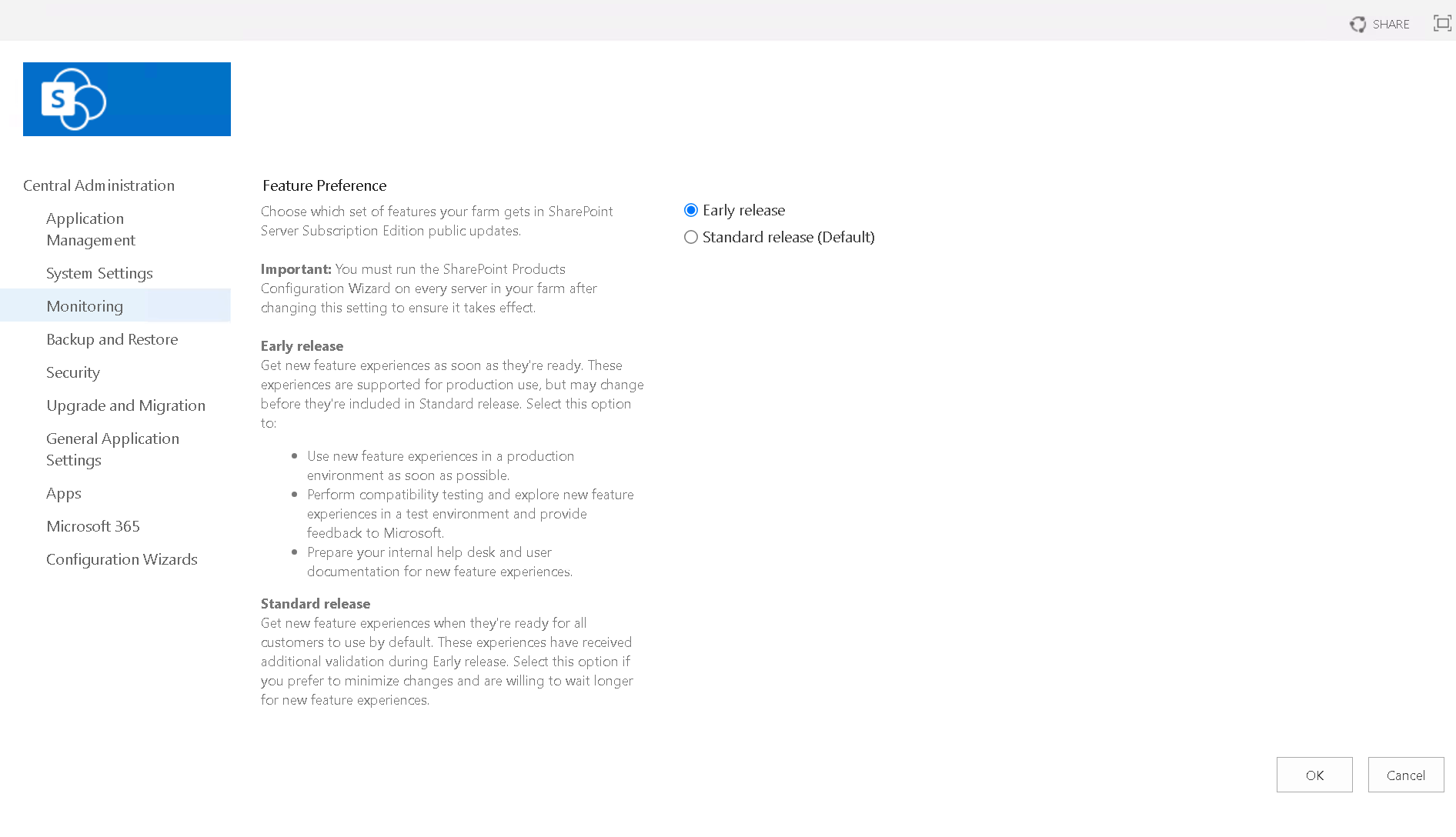
Enabling the feature (preview)
While the feature is opt-in, enable it on the farm before configuring settings, then restart IIS so the change takes effect:
Getting started
Retrieve the web application you want to configure:
$wa = Get-SPWebApplication https://your-webapp-url
View the current configuration at any time:
Get-SPPeoplePickerConfig -WebApplication $wa | Format-List AutoSearchDelayMilliseconds, RequireExplicitSearch
Viewing the current configuration.
Output of Get-SPPeoplePickerConfig showing the current values.

Setting 1 — RequireExplicitSearch
When enabled, the People Picker no longer searches as the user types. Instead, it queries the directory only when the user presses Enter. This is the strongest control for eliminating type-ahead query load, and is well suited to very large directories.
Set-SPPeoplePickerConfig -WebApplication $wa -RequireExplicitSearch
Behavior
- Typing a name shows no automatic suggestions; pressing Enter runs the search and displays results.
- A minimum number of characters is required before the explicit search runs: 2 characters in the modern UI and 3 characters in the classic UI (see Minimum character behavior).
- Default: Off.
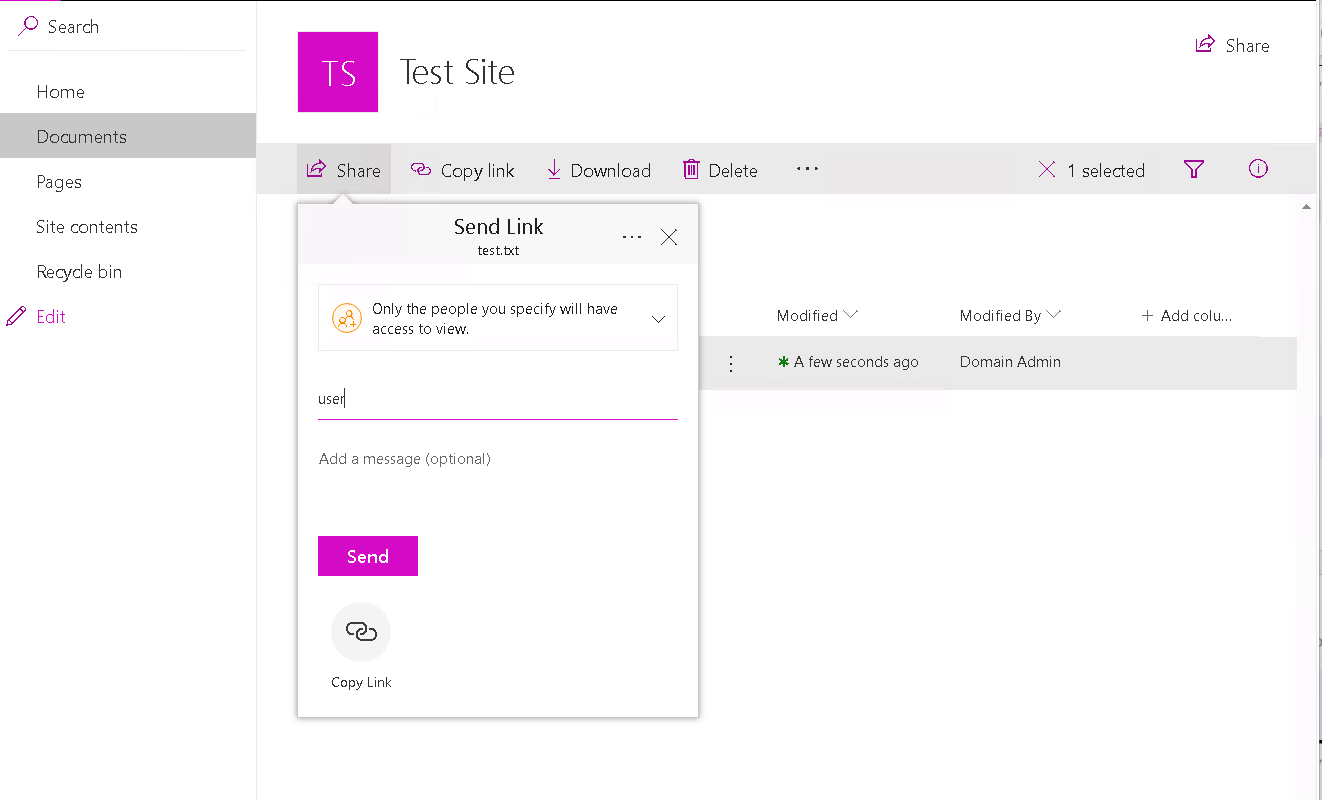
Typing with RequireExplicitSearch enabled (no auto-search).
A name has been typed but no suggestions appear until Enter is pressed.
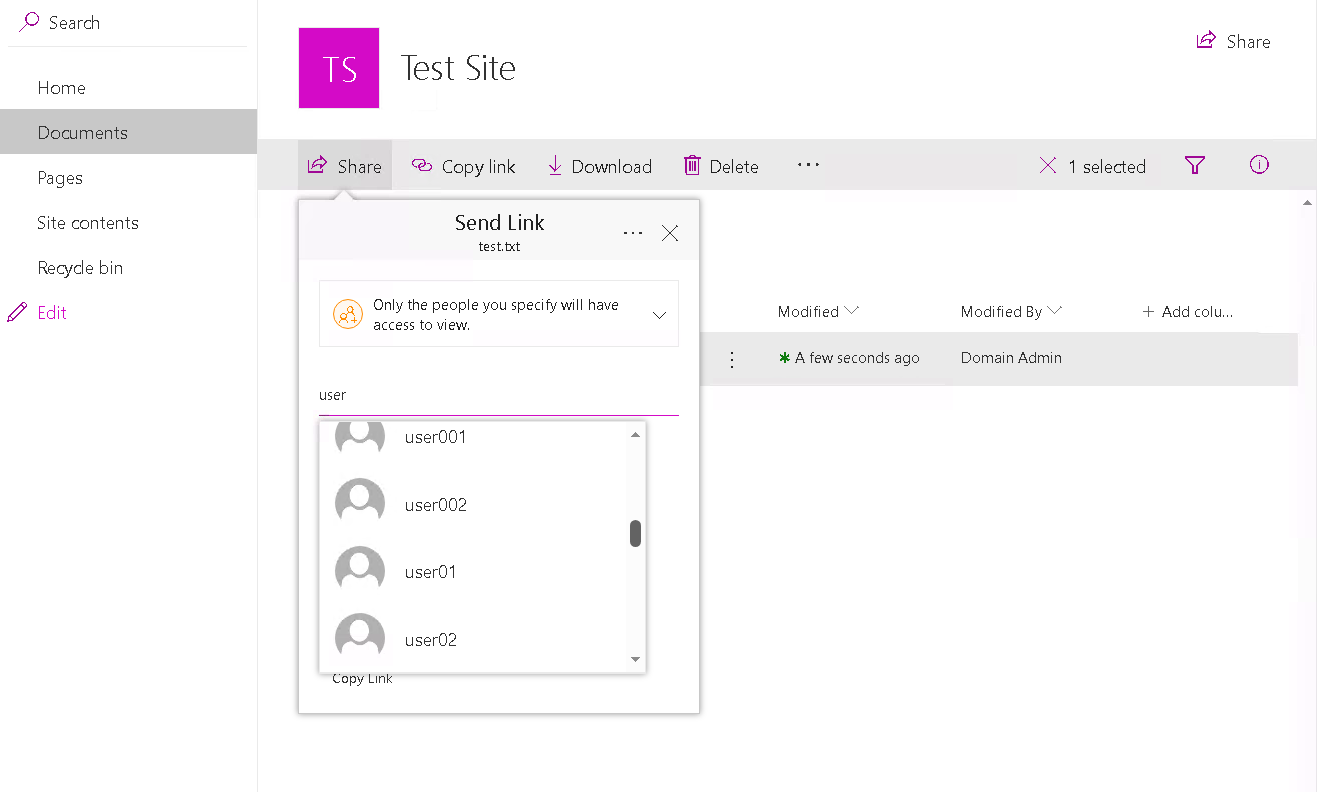
Results after pressing Enter.
Suggestions appear only after the user presses Enter.
Setting 2 — AutoSearchDelayMilliseconds
Controls the debounce delay — how long the picker waits after the user stops typing before it issues a query. Increasing this value collapses a burst of keystrokes into a single query instead of one per keystroke.
# Wait 1 second after typing stops before querying
Set-SPPeoplePickerConfig -WebApplication $wa -AutoSearchDelayMilliseconds 1000
Behavior
- Default: 250 ms.
- Valid range: 50–10000 ms. (0 is not accepted as it collides with the "not configured" sentinel and would disable the debounce on the classic surfaces.)
- Increase (e.g., 1000) in large directories to reduce query frequency; keep lower for a snappier feel.
- Has no effect while RequireExplicitSearch is enabled (there is no type-ahead search to debounce; the Enter search runs promptly).
Minimum character behavior (modern vs classic)
The built-in minimum number of characters before a search fires differs slightly between the two People Picker experiences:
| Experience | Where it appears | Built-in minimum |
|---|---|---|
| Modern UI | Modern sharing, permission panels, group membership, modern list forms | 2 characters |
| Classic UI | Classic pages and classic People Picker controls | 3 characters |
- This built-in minimum is what applies out of the box, and it is also the floor used by RequireExplicitSearch for the Enter-triggered search.
Combining, resetting, and reviewing
# Set both values in one call
Set-SPPeoplePickerConfig -WebApplication $wa -AutoSearchDelayMilliseconds 1000 -RequireExplicitSearch

# Reset both settings to their product defaults (250 / Off)
Set-SPPeoplePickerConfig -WebApplication $wa -ResetSearchSettings

# Review current values
Get-SPPeoplePickerConfig -WebApplication $wa | Format-List AutoSearchDelayMilliseconds, RequireExplicitSearch
Tip: Changes take effect on the next page load. Refresh the page (or reopen the dialog) after updating settings to see the new behavior.
Behavior & precedence
- RequireExplicitSearch uses the built-in minimum. When explicit search is enabled, the Enter-triggered search requires the built-in minimum: 2 characters (modern UI) / 3 characters (classic UI).
- RequireExplicitSearch and the debounce delay. With explicit search enabled there is no type-ahead search to debounce; the Enter search runs promptly and is not affected by a large AutoSearchDelayMilliseconds value.
- Defaults preserve existing behavior. If you configure nothing, the People Picker behaves exactly as it does today (auto-search on typing, debounce 250 ms, built-in minimum of 2 characters on modern UI / 3 on classic).
- Per–web application. Settings apply to all site collections in the web application and to both the modern and classic People Picker experiences.
Cmdlet reference
Set-SPPeoplePickerConfig
| Parameter | Type | Default | Valid range | Description |
|---|---|---|---|---|
| -WebApplication | Web application | — | — | The target web application (URL or object). Required. |
| -AutoSearchDelayMilliseconds | Integer | 250 | 50–10000 | Debounce delay (ms) after typing stops before querying. |
| -RequireExplicitSearch | Switch | Off | — | Search only on Enter instead of automatically while typing. |
| -ResetSearchSettings | Switch | — | — | Reset both settings above to defaults (250 / Off). |
Get-SPPeoplePickerConfig
| Parameter | Type | Description |
|---|---|---|
| -WebApplication | Web application | The web application whose settings to return (URL or object). Required. |
Built-in help is available in the shell:
Get-Help Set-SPPeoplePickerConfig -Full
Recommendations
| Environment | Suggested starting point |
|---|---|
| Standard directory | Defaults (no change needed) |
| Large directory, moderate load | AutoSearchDelayMilliseconds 1000 |
| Large directory, high load | AutoSearchDelayMilliseconds 2000 |
| Very large directory / strict control | RequireExplicitSearch |
Frequently asked questions
Do these settings affect all sites?
Yes - they apply to the entire web application, across modern and classic People Picker surfaces.
Will existing behavior change if I don't configure anything?
No. The defaults match the current out-of-the-box behavior.
When do changes take effect?
On the next page load. Refresh the page or reopen the dialog after changing a setting.
How do I revert everything?
Run Set-SPPeoplePickerConfig -WebApplication $wa -ResetSearchSettings.