Monitor the capacity of a volume
Here you learn ways to monitor the capacity utilization of an Azure NetApp Files volume.
Using Windows (SMB) clients
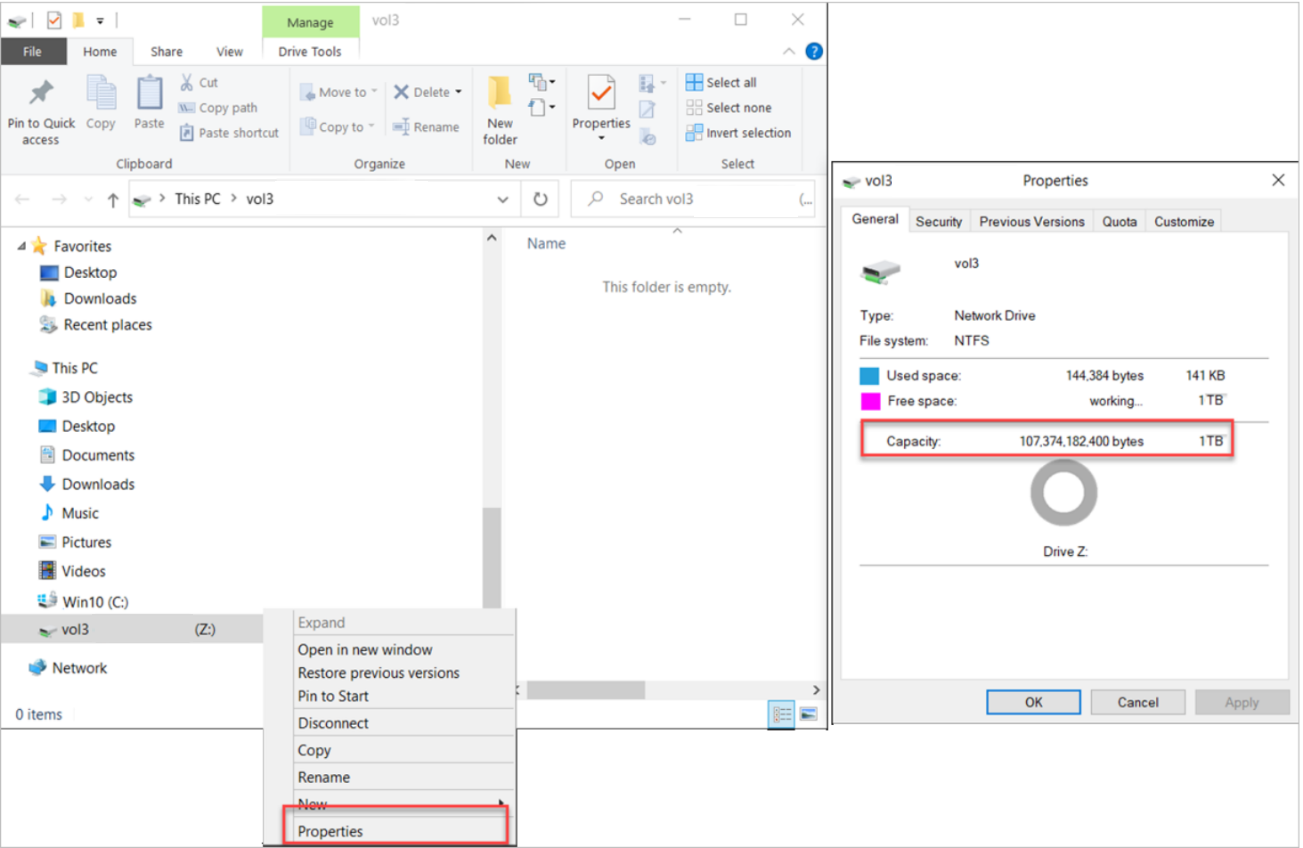
You can use Windows clients to check the used and available capacity of a volume through the network mapped drive properties. You can use one of the following two methods:
Go to File Explorer, right-click the mapped drive, and select Properties to display capacity.
Or use the
dircommand at the command prompt.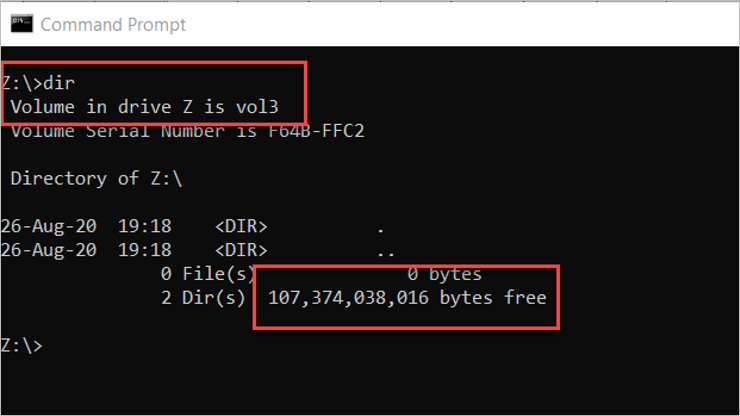
The available space is accurate using File Explorer or the dir command. However, the consumed or used space is an estimate when snapshots are generated on the volume.
Using Linux (NFS) clients
Linux clients can check the used and available capacity of a volume by using the df command.
The -h option shows size, including used and available space in human readable format (using M, G and T unit sizes).
The following example shows volume capacity reporting in Linux:
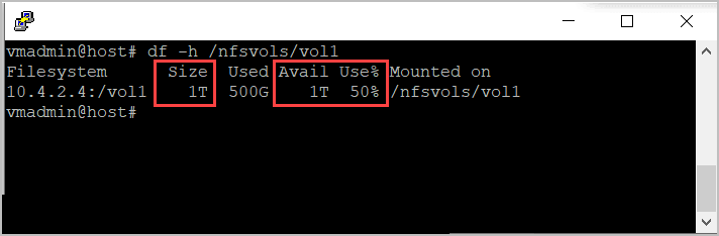
The available space is accurate using the df command. However, the consumed or used space is an estimate when snapshots are generated on the volume.