Manage default and individual user and group quotas for a volume
Here you learn considerations and steps for managing user and group quotas on Azure NetApp Files volumes.
Quotas in cross-region or cross-zone replication relationships
Quota rules are synchronized from cross-region replication (CRR) or cross-zone replication (CZR) source volumes to destination volumes. Quota rules that you create, delete, or update on a CRR or CZR source volume automatically apply to the destination volume.
If source volumes have quota rules and you create a replication relationship later, all quota rules are synchronized to the destination volume.
Considerations
- A quota rule is specific to a volume and is applied to an existing volume.
- Deleting a volume deletes all associated quota rules for that volume.
- You can create a maximum of 100 quota rules for a volume.
- Azure NetApp Files doesn't support individual group quota and default group quota for SMB and dual-protocol volumes.
- Group quotas track disk space consumption for files owned by a specific group.
- In a CRR or CZR setting, you can't create, update, or delete quota rules on the destination volume until you delete replication.
- If a quota rule is in an error state after deleting replication, delete and recreate the quota rule on the destination volume.
Create, edit, or delete quota rules
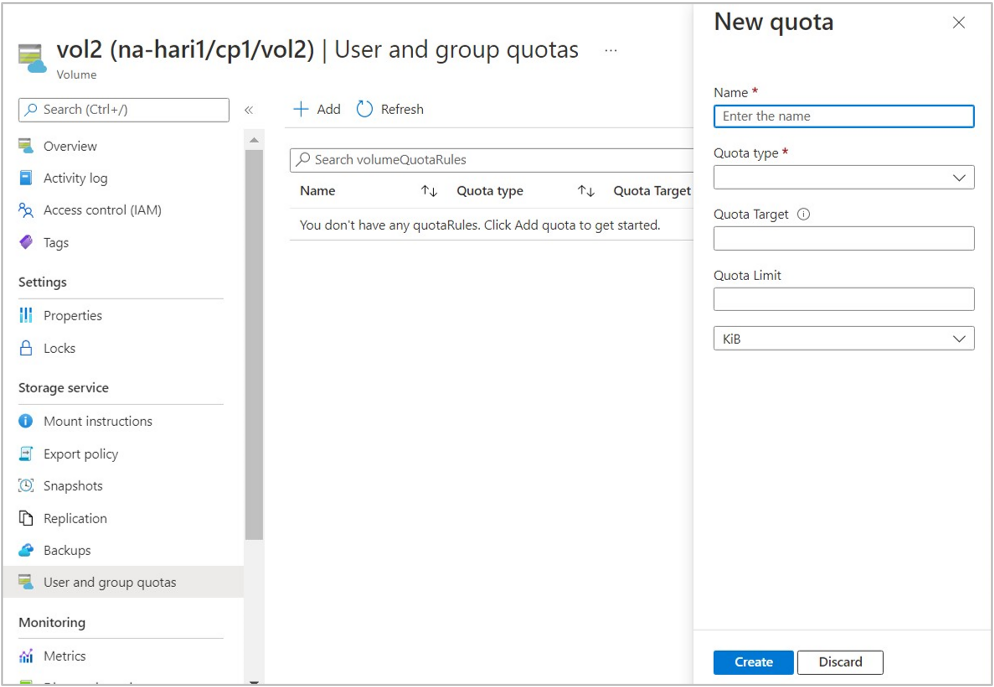
From User and group quotas in the Azure portal navigation pane, you can create a quota rule for a volume.
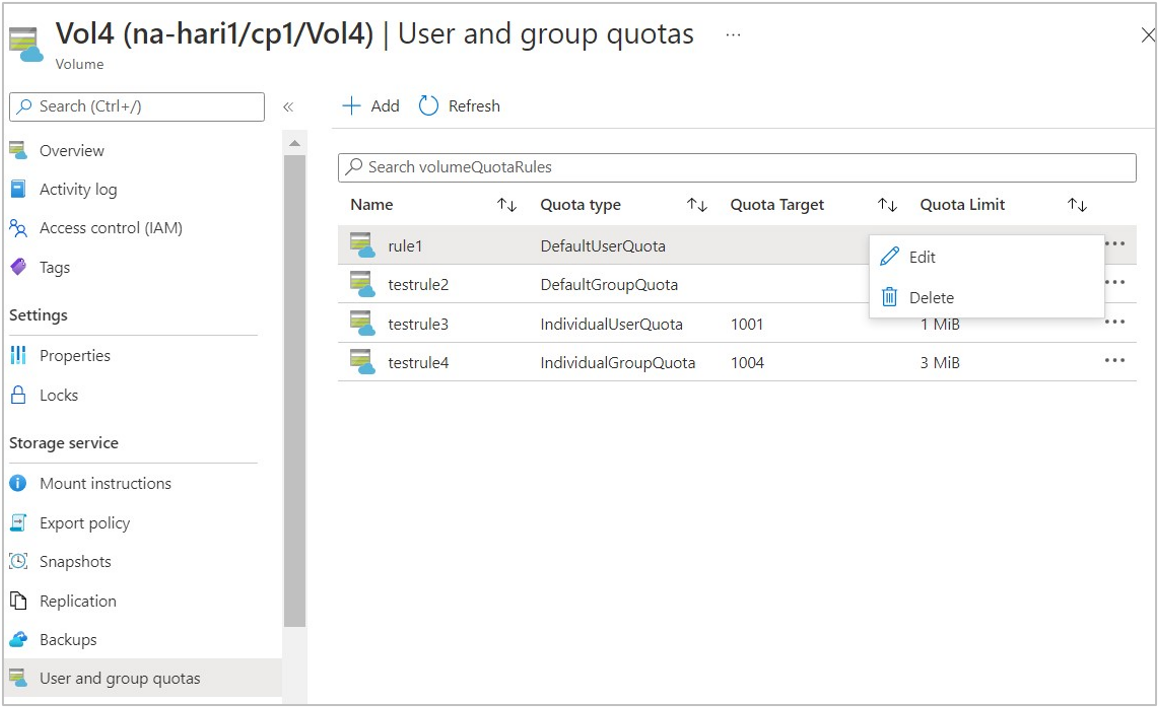
To edit or delete a quota rule, select the volume, choose the ellipsis at the end of the quota rule row, and then select Edit or Delete.