Analyze Copilot interactions with Communication Compliance
Microsoft 365 Copilot makes it easier for people to interact with data through natural language prompts. These interactions can also introduce the risk of sharing sensitive or inappropriate information. Communication Compliance lets you review Copilot prompts and responses to detect these risks.
Communication Compliance supports in-app Copilot experiences across Microsoft 365 apps like Teams, Outlook, and Word. It can detect potential issues in prompts submitted by users or responses generated by Copilot. These matches are flagged for review by authorized investigators.
This helps your organization detect inappropriate behavior, risky language, or sensitive data exposure in Copilot interactions without limiting productivity.
Analyze Copilot interactions with Communication Compliance
Communication Compliance uses message metadata to detect Copilot interactions across Microsoft 365 apps. These include messages that use the IPM.SkypeTeams.Message.Copilot.* item class, such as Copilot for Teams or Copilot for Outlook.
You can create a policy that includes Microsoft 365 Copilot and set conditions to detect:
- Use of sensitive information types
- Specific keywords or trainable classifiers
- Prompts or responses that match content safety classifiers
Matching prompts and responses appear separately in the Pending tab of the policy, with details like the sender, recipient, matched content, and a Copilot or AI app icon. You can investigate and remediate the match like any other message. Reviewers can tag, resolve, escalate, download, or export the item as needed.
Create a Communication Compliance policy for Copilot
Organizations might need to confirm that Copilot prompts and responses are appropriate for workplace use. For example, an investigation into workplace behavior could include reviewing whether risky or offensive language was submitted through Copilot in Teams. Communication Compliance policies make this possible by flagging matches for review.
To analyze Copilot interactions:
In the Microsoft Purview portal, go to Solutions > Communication Compliance.
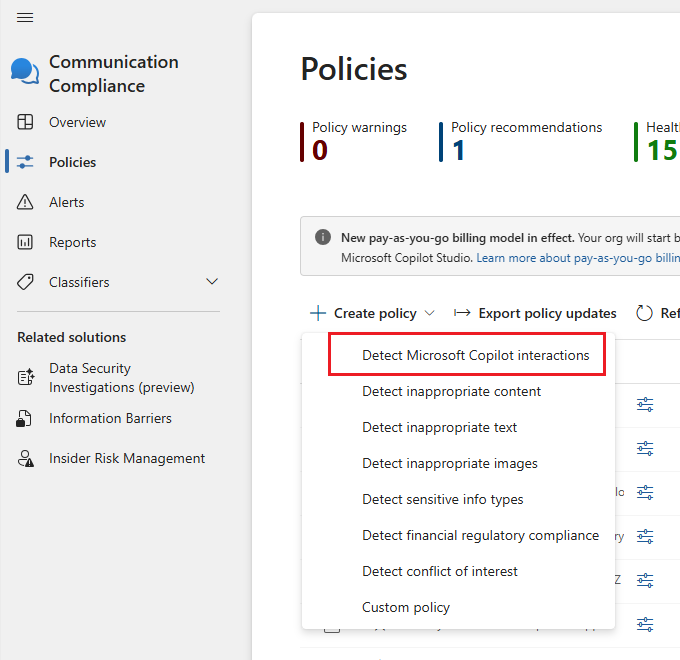
Select Policies, then select Create policy.
Choose the Detect Microsoft Copilot interactions template.
Name your policy, choose users and groups, and assign reviewers.
Review the settings, then create the policy or choose to customize it before saving.
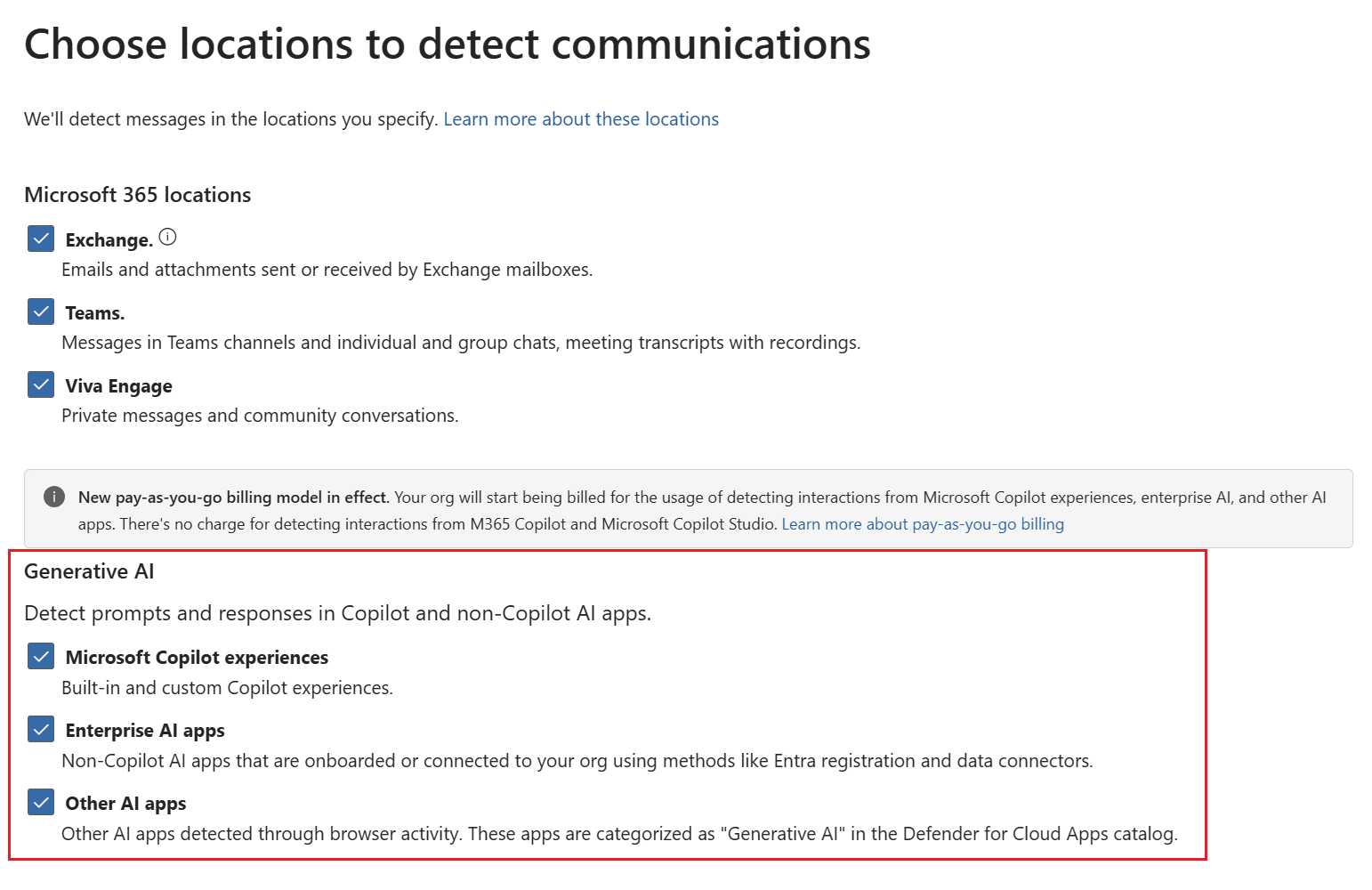
When creating or editing a policy, you can choose where to detect AI interactions and adjust review conditions:
Microsoft Copilot experiences: Prompts and responses across Microsoft 365 apps such as Teams and Outlook
Enterprise AI apps: Connected enterprise tools, such as Microsoft Fabric and Security Copilot
Other AI apps: Third-party or browser-based AI tools
Note
Communication Compliance detection for Microsoft 365 Copilot is included with your subscription. Detection for Enterprise AI apps, Copilot Studio, and Other AI apps requires pay-as-you-go billing.
Use DSPM for AI to recommend Communication Compliance policies
Data Security Posture Management (DSPM) for AI includes a recommendation to create a Communication Compliance policy for Copilot interactions. This helps organizations proactively review prompt and response content for potential risk.
To create the policy from a recommendation:
In the Microsoft Purview portal, go to Solutions > DSPM for AI.
Select Recommendations.
Select the Detect unethical behavior in AI apps recommendation.
Review the policy details, then select Create policies to create the policy with default settings.
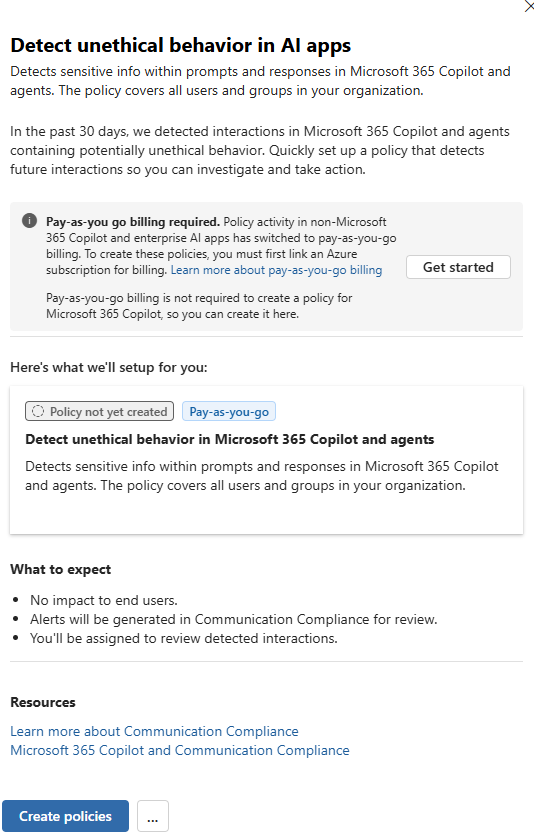
After the policy is created, go to the Communication Compliance solution and edit the policy to assign reviewers or make other changes.
Review policy matches
Communication Compliance policies for Copilot interactions behave like other message policies:
- Each match appears in the Pending tab with metadata including the Copilot icon, sender and recipient, and matched content.
- You can take actions such as tagging, resolving, escalating, or exporting the message.
- Matches from prompts and responses appear separately.
Matches are also included in Communication Compliance reports and audit logs.
By configuring Communication Compliance policies for Microsoft 365 Copilot, your organization can analyze prompt and response content for sensitive or risky interactions. This helps ensure that Copilot is used appropriately and that sensitive data remains protected, without restricting access for authorized users.