Apply DLP policies to Microsoft 365 Copilot
Microsoft Purview Data Loss Prevention (DLP) helps protect sensitive data used in Microsoft 365 Copilot interactions. You can create a DLP policy scoped specifically to Microsoft 365 Copilot to prevent labeled content from being used in response summaries. It doesn't block user access or remove the item from citations. It only prevents the content from being used in AI-generated summaries.
This lets organizations maintain control over how sensitive content is used while allowing users to keep working with content they're authorized to access.
Create a DLP policy for Microsoft 365 Copilot
The Microsoft 365 Copilot policy location is available when you create a custom DLP policy in the Microsoft Purview portal. This location supports one key condition and one key action:
| Condition | Description |
|---|---|
| Content contains > Sensitivity labels | Detects when labeled files or emails are accessed by Copilot |
| Action | Description |
|---|---|
| Prevent Copilot from processing content | Blocks the labeled content from being used in summaries. The item might still appear in citations if the user has access |
When you choose this policy location, all other locations are disabled for that policy.
To configure the policy:
Go to the Microsoft Purview Portal, and select Solutions > Data loss prevention.
Select Policies > + Create policy.
On the Choose what type of data to protect page, select Data stored in connected sources.
On the Start with a template or create a custom policy page, choose the Custom template.
On the Name your DLP policy page, give your policy a name and optional description.
On the Assign admin units page, assign administrative units or use the Full directory.
In the Choose locations step, select Microsoft 365 Copilot.
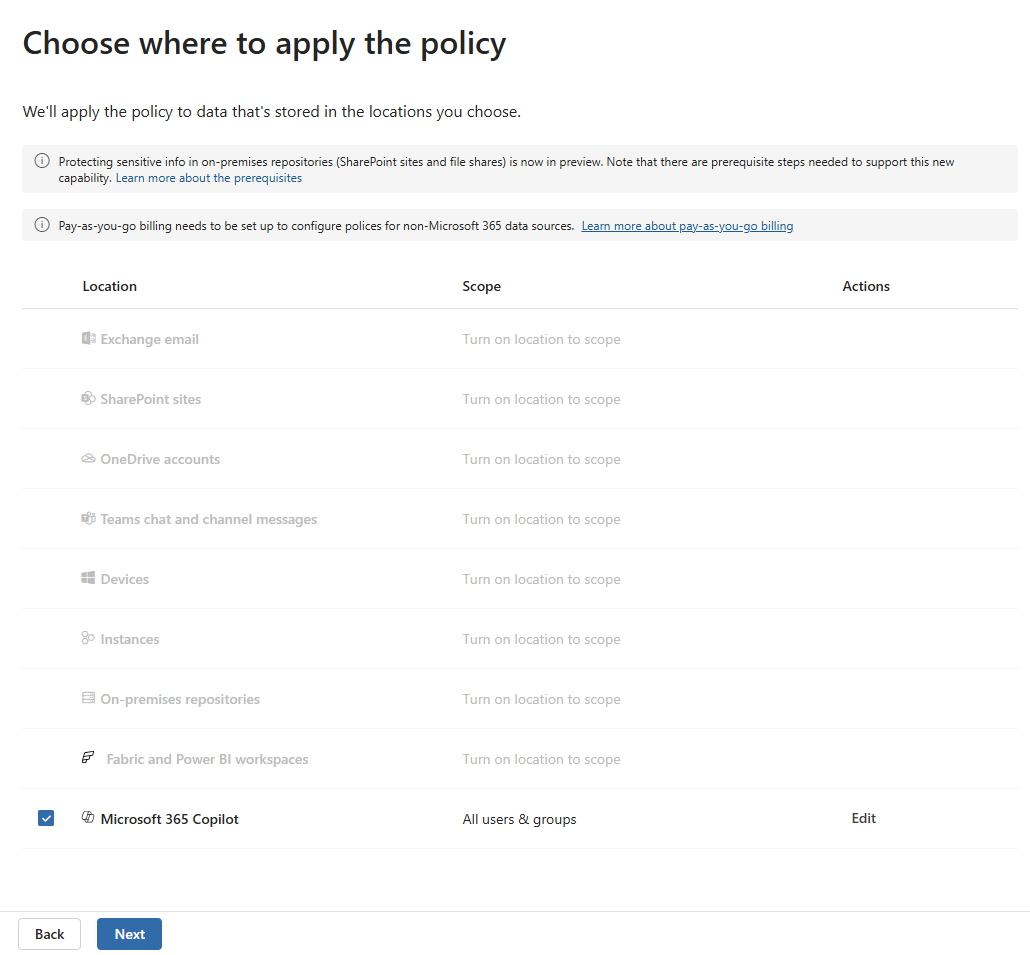
On the Define policy settings page, select to create or customize advanced DLP rules.
On the Customize advanced DLP rules page, select + Create rule.
On the Create rule page:
Give your policy rule a name and optional description.
Under Conditions select + Add condition > Content contains.
In the Conditions section, select Add > Sensitivity labels and choose the sensitivity labels you want to target.
In the Actions section, select + Add an action > Prevent Copilot from processing content.
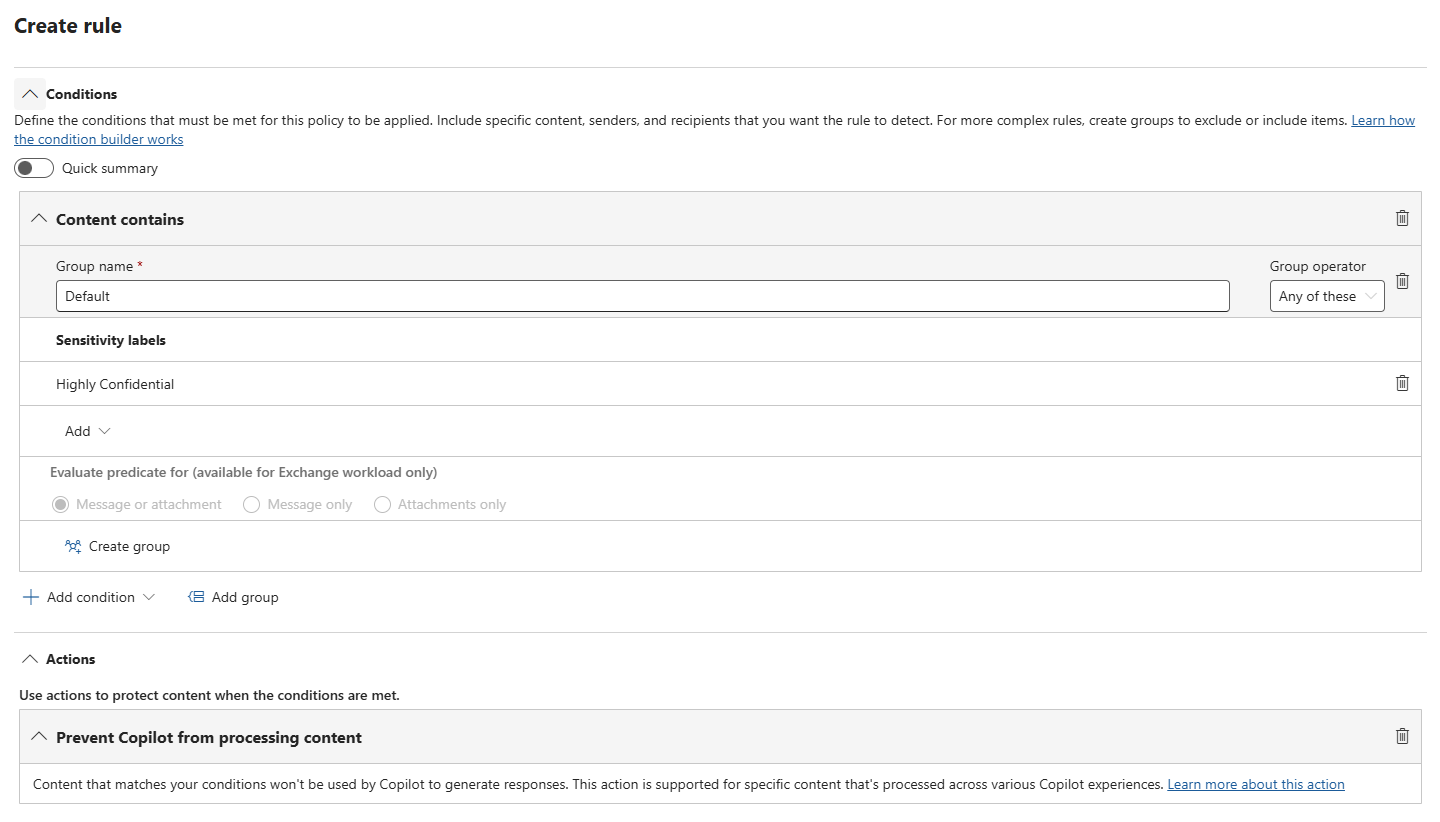
Configure incident reports based on your organization's needs, then select Save at the bottom of the Create rule page.
On the Customize advanced DLP rules page, select Next.
On the Policy mode page, select to create your policy in simulation mode, to enable the policy immediately, or to leave the policy turned off.
Review your policy settings, then create your policy.
Note
Policy updates can take up to four hours to take effect in Copilot experiences.
This policy applies to supported Microsoft 365 apps, including Word, Excel, PowerPoint, Outlook, and Copilot Chat. Emails are included if they were sent on or after January 1, 2025. When the policy is triggered, Copilot excludes the content from summaries but might still cite the item, depending on the user's permissions.
Use DSPM for AI to recommend Copilot-specific DLP
Data Security Posture Management (DSPM) for AI includes a recommendation to create a DLP policy that prevents Microsoft 365 Copilot and agents from processing items with specific sensitivity labels. This is a proactive step that helps limit how sensitive data is used in AI-generated responses.
To create a DLP policy from the DSPM for AI recommendation:
In the Microsoft Purview portal, select Solutions > DSPM for AI.
Select Recommendations.
Select the Protect items with sensitivity labels from Microsoft 365 Copilot and agent processing recommendation.
Review the recommendation, then select Get started.
On the next page, choose the sensitivity labels that you want to protect from Copilot processing. The policy restricts Copilot from using content with these labels in summaries, though the content might still appear in citations.
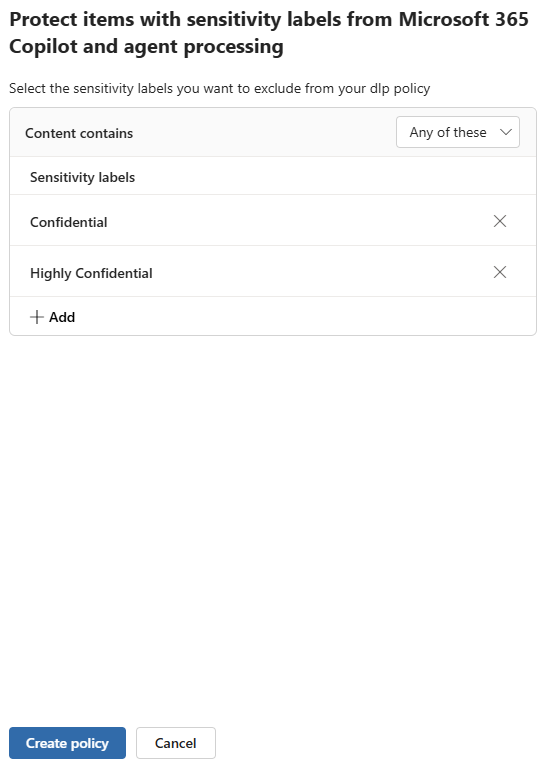
Select Create policy to create the policy in simulation mode.
After it's created, the policy appears in Data Loss Prevention, where you can review simulation results, adjust label selections, and turn on enforcement when ready.
Note
This recommendation requires that your organization has already created and published sensitivity labels in Information Protection.
Complement with endpoint DLP for browser-based AI tools
The Microsoft 365 Copilot policy location only applies to Copilot features within Microsoft 365 apps. Use endpoint DLP to restrict actions such as pasting, typing, or uploading content into browser-based AI tools like Copilot for web or ChatGPT. This helps reduce the risk of sensitive data being shared through those tools.