Note
Access to this page requires authorization. You can try signing in or changing directories.
Access to this page requires authorization. You can try changing directories.
Summary
Azure Cloud Shell is a convenient way to troubleshoot Application Gateway Ingress Controller (AGIC) issues in Azure Kubernetes Service (AKS) and verify that your installation is working correctly. Launch your shell from shell.azure.com or by selecting the following link:

Tip
Consider Application Gateway for Containers for your Kubernetes ingress solution. For more information, see Quickstart: Deploy Application Gateway for Containers ALB Controller.
Test with a simple Kubernetes app
The following steps assume:
- You have an AKS cluster with Advanced Networking enabled.
- You installed AGIC on the AKS cluster.
- You already have an Application Gateway on a virtual network (VNet) shared with your AKS cluster.
To verify that the Application Gateway, AKS, and AGIC installation is set up correctly, deploy the simplest possible app. Run the following commands.
cat <<EOF | kubectl apply -f -
apiVersion: v1
kind: Pod
metadata:
  name: test-agic-app-pod
  labels:
    app: test-agic-app
spec:
  containers:
  - image: "mcr.microsoft.com/dotnet/samples:aspnetapp"
    name: aspnetapp-image
    ports:
    - containerPort: 80
      protocol: TCP
---
apiVersion: v1
kind: Service
metadata:
  name: test-agic-app-service
spec:
  selector:
    app: test-agic-app
  ports:
  - protocol: TCP
    port: 80
    targetPort: 80
---
apiVersion: networking.k8s.io/v1
kind: Ingress
metadata:
  name: test-agic-app-ingress
  annotations:
    kubernetes.io/ingress.class: azure/application-gateway
spec:
  #ingressClassName: azure-application-gateway # according to the AGIC setup guide, annotations are the approach to set the class
  rules:
    - host: test.agic.contoso.com
      http:
        paths:
          - path: /
            pathType: Prefix
            backend:
              service:
                name: test-agic-app-service
                port:
                  number: 80
EOF
Copy and paste all lines at once from the previous script into Cloud Shell. Verify that the entire command is copied, starting with cat and including the last EOF.
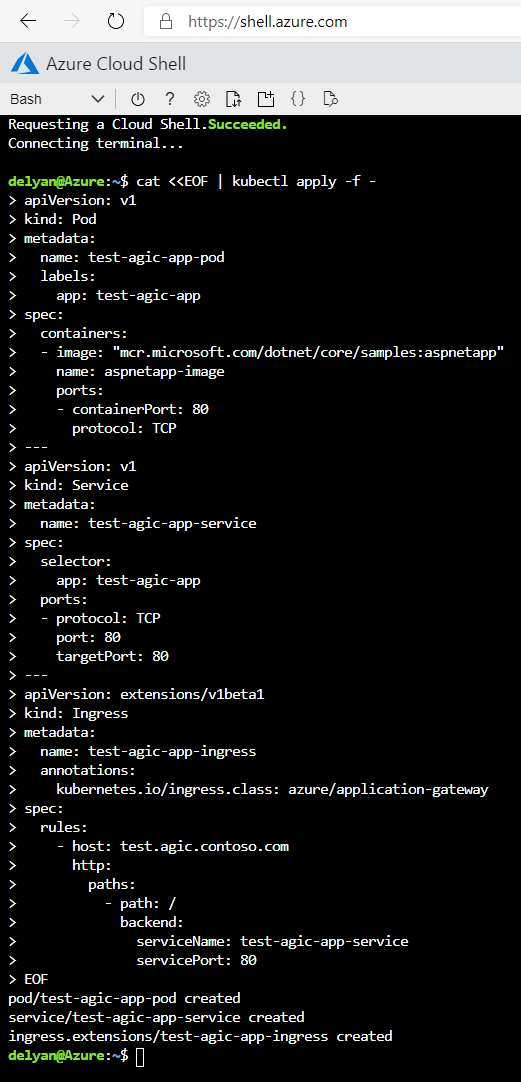
After you successfully deploy the app, your AKS cluster has a new pod, service, and ingress.
Get the list of pods with Cloud Shell using this command: kubectl get pods -o wide. Expect a pod named test-agic-app-pod to be created with an IP address. This address must be within the VNet of the Application Gateway, which is used with AKS.

Get the list of services using this command: kubectl get services -o wide. Expect to see a service named test-agic-app-service.

Get the list of ingresses using this command: kubectl get ingress. Expect an ingress resource named test-agic-app-ingress to be created. The resource has a host name like the following: test.agic.contoso.com.

One of the pods is AGIC. kubectl get pods shows a list of pods, one of which begins with ingress-azure. Get all logs of that pod using the command kubectl logs <name-of-ingress-controller-pod> to verify that you successfully deployed the app. A successful deployment adds the following lines to the log:
I0927 22:34:51.281437       1 process.go:156] Applied Application Gateway config in 20.461335266s
I0927 22:34:51.281585       1 process.go:165] cache: Updated with latest applied config.
I0927 22:34:51.282342       1 process.go:171] END AppGateway deployment
Alternatively, from Cloud Shell, you can retrieve only the lines indicating successful Application Gateway configuration by using the commandkubectl logs <ingress-azure-....> | grep 'Applied App Gateway config in', where <ingress-azure....> is the exact name of the AGIC pod.
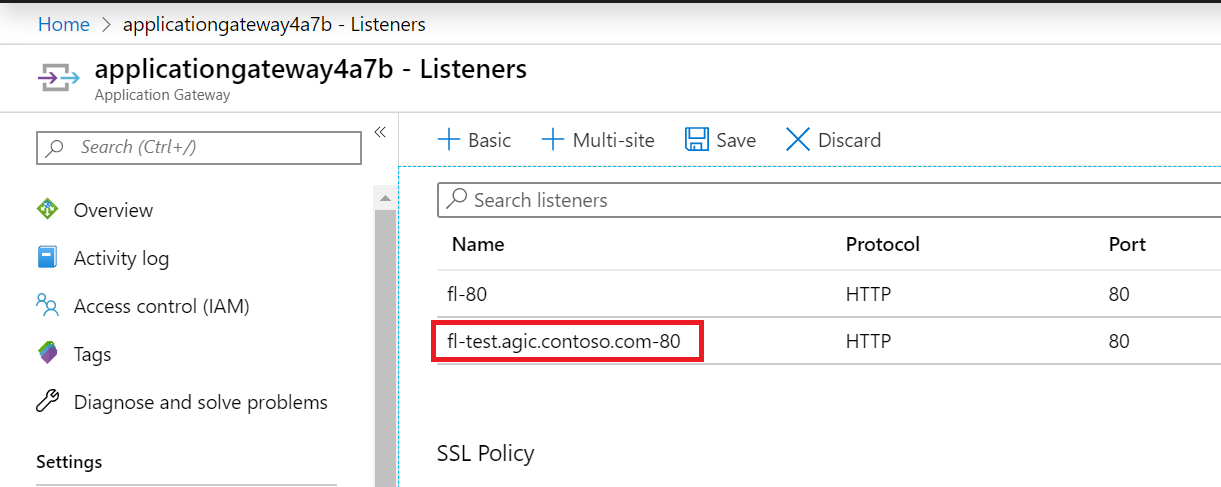
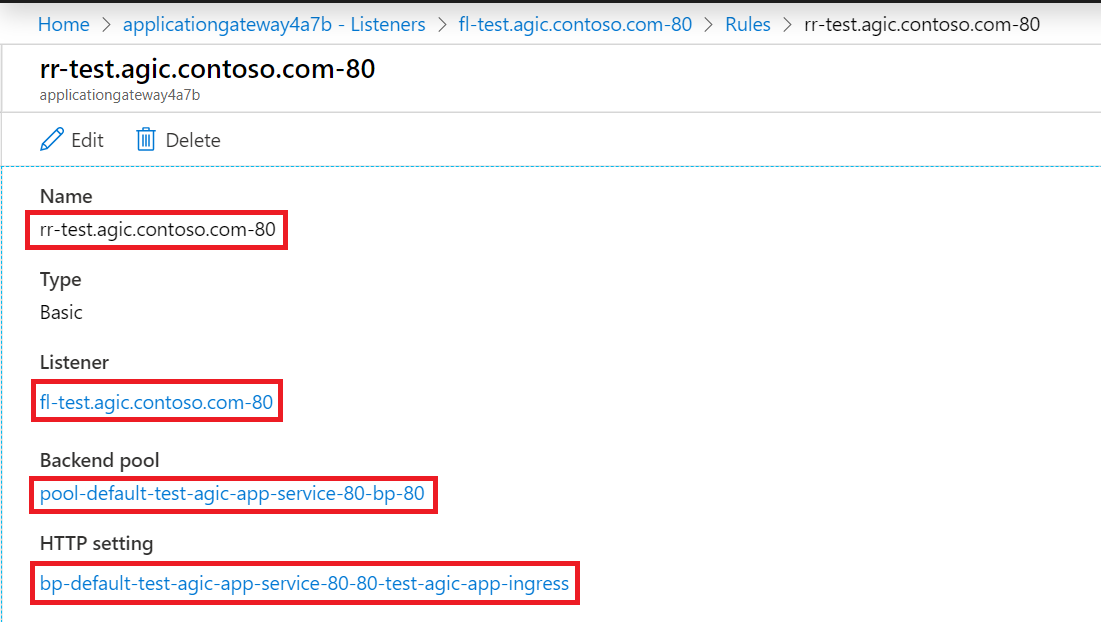
Application Gateway has the following configuration applied:
Listener
Routing Rule
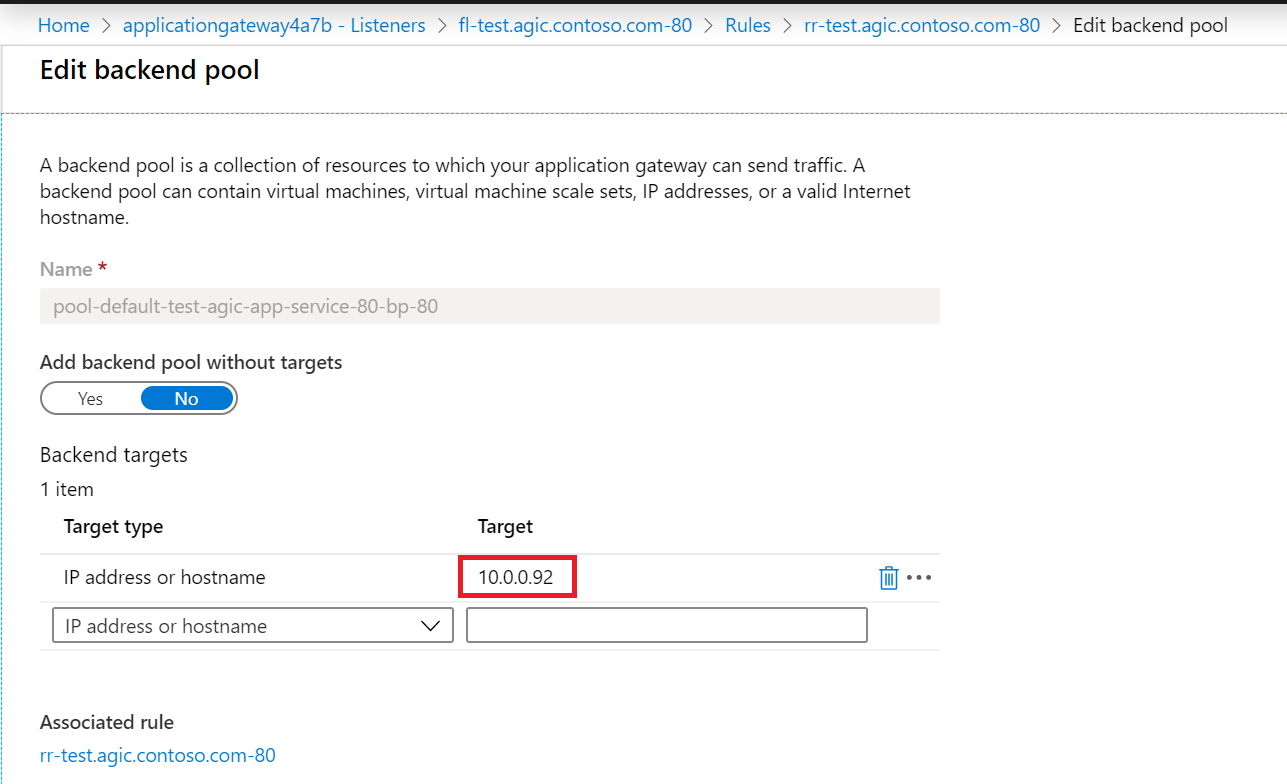
Backend Pool
There's one IP address in the backend address pool and it matches the IP address of the pod you observed earlier by using kubectl get pods -o wide.
Finally, you can use the cURL command in Cloud Shell to establish an HTTP connection to the newly deployed app. Follow these steps:
- Use
kubectl get ingressto get the public IP address of Application Gateway. - Use
curl -I -H 'test.agic.contoso.com' <public-ip-address-from-previous-command>.
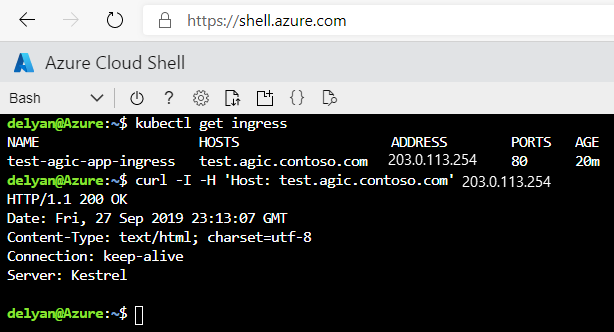
A result of HTTP/1.1 200 OK indicates that the Application Gateway, AKS, and AGIC system is working as expected.
Inspect Kubernetes installation
Pods, services, and ingress
AGIC continuously monitors the following Kubernetes resources:
The following conditions must be in place for AGIC to function as expected:
- AKS must have one or more healthy pods. Verify this configuration from Cloud Shell with
kubectl get pods -o wide --show-labels. If you have a pod with anapsnetapplabel, your output might look like this:
     delyan@Azure:~$ kubectl get pods -o wide --show-labels

     NAME                   READY   STATUS    RESTARTS   AGE   IP          NODE                       NOMINATED NODE   READINESS GATES   LABELS
     aspnetapp              1/1     Running   0          17h   10.0.0.6    aks-agentpool-35064155-1   <none>           <none>            app=aspnetapp
- AKS must have one or more healthy services, referencing these pods via matching
selectorlabels. Verify this configuration from Cloud Shell usingkubectl get services -o wide.
     delyan@Azure:~$ kubectl get services -o wide --show-labels

     NAME                TYPE        CLUSTER-IP     EXTERNAL-IP   PORT(S)   AGE   SELECTOR        LABELS
     aspnetapp           ClusterIP   10.2.63.254    <none>        80/TCP    17h   app=aspnetapp   <none>
- AKS must have Ingress annotated with
kubernetes.io/ingress.class: azure/application-gateway, referencing the previous service. Verify this configuration from Cloud Shell usingkubectl get ingress -o wide --show-labels.
     delyan@Azure:~$ kubectl get ingress -o wide --show-labels

     NAME        HOSTS   ADDRESS   PORTS   AGE   LABELS
     aspnetapp   *                 80      17h   <none>
- View annotations of the previous ingress:
kubectl get ingress aspnetapp -o yaml(substituteaspnetappwith the name of your ingress).
     delyan@Azure:~$ kubectl get ingress aspnetapp -o yaml

     apiVersion: networking.k8s.io/v1
     kind: Ingress
     metadata:
       annotations:
         kubernetes.io/ingress.class: azure/application-gateway
       name: aspnetapp
     spec:
       defaultBackend:
         service:
           name: aspnetapp
           port:
             number: 80
The ingress resource must be annotated with kubernetes.io/ingress.class: azure/application-gateway.
Verify observed namespace
Run the following commands to get an overview of the namespaces and pods in your cluster.
- Get the existing namespaces in your Kubernetes cluster. What namespace is your app running in? Is AGIC watching that namespace? To learn how to properly configure observed namespaces, see Multiple Namespace Support.
    # What namespaces exist on your cluster
    kubectl get namespaces

    # What pods are currently running
    kubectl get pods --all-namespaces -o wide
- The AGIC pod should be in the
defaultnamespace (see columnNAMESPACE). A healthy pod hasRunningin theSTATUScolumn. There should be at least one AGIC pod.
    # Get a list of the Application Gateway Ingress Controller pods
    kubectl get pods --all-namespaces --selector app=ingress-azure
If the AGIC pod isn't healthy (
STATUScolumn from the previous command isn'tRunning), try the following steps:- Get logs to understand why:
kubectl logs <pod-name> - Get logs for the previous instance of the pod:
kubectl logs <pod-name> --previous - Describe the pod to get more context:
kubectl describe pod <pod-name>
- Get logs to understand why:
    # Get all services across all namespaces
    kubectl get service --all-namespaces -o wide

    # Get all ingress resources across all namespaces
    kubectl get ingress --all-namespaces -o wide
- Is your Ingress annotated with:
kubernetes.io/ingress.class: azure/application-gateway? AGIC only watches for Kubernetes Ingress resources that have this annotation.
    # Get the YAML definition of a particular ingress resource
    kubectl get ingress --namespace  <which-namespace?>  <which-ingress?>  -o yaml
- AGIC emits Kubernetes events for certain critical errors. You can view these events in the following ways:
- In your terminal using
kubectl get events --sort-by=.metadata.creationTimestamp - In your browser by using the Kubernetes Web UI (Dashboard)
- In your terminal using
Logging levels
AGIC has three logging levels. Level 1 is the default and shows a minimal number of log lines. Level 5 displays all logs, including sanitized contents of configuration applied to Azure Resource Manager (ARM).
The Kubernetes community has established nine levels of logging for the kubectl tool. In this repository, use three of these levels, with similar semantics as described in the following table.
| Verbosity | Description |
|---|---|
| 1 | Default log level; shows startup details, warnings, and errors |
| 3 | Extended information about events and changes; lists of created objects |
| 5 | Logs marshaled objects; shows sanitized JSON config applied to ARM |
Adjust the verbosity levels through the verbosityLevel variable in the helm-config.yaml file. Increase the verbosity level to 5 to get the JSON configuration dispatched to
ARM
Be sure to also:
- Add
verbosityLevel: 5on a line by itself in helm-config.yaml and reinstall. - Get logs with
kubectl logs <pod-name>.
Sample Helm config file
The following is a sample Helm configuration file:
# This file contains the essential configs for the ingress controller helm chart

# Verbosity level of the App Gateway Ingress Controller
verbosityLevel: 3

################################################################################
# Specify which application gateway the ingress controller manages
#
appgw:
    subscriptionId: <subscriptionId>
    resourceGroup: <resourceGroupName>
    name: <applicationGatewayName>

    # Setting appgw.shared to "true" creates an AzureIngressProhibitedTarget CRD.
    # This prohibits AGIC from applying config for any host/path.
    # Use "kubectl get AzureIngressProhibitedTargets" to view and change this.
    shared: false

################################################################################
# Specify which kubernetes namespace the ingress controller watches
# Default value is "default"
# Leaving this variable out or setting it to blank or empty string would
# result in Ingress Controller observing all accessible namespaces.
#
# kubernetes:
#   watchNamespace: <namespace>

################################################################################
# Specify the authentication with Azure Resource Manager
#
# Two authentication methods are available:
# - Option 1: AAD-Pod-Identity (https://github.com/Azure/aad-pod-identity)
armAuth:
    type: aadPodIdentity
    identityResourceID: <identityResourceId>
    identityClientID:  <identityClientId>

## Alternatively you can use Service Principal credentials
# armAuth:
#    type: servicePrincipal
#    secretJSON: <<Generate this value with: "az ad sp create-for-rbac --subscription <subscription-uuid> --role Contributor --sdk-auth | base64 -w0" >>

################################################################################
# Specify if the cluster is Kubernetes RBAC enabled or not
rbac:
    enabled: false # true/false

# Specify aks cluster related information. THIS IS BEING DEPRECATED.
aksClusterConfiguration:
    apiServerAddress: <aks-api-server-address>
Review Application Gateway activity log
When troubleshooting AGIC problems, check the Application Gateway's activity log in addition to Kubernetes resources. Every time AGIC applies a new configuration, it records a corresponding entry in the activity log in the Azure portal. Reviewing these entries helps you confirm whether configuration updates were successfully applied. It can often reveal gateway-related problems that aren't visible from the Kubernetes side.